
By the end of this page, your workspace is connected to your LINE Official Account. When a friend sends "New product" in LINE, they get an automatic reply and are tagged "Interested in New Products", so later you can message only the people who care about new products. It takes about 30 minutes, half of which is connecting LINE.
Before you begin
- You need a workspace. If you don't have one yet, first create a workspace with an invite code.
- You need admin access to your LINE Official Account and must be able to sign in to the LINE Developers Console.
- Connecting LINE, tags and chatbots, the features used on this page, are available on every plan.
The example below uses the skincare brand "Sunleaf". Every step was actually done in the OakMega manual demo workspace.
What a new workspace starts with
When a workspace is created, the system sets up two LINE chatbots that start working as soon as LINE is connected. The table below shows what they contain when the workspace is created in a language other than Chinese (Chinese workspaces get a Chinese version):
| Chatbot | Where | When it replies | Reply |
|---|---|---|---|
| Welcome Message | Basic chatbots › Welcome message bots | Someone adds your LINE Official Account as a friend | Welcome, (the friend's LINE name)! |
| My First Chatbot | Keyword chatbots › Default Folder | A friend's text equals "My First Chatbot" | This is a default template. |
You can edit both chatbots right away, or turn them off if you don't need them.
1. Connect your LINE Official Account
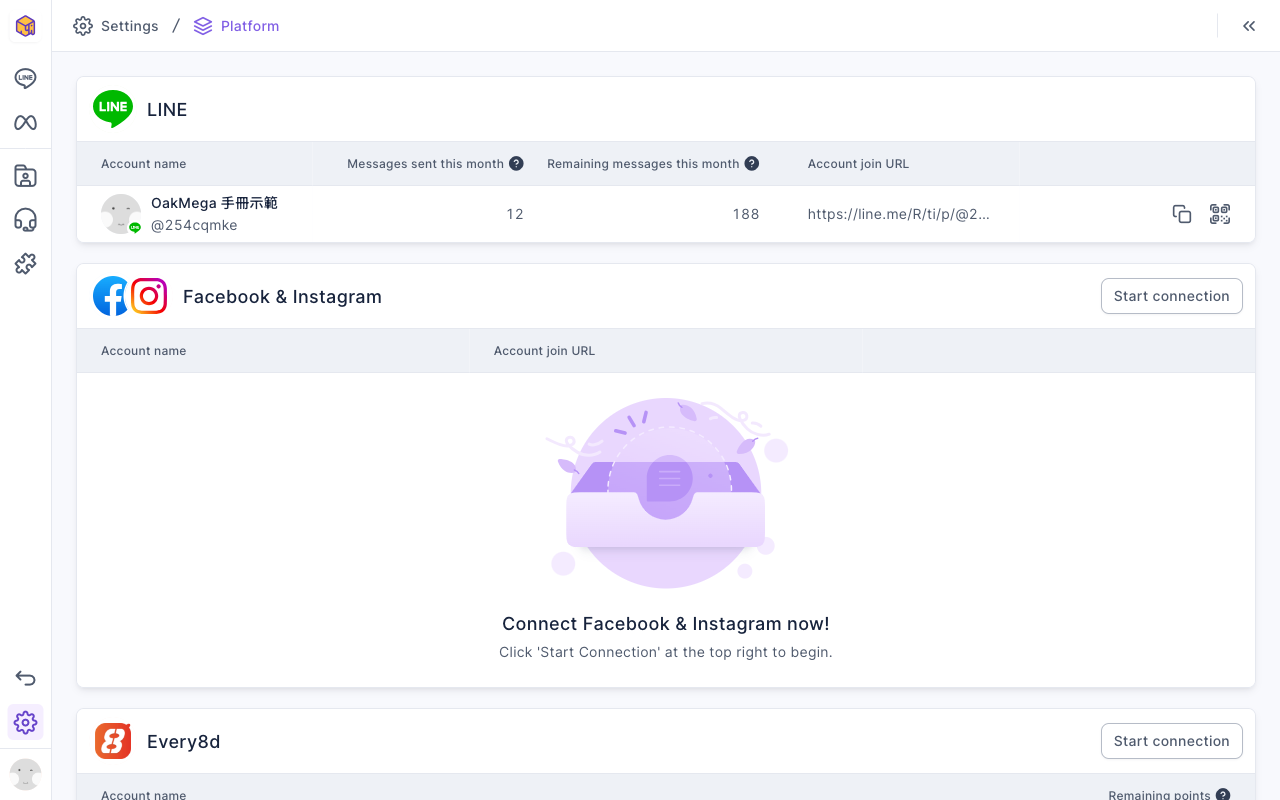
Click Settings in the navigation bar, choose Communication Platform Settings, click Start connection in the LINE section and follow the on-screen steps across the LINE Official Account Manager and the LINE Developers Console. For all 14 steps, see Connect a LINE official account.
Once connected, the LINE section lists your official account with Messages sent this month, Remaining messages this month and the Account join URL.
2. Try the default chatbots
First make sure LINE is working: add your own official account as a friend on your phone and send "My First Chatbot" in the chat.
- When you add the friend, you receive "Welcome, (your LINE name)!".
- After you send "My First Chatbot", you receive "This is a default template."
If both arrive, OakMega is already replying on behalf of your official account. If they don't, see A chatbot isn't replying.
Under LINE › Chatbot, click Default Folder to find this chatbot. The image below is a newly created workspace: Default Folder holds only "My First Chatbot", its status is on, and its trigger keyword is also "My First Chatbot".

3. Create your first tag
Tags are how OakMega groups friends: posting articles, setting up Richmenus and assigning conversations to agents can all target "only people with a certain tag". Start with one called "Interested in New Products":
- Click Member & Tag in the navigation bar and choose Tag Management.
- Click Add at the top right.
- Set Tag Name to "Interested in New Products", set Select Folder to "Default Folder", and keep Strength Tag as the type.
- Click Add.
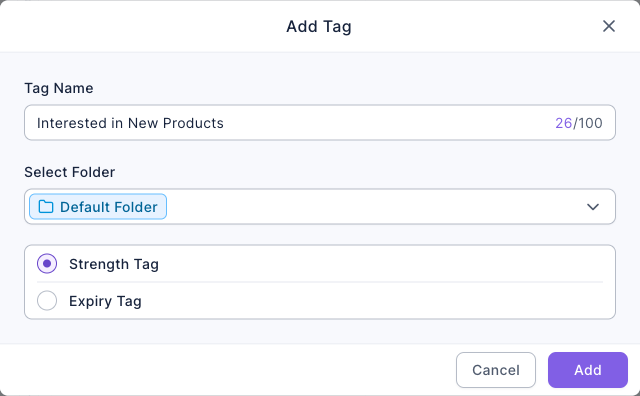
A Strength Tag stays in effect once applied and records a strength. An Expiry Tag is removed automatically after the time you set, which suits short-term behavior such as "asked in the last 7 days". For the difference between them and the Free plan's limits, see Create and manage tags.
4. Build an auto-reply that applies a tag
Next, build a chatbot: when a friend sends "New product", it replies with the launch details and applies the tag you just created.
- Under LINE › Chatbot, click Default Folder, then click Add at the top right.
- Set Chatbot Name to "New product inquiry" and keep Chatbot Status on.
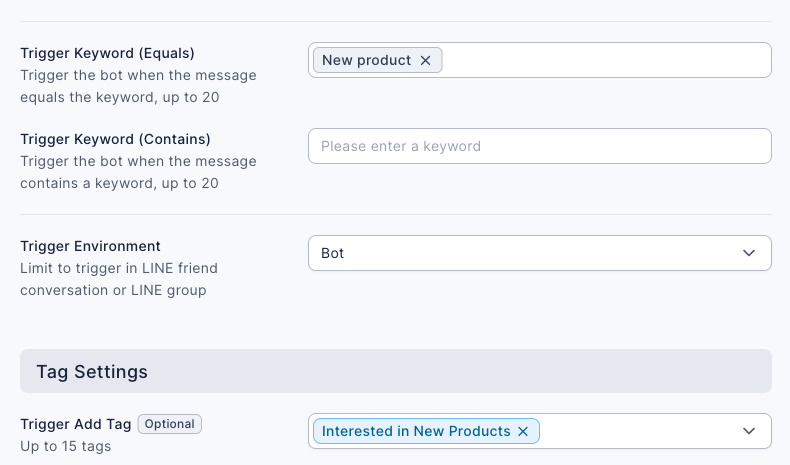
- In Trigger Keyword (Equals), type "New product" and press Enter to add it.
- Scroll down to Tag Settings and choose "Interested in New Products" under Trigger Add Tag.
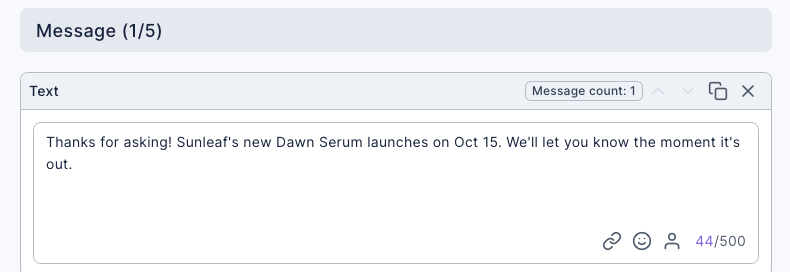
- Switch to the Edit Message tab, click Text and enter the reply.
- Click Save at the top right.
The image below is the lower half of the chatbot settings: Trigger Keyword (Equals) is "New product", Trigger Environment is Bot (one-on-one chats with LINE friends), and Trigger Add Tag is "Interested in New Products".
The image below is the text message added on the Edit Message tab: "Thanks for asking! Sunleaf's new Dawn Serum launches on Oct 15. We'll let you know the moment it's out."
Equals triggers only when the friend's text is exactly the keyword. Contains triggers whenever the message includes the word, so "When is the new product out?" would trigger it too. Start with Equals; it's less likely to reply by mistake. For the other settings (trigger period, weekly active hours, limit tags), see Set up a LINE chatbot.
5. Check on your phone
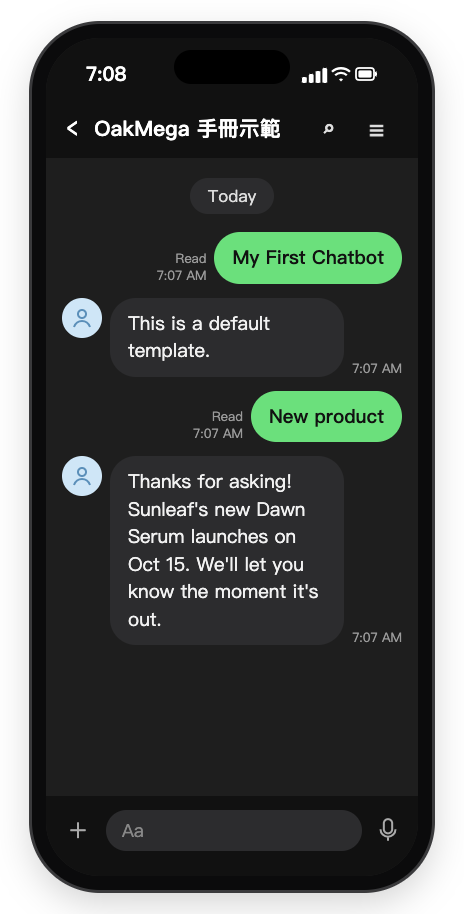
On your phone, send "New product" in the official account's chat, and you'll receive the reply you just set up. The image below is a mockup drawn from the actual chatbot settings: first sending "My First Chatbot" returns the default "This is a default template.", then sending "New product" returns the New product inquiry reply.
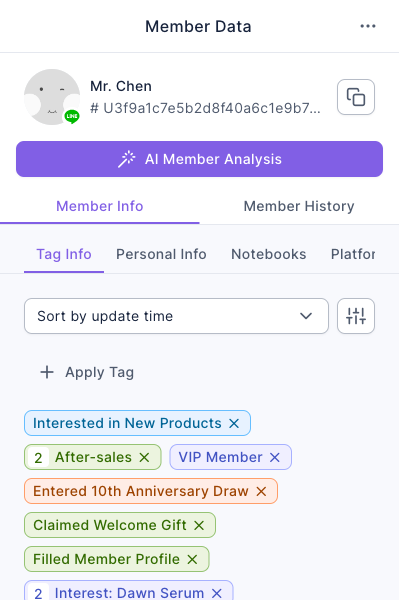
Back in OakMega, go to LINE › Member Management and click your own name. Under Tag Info in Member Data on the right, you'll see "Interested in New Products". In Tag Management, the Total Number of Tagged People for "Interested in New Products" also becomes 1.
What you can do next
Once people are tagged, you can do more for that group:
| What you want to do | Feature | See |
|---|---|---|
| On launch day, notify only people tagged "Interested in New Products" | Tag filter in Post Article | Post articles to LINE friends |
| Let friends ask about new products with a button instead of typing | Richmenu | Set up LINE Richmenus |
| Hand friends who want a real person over to an agent | Chatbot's transfer to agent, Service Center | Your first week with Service Center |
| See more ready-to-follow setups | Recipes | Give new friends a pass and tag them when they join |
FAQ
I sent the keyword but got no reply
Check that the chatbot status is on, that the keyword has no extra spaces, and that you're in a one-on-one chat (with the trigger environment set to Bot, it doesn't trigger in LINE groups). For other causes, see A chatbot isn't replying.
I got the reply, but the tag wasn't applied
Make sure a tag is selected under Trigger Add Tag and that you clicked Save. The tag count can take a few seconds to update; see A member didn't get tagged.