
By the end of this article you'll be able to decide whether to get Service Center notifications in the APP, which organizations to hear from, and which events should notify you.
Before you start
- Notification settings are your own. They only affect what you receive, need no extra permissions and don't change your teammates' notifications.
- Notification settings are separate for each workspace. Turning notifications on in workspace A doesn't turn them on in workspace B.
- These notifications all come from the Service Center, so you need to be added to this workspace's Service Center as an agent before you can pick organizations or get notified about conversations. If you aren't an agent yet, ask a workspace admin to add you to the Service Center first.
Set up APP notifications
- Click Settings at the bottom of the navigation bar, then click Notification Settings under Personal Settings.
- Turn on the switch next to Service Center Notifications. The other settings only appear once it's on.
- Under Receiving Organizations, choose All Organizations or Specific Organizations. If you choose Specific Organizations, pick at least one organization from the Please select organizations menu below it.
- Under Notification Types, tick the notifications you want: Member Messages and/or Support Status Changes. Tick at least one.
- Click Save in the top-right corner. When Save successfully appears, you're taken back to the Settings page.
The screenshot below shows the Notification Settings page with Service Center Notifications turned on. The switch is at the top. Receiving Organizations offers All Organizations and Specific Organizations. The note in the middle explains that without permission for every organization, you only get notifications from the ones you have permission for. At the bottom, Notification Types has Member Messages ticked. Cancel and Save are in the top-right corner.
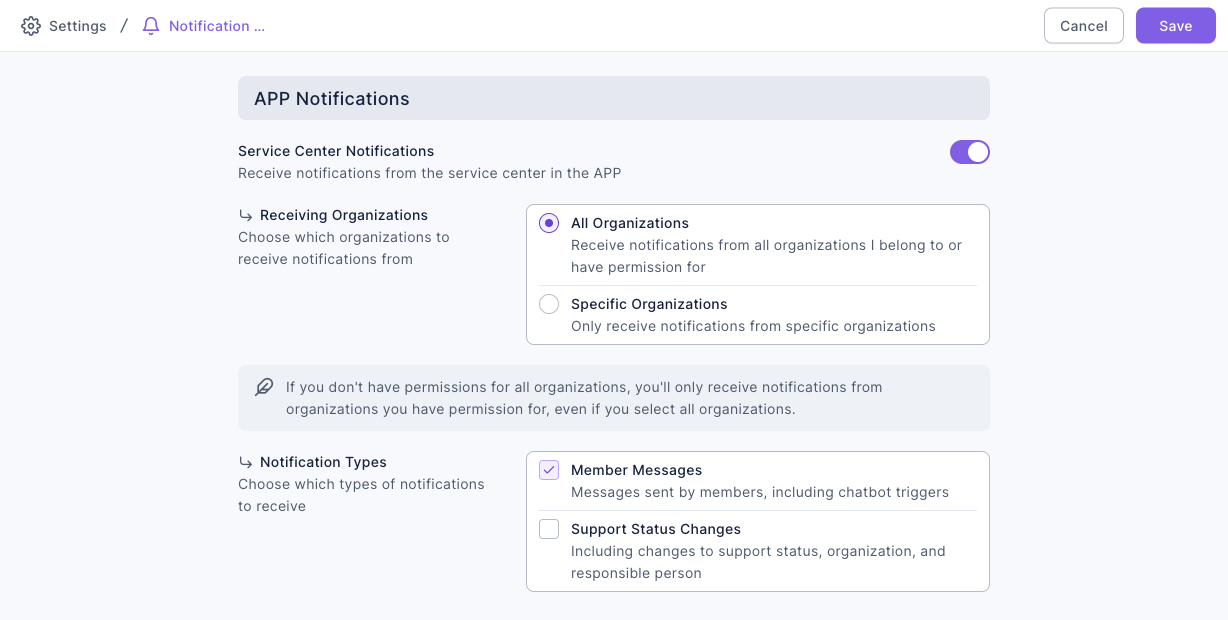
The animation below walks through the settings. It turns on the Service Center Notifications switch and the options expand below. It clicks Specific Organizations, and an organization menu appears. It switches back to All Organizations, then ticks both Member Messages and Support Status Changes.
The first time you open this page, Service Center Notifications is off. When you turn it on, the defaults are All Organizations with only Member Messages ticked.
How it works
The two notification types
This table compares when each notification type is sent:
| Notification type | When you're notified | Best for |
|---|---|---|
| Member Messages | When a member sends a message, including messages that trigger a chatbot | Agents who reply to customers |
| Support Status Changes | When a conversation's support status, organization or assigned agent changes | Managers and team leads who track assignments and progress |
Member Messages includes messages that trigger a chatbot, so you'll be notified even when a chatbot has already replied automatically. In a busy workspace, consider receiving notifications from Specific Organizations only, so you aren't overwhelmed.
Which organizations you hear from
Receiving Organizations decides which Service Center organizations' conversations notify you. Either way, you're only notified about organizations you have permission to view:
| Option | Organizations you're notified about |
|---|---|
| All Organizations | Every organization you belong to or have permission to view. |
| Specific Organizations | Only the ones you select. The menu only lists organizations you can view, and you must pick at least one. |
Which organizations appear in the menu depends on your role permissions in the Service Center. If you can only view the organizations you belong to, you can only pick those. If you can only view other organizations, you can only pick those. So the menu can look different for each person in the same workspace.
FAQ
This field is required
This appears in two cases: you chose Specific Organizations but didn't select any organization, or you didn't tick any Notification Types. Fix the missing choice, then click Save.
The Specific Organizations menu is empty
You're not a Service Center agent in this workspace yet, or your Service Center role doesn't let you view any organization. Ask a workspace admin to add you to the Service Center and give you permission to view organizations.
I chose All Organizations but don't get notifications from one of them
You don't have permission to view that organization. The note on the page says: "If you don't have permissions for all organizations, you'll only receive notifications from organizations you have permission for, even if you select all organizations." If you need it, ask an admin to adjust your Service Center role.
I changed settings but left without saving
When you leave, you'll see Leave the notification settings page?. If you leave, your changes aren't kept. To keep them, stay on the page and click Save.