
By the end of this article you'll be able to add teammates to Service Center as agents, give each one the right role, and create organizations so conversations reach the right people.
Before you start
- Only workspace admins can open Service Center Setting. Other members don't see the entry point on the Service Center page.
- Anyone you add to Service Center must already be a member of this workspace. If a teammate isn't in the workspace yet, an admin needs to invite them first.
- People who aren't agents yet see "Your account has not been added as an agent" when they open Service Center. The first step below fixes that, and admins can add themselves too.
Three basic concepts
Service Center Setting has three tabs: Agent, Role and Organization. This table explains what each one is:
| Tab | What it is | What it decides |
|---|---|---|
| Agent | People who can use Service Center, picked from workspace members | Who can open Service Center, and how many agent seats are used |
| Role | A set of permissions, such as "Manager" or "Agent" | Which conversations this person can see and handle |
| Organization | A group of agents who handle the same kind of conversations, such as "VIP Support" | Which group a conversation is assigned to |
Each agent has one role and can belong to several organizations. A Service Center organization isn't the same as a workspace: one workspace can have many organizations.
Open Service Center Setting
- In the navigation bar, click Service Center, then choose Service Center.
- Click the settings button in the top-right corner of the page and choose Service Center Settings. If you're not an agent yet, a Service Center Settings button appears in the middle of the page instead.
Add an agent
- On the Agent tab, click Create Agent in the top-right corner.
- Under Select OakMega Workspace Agent, choose the person to add. The list only shows workspace members who aren't agents yet.
- Under Agent Role, choose a role, for example "Manager" or "Agent".
- Click Confirm. When Created successfully appears, the person shows up in the agent list.
The animation below shows adding an agent. It clicks Create Agent to open the dialog, picks a person under Select OakMega Workspace Agent, keeps "Supervisor" as the agent role, and moves the cursor to Confirm.
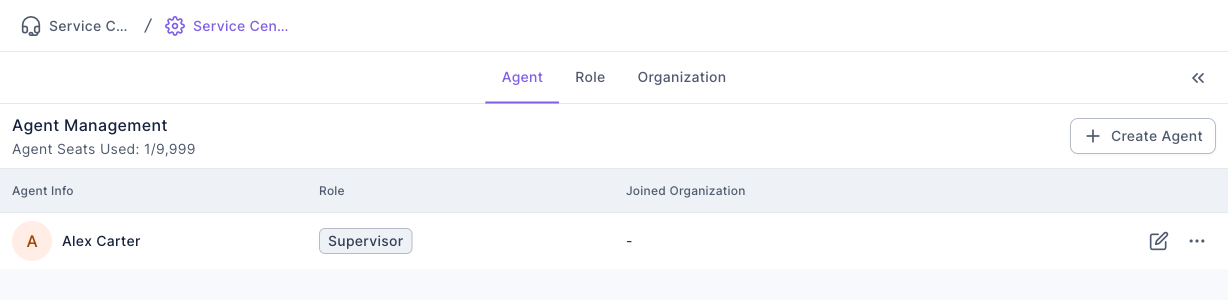
The screenshot below shows the Agent tab after the agent has been added. Agent Seats Used at the top shows how many seats are used and available. Each row in the list is one agent, with Agent Info, Role and Joined Organization. The new agent isn't in any organization yet, so Joined Organization shows "-".
Create an organization
- Switch to the Organization tab and click Create Organization.
- On the Organization Info tab, enter an Organization Name (required, up to 100 characters, and it can't match another organization's name).
- Under Organization Members, click Add Agent, choose agents in the Agent menu, decide whether to turn on Auto Distribute to Agent, then click Confirm.
- If needed, set up the Distribute Condition, Automation and Avatar and Name tabs (see "The other organization tabs" below).
- Click Save in the top-right corner. When Create organization successful appears, you're taken back to the organization list.
The animation below shows the first half of creating an organization. It types the name "VIP Support", clicks Add Agent, picks an agent in the dialog, keeps Auto Distribute to Agent on, and clicks Confirm. The agent then appears in the Organization Members list. You still need to click Save in the top-right corner to actually create the organization.
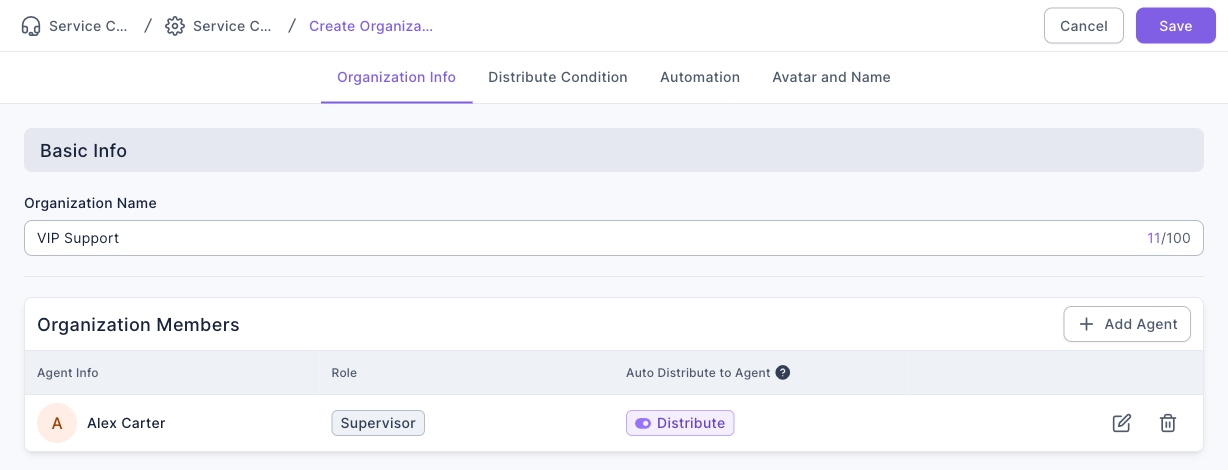
The screenshot below shows the filled-in new organization page. The four tabs across the top are Organization Info, Distribute Condition, Automation and Avatar and Name. The organization name is "VIP Support", and the Organization Members list shows the agent just added, with the role Supervisor and Auto Distribute to Agent set to "Distribute". Cancel and Save are in the top-right corner.
The other organization tabs
Besides Organization Info, creating or editing an organization has three more tabs. This table shows what each one covers:
| Tab | What you set |
|---|---|
| Organization Info | Organization name, agents, and whether each agent gets Auto Distribute to Agent |
| Distribute Condition | Whether to Accept System Automatic Distribution, and which conversations come here based on Assigned Account and Assigned Tag |
| Automation | AI Agent automation, automatic status changes when an agent or member sends a message, Automatically Close After Resolved, and whether to change organization after closing |
| Avatar and Name | Whether agents' own avatar and name are shown in the LINE Official Account or Messenger when they reply |
How it works
The default organization
Every Service Center has a Default Organization. A conversation goes to it when no regular organization matches. If several regular organizations match, the multiple-match setting decides the result. That's why:
- The default organization can't have distribution conditions and can't be deleted.
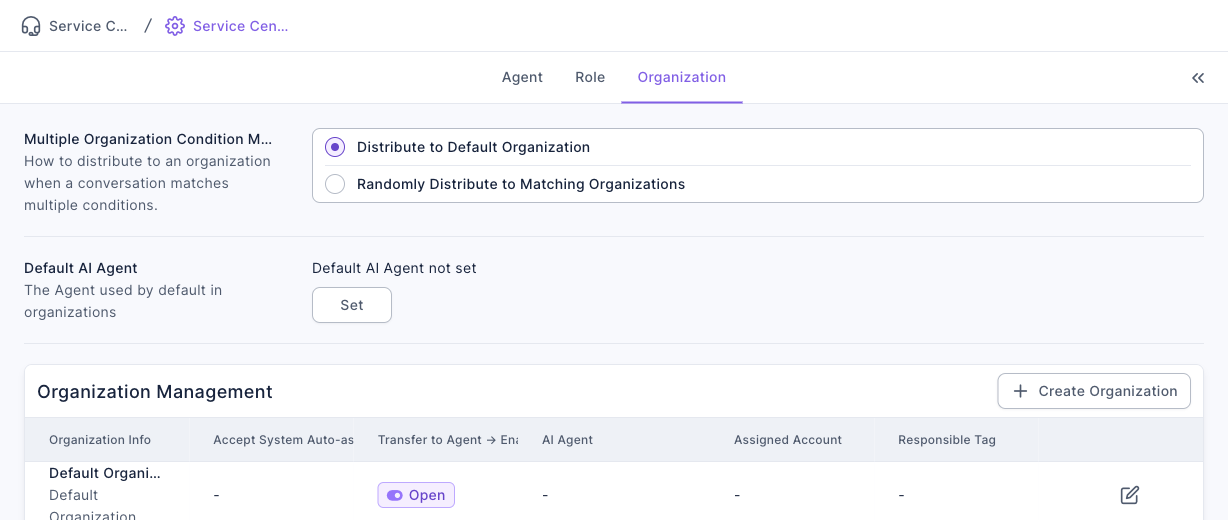
- Multiple Organization Condition Match at the top of the Organization tab decides what happens when a conversation matches several organizations: Distribute to Default Organization or Randomly Distribute to Matching Organizations.
The screenshot below shows the Organization tab. At the top are the two Multiple Organization Condition Match options. In the Organization Management list below, the default organization is labeled as such, with columns for automatic distribution, whether AI Agent is turned on when a conversation is transferred to an agent, and the assigned account and tag.
Roles and permissions
A role decides which conversations an agent can see and handle. Permissions come in two parts:
- Joined organization permissions: conversations in the agent's own organizations, split into Assigned to me, Assigned to others and Unassigned.
- Other organization permissions: conversations in organizations the agent doesn't belong to, split into Assigned to others and Unassigned.
On the Role tab you can Create Role and use Quick apply to load the permissions of Default supervisor or Default agent in one click, then fine-tune them.
Agent seats
Agent Seats Used shows used and available seats. Each agent you add uses one seat. When seats run out, you'll see Service Seats Full. To add more people, contact your OakMega sales representative.
Deleting agents, organizations and roles
Deleting doesn't remove ongoing conversations, but it changes who or which organization handles them. This table summarizes the effect of each, matching the text in the confirmation dialogs:
| Delete | What happens |
|---|---|
| An agent | They're no longer responsible for any conversations. Conversations keep their status and stay in the organization, but aren't assigned to them. |
| An organization | All its conversations move to the default organization, keep their status, and lose all assigned agents. |
| A role | Its permission settings are removed. A role that still has members can't be deleted. |
| An agent from an organization | They no longer handle this organization's conversations. Conversations keep their status and stay in the organization, but lose the assigned agent. |
To delete, click "⋯" at the right of the row, choose Delete, then click Confirm in the dialog.
FAQ
Your account has not been added as an agent
You're not an agent in this workspace yet. Ask an admin to add you using the "Add an agent" steps. If you're an admin, you can add yourself.
No Available Workspace Agents
The message reads "All workspace agents have been added to the service center." If the person isn't a workspace member yet, invite them to the workspace first, then come back and add them.
Service Seats Full
All agent seats are in use. You can delete agents who no longer use Service Center, or contact your OakMega sales representative for more seats.
Can't delete a role with members
Some agents still have this role. On the Agent tab, change those agents to another role first, then delete this one.