
After reading this, you'll be able to put your brand name in your web tools' URLs and add your brand's favicon, so members can tell at a glance that an approved page, form or pass is really yours.
Before you start
- Only workspace owners can change these settings: the Workspace Settings section on the Settings page, which contains Web-based Tool Settings, is visible only to owners.
- Changing the subdomain breaks every old URL. Links you've already sent and printed QR codes will stop working, so decide before your campaign starts.
The Web-based Tool Settings page
Click Settings at the bottom of the navigation bar, then Web-based Tool Settings under Workspace Settings.
The screenshot below shows Domain Setting. Subdomain shows the current subdomain and an Edit Subdomain button; Favicon (optional) shows the current icon, with replace and delete icons above it.
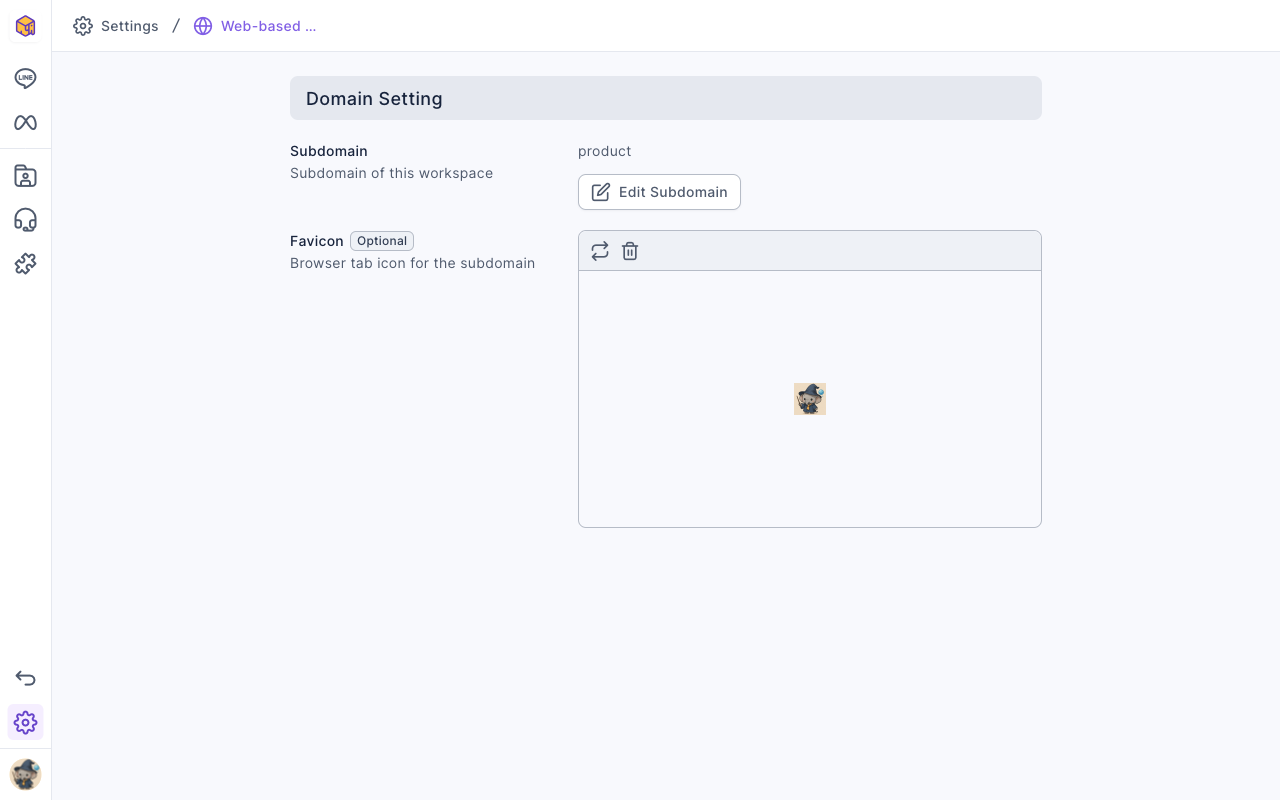
Web tool URLs are always subdomain + .oakmega.site. For example, with the subdomain yourbrand, a pass URL looks like https://yourbrand.oakmega.site/pass/….
Change the subdomain
- Click Edit Subdomain to open the Edit Subdomain window.
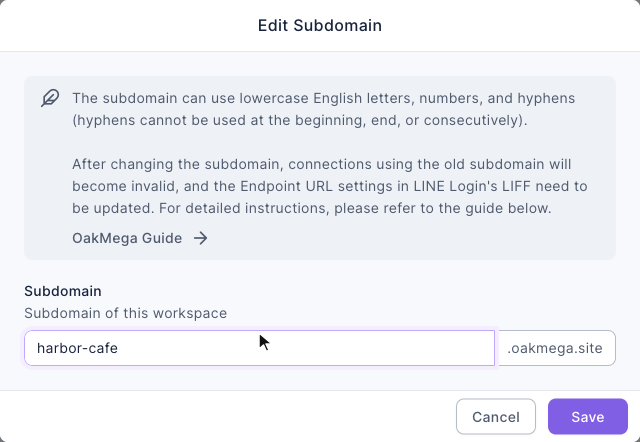
- Type the new name under Subdomain; ".oakmega.site" is added after it automatically.
- Click Save and confirm in the Confirm Subdomain Change? window. When you see Edited successfully, you're done.
The animation below opens the window and first types "Harbor--Cafe". Because of the capital letters and the double hyphen, "Please enter a valid Subdomain format" appears under the field; changing it to "harbor-cafe" clears the message. (The demo doesn't save.)
The screenshot below shows the Edit Subdomain window. The note at the top explains the naming rules and reminds you that old links stop working and the Endpoint URL of the LIFF in LINE Login needs updating.
Subdomain naming rules
| Rule | Details |
|---|---|
| Allowed characters | Lowercase letters, numbers and hyphens "-" |
| Hyphens | Not at the start or end, and not twice in a row (for example my--shop) |
| Length | Up to 63 characters |
| Must be unique | Names already used by another workspace or reserved by the system can't be used; you'll see "Failed to Modify Subdomain: Name or Item Duplicate" |
What happens after you change it
- Every old URL stops working. Links to approved pages, forms, Booking Center, passes and so on that use the old subdomain no longer open. Replace any links you've put in post articles, Richmenus or chatbots.
- The LIFF URL for LINE login is updated too. If the workspace is connected to LINE, the system also updates the LIFF URL used by web tools. The interface also reminds you to check the LIFF Endpoint URL in LINE Login; if members get an error when logging in to a web tool with LINE, check it in LINE Developers.
Upload a favicon
The favicon is the small icon on browser tabs and bookmarks.
- Click the upload area under Favicon, or drag an image onto it.
- Choose a PNG image that is exactly 32 × 32 px and no larger than 10 MB. Other dimensions are rejected, even if the image is square.
- When the upload finishes, you'll see Edited successfully and the icon appears in the preview.
To change it, click the replace icon at the top left of the preview and upload again; to remove it, click the delete icon and you'll see Deleted successfully.
How it works
The subdomain is shared by every web tool in your workspace. Approved pages, forms, Booking Center and passes use it to generate their URLs. Changing it does not redirect old URLs to the new ones. The favicon changes only the icon shown on browser tabs and bookmarks; it does not change the URLs. If your workspace is connected to LINE, changing the subdomain also updates the web tools' LIFF URL. You still need to replace links you've already sent or printed.
FAQ
Please upload a 32px x 32px favicon image
The image is not exactly 32 px wide and 32 px high. Resize it to 32 × 32 px, save it as a PNG and upload it again. Renaming a file to .png does not change its dimensions.
Please enter a valid Subdomain format
The subdomain contains capital letters, spaces, underscores or other symbols, or a hyphen at the start, at the end or twice in a row. Use only lowercase letters, numbers and single hyphens.
Failed to Modify Subdomain: Name or Item Duplicate
Another workspace already uses this name, or it's reserved by the system. Try another name, for example by adding a region or product line.
I changed the favicon but the browser still shows the old one
Browsers cache favicons. Refresh the page, clear the cache, or check in a private window.