
By the end of this article you'll be able to turn a campaign page, website or product page into a deep link, share it in LINE messages or print it as a QR code, and then check the click statistics and tag the friends who clicked.
Before you start
- Available on all plans. The Free plan allows up to 10 deep links.
- You need Deep Link permission. View Only lets you browse and see the statistics; to create, edit, move or delete links you need Editable, otherwise the buttons show No Edit Permission.
- To tag the people who click, the workspace must first be connected to a LINE Official Account.
Deep links at a glance
In the navigation bar, click Link Tool and choose Deep Link.
The screenshot below shows the Deep Link page. On the left are All Deep Links and Folder. In the middle are the deep links in the current folder. Click a link, and Deep Link Info on the right lists the original URL and the two deep link URLs.
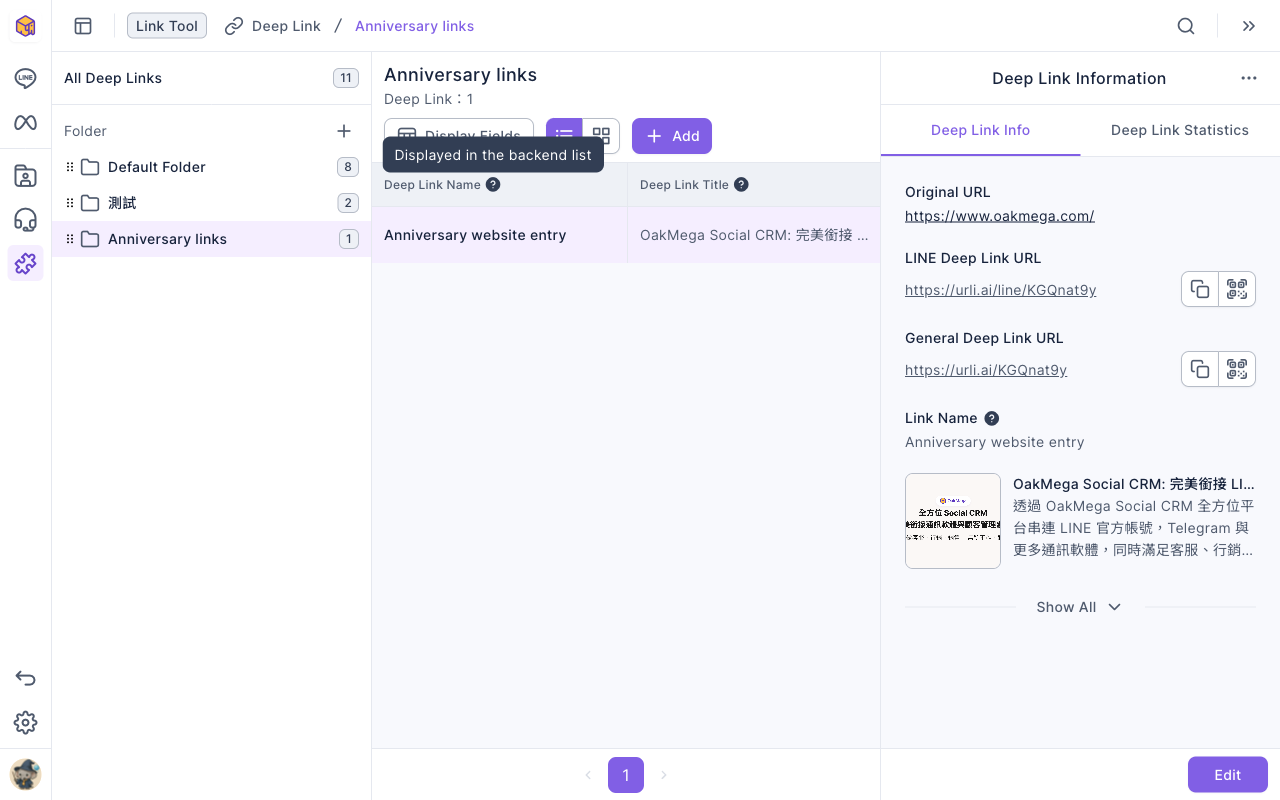
Every deep link has two URLs. Pick the one that fits where you're sharing it:
| URL | Format | Best for |
|---|---|---|
| LINE Deep Link URL | https://urli.ai/line/code | Sending to LINE friends. People log in with LINE when they click, so OakMega records who clicked and can apply tags |
| General Deep Link URL | https://urli.ai/code | Websites, social posts, print. No login; only click counts are recorded |
The buttons next to each URL copy it or show its QR code.
Create a deep link
- On the left, click the folder you want the link in, then click Add in the top-right.
- In Enter the Original URL, paste the URL you want to send people to and click Confirm. OakMega fetches the page's title, description and thumbnail automatically.
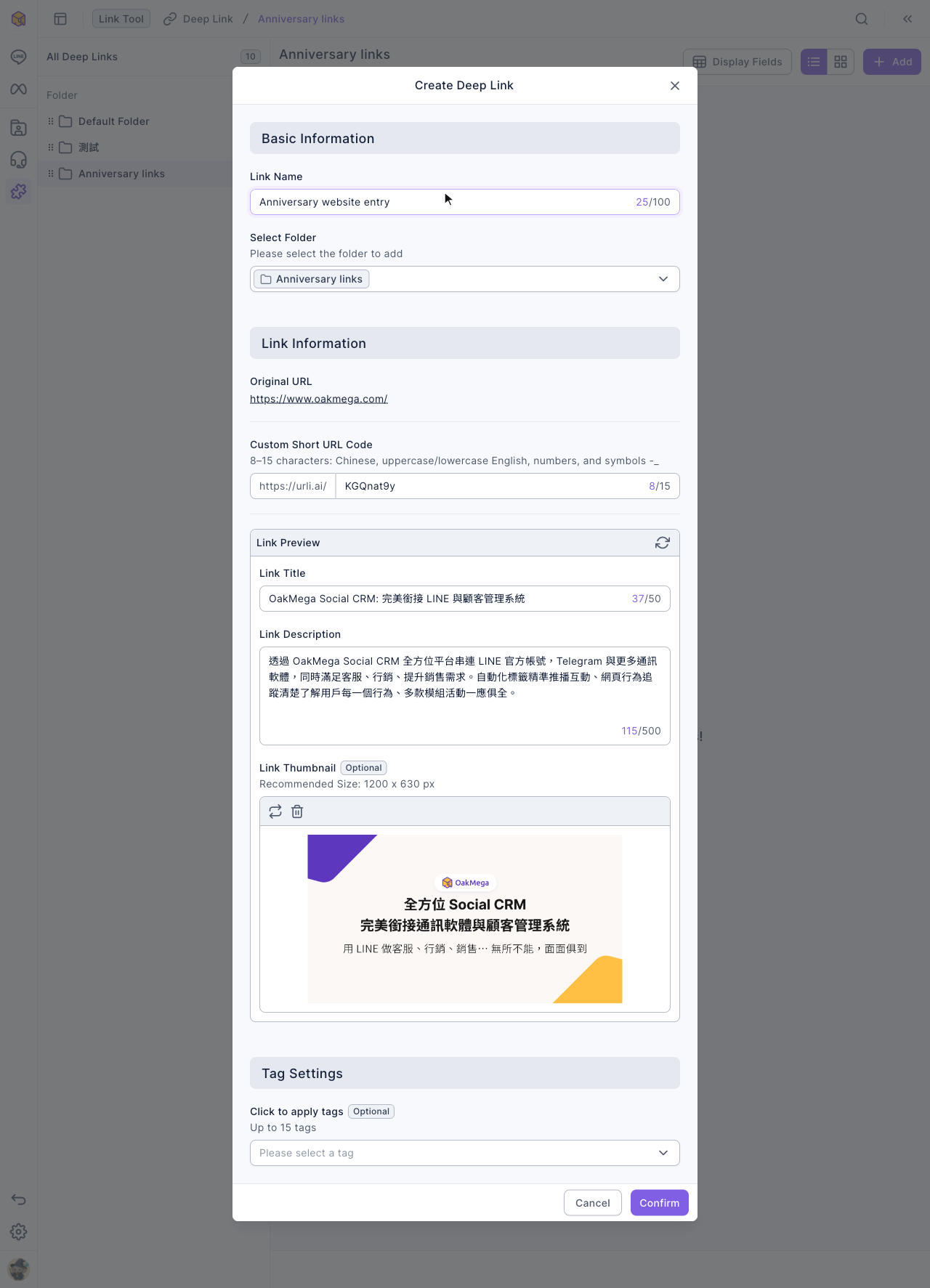
- In Create Deep Link, enter a Link Name (up to 100 characters); this is the name shown in the list. Check Select Folder.
- A Custom Short URL Code is generated for you. For a memorable URL, replace it with your own code (8–15 characters: Chinese, uppercase/lowercase English, numbers and the symbols - and _). If the code is taken you'll see Item name duplicate.
- Check the Link Preview: the Link Title (up to 50 characters), Link Description (up to 500 characters) and Link Thumbnail (1200 x 630 px recommended) are what people see when the link is shared, and you can edit them. The refresh icon in the top-right fetches them again.
- If needed, choose tags under Click to apply tags (up to 15).
- Click Confirm. You'll see Created successfully.
The animation below clicks Add in the Anniversary links folder, enters the original URL https://www.oakmega.com/, and after Confirm the page's title and description appear; the link name is then changed to "Anniversary website entry".
The screenshot below shows the completed Create Deep Link window: basic information, link information (original URL and custom short URL code), link preview and tag settings, from top to bottom.
Read deep link statistics
Click a deep link and switch to Deep Link Statistics on the right:
- Deep Link History Data: Total Clicks and Total Clicked Individuals, counting only clicks that redirected successfully.
- Deep Link Statistic Interval Data: choose Past 24 Hours, Past 7 Days, Past 30 Days or a Custom Date Range to see clicks and individuals for the LINE and general deep links separately, plus Link Click Times, System Information, Browser Information and City Information charts. Data from before November 2025, or data that couldn't be retrieved, shows as "UNKNOWN".
To take the data with you, click "⋯" at the end of the row and choose Download Deep Link Data (up to 10,000 entries).
Edit, move and delete
- Edit: click the pencil icon at the end of the row or Edit on the right. Changing the original URL asks Confirm to modify the original URL?: the new URL takes about 24 hours to take effect, and messages you've already sent and QR codes you've printed will lead to the new URL. Changes to the link preview don't show up right away either. To make sure people see the latest content, create a new deep link instead.
- Move: click "⋯" and choose Move to put it in another folder.
- Delete: click "⋯" and choose Delete. The confirmation says Deleting this deep link will no longer be viewable.; click Confirm. The short URL stops working, including links you've already sent.
The animation below clicks "⋯" on Anniversary website entry, chooses Delete and confirms; the link disappears from the list.
Folders work as elsewhere: click the + next to Folder to create one, and hover over a folder and use "⋯" to rename or delete it. Deleting a folder also deletes the deep links in it, and they stop working.
How it works
- Why do people log in with LINE? The LINE deep link goes through LINE login first, so OakMega can tell which friend clicked and apply tags. The general deep link skips login, so it can only count clicks.
- Only successful redirects are counted. Clicks that didn't redirect successfully aren't included in clicks or individuals.
- A short code can't be reused. Codes are unique across all workspaces, and once a deep link is deleted its code can't be used for a new link.
FAQ
Item name duplicate
The custom short URL code you entered is already taken. Try another code, or use the one generated for you.
I changed the original URL but it still opens the old page
The new URL takes about 24 hours to take effect, and if the link was already sent in LINE or another messaging app, each platform's cache also has to refresh. If you need to switch pages urgently, create a new deep link.
A friend clicked the link but wasn't tagged
Make sure you shared the LINE Deep Link URL, not the general one. The general deep link doesn't require login, so OakMega can't tell who clicked.