
By the end of this article you'll be able to create a pass (for example, an anniversary 15% off coupon), decide how members get it and use it, and get it to members through the Wallet or a broadcast.
Before you start
- You need the Enterprise plan, and passes must be activated for your workspace; if they aren't, you'll be asked to contact OakMega sales.
- You need Pass permission. View Only lets you browse; to create, edit, duplicate, move or delete passes you need Editable.
- The workspace must be connected to a LINE Official Account. Members view and use passes in their Wallet.
The pass list
In the navigation bar, click Web-based Tool and choose Pass.
The screenshot below shows the pass list. On the left are All passes and Folder; in the middle are the passes in the current folder. Click a pass, and Pass information on the right shows the Wallet link, View pass link, image and description, Distribution type, Wallet visibility and Total pass quantity. Wallet Setting in the top-right changes the Wallet's look, such as its primary color.
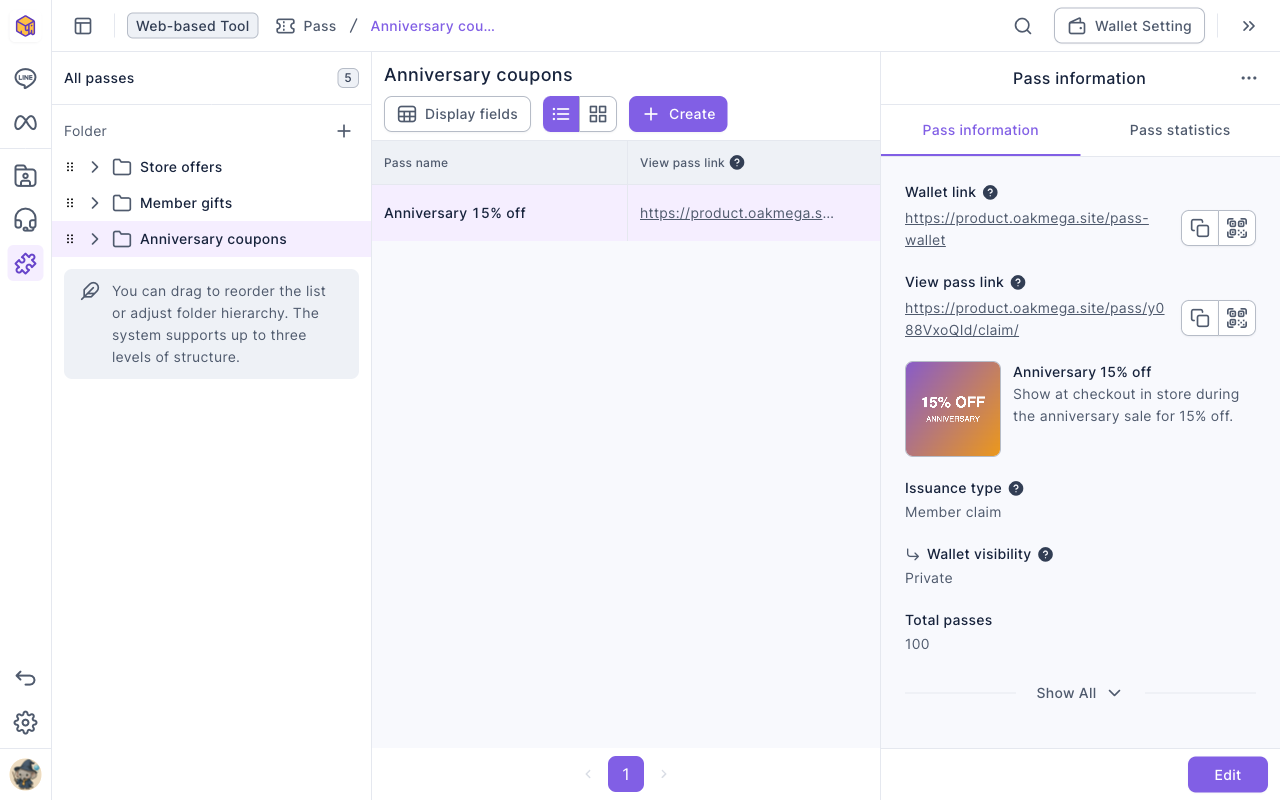
- The Wallet link opens the member's Wallet with all their passes; the View pass link only opens its page and does not auto-claim. Both can be copied or shown as a QR code for LINE messages or a Richmenu.
- The Pass statistics tab shows how many were claimed and used.
- Click the + next to Folder to create a folder; hover over a folder and use "⋯" to rename or delete it. Folders can be dragged and nested up to three levels. Deleting a folder also deletes the passes in it.
Create a pass
- On the left, click the folder you want the pass in, then click Create.
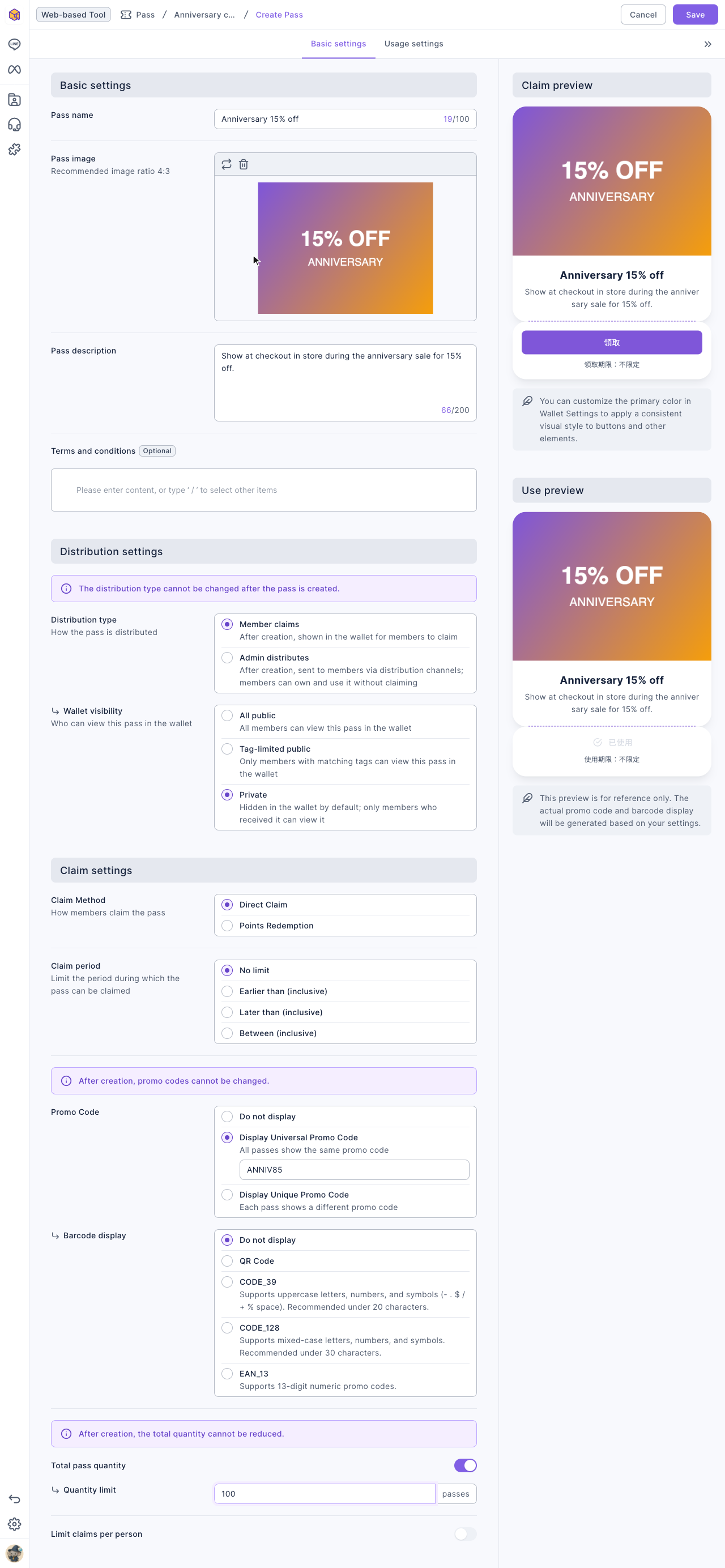
- On the Basic settings tab, enter a Pass name (up to 100 characters), upload a Pass image (required; 4:3 recommended, JPG/PNG up to 10 MB) and enter a Pass description (up to 200 characters). Terms and conditions are optional.
- Under Distribution settings, choose the Distribution type; for Member claims, also set Wallet visibility (see the next section).
- For Member claims, under Claim settings, choose the Claim Method (Direct Claim or Points Redemption) and Claim period.
- Set the Promo Code and Barcode display, then the Total pass quantity; for Member claims, also set Limit claims per person.
- Switch to Usage settings and set the usage method, usage period, button, tags and post-actions (see the table below).
- Click Save in the top-right. The confirmation says "After saving, you won't be able to change the distribution type, promo code settings, or reduce the total number of passes."; click Confirm.
The Claim preview and Use preview on the right show what members will see as you edit.
The animation below clicks Create in the Anniversary coupons folder, enters the pass name "Anniversary 15% off" and a description, adds an image and sets Wallet visibility to Private.
For Member claims passes only, configure wallet visibility, claim settings and the per-person claim limit. The View pass link opens the page without automatically claiming a pass.
The screenshot below shows the completed Basic settings tab, with a universal promo code "ANNIV85" and a total quantity of 100.
Distribution type and wallet visibility
Distribution type cannot be changed after saving. Decide how members will receive the pass:
| Distribution type | Result |
|---|---|
| Member claims | Eligible members must still claim the pass. Claiming checks the claim period, remaining quantity and per-person limit, plus sufficient points when points redemption is enabled |
| Admin distributes | Each distribution gives each selected member one pass directly. Claim periods, points redemption and per-person claim limits do not apply. There is no wallet visibility setting for this type |
Wallet visibility applies only to passes that members claim:
| Visibility | Who can see an available pass |
|---|---|
| All public | All members |
| Tag-limited public | Members matching the tags; up to 20 tags, requiring all or any one |
| Private | Members added to the eligible-member list from the admin; eligibility is not the same as having claimed a pass |
Distribute through Post articles
When choosing a pass in Post articles to LINE friends, two types are available:
- Admin distributes: issues passes directly. Sending again to the same member gives another pass, without a per-person claim limit. If quantity is limited, enough passes must remain; unique-code passes also need enough unassigned codes.
- Member claims + Private: adds the audience to the eligible-member list. Members must still claim and meet the claim conditions. Adding the same member again does not increase their allowance or issue a pass directly.
Member-claimed passes with All public or Tag-limited public visibility cannot be selected here. Use an OakMega segment as the audience source. The pass itself does not send a message notification; arrange a separate text or link message when a notification is needed.
Promo codes and usage settings
Not every promo-code setting is locked after saving:
| Setting | Options and restrictions |
|---|---|
| Promo Code type | Do not display, Display Universal Promo Code or Display Unique Promo Code; the type cannot be switched after saving |
| Display Universal Promo Code | The same code on every pass; its text cannot be changed after saving |
| Display Unique Promo Code | Upload CSV files, one code per pass. Saved files cannot be edited or deleted, but more can be added, up to 10 files in total. Each added code increases the total quantity by one |
| Barcode display | Do not display, QR Code, CODE_39, CODE_128 or EAN_13. The display format can still be changed after saving; codes must meet the selected format's requirements |
| Total pass quantity | A finite quantity can increase but cannot decrease. You cannot switch between limited and unlimited after saving. For unique codes, the code count determines the quantity |
| Usage method | Tap to use, or enter a code for the record |
| Usage period | No limit, before/after/between dates (inclusive), or within N days after claiming/receiving |
| Custom post-use action button | Opens the specified link after use |
| Apply tag on claim / on use | Up to 3 each; claim tags apply when members claim a pass |
| Post-action | Send a message (choose 1 template) or automatically transfer to service after use |
What each edit affects
Click Edit on the right, make your changes and Save:
- Already claimed or distributed passes retain the promo code, usage period and usage method set when received. Saving does not extend their validity or reset their usage status.
- Passes received afterwards use the saved usage settings.
- Name, image, description, terms and other shared content update for existing passes too. Barcode display is also shared; changing its format does not replace the code.
- Claim conditions affect subsequent claims. Editing them does not revoke existing passes or issue new ones.
Wallet settings
These settings are shared across the workspace, not limited to the selected pass or folder.
- From the pass list, click Wallet Setting in the top-right.
- Adjust the settings below and check the preview on the right.
- Click Save. Members load the new settings when they reopen or refresh the Wallet. Leaving without saving discards the changes.
| Setting | Purpose and limits |
|---|---|
| Wallet name | Up to 20 characters |
| Show member points | Controls visibility only; turning it off does not remove points or disable a pass's points-redemption requirement |
| Wallet Language | Default page language: Traditional Chinese, English, Japanese or Thai. This does not translate pass names or descriptions |
| Primary color | Choose a recommended color or a custom color code for buttons, links and similar elements |
| Page background color | Sets the Wallet background |
| Logo | Brand image; 1:1 recommended, JPG/PNG, up to 10 MB |
| Banner | Apply theme color or upload an image; 14:3 recommended, JPG/PNG, up to 10 MB |
Each save updates the shared appearance and default language for workspace members, including members who already have passes. It does not issue or claim passes, or change existing passes' validity or usage status.
Duplicate, move and delete
Click “⋯” at the top of the right panel or at the end of the row:
- Duplicate: adds
copyto the name and resets the promo-code type to Display Universal Promo Code. The universal code, unique-code files and total quantity are cleared, and the quantity limit is enabled. Set these again before saving. Other basic and usage settings are copied for editing; claim and usage records are not copied. - Move: moves the pass to another folder.
- Delete: after confirmation, members can no longer view or use the pass, including passes already received.
The animation below shows choosing Delete from “⋯” and confirming. The pass disappears from the list.
Conditions for the three downloads
All three require permission to view passes and download files. Download permissions also control which member fields are included. The menus indicate up to 100,000 records, but availability differs:
| Download | Available when | Contents |
|---|---|---|
| Download pass data | Any distribution or promo-code type | Daily statistics, claim/distribution records and usage records |
| Download available member data | Member claims + Private only; the list must contain 1–100,000 members. Confirmation is disabled for zero or more than 100,000 | The eligible-member list added from the admin, not a list of members who already claimed, or all members matching public/tag visibility |
| Download promo code usage records | Display Unique Promo Code only | Unique codes, their status, associated members and usage information. Not available for universal codes or passes without codes |
FAQ
Save stays on the page with “This field is required”
Check that a pass image is uploaded. An exclamation mark next to a tab means required fields are missing. After duplicating, also fill in the cleared code and quantity settings.
I cannot select this pass in Post articles
Choose Admin distributes, or Member claims + Private. Member-claimed passes that are public or tag-limited are unavailable. The two eligible types have different effects, as described above.
Why did opening the View pass link not give me a pass?
The link only opens the pass page; it does not auto-claim. A member-claimed pass still requires eligibility, meeting claim conditions and completing the claim. Sharing the link does not add anyone to a private pass's eligible-member list.
I want to reduce the total quantity
You cannot reduce it after saving; create another pass instead. Switching between limited and unlimited is also unavailable after saving.