
After reading this, you'll be able to connect your own LINE official account to an OakMega workspace. The whole process takes about 15 minutes and moves between three places: the Integrate with LINE page in OakMega, LINE Official Account Manager (the LINE official account dashboard), and the LINE Developers Console.
Before you start
- You need to be a workspace admin. Settings › Communication Platform Settings is only visible to workspace admins.
- You need to be able to manage the LINE official account: you need the Admin role in LINE Official Account Manager to enable the Messaging API and change the response settings.
- Have a phone signed in to LINE. In step 12 you log in once with a LINE account to confirm that LINE Login is set up correctly.
- Each workspace can only connect 1 LINE official account, and each LINE official account can only be connected to 1 workspace.
Start from the platform page
Go to Settings › Communication Platform Settings. If nothing is connected yet, the LINE section shows "Connect LINE now!".
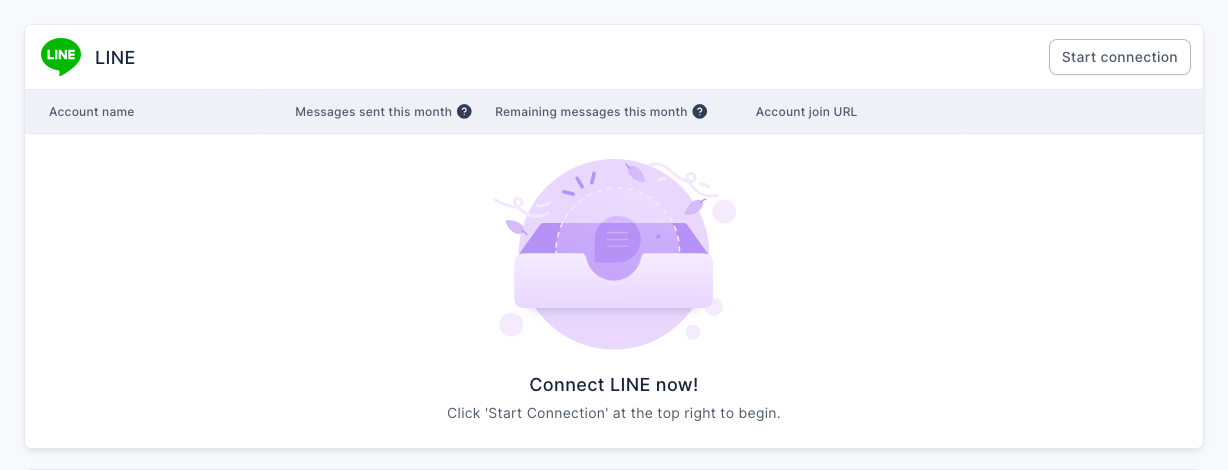
Click Start connection at the top right of the LINE section to open the Integrate with LINE page. The page lists 14 steps. Click Next Step after finishing each one; at the steps that need it, OakMega checks your settings first and only moves on once the check passes.
The animation below shows clicking Start connection on the platform page, then Next Step in steps 1 and 2.
Steps 1–2: Create a LINE official account and activate the Messaging API
- Step 1: Create LINE official account: If you already have a LINE official account, just click Next Step. If not, click Create New in LINE Official Account Manager, or create one in the LINE Official Account app on your phone.
- Step 2: Activate Messaging API:
- In LINE Official Account Manager, select the account you want to connect, click Settings at the top right, then click Messaging API on the left.
- If the status is Enabled, skip this step. If it's Disabled, click Enable Messaging API. The first time, you'll be asked to register a developer name and email.
- Select or create a Provider, for example named after your company or brand. Once a provider is bound, it can't be changed, so make sure you pick the right one.
- Follow the on-screen instructions to finish enabling it, then go back to OakMega and click Next Step.
Steps 3–4: Paste the Messaging API details and confirm the account
- Step 3: Get Messaging API information:
- In the LINE Developers Console, find the provider you just bound in the left menu, open it, then open the LINE official account labeled Messaging API.
- On the Messaging API tab, scroll down to Channel access token. If it already has a value, copy it; if not, click Issue on the right to issue one, then copy it. Paste it into the Channel access token field in OakMega.
- Switch to the Basic settings tab, scroll down to Channel secret, copy it into the Channel Secret field in OakMega, and click Next Step.
- Step 4: Confirm LINE official account: The screen shows the name and ID of the LINE official account these details belong to. Check that it's the account you want to connect, then click Next Step.
The animation below shows steps 3 and 4: pasting the Channel access token and Channel Secret, then clicking Next Step to bring up the account confirmation. The token on screen is blurred. These two values work like keys to your account, so never share them.
The screenshot below is the confirmation screen in step 4: under "Please confirm whether this is the integrated LINE official account:" it lists the account name "OakMega 手冊示範" and the ID "@254cqmke".
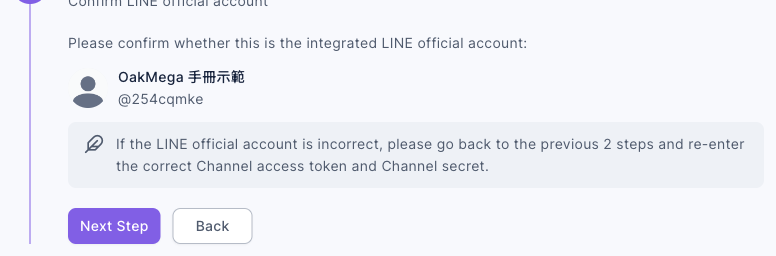
When you click Next Step here, OakMega automatically writes the Webhook URL into your Messaging API settings, so you don't have to fill it in yourself.
Steps 5–6: Turn on the webhook and create LINE Login
- Step 5: Modify response settings and activate Webhook: Go back to LINE Official Account Manager and click Settings, then Response settings on the left. Turn on Webhooks and turn off the other 3 options: chat, the greeting message, and auto-response messages. Go back to OakMega and click Next Step; OakMega checks that the webhook is on.
- Step 6: Create LINE Login:
- In the LINE Developers Console, open the same provider, click Create a new channel, and choose LINE Login.
- Choose the Region to provide the service (for example, Taiwan) and the Company or owner's country or region.
- Upload a Channel icon and fill in the Channel name and Channel description. We recommend matching all of them to your LINE official account.
- Under App types, check Web app, uncheck Require two-factor authentication, and enter your email in Email address.
- Check the box to agree to the LINE Developers Agreement and click Create. Go back to OakMega and click Next Step.
The animation below shows steps 5 and 6: after turning on the webhook in LINE, clicking Next Step, passing OakMega's check into step 6, and clicking Next Step again.
Steps 7–9: Paste the LINE Login details, link the official account and get email permission
- Step 7: Get LINE Login information: Open the LINE Login channel you just created. On the Basic settings tab, copy the Channel ID and Channel secret, paste them into OakMega, and click Next Step.
The animation below shows step 7: pasting the Channel ID and Channel secret, clicking Next Step, and moving on to step 8 once OakMega's check passes.
- Step 8: Connect LINE Login and LINE official account: Further down the same page, find Linked LINE Official Account, click Edit, choose the LINE official account you're connecting, and click Update. Go back to OakMega and click Next Step.
- Step 9: Get Open ID Email permission: Further down the same page, find Email address permission and click Apply. Check both consent boxes, upload your LINE official account's logo under Screenshot, and click Submit. Once the status changes to Applied, go back to OakMega and click Next Step; OakMega checks that the permission has been granted.
The animation below shows steps 8 and 9: clicking Next Step in each, then moving on to step 10 once OakMega's email permission check passes.
Steps 10–11: Set the Callback URL and publish LINE Login
- Step 10: Set Callback URL: In the LINE Login channel, switch to the LINE Login tab, find Callback URL, and click Edit. Enter
https://urli.ai/auth_lineand click Update. Go back to OakMega and click Next Step. - Step 11: Publish LINE Login: At the top of the LINE Login channel page, click the Developing status, then click Publish in the pop-up. Go back to OakMega and click Next Step.
Once published, a channel can't be switched back to Developing. That's LINE's rule. As long as the Callback URL is correct, going live causes no problems.
The animation below shows steps 10 and 11: after setting the Callback URL and publishing in LINE Developers, click Next Step in OakMega twice to reach step 12.
Step 12: Verify LINE Login
- Click LINE Login verification site to open the LINE login page in a new tab. Log in with a LINE account (you can scan the QR code with LINE on your phone; the first time, you may also need to enter a verification code on your phone). After you grant permission, the page redirects a few times and finally shows "驗證成功!" (Verification successful!). Close that tab, go back to OakMega, and click Next Step.
The screenshot below is step 12: the "LINE Login verification site" link at the top, with notes below that verification goes through several redirects and which steps to check if it fails.
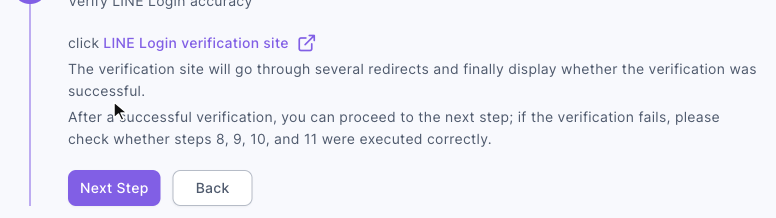
The animation below shows step 12: click LINE Login verification site (in real use it opens LINE login in a new tab), then come back after a successful verification and click Next Step to reach step 13.
This login only confirms that LINE Login is set up correctly. Any LINE account will do; it won't add the official account as a friend or receive any messages.
Steps 13–14: Turn on shareTargetPicker and finish connecting
- Step 13: Open shareTargetPicker: In the LINE Login channel, switch to the LIFF tab and turn on the shareTargetPicker toggle (the first time, you'll be asked to agree to the terms of use for information, then click Enable). Go back to OakMega and click Next Step. The LIFF app on this tab only appears after you finish step 12, because OakMega creates a LIFF for checking purposes in that step.
The animation below shows step 13: after turning on shareTargetPicker in LINE Developers, click Next Step. Once OakMega's check passes, you move on to step 14.
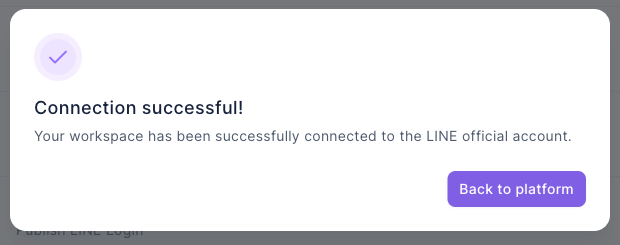
- Step 14: Integrate with LINE: Click Connect. OakMega automatically creates the data it needs in LINE Developers, which may take a moment. When you see "Connection successful!", you're done. Click Back to platform.
The animation below shows step 14: click Connect, wait while OakMega sets things up, and the Connection successful! dialog appears.
The screenshot below shows the success dialog: the title Connection successful!, a line saying your workspace is now connected to the LINE official account, and the Back to platform button in the bottom-right corner.
After connecting
Back on Settings › Communication Platform Settings, the LINE section lists the official account you just connected. In the screenshot below, the account name is "OakMega 手冊示範" and the ID is "@254cqmke", with 0 messages sent this month and 200 remaining messages this month. On the right are the account join URL and two buttons: copy URL and QR Code.

| Column | What it shows |
|---|---|
| Messages sent this month | Number of messages sent from this LINE official account this month |
| Remaining messages this month | Number of messages you can still send this month under your LINE official account plan (for example, 200 per month on LINE's Light plan) |
| Account join URL | The URL people use to add this LINE official account as a friend. You can copy it or download a QR code |
After connecting, a LINE icon also appears at the bottom right of this workspace's card in the workspace list.
How it works
- Why two channels, Messaging API and LINE Login? The Messaging API handles sending and receiving messages: messages from friends reach OakMega through the webhook, and OakMega replies or sends messages with the Channel access token. LINE Login handles "who is this": web-based tools such as approved pages, forms and passes, as well as deep links, rely on it to get a member's LINE identity.
- Why turn on only the webhook in the response settings? With the webhook on, messages reach OakMega, and OakMega's chatbots and Service Center reply. If LINE's own chat, greeting message and auto-response messages are also on, they reply alongside OakMega, and friends may get two responses.
- What does OakMega do in step 14? It creates the LIFF apps that web-based tools, deep links and the share function need in your LINE Login channel, and creates a QR code and share link for the add-friend URL. All of this is automatic. Don't delete these manually in LINE Developers, or the related features will stop working.
- What's checked at each step:
| Step | What OakMega checks |
|---|---|
| Step 3 | The Channel access token is valid and belongs to the same channel as the Channel secret; this official account isn't connected to another workspace |
| Step 4 | Automatically writes the Webhook URL to the Messaging API |
| Step 5 | The LINE official account's webhook is on |
| Step 7 | The Channel ID and Channel secret are correct; this LINE Login isn't connected to another workspace |
| Step 9 | LINE Login has been granted email permission |
| Step 12 | Someone has successfully logged in through the verification site; once it passes, OakMega creates a LIFF for checking purposes |
| Step 13 | shareTargetPicker is on |
FAQ
Channel access token or Channel secret error
One or both of the values pasted in step 3 are wrong, or they come from different channels. Make sure you copied the Channel access token from the Messaging API tab and the Channel secret from the Basic settings tab of the same channel, with no extra spaces before or after.
This LINE official account has already connected to another workspace
This LINE official account is already connected to another OakMega workspace, and an official account can only be connected to one workspace. There's no button in OakMega to disconnect LINE; to remove it from the original workspace, contact your OakMega representative, or use a different official account.
Webhook not active
The webhook from step 5 isn't on yet. In LINE Official Account Manager, go to Settings › Response settings, turn on Webhooks, then click Next Step. If it's already on and you still see this message, click Back to return to step 4 and click Next Step again so OakMega rewrites the Webhook URL.
Channel ID or Channel secret error
In step 7 you need the values from the LINE Login channel, not the Messaging API channel. Each channel has its own Channel ID and Channel secret; copy them from the Basic settings tab of the LINE Login channel.
This LINE Login has already connected to another workspace
This LINE Login channel is already used by another workspace. Create a new LINE Login channel in LINE Developers.
OpenID Connect not enabled
The email permission application from step 9 isn't complete. Make sure the status of Email address permission is Applied.
LINE Login has not been verified or is incorrect
The verification in step 12 isn't done yet, or it failed. Click LINE Login verification site again; it only counts as done once you see "驗證成功!" (Verification successful!) after logging in. If the verification site shows a failure, check steps 8, 9, 10 and 11 in order: is the official account linked, has email permission been applied for, is the Callback URL correct, and has the channel been published.
shareTargetPicker not enabled
The toggle from step 13 isn't on yet. Go to the LIFF tab of the LINE Login channel and turn on shareTargetPicker. If you still see this message after turning it on, wait a minute or two and click Next Step again.
You have already connected LINE!
This workspace already has a LINE official account connected, and each workspace can only connect 1. There's no button in OakMega to disconnect LINE; to switch accounts, contact your OakMega representative.