
By the end of this article you'll be able to create a chatbot that replies automatically when a friend sends a certain keyword, limit when and for whom it triggers, tag members along the way, and turn it off or delete it.
Before you start
- The workspace needs a connected LINE Official Account.
- You need LINE Chatbot permission. View Only lets you look; to add, edit, turn on or delete chatbots you need Editable, otherwise you'll see "No edit permission".
- The Free plan allows up to 10 chatbots per platform. Beyond that you'll see the upgrade prompt.
Three kinds of chatbots
In the navigation bar, click LINE and choose Chatbot. The left side groups chatbots into three kinds:
| Kind | When it replies | Where it lives |
|---|---|---|
| Welcome message bots | When a friend adds your LINE Official Account | Under Basic chatbots |
| Event-triggered bots | When something happens, such as a friend sending an image, sticker or location, blocking you, or the Default Reply when no other bot answers | Under Basic chatbots |
| Keyword chatbots | When a friend's text equals or contains a keyword you set | Under Keyword chatbots, organized in folders (up to three levels) |
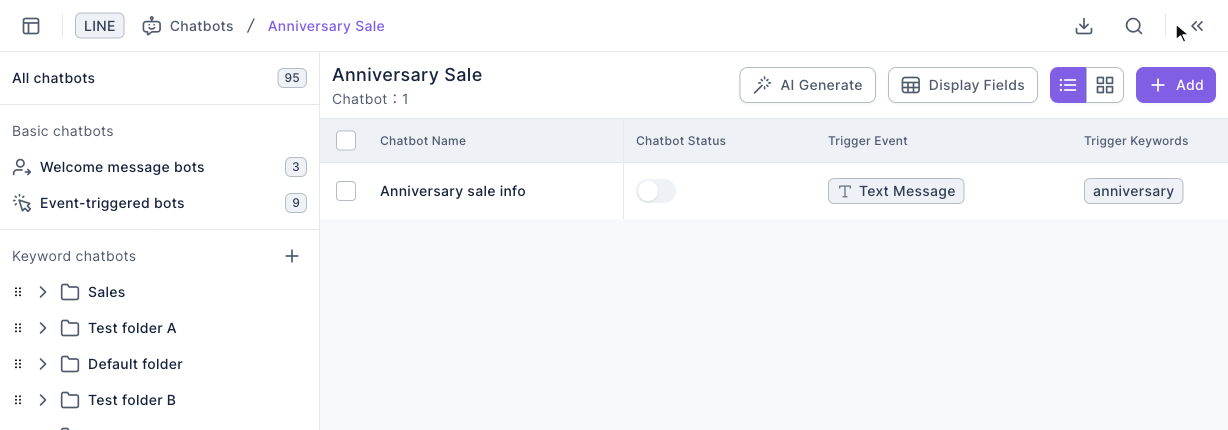
The screenshot below shows a keyword chatbot folder. The left side lists chatbot kinds and folders; on the right each row is a chatbot with Chatbot Name, Chatbot Status (a switch), Trigger Event and Trigger Keywords. The top-right has AI Generate, Display Fields and Add.
Create a keyword chatbot
- (Recommended) Click "+" next to Keyword chatbots to add a folder, for example "Anniversary Sale".
- Click that folder, then click Add in the top-right to go straight to the create page. (If you click Add from All chatbots, you'll first choose a type under Select Chatbot Type and pick a folder.)
- On the Bot Settings tab, enter a Chatbot Name.
- Decide the Chatbot Status: it's on by default on the create page, so the bot starts replying as soon as you save. Turn it off if you're not ready.
- Enter keywords in Trigger Keyword (Equals) or Trigger Keyword (Contains) and press Enter to add each one, up to 20 per field.
- Switch to the Edit Message tab and add the reply messages (up to 5; you can also choose Template).
- Click Save in the top-right.
The animation below clicks Add in the "Anniversary Sale" folder, enters the chatbot name, and turns the Chatbot Status off.
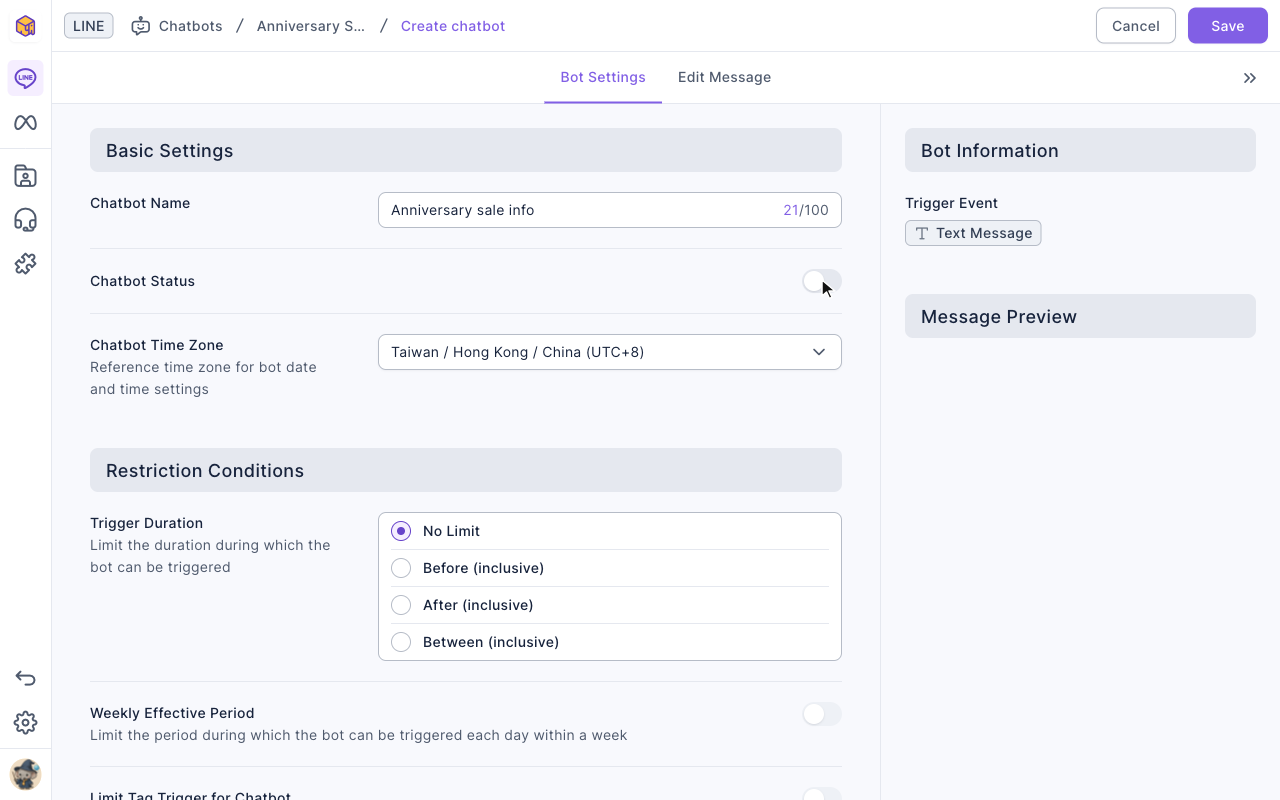
The screenshot below shows the top of the Bot Settings tab. Basic Settings has the chatbot name, status and Chatbot Time Zone (the reference time zone for date and time settings), with Restriction Conditions below. On the right, Bot Information shows the trigger event is Text Message.
Next it scrolls down to Trigger Keyword (Equals), types "anniversary" and presses Enter; the keyword turns into a chip.
Then it switches to the Edit Message tab, clicks Text and types the reply. Message Preview on the right shows what friends will receive.
Finally it clicks Save and returns to the folder, where the new chatbot appears with its status off.
Restriction conditions and tag settings
The Bot Settings tab lets you limit when and for whom the bot replies, and tidy up tags when it triggers:
| Setting | What it does | Limits |
|---|---|---|
| Trigger Duration | Only triggers within a date range: No Limit, Before (inclusive), After (inclusive), Between (inclusive) | Based on the chatbot time zone |
| Weekly Effective Period | Only triggers on certain weekdays and hours, such as office hours | |
| Limit Tag Trigger for Chatbot | Only applies to members with the chosen tags | Up to 40 tags; choose "Possess all tags simultaneously" or "Possess any one tag" |
| Exclude Tag Trigger for Chatbot | Members with the chosen tags won't trigger it | Up to 40 tags |
| Trigger Environment | Triggers in LINE friend chats (Bot), LINE groups (Group) or both (Bot and Group) | Some message formats aren't available for groups |
| Trigger Add Tag, Trigger Remove Tag | Adds or removes tags on the member when triggered | Up to 15 to add, 60 to remove |
| Share Add Tag | Adds tags when a member shares this message | Up to 15 |
| Service center transfer | Hands the conversation to Service Center after triggering |
Turn on, turn off and delete
- Turn on or off: flip the Chatbot Status switch right in the list. You'll see "Chatbot Activated" or "Chatbot Deactivated".
- Duplicate, move, download trigger records: click "⋯" at the end of a chatbot's row to Duplicate, Move it to another folder, or Download Trigger Records (recent 10,000 records).
- Delete: click "⋯", choose Delete, and click Confirm in "Confirm Delete "chatbot name"?".
The animation below clicks "⋯" on the chatbot we just created, chooses Delete and clicks Confirm; the chatbot disappears from the list.
When you delete a folder, the confirmation says "Items in the folder will be deleted as well", so the chatbots inside are deleted too.
How it works
- The create page defaults to on. As soon as you save, the bot starts replying to real friends. When testing a new bot, turn its status off first and switch it on from the list once you've checked the content.
- "Equals" is stricter than "Contains". Contains triggers whenever the keyword appears anywhere in the message; for example the keyword "sale" also fires on "is the sale over?". To respond only to an exact command, use Equals.
- Richmenus can trigger keywords. A Richmenu button set to Send text sends the text as the friend, which can trigger a keyword chatbot. See Set up LINE Richmenus.
FAQ
Trigger keyword cannot be empty
A keyword chatbot needs at least one keyword. Type it into Trigger Keyword (Equals) or (Contains) and press Enter.
Message content cannot be completely empty
The Edit Message tab doesn't have any messages yet. Add at least one message before saving.
A friend sent the keyword but got no reply
First check that the Chatbot Status is on in the list, then check whether Trigger Duration, Weekly Effective Period, limit or exclude tags, or Trigger Environment rule this friend out.