
By the end of this article you'll be able to create a booking item (for example, an in-store experience), set how long each booking lasts and which times are open, and add it to a form so members can pick a time and book right in LINE.
Before you start
- You need the Enterprise plan, and Booking Center must be activated for your workspace; if it isn't, you'll be asked to contact OakMega sales.
- You need Booking Center permission. View Only lets you browse; to create, edit, copy, move or delete booking items you need Editable, otherwise the buttons show No Edit Permission.
- Members book through a form. The form needs Login via Communication Platform turned on, and the workspace must be connected to a LINE Official Account. See Create a form.
Booking Center at a glance
In the navigation bar, click Web-based Tool and choose Booking Center.
The screenshot below shows Booking Center. On the left are All Booking Items and Folder. In the middle are the booking items in the current folder, each showing its Booking Item Name, Open for Booking and Duration. Click an item to see its settings on the right. Bookings and Staff Settings in the top-right open two separate pages.
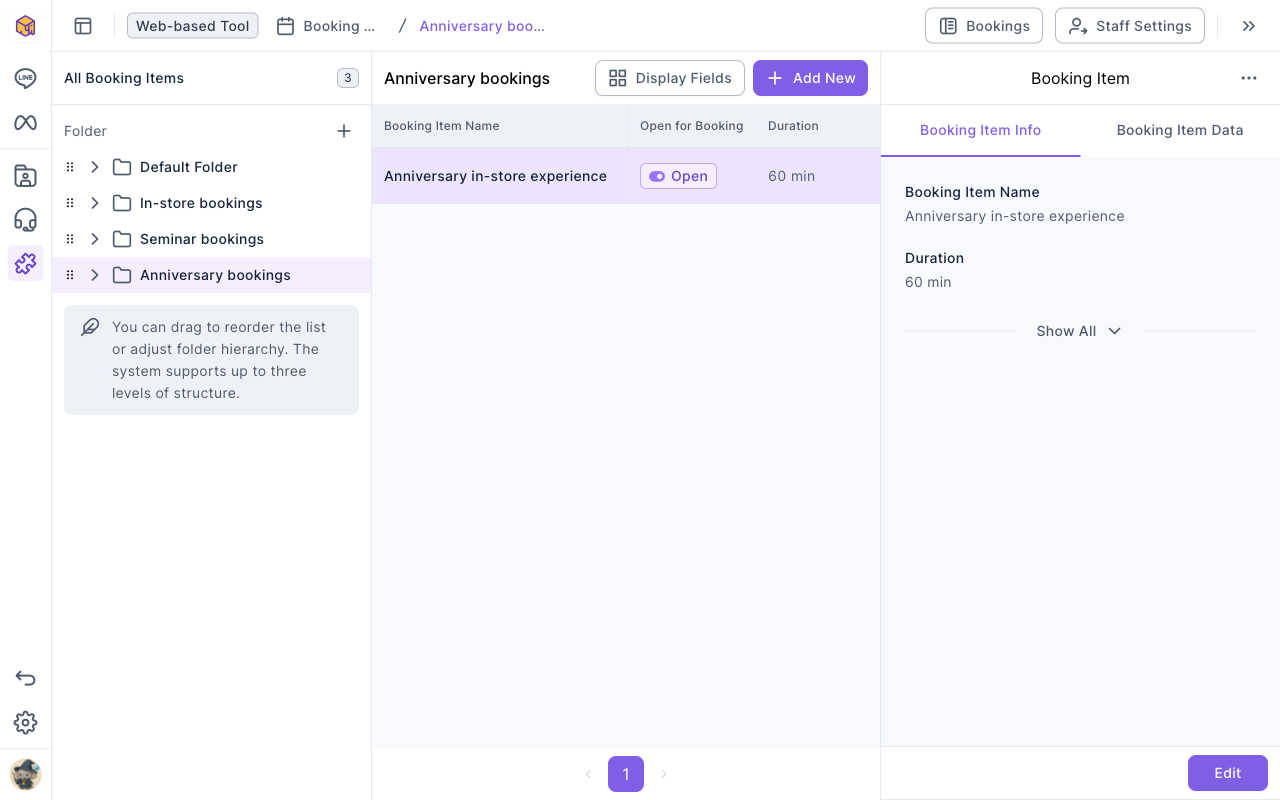
Click the + next to Folder to create a folder. Hover over a folder and use "⋯" to Rename or Delete it. You can drag folders to reorder or nest them, up to three levels. Deleting a folder also deletes the booking items in it.
Create a booking item
- On the left, click the folder you want the item in, then click Add New. If All Booking Items is selected, you'll be asked to choose a folder first.
- Under Basic Settings, enter a Booking Item Name (up to 100 characters). Open for Booking is on by default.
- Under Time Settings, choose the Booking Duration, Open Slot Interval and Booking Cutoff Time.
- Under Restriction Conditions, set the Booking Period. To open only certain hours, turn on Weekly Effective Time Slots (see the next section).
- If needed, choose tags to add or remove when a booking is completed or cancelled under Tag Settings, and bind a staff member in the Staff Settings section.
- Click Save in the top-right. You'll see Created successfully and return to the folder list.
The animation below clicks Add New in the Anniversary bookings folder, enters the name "Anniversary in-store experience" and sets the duration to 60 minutes.
The screenshot below shows all the settings on the create page:
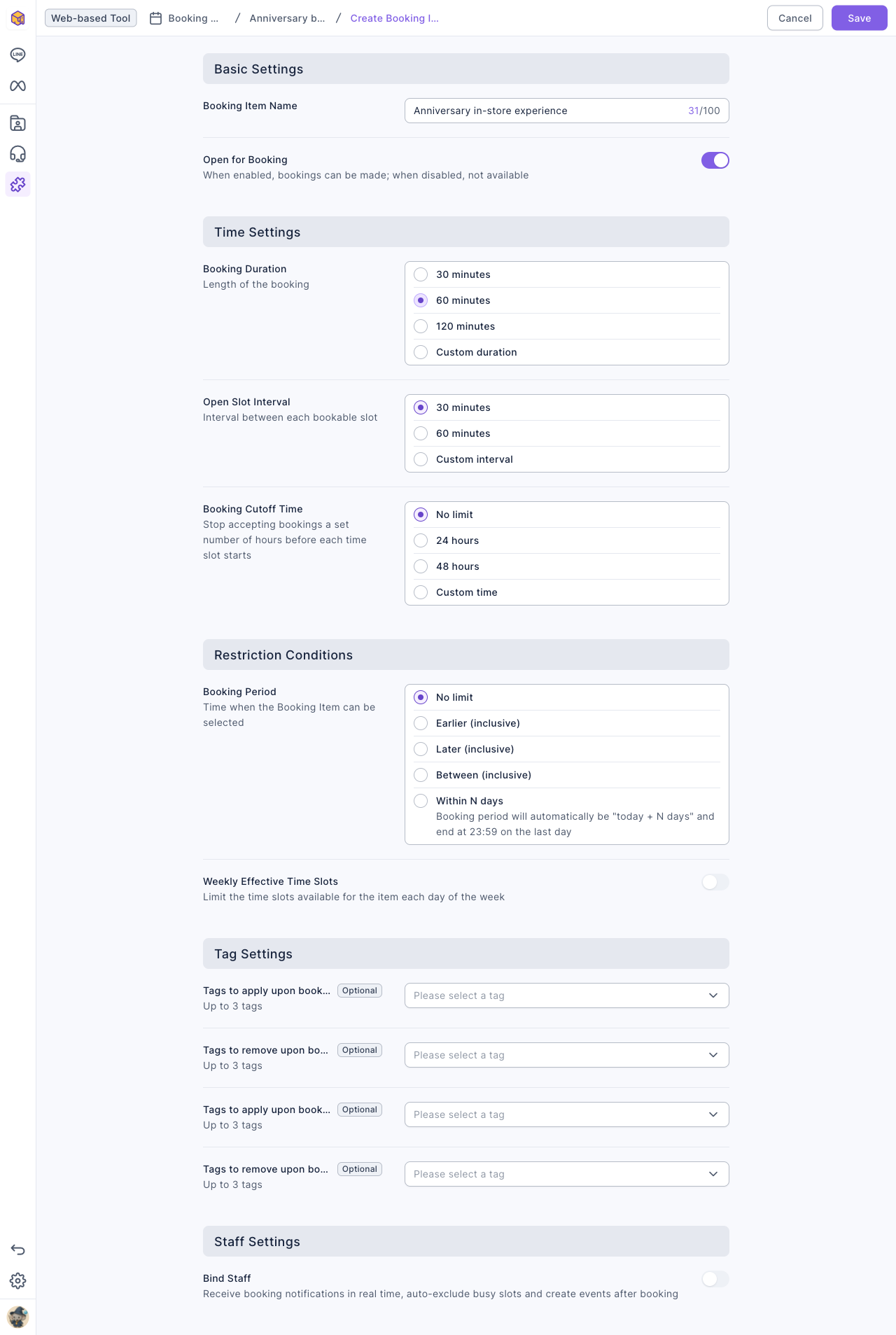
| Setting | What it does |
|---|---|
| Open for Booking | When off, every form that uses this item stops taking bookings |
| Booking Duration | How long one booking lasts: 30, 60 or 120 minutes, or a custom duration |
| Open Slot Interval | How far apart the start times are. For example, a 60-minute duration with a 30-minute interval offers 10:00, 10:30, 11:00… |
| Booking Cutoff Time | How many hours before each slot bookings close: No limit, 24 hours, 48 hours or a custom time |
| Booking Period | Which dates can be booked: No limit, Earlier (inclusive), Later (inclusive), Between (inclusive), or Within N days (rolls forward every day and ends at 23:59 on the last day) |
| Weekly Effective Time Slots | Limit booking to certain hours on certain days of the week |
| Tags to apply / remove upon booking completion | Tags added to or removed from a member when their booking succeeds, up to 3 each |
| Tags to apply / remove upon booking cancellation | Tags added or removed when a booking is cancelled, up to 3 each |
| Bind Staff | Assign a staff member to receive booking notifications; if their calendar is connected, their busy times are excluded too |
Set weekly effective time slots
If Weekly Effective Time Slots is off, every time from 00:00 to 24:00 can be booked, so set it if your store has opening hours.
- Turn on Weekly Effective Time Slots; Monday to Sunday appear below.
- Click a day you want to open, click Add Time Range, and set the start and end times. You can add several ranges to one day, but they can't overlap.
- Use Copy to apply a day's ranges to other days instead of setting each day by hand.
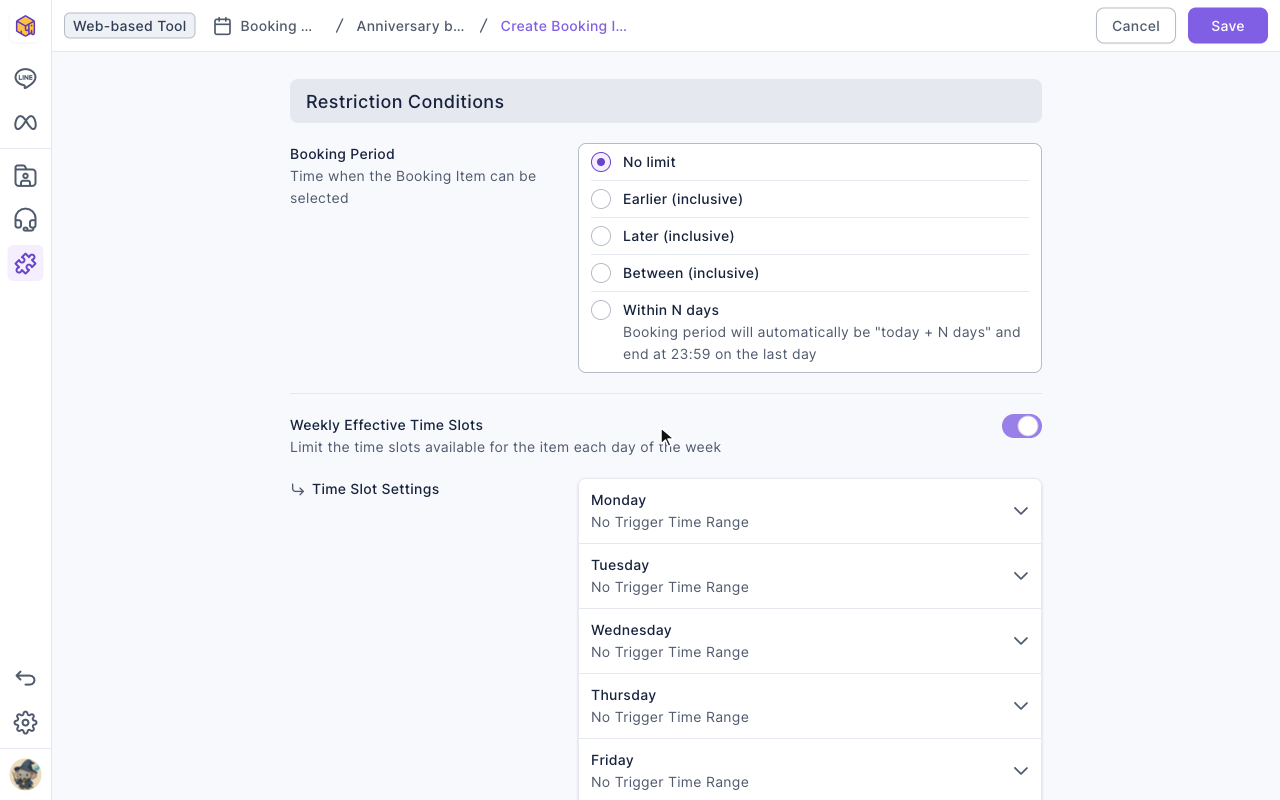
Days showing No Trigger Time Range aren't open for booking.
Let members book
Once the booking item is ready, add it to a form:
- Open or create a form and make sure Login via Communication Platform is on.
- On Question Settings, click + and choose your booking item under Booking Items.
- Save the form and share its link with your members.
When members open the form, they only see times that are still available. Past times, times beyond the cutoff or booking period, and times someone else has already booked don't appear. If a staff member is bound, their other bookings and busy calendar times are excluded too.
Service staff and booking records
- Staff Settings: click Add New and pick a member of your OakMega workspace as a staff member; connecting a calendar (Google or Outlook) is optional. With a calendar connected, busy times are excluded automatically and an event is created when a booking is made. A staff member who links their LINE account in Settings / My Account gets booking notifications in LINE right away.
- Bookings: lists every booking and can be filtered by status. Click a booking to see the member's details and Form Response, or use Change booking or Cancel. Changes and cancellations send a notification to the booker, and a cancellation can't be undone.
| Booking status | Meaning |
|---|---|
| Scheduled | The booking time hasn't arrived yet |
| Completed | The booking time has passed |
| Cancelled | The booking was cancelled before it started |
Copy, move and delete booking items
Click "⋯" at the end of a booking item's row:
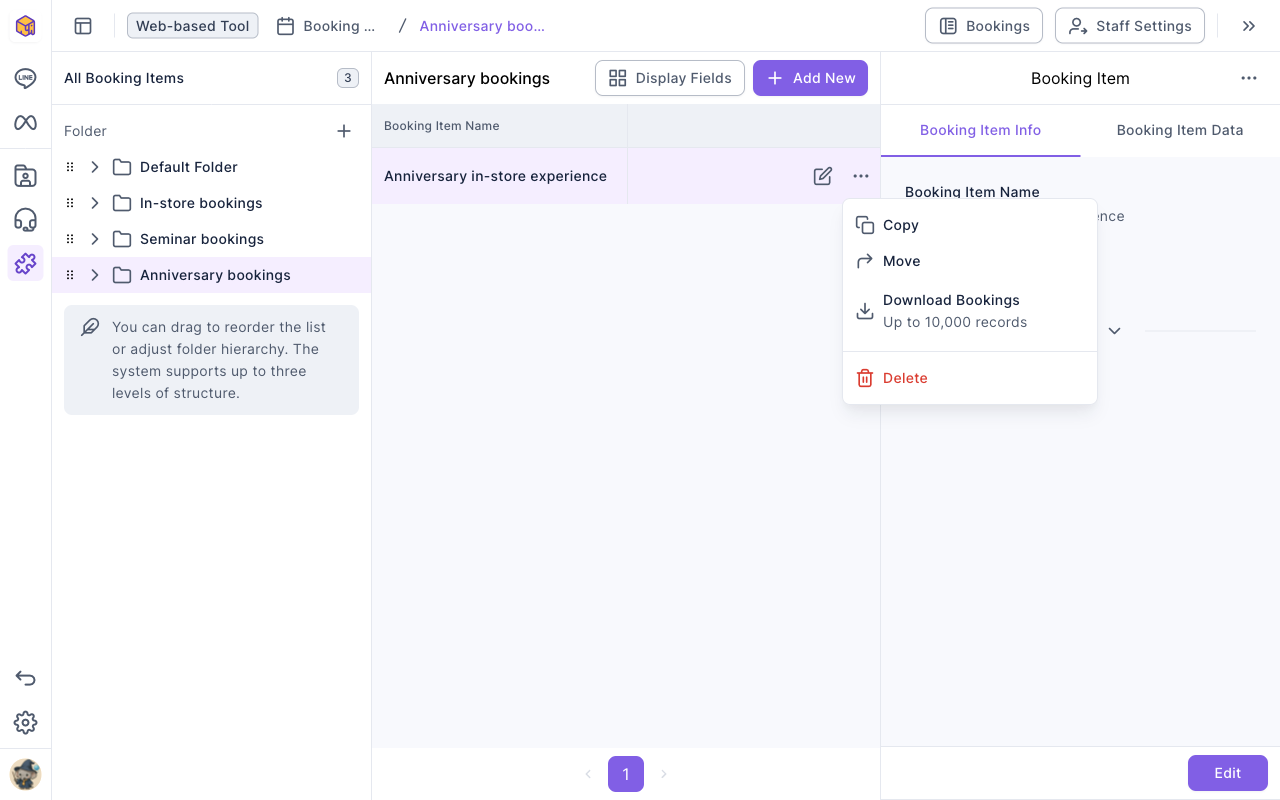
- Copy: create an identical booking item.
- Move: move it to another folder.
- Download Bookings: download the item's most recent 10,000 booking records.
- Delete: this can't be undone. The booking question in any form is removed, so no one can book or change bookings; existing booking records aren't affected.
To change the settings, click the pencil icon at the end of the row and click Save when you're done.
The animation below clicks "⋯" on Anniversary in-store experience, chooses Delete and confirms with Delete; the booking item disappears from the list.
How it works
- Why book through a form? A booking needs to know who made it. With login turned on, each booking is linked to a member, and booking records show the member's contact details and form responses.
- Each time slot can be booked only once. Once a slot on a booking item is taken, nobody else sees it. To serve several customers at the same time, copy the item into several booking items.
- Turning off Open for Booking doesn't cancel existing bookings. They stay in Bookings, but they can't be changed while the item is closed; reopen it first to reschedule.
FAQ
A member says there are no available times
Check Open for Booking, the Booking Period and Booking Cutoff Time, weekly slots, existing bookings, and staff availability. Follow the checks in Why members cannot see booking time slots.
I can't find the booking item in the form
The form needs Login via Communication Platform turned on before you can add booking items, and each booking item can be added to a form only once.
I can't change a booking
If the record says Booking item has been closed. Record can be changed after adjusting to open status., turn Open for Booking back on and try again. Bookings can't be changed if the item was deleted or the booking was cancelled or completed.