
By the end of this article you'll be able to create a form (for example, an event sign-up), decide who can fill it in and what happens afterwards, add questions, try it with a test link, and then share the real link with your members.
Before you start
- You need the Pro plan or higher. Each workspace has a form quota; when it's used up, creating or duplicating a form shows Form quota has reached the limit, please delete the form or upgrade the plan.
- You need Form permission. View Only lets you browse; to create, edit, duplicate, move, clear or delete forms you need Editable, otherwise the buttons show No Edit Permission.
- To require login or friendship, restrict by tags, tag respondents, transfer them to Service Center or send them LINE messages, the workspace must first be connected to a LINE Official Account.
- Forms come in a basic tier and a Plus tier. Skip Logic & Conditions, Style Settings, Terms Agreement, File Upload, custom field questions, Regex validation and GTM tracking need Plus; anything marked "Plus" in the interface is a Plus feature. Contact your OakMega project contact to upgrade.
The form list
In the navigation bar, click Web-based Tool and choose OakMega Form.
The screenshot below shows the form list. On the left are All forms and Folder. In the middle are the forms in the current folder and your Form quota; each row shows the Form Name and Form Status. On the right, Form info shows the selected form's Form link, name, description, and whether respondents need to log in.
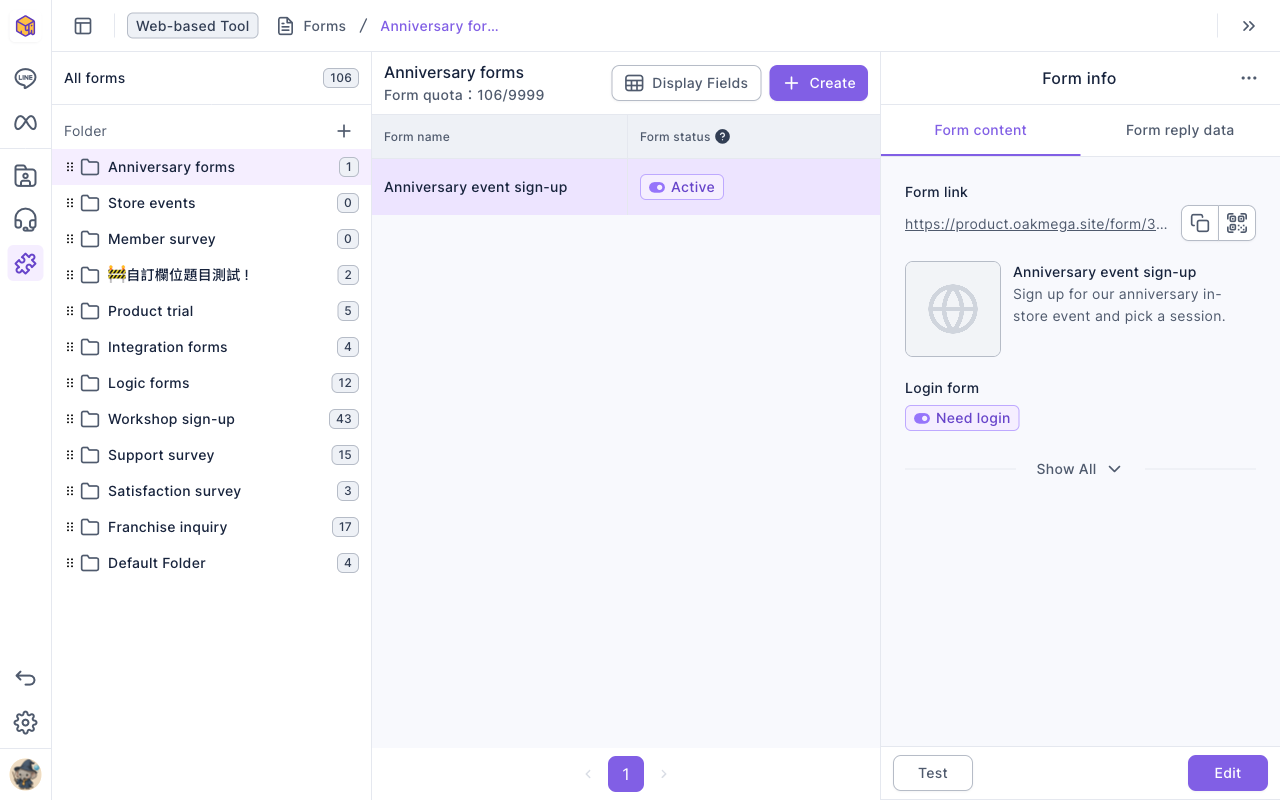
- The buttons next to the link copy it or show a QR code. Switch to Form reply data to see the number of replies and respondents.
- Click the + next to Folder to create a folder. Hover over a folder and use "⋯" to Rename or Delete it. Deleting a folder also deletes the forms in it.
Create a form
- On the left, click the folder you want the form in, then click Create. If All forms is selected, you'll be asked to choose a folder first.
- On the Form Settings tab, enter a Form Name (up to 100 characters) and a Form Description (up to 200 characters). The name is also the browser tab name. The name, description and Form Thumbnail appear in the link preview when the link is shared.
- If you like, upload a thumbnail (JPG or PNG, up to 10 MB) and choose the Form Language. Changing the language resets all the default text on the form (such as buttons) to the new language.
- Adjust Restriction Settings and Tag Settings as needed; see the table below.
The animation below clicks Create in the Anniversary forms folder and enters the name "Anniversary event sign-up" and a description.
The screenshot below shows everything on the Form Settings tab. Form Status and Login via Communication Platform are both on by default.
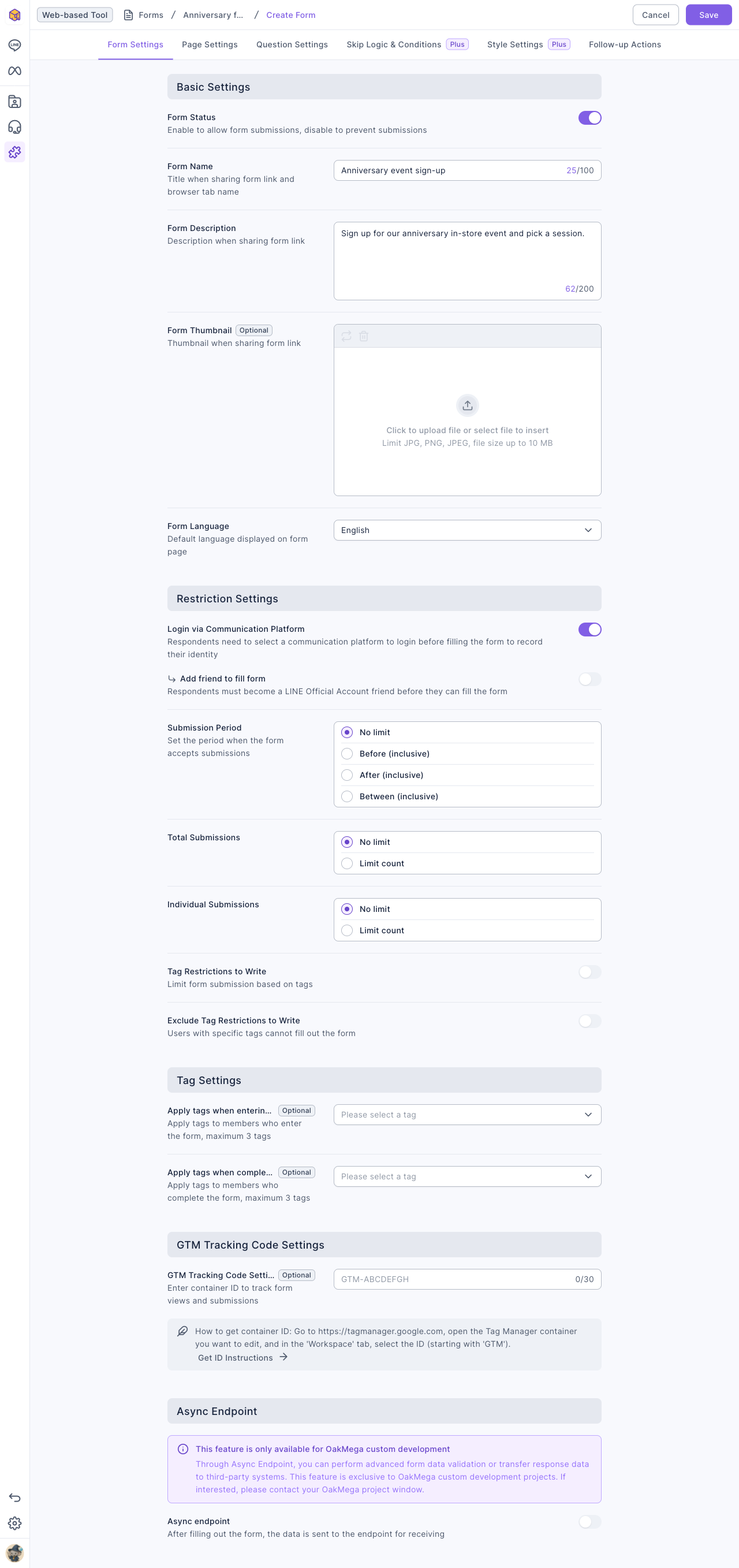
| Setting | What it does |
|---|---|
| Form Status | The form can only be filled in while it's on; when it's off, the link shows the Form Closed Page |
| Login via Communication Platform | Respondents log in with LINE first, so OakMega knows who filled in the form. On by default |
| Add friend to fill form | Appears once login is on. Only friends of your LINE Official Account can fill in the form |
| Submission Period | No limit, or only Before (including), After (including) or within a Range |
| Total Submissions, Individual Submissions | Cap the total number of responses, and how many times each person can respond. The per-person limit needs login |
| Tag Restrictions to Write, Exclude Tag Restrictions to Write | Only members with the chosen tags can respond, or they can't. Up to 100 tags each |
| Apply tags when entering form, Apply tags when completing form | Tag members who open or finish the form, up to 3 tags each |
| GTM Tracking Code Settings | Enter a Google Tag Manager container ID to track views and submissions (Plus) |
| Async endpoint | Forwards responses to another system in real time; only for OakMega custom development |
Anything that relies on knowing who the respondent is needs login: per-person limits, tag restrictions and tagging, member contact questions, transferring to Service Center, and sending messages. Without login, the form shows that it can't identify the respondent.
Add questions
- Switch to Question Settings and click the + next to Questions in the top-left (or the button in the middle).
- Choose a question type, for example Multiple Choice.
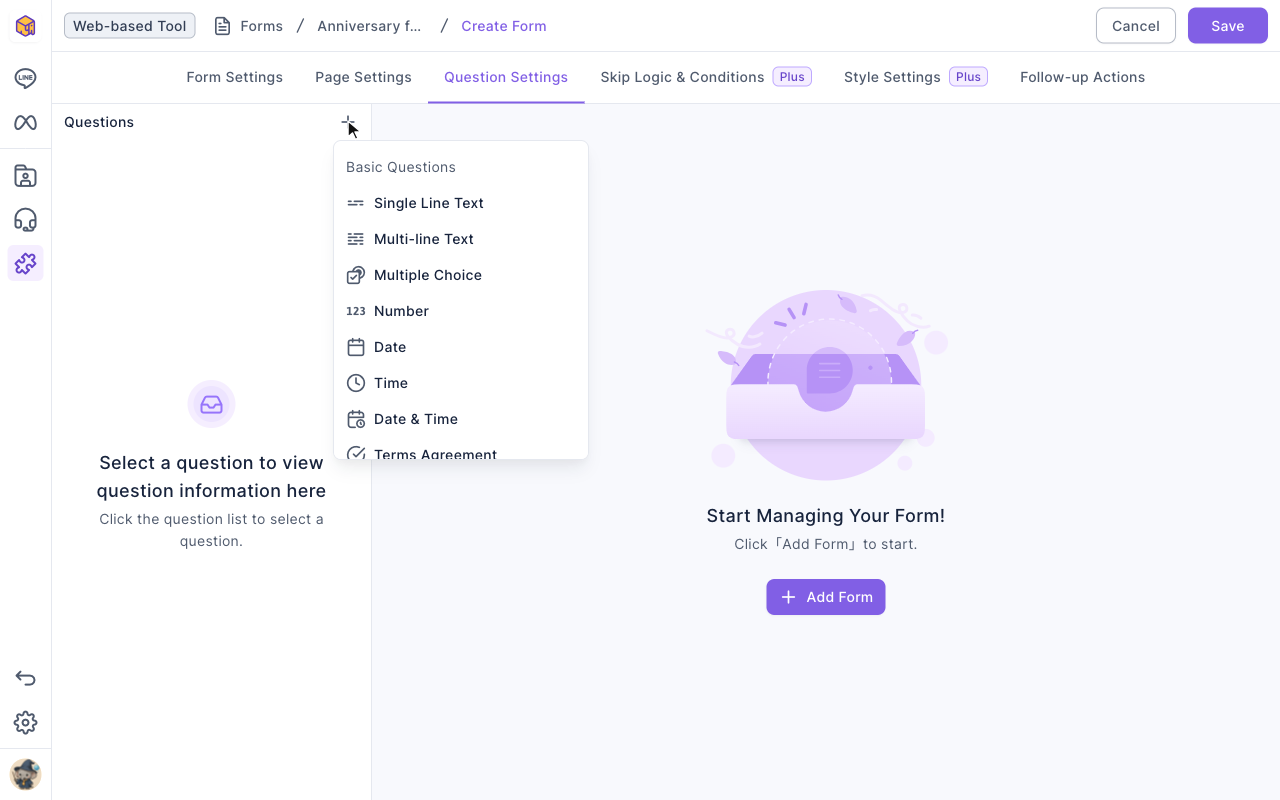
- Enter a Title on the right, and turn on settings such as Required or Description Text if you need them.
- For a multiple-choice question, add the options: type the first one in Option Text, then click Add Option for the next. Each option can have Option Tags, which tag everyone who picks it (up to 3).
- Repeat steps 1–4 for more questions. Drag questions in the list on the left to reorder them.
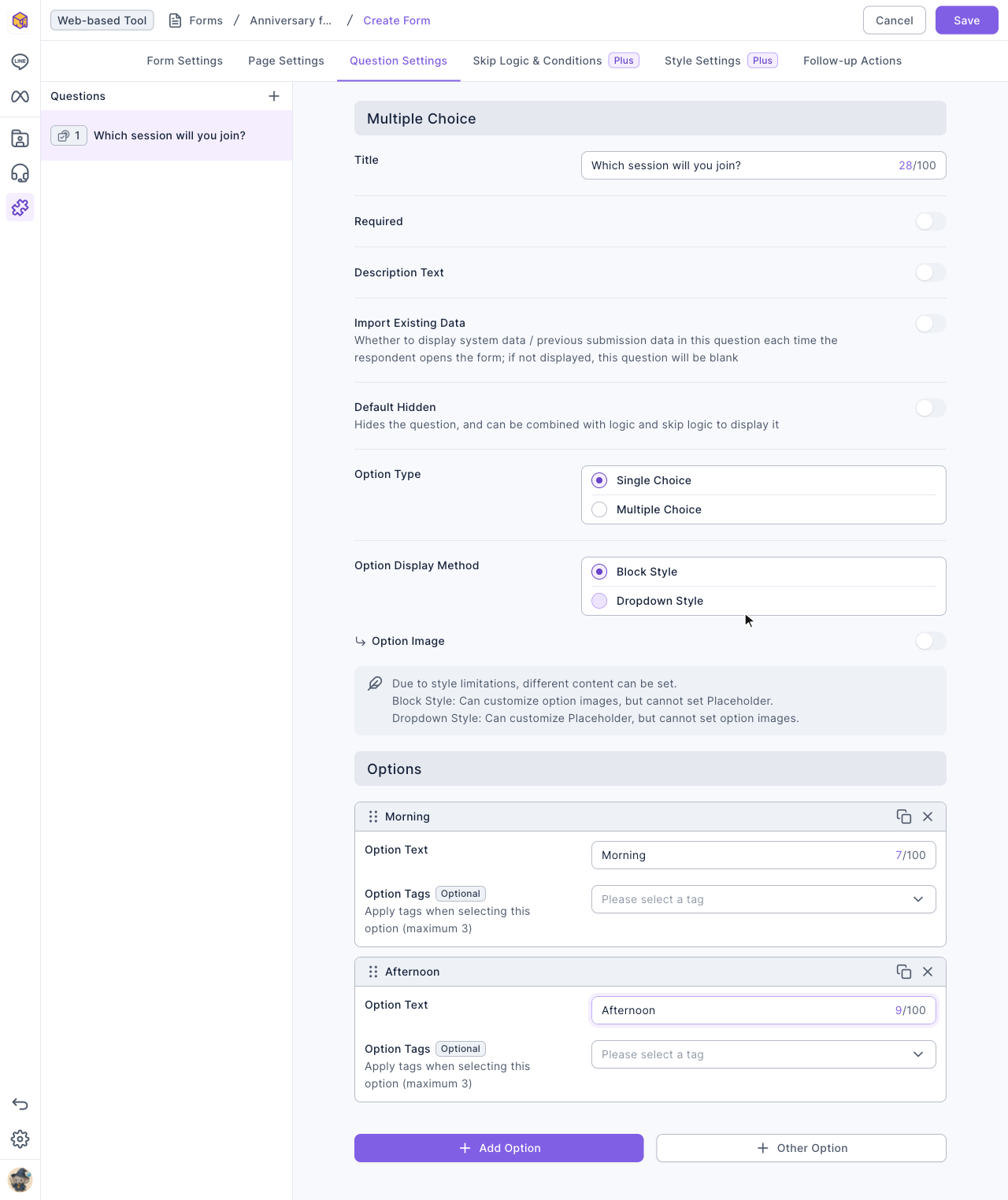
The animation below clicks +, chooses Multiple Choice, enters the title "Which session will you join?" and adds two options, Morning and Afternoon.
The screenshot below shows the finished question. You can choose Single Choice or Multiple Choice, and show the options in Block Style or Dropdown Style.
The question type menu has these groups:
| Group | Question types | Notes |
|---|---|---|
| Basic Questions | Single Line Text, Multi-line Text, Multiple Choice, Number, Date, Time, Date & Time, Terms Agreement, File Upload | Terms Agreement and File Upload need Plus; File Upload also needs a connected file storage space |
| Member Contact Information Questions | Real Name, Email, Birthday, Gender, Phone, Location | Answers are saved to the member's profile. Needs login, and each type can be used only once |
| Custom Field Questions | Your workspace's custom fields | Answers are saved to the matching custom field. Needs login and Plus |
| Booking Items | Booking items from Booking Center | Lets respondents make a booking in the form. Needs login |
| Description / Page Break | Description Section, Page Break | Add a block of explanatory text, or split the questions across pages |
- Click Save in the top-right. You'll see Created successfully and return to the folder list.
Page settings and follow-up actions
- Page Settings lets you edit the pages respondents see: the Welcome Page (which you can turn off to go straight to the questions), the Finish Page (or Redirect to Other Link after submitting), and the pages shown when the form is closed, outside the deadline, over its limits, or when someone isn't eligible. Pages that won't appear with the current settings (for example the Outside Submission Period Page when no submission period is set) show a warning icon next to their name; open one to see why.
- Follow-up Actions run automatically after a member submits: Service Center Transfer hands the respondent over to Service Center, and Send Message via Communication Platform sends a template to LINE friends who complete the form (you can use different templates for first and later submissions).
Try it with a test link
Before sharing the form, check the questions with the test link:
- Click "⋯" at the end of the form's row and choose Test (or click Test under Form info on the right).
- Open the form with the Test form link or the QR code and fill it in.
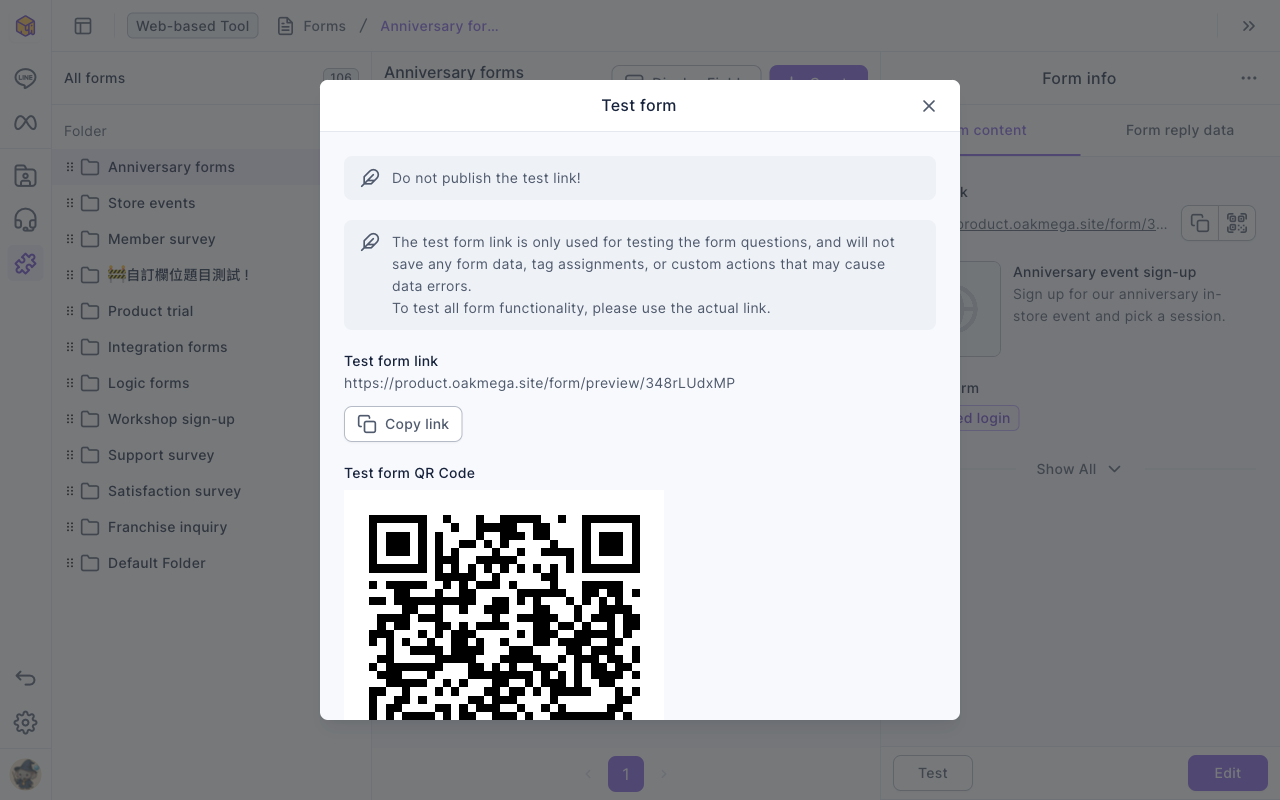
The test link ignores all restriction settings and doesn't save responses, tag anyone or assign Service Center, so it's for checking the questions. A successful submission through the real link counts toward Total Submissions and, for a signed-in member, Individual Submissions. To test the full flow (tagging, messages), use the real link and then Clear the responses afterwards. If the test link works but the real link doesn't, see Members can't open or submit a form.
Manage forms and responses
Click "⋯" at the end of a form's row:
| Action | What it does |
|---|---|
| Edit | Change the form, then click Save |
| Duplicate | Create a copy of the form; uses one form from your quota |
| Move | Move the form to another folder |
| Test | Open the test link and QR code |
| Download all reply data | Download every response from each respondent |
| Download the last reply data | Download only each respondent's most recent response |
| Clear | Clear the reply data but keep the form settings |
| Delete | Delete the form and its reply data; this can't be undone |
For the difference between the two counts and the two downloads, see Check form responses and download the data.
The animation below clicks "⋯" on Anniversary event sign-up and chooses Delete. The confirmation says The form and reply data will be deleted.; after clicking Delete, the form disappears from the list.
To write responses to a Google spreadsheet automatically, click Connect to Google Sheets under Form reply data on the right, authorize your Google account and choose a spreadsheet. For the full steps, see Sync form responses to Google Sheets automatically.
How it works
- Why turn on login? With login on, every response belongs to a member. That lets you limit responses per person, tag respondents, save member contact answers to their profiles, and send a LINE message or transfer them to Service Center afterwards. A form without login can be filled in by anyone, but the responses are anonymous.
- Deleting a question doesn't affect responses you've already received. New respondents just won't see it.
- Leaving the editor doesn't save automatically. If you leave without saving you'll see Are you sure you want to leave the new form page?, and your edits are discarded.
FAQ
Form quota has reached the limit
Your workspace has reached its plan's form limit. Delete forms you no longer need, or contact OakMega sales to raise the quota.
I can't choose member contact questions
Member contact questions, custom field questions and booking items all need Login via Communication Platform. Each member contact question type can be used only once; if you've already added one you'll see Member contact information questions cannot be duplicated.
You can set up to 300 tags
All the tags a single form can add (on entering, on completing, option tags and so on) are limited to 300 in total. Remove some tagging settings and save again.
Copy failed. Please edit the form first to fix invalid content
The original form contains something that no longer passes the current rules. Open it for editing, fix the errors shown on screen, save, and then duplicate it.