
By the end of this article you'll be able to connect a form to a Google spreadsheet: existing responses are written in one go when you connect, and every new submission after that is added to the spreadsheet automatically, so you no longer need to download Excel files every day.
Before you start
- You need Editable access to Form, plus a Google account you can authorize for OakMega.
- Each form can connect to only one spreadsheet, and each spreadsheet can be used by only one form.
- During authorization, Google only lets OakMega access files used with this app. OakMega can't read any other files in your Google Drive.
Connect Google Sheets
- In Web-based Tool › OakMega Form, click a form, switch to Form reply data on the right, and click Connect to Google Sheets in the Google Sheets section to open the connection page.
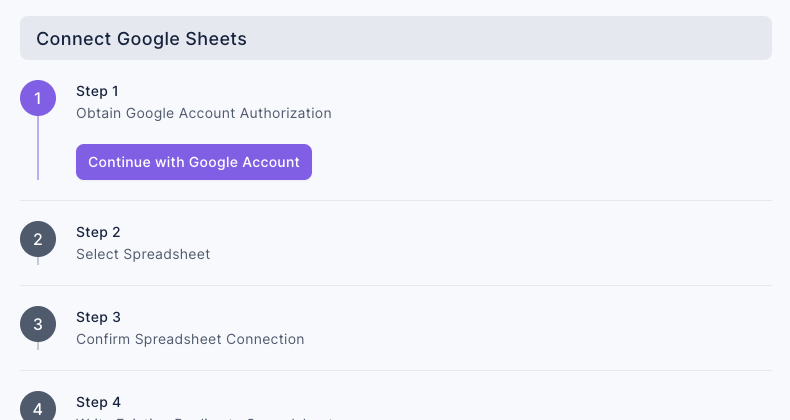
- Step 1, Obtain Google Account Authorization: click Continue with Google Account, choose an account on the Google page, then click "Continue" and "Allow". Don't uncheck any permissions, or the connection will fail.
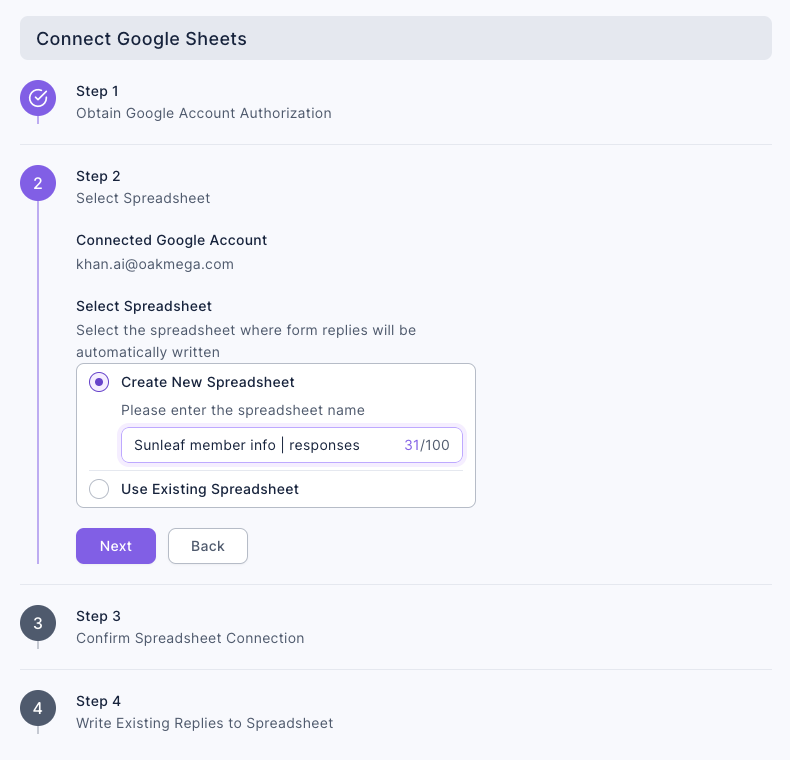
- Step 2, Select Spreadsheet: the page shows Connected Google Account. Choose Create New Spreadsheet and enter a spreadsheet name (up to 100 characters), or choose Use Existing Spreadsheet and paste the spreadsheet link, then click Next.
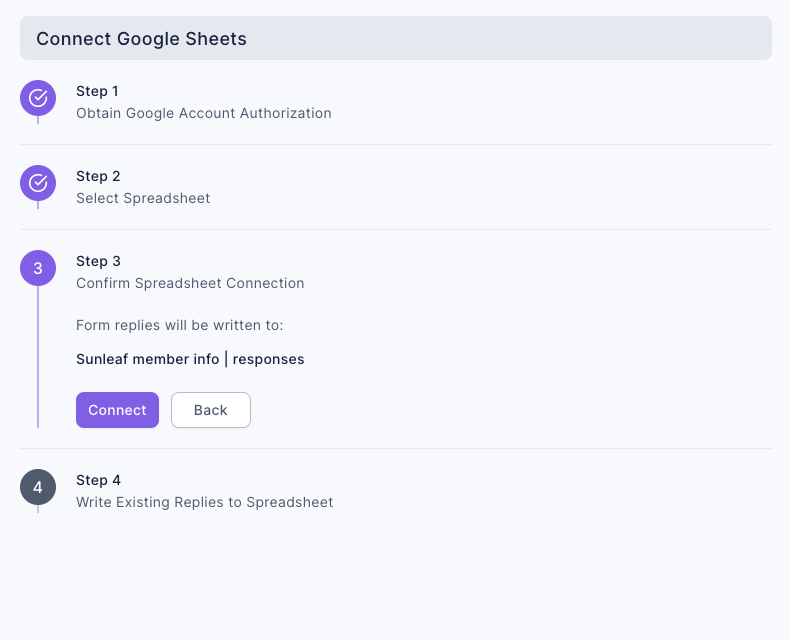
- Step 3, Confirm Spreadsheet Connection: check the spreadsheet name under "Form replies will be written to:" and click Connect.
- Step 4, Write Existing Replies to Spreadsheet: click Write Existing Replies to write the form's existing responses to the spreadsheet (up to the latest 1,000, which takes about 5–60 seconds). If you only want to record new responses from now on, click Skip, Record New Replies Only.
The screenshot below shows Step 1. Before you authorize, only "Continue with Google Account" can be clicked.
After you authorize and return to OakMega, Step 2 shows the authorized Google account, with the options to create a new spreadsheet or use an existing one below it.
After you click "Next", Step 3 shows the spreadsheet that responses will be written to. Check it, then click "Connect".
If you leave the connection page, you'll see Are you sure you want to leave the connection page. After leaving, you'll need to connect again.
What's in the spreadsheet
After connecting, OakMega adds a new sheet to the spreadsheet named form name(date and time of connection), and responses are written to that sheet. Each response is one row, with these columns in order:
| Column | Content |
|---|---|
| Each question | The question title is the column name, for example booking item, full name, phone |
| Answer Time (UTC+8) | When the form was submitted |
| Channel Type | The messaging platform the respondent logged in with, for example LINE |
| Channel User ID | The respondent's user ID on that platform (on LINE, the User ID starting with U) |
| Channel User Name | The respondent's name on that platform |
| OakMega Member Name | The OakMega member name |
The spreadsheet contains members' personal data. Before you share it, make sure the other person needs to see these columns.
Check the sync status and disconnect
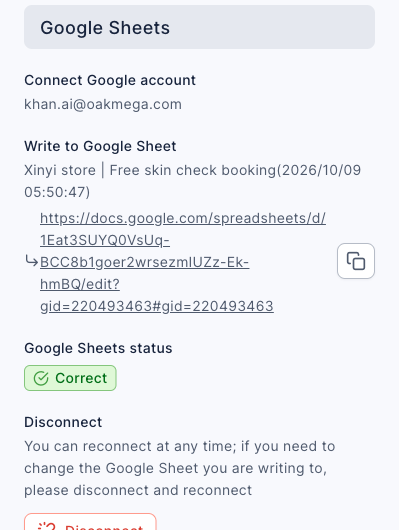
Once connected, go back to OakMega Form and click the form. The Google Sheets section under Form reply data on the right shows:
- Connect Google account: the authorized Google account.
- Write to Google Sheet: the sheet name and the spreadsheet link.
- Google Sheets status: Correct when everything is working. If something is wrong, it shows Error with a notice (see the FAQ below).
- Disconnect: disconnecting doesn't delete the existing data in the spreadsheet, and you can reconnect at any time. To switch to a different spreadsheet, disconnect first and then connect again.
In our test, the spreadsheet had 1 response after connecting and writing existing replies. When someone submitted the form again, a new row appeared within about half a minute.
How it works
- New responses are written automatically. Each time someone submits the form, the response is added to the bottom of the sheet.
- Existing responses are written only once. Step 4 writes the responses that exist at the time you connect, up to the latest 1,000. For older responses, use Check form responses and download the data.
- Editing the spreadsheet doesn't affect OakMega. If you delete or change data in the spreadsheet, the form responses in OakMega stay as they are.
- Keep the sheet, too. Deleting the whole spreadsheet, or just the sheet OakMega writes to, both result in "Spreadsheet has been deleted".
FAQ
The Google Sheets section shows "Google authorization has expired" or "Missing Google Sheets permission"
"Google Sheets status" changes to Error and a notice appears below it. This happens when the Google account's password or settings change, or when the Google Sheets permission was unchecked during authorization. Click Reauthorize in the notice, and keep every permission checked when you reauthorize.
Google Sheets status shows "Spreadsheet has been deleted"
The spreadsheet, or the sheet OakMega writes to, was deleted. Click Disconnect and connect again. You can choose "Create New Spreadsheet" and then write existing replies.
Google Sheets status shows "Unable to operate spreadsheet"
Something is wrong with the spreadsheet (for example, its permissions were changed). Click Disconnect and connect again.
"Spreadsheet Not Found" or "Cannot Operate Spreadsheet" appears while connecting
The link you pasted isn't a spreadsheet, or this Google account doesn't have permission to edit it. Go back to Step 2 and choose again. If an existing spreadsheet gives you trouble, choosing "Create New Spreadsheet" is the simplest option.
"Form Already Connected" appears
This spreadsheet is already connected to another form. Use a different spreadsheet for each form.
"Google Sheets API has temporarily exceeded access limit" appears
There were too many requests in a short time. Wait a few minutes and try again.