
This recipe helps store managers turn one in-store visit into a repeat purchase: members book a free check in LINE, claim a repurchase voucher in the store, and use it at checkout. Anyone who hasn't come back gets one reminder before the voucher expires. Every step tags members automatically, so staff don't have to keep track of who came in or who bought.
Who this is for
- Store managers who run in-store experiences but lose track of customers after they leave: you don't know who came back to buy, and you can't follow up with only the ones who didn't.
- Brand CRM owners who want to see how many people are left at each stage of "booking → visit → repurchase".
When you're done you'll have a bookable check, a booking form, a repurchase pass that only people who booked can see, and a reminder post that only goes to people who "came in but haven't bought again".
The example below is a "free skin check" at the Xinyi store of the fictional skincare brand Sunleaf. The booking item, form, pass and post were all actually created in the OakMega manual demo workspace, and a test friend actually booked and claimed the pass once. The member-side form and pass are real screens; the LINE chat is a mock-up recreated from the real message.
Features you'll use
| Feature | Role in this scenario | Minimum plan | Needs activation? |
|---|---|---|---|
| Booking Center | Opens time slots; adds or removes tags on booking and cancellation | Enterprise | Yes, Booking Center |
| Form | Has members log in and pick a slot; sends a confirmation after submission | Enterprise | Yes, Form |
| LINE message templates | The booking confirmation message | All plans | No |
| Pass | The repurchase voucher; claiming adds "Skin check done in store", using it adds "Repurchased" | Enterprise | Yes, Pass |
| Post Article | Uses contain / exclude tags to remind only people who haven't bought again | All plans | No |
Flow
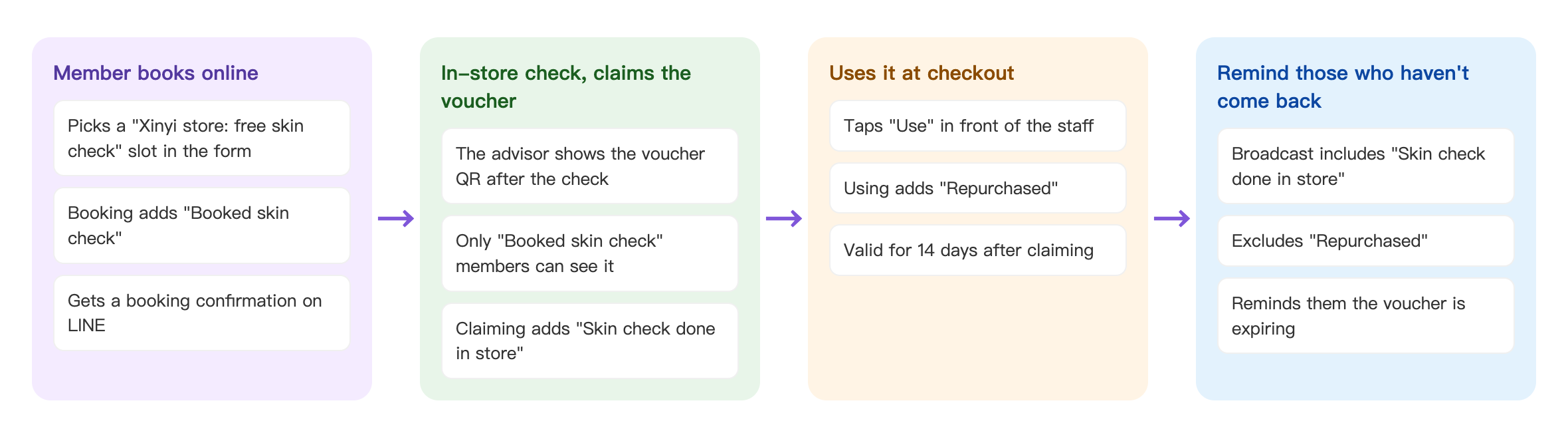
- The member opens the booking form and submits a slot for "Xinyi store: free skin check". The booking adds "Booked skin check", and the member gets a booking confirmation in LINE.
- After the check, the beauty advisor shows the QR code of the repurchase pass. Only members with "Booked skin check" can see this pass; when the member claims it, the system adds "Skin check done in store".
- At checkout, the member opens the pass and taps Use in front of the staff, and the system adds "Repurchased". The pass is valid for 14 days after claiming.
- Before the pass expires, send a post to members who "contain Skin check done in store and exclude Repurchased", reminding them it's about to expire.
How to set it up
| Step | Where | Settings in this scenario |
|---|---|---|
| 1. Create the tags | Member & Tag › Tag Management | Folder "In-store skin check": Booked skin check, Skin check canceled, Skin check done in store, Repurchased |
| 2. Create the booking item | Web-based Tool › Booking Center | 30 minutes; within the next 14 days; 11:00–20:30 every day; swap tags on booking and cancellation |
| 3. Prepare the confirmation | LINE › Template Management | "Skin check: booking confirmed": address, how to check in, the repurchase voucher, how to reschedule |
| 4. Build the booking form | Web-based Tool › OakMega Form | Questions: booking item, Real Name, Phone; follow-up action sends "Skin check: booking confirmed" |
| 5. Create the repurchase pass | Web-based Tool › Pass | Tag-limited public to "Booked skin check"; 1 per person; within 14 days of claiming; claiming adds "Skin check done in store", using adds "Repurchased" |
| 6. Remind before it expires | LINE › Post Article | OakMega segment › tag filter: contain "Skin check done in store", exclude "Repurchased" |
1. Create the tags
Under Member & Tag › Tag Management, create a folder "In-store skin check" with four tags: "Booked skin check", "Skin check canceled", "Skin check done in store" and "Repurchased". See Create and manage tags.
2. Create the booking item
Under Web-based Tool › Booking Center, create a folder "Xinyi store", then add a booking item:
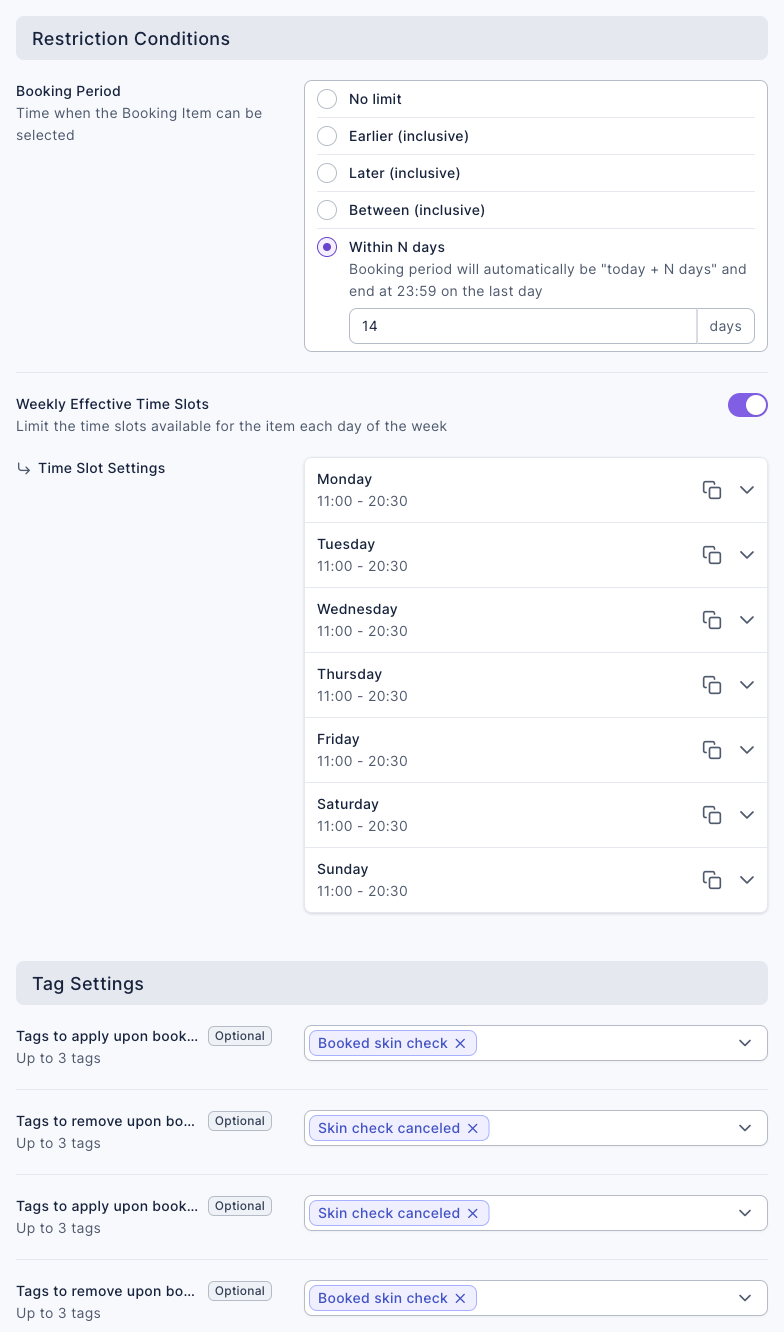
- Set Booking Item Name to "Xinyi store: free skin check", Booking Duration to 30 minutes and Open Slot Interval to 30 minutes.
- Set Booking Period to Within N days with 14, so only the next two weeks are ever open.
- Turn on Weekly Effective Time Slots, add a time range of 11:00 to 20:30 on Monday, then use the copy icon to apply it to Tuesday through Sunday. The last bookable slot is 20:00.
- Under Tag Settings:
- Set Tags to apply upon booking completion to "Booked skin check" and Tags to remove upon booking completion to "Skin check canceled".
- Set Tags to apply upon booking cancellation to "Skin check canceled" and Tags to remove upon booking cancellation to "Booked skin check". This way, if someone cancels and books again, the two tags swap and are never on the same person at once.
- Click Save.
For every field, see Take bookings with Booking Center.
3. Prepare the confirmation message
Under LINE › Template Management, create a folder "In-store skin check" and a text template "Skin check: booking confirmed". Include the address, "show this message when you arrive", that they'll get a repurchase voucher after the check, and "if you need to reschedule, just message us here". See Create LINE message templates.
4. Build the booking form
Bookings always go through a form. Under Web-based Tool › OakMega Form, create a folder "In-store skin check", then add a form:
- Set Form Name to "Xinyi store | Free skin check booking", and in Form Description cover what the check includes, how long it takes and "a 10%-off repurchase voucher after your check".
- Keep Login via Communication Platform on, and turn on Add friend to fill form so you can send reminders later.
- Under Question Settings, click + and choose "Xinyi store: free skin check" under Booking Items; then add Real Name and Phone and make them required.
- Under Follow-up Actions, turn on Send Message via Communication Platform and choose the "Skin check: booking confirmed" template.
- Click Save, then put the form link in your Richmenu, a post, or a QR code on an in-store poster.
Members pick a date first, then a slot that hasn't been booked yet. For the full steps, see Create a form.
5. Create the repurchase pass
Under Web-based Tool › Pass, create a folder "In-store skin check", then add a pass "Skin check repurchase 10% off":
- Set Distribution type to Member claims and Wallet visibility to Tag-limited public, with Limited tags set to "Booked skin check". People who haven't booked can't see or claim it.
- Under Promo Code, choose Display Universal Promo Code and enter the code your POS uses (SKIN90 in this example). Limit Total pass quantity to 300 and set Limit claims per person to 1.
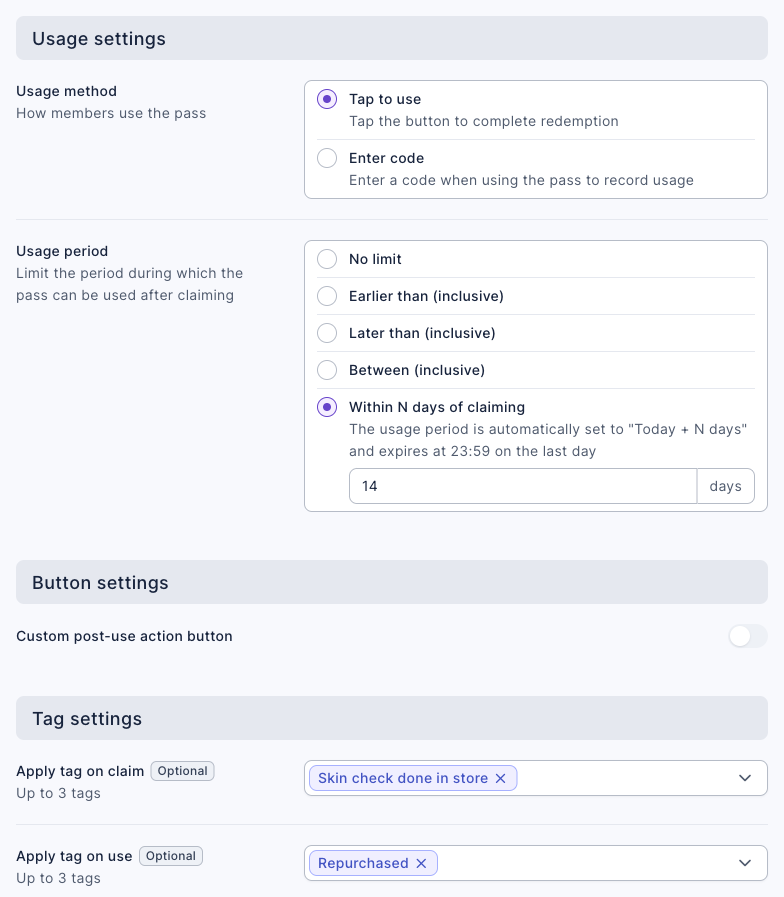
- Switch to Usage settings: set Usage method to Tap to use, and Usage period to Within N days of claiming with 14.
- Under Tag settings, set Apply tag on claim to "Skin check done in store" and Apply tag on use to "Repurchased".
- Click Save and confirm. In Pass information on the right, open the QR code of the View pass link, print it for the counter, and have members scan it after their check.
For the full steps, see Send passes (coupons).
6. Remind people who haven't bought again before the pass expires
The pass expires 14 days after claiming, so a reminder around day 11 after the check works well. Under LINE › Post Article, create a post:
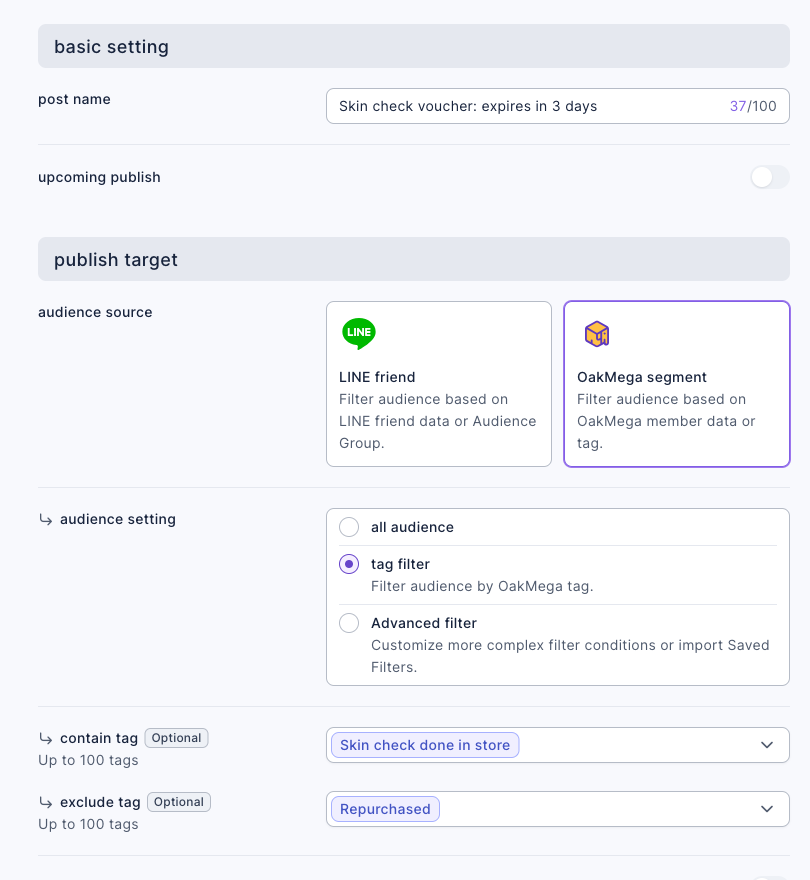
- Set audience source to OakMega segment and audience setting to tag filter.
- Set contain tag to "Skin check done in store" and exclude tag to "Repurchased".
- Add a text message such as "Your skin check repurchase voucher (10% off) expires in 3 days! Open your wallet at checkout in our store and ask the staff to tap 'Use'." and include the wallet link. The pass itself doesn't send members any message.
- Check audience / remaining message quota on the right, then publish, or Save as draft first. In the demo the audience was 1: the test friend who had just booked and claimed the pass but not used it.
For the full steps, see Post articles to LINE friends.
How it works and limits
The table below covers no-shows, cancellations and other cases that come up in practice.
| Situation | Result | What to do |
|---|---|---|
| A member books but doesn't come in | They have "Booked skin check", so they can find the repurchase pass in their wallet and claim it themselves | To give it strictly to people who came in, set Wallet visibility to Private, and after each check have staff use a post to add the visitors to the eligible-member list |
| A member cancels the booking | They switch to "Skin check canceled" and the pass disappears from their wallet; a pass they've already claimed isn't taken back | Nothing to do; to win them back, send a post to "Skin check canceled" inviting them to rebook |
| The Completed status in Booking Center | Only means the booking time has passed, not that the member actually came in | Use "Skin check done in store" to tell who came in |
| A reminder before the booking | Booking Center doesn't remind members automatically | Send a post to "Booked skin check" the day before; see Take bookings with Booking Center, tag by booking status and send reminders |
| You want to host two customers in the same slot | A slot can only be booked once | Duplicate the booking item (for example "Check seat A" and "Check seat B") |
| A member taps Use by mistake when not at checkout | The pass is marked used and "Repurchased" is added | Set Usage method to Enter code so a code is entered and recorded on use, which makes accidental taps less likely |
What members see
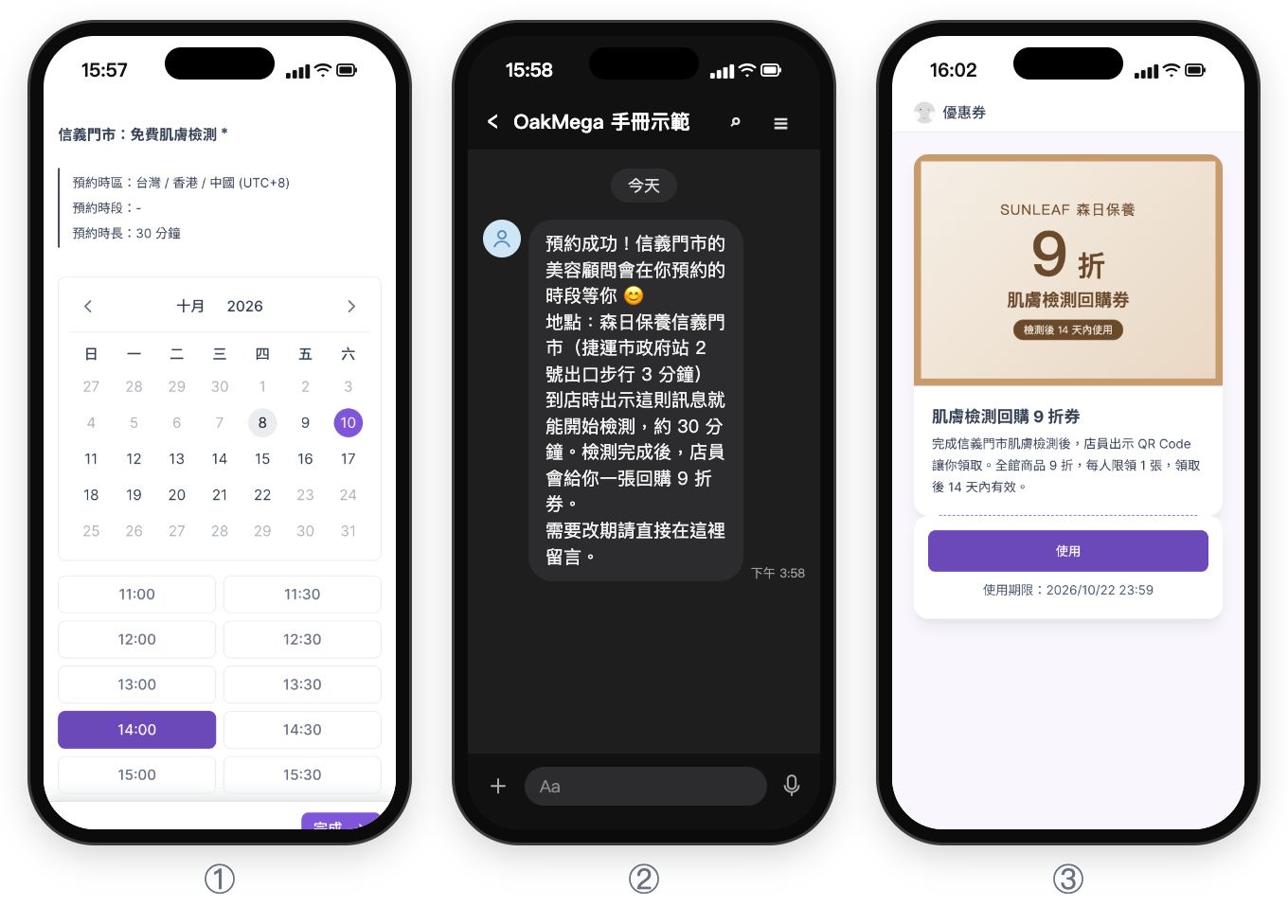
① The member opens the booking form and picks a date and slot; ② after submitting, they get a booking confirmation in LINE; ③ after the check, they scan the in-store QR code to claim the repurchase pass, which shows its usage period, and tap Use at checkout. ① and ③ are screens from the test friend's actual run; ② is a mock-up recreated from the real message. All three screens are a Chinese demo.
How to check it's working
| What you want to know | Where to look |
|---|---|
| How many booked and how many canceled | Booking Center › Bookings, filtered by status |
| How many actually came in | Claimed for the repurchase pass, or the Total Number of Tagged People for "Skin check done in store" |
| How many bought again | Used for the repurchase pass, or the Total Number of Tagged People for "Repurchased" |
| Whether the reminder worked | After the reminder post goes out, compare how the "Repurchased" count changes |
Bookings → claimed → used is the conversion funnel for this experience.
Variations
- Tier members after they repurchase: add a tier tag to "Repurchased" members and switch them to a members-only menu; see Different Richmenus for VIP and regular members: a VIP-only menu and a VIP-only pass.
- Multiple stores: one booking item and one repurchase pass per store, with the store name in the tags (for example "Skin check done in store: Taichung"), so you can compare conversion across stores.
- Book again after they run out: a month later, send "Repurchased" members a post inviting them to another check, with the same booking form.