
This recipe helps sales managers and product marketers at manufacturers replace printed catalogs with digital catalogs on LINE: whenever a customer opens a product line's catalog, OakMega records that they're interested in that line, and sales can invite exactly those customers to a demo or send them a quote, instead of cold-calling down the whole list.
Who this is for
- Sales managers launching new machines every quarter who want to know which customers actually read the specs, so reps spend their time on interested accounts.
- Product managers and marketers who hand out piles of catalogs at trade shows and distributor events but can't tell who looked at which model.
When you're done you'll have a "Viewed catalog" tag for each product line, a digital catalog page for each product line (only viewable after LINE login and adding the account as a friend, with viewers tagged automatically), and a trial cutting invitation that goes only to customers who viewed the catalog.
The example below uses a fictional industrial equipment maker with two product lines: the "VX-500 Vertical Machining Center" and the "LS-300 Laser Cutter". The tags, approved pages and segmented post draft were all actually created in the OakMega manual demo workspace.
Features you'll use
| Feature | Role in this scenario | Minimum plan | Needs activation? |
|---|---|---|---|
| Tag Management | One "Viewed catalog" tag per product line records which line a customer is interested in | All plans (Free: up to 10 tags) | No |
| Approved Page | Works as the digital catalog: specs, application examples and lead times; viewers are tagged automatically | Pro and above | Yes (page quota applies) |
| LINE Member Management | Sales filter by tag to find customers who viewed a product line's catalog | Pro and above | No |
| Post Article | Sends the trial cutting invitation only to catalog viewers | All plans | No |
| Service Center | Sales reps take over the conversation when a customer replies | All plans | Service Center seats are activated separately |
Flow
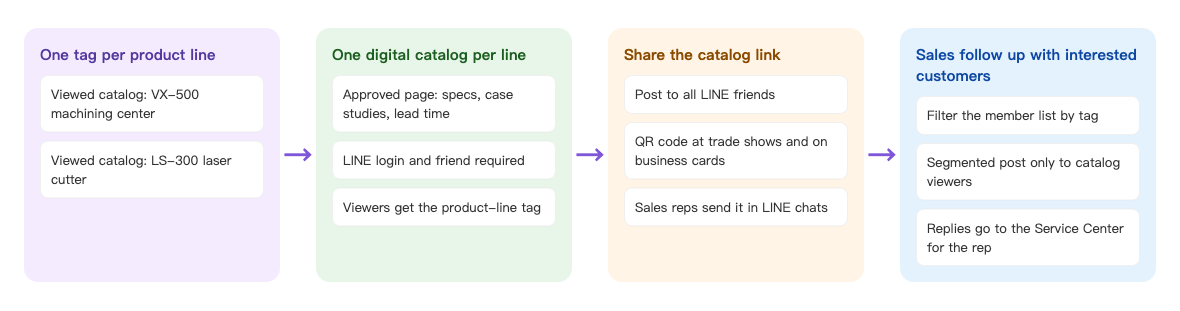
- Create one tag per product line, such as "Viewed catalog: VX-500 machining center".
- Build one approved page per product line as its digital catalog. Require LINE login and friendship to view it, and tag viewers with that product line's tag.
- Share the catalog link: in a post to all friends, as a QR code on your trade show booth or business cards, and in reps' LINE chats with customers.
- Sales filter by tag to find customers who viewed the catalog and send trial cutting or quote invitations only to them; when customers reply, reps take over in Service Center.
How to set it up
| Step | Where | Settings in this scenario |
|---|---|---|
| 1. Create product-line tags | Member & Tag › Tag Management | Folder "Product line interest": "Viewed catalog: VX-500 machining center" and "Viewed catalog: LS-300 laser cutter" |
| 2. Build the digital catalogs | Web-based Tool › Approved Page | Folder "Product catalogs", one page per product line; turn on the login and add-friend restrictions, and set Tag Members Viewing Approved Page to that line's tag |
| 3. Share the catalog links | Post Article, QR code, reps' LINE chats | Use the Approved Page Link on the right side of the approved page |
| 4. Filter the list and send invitations | LINE › Member Management; LINE › Post Article | Tag filter "Viewed catalog: VX-500 machining center" |
| 5. Sales follow-up | Service Center | When a customer replies, the rep responsible for that territory takes over |
1. One tag per product line
Under Member & Tag › Tag Management, add a folder named "Product line interest" and add one tag per product line inside it: "Viewed catalog: VX-500 machining center" and "Viewed catalog: LS-300 laser cutter". Put the product line right in the tag name so reps understand it at a glance on the member list. See Create and manage tags.
If you have many product lines, you can tag by series instead of one tag per model. Tag Members Viewing Approved Page on an approved page can apply up to 3 tags, for example both "Viewed catalog: VX-500" and "Interest: mold making".
2. One digital catalog per product line
Under Web-based Tool › Approved Page, add a folder named "Product catalogs" and add one page per product line:
- In Approved Page Title, write the product line and "Catalog", such as "LS-300 Laser Cutter | Catalog". In Approved Page Description, write one line of key specs; it's shown when the link is shared.
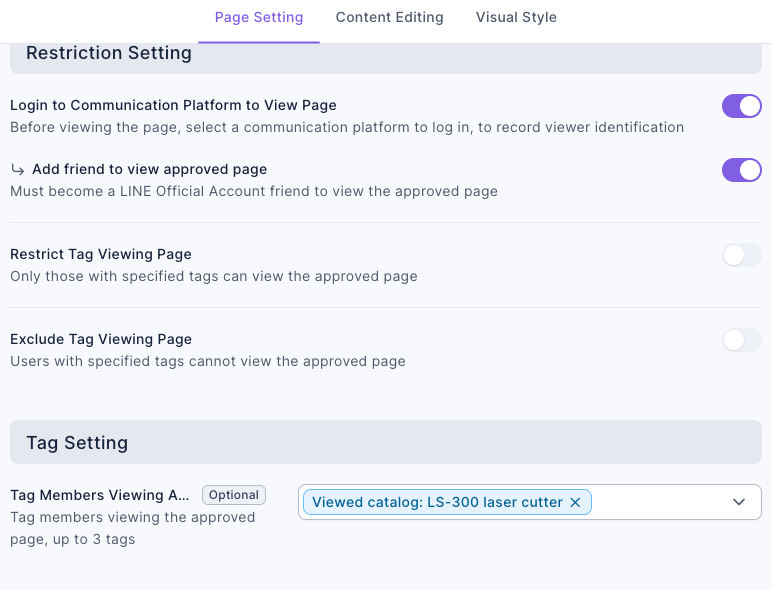
- Keep Login to Communication Platform to View Page on. Without login, OakMega doesn't know which customer is viewing and can't tag them.
- Turn on Add friend to view approved page so everyone who views the catalog is your LINE friend and can receive your invitation later.
- Set Tag Members Viewing Approved Page to this product line's tag, such as "Viewed catalog: LS-300 laser cutter".
- In Content Editing, add the spec sheet, photos of machining examples, standard lead times, and a line like "For a quote or sample parts, just message us on LINE."
- Click Save.
The screenshot below shows the Page Setting for the LS-300 catalog: Login to Communication Platform to View Page and Add friend to view approved page are both on, and Tag Members Viewing Approved Page is set to "Viewed catalog: LS-300 laser cutter".
For every field, see Create an approved page.
3. Share the catalog link
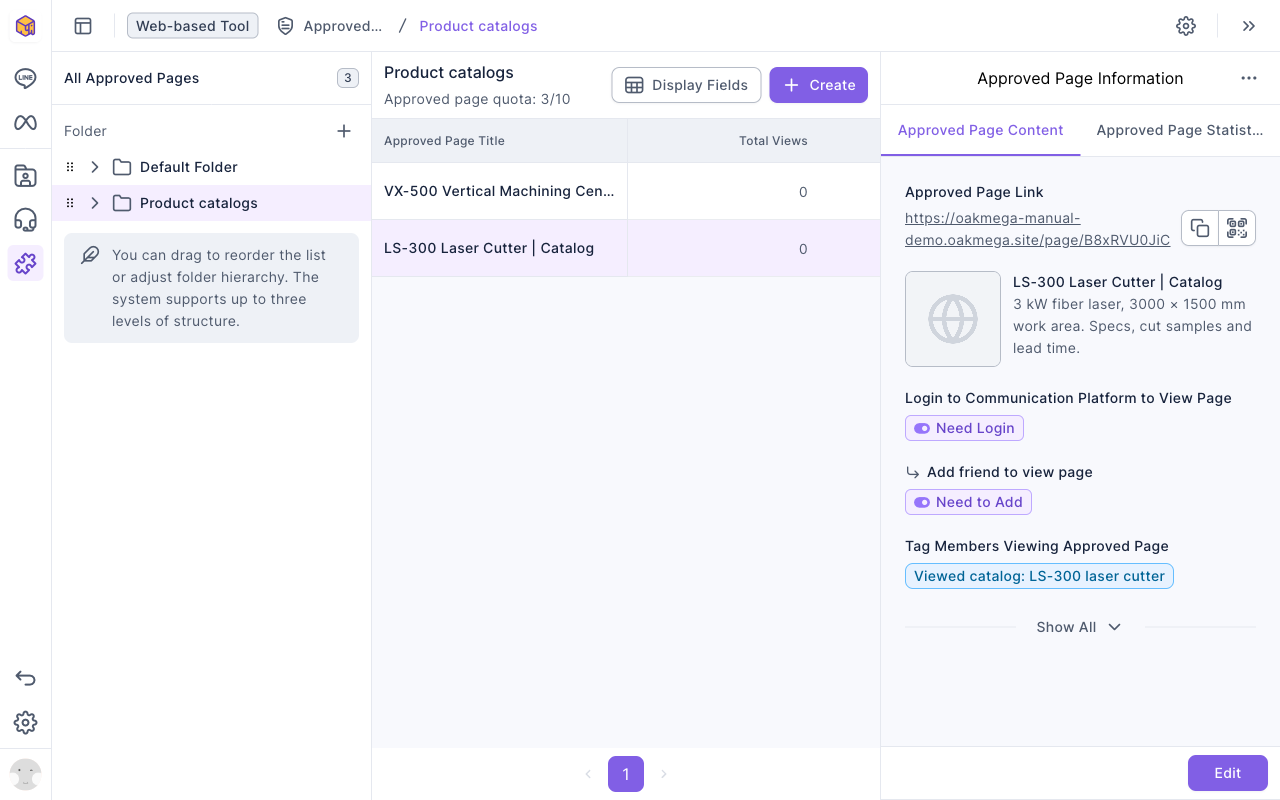
After saving, click the page in the approved page list. On the right, the Approved Page Content tab shows the Approved Page Link with copy and QR code buttons. The screenshot below shows the two catalogs in the "Product catalogs" folder, with the LS-300 page's link, description, Need Login, Need to Add and the tag it applies on the right.
Common ways manufacturers share it:
| Channel | How | Best for |
|---|---|---|
| Post to all friends | Include the catalog link in a new machine announcement | Existing customers and distributor contacts who are already friends |
| Trade show booth, catalog back cover, business cards | Print the approved page's QR code | Prospects you meet for the first time at a show; they scan, add you as a friend and read the catalog |
| Reps' LINE chats | Paste the catalog link | Accounts a rep is already working; afterwards the rep can see whether they opened it |
Once a customer opens the link, logs in with LINE and adds you as a friend, they're tagged the moment they see the catalog.
4. Find catalog viewers and send only to them
To see who has viewed a product line, sales can go to LINE › Member Management and filter by the tag "Viewed catalog: VX-500 machining center". That's the list of interested customers. See View and filter LINE members.
To invite this group all at once, create a post under LINE › Post Article, such as "VX-500 trial cutting day invitation": under publish target, set audience source to OakMega segment and audience setting to tag filter, then choose "Viewed catalog: VX-500 machining center" under contain tag. The animation below shows choosing the audience. No customer had opened the catalog yet in the demo, so the right side shows "No audience matches the filter conditions".
The demo post reads: "Hi, we noticed you checked out the catalog for the VX-500 Vertical Machining Center. In November, our Taichung showroom is open for trial cutting, and you're welcome to bring your own parts to test. To book a time slot or request a quote, just reply to this message and the sales rep for your territory will get in touch." Click Test publish to check it yourself first, then publish. For the full steps, see Post articles to LINE friends.
5. Sales follow up when customers reply
When a customer replies to the post or messages your official account, the message appears in Service Center. Reps can reply right there, and the right side shows which "Viewed catalog" tags the customer has. To route replies automatically to the right rep or territory, see Understand how conversations are assigned to organizations and agents and Handle conversations in Service Center.
What customers see
After tapping the catalog link and logging in with LINE, the customer sees this digital catalog page (the screen is a Chinese demo): specs, the kinds of machining it suits and lead time, ending with an invitation to message you on LINE for a quote or a trial cutting. Once they've viewed the page, OakMega applies the product-line tag.

| Customer | What they do | What they see | Tags applied |
|---|---|---|---|
| Scans the QR code at a trade show, not yet a friend | Logs in with LINE and adds the account as a friend | The LS-300 digital catalog | Viewed catalog: LS-300 laser cutter |
| Existing customer who gets the new machine announcement | Taps the VX-500 catalog link in the post | The VX-500 digital catalog | Viewed catalog: VX-500 machining center |
| Has viewed both catalogs | — | — | Both tags; receives invitations for both lines |
| Hasn't opened any catalog | — | — | No tag; doesn't receive the trial cutting invitation |
How to check it's working
| What you want to know | Where to look |
|---|---|
| How many customers viewed each product line | Member & Tag › Tag Management: the Total Number of Tagged People for each "Viewed catalog" tag |
| How many times a catalog was viewed | Web-based Tool › Approved Page: click the page and open Approved Page Statistics on the right for Total Views and Total Viewers |
| How many people got the trial cutting invitation and how many opened it | LINE › Post Article: open the post to see the audience and impression rate |
| How many customers sales followed up with | The conversation list in Service Center and the Service Center Data Center |
Variations
- Distributor-only catalogs: to show price lists or technical documents only to distributors, turn on Restrict Tag Viewing Page on the approved page so only people tagged "Distributor" can open it.
- Gauge how interested they are: add a spec sheet download or a video to the catalog and give "Downloaded spec sheet" its own tag to find the most engaged customers.
- Route to territory reps automatically: record each customer's territory with a tag when they add you as a friend, then set each territory team's Service Center organization's Assigned Tag to that territory's tag, so replies go to the right rep.