
This recipe helps sales managers and incoming sales reps at manufacturers hand over a customer account completely when a rep leaves, moves to another territory, or the account is upgraded. The new rep doesn't have to dig through the previous rep's personal LINE or spreadsheets: they open the customer in Service Center and see which machines the customer bought, which product lines they're interested in, which forms they filled in, and where the previous rep left the conversation.
Who this is for
- Sales managers: a rep is leaving or territories are being redrawn, and you need to hand their customers to someone else without gaps that make customers repeat everything from the start.
- Incoming sales reps: before contacting the customer for the first time, you want to know their background, which machine models they use, and which quote is currently under discussion.
When you're done you'll know where each piece of customer information sits in Service Center and what it means, how to make yourself the assigned agent, and where the previous rep should keep information day to day so the handover doesn't break.
The example below continues from Capture trade show leads, Warranty registration and Digital catalogs: the customer requested a catalog at the trade show, viewed the VX-500 catalog, and registered a machine warranty, and the previous rep, Chris Chen, left a handover in Notebooks. The customer and reps on screen are demo data.
Features you'll use
| Feature | Role in this scenario | Minimum plan | Needs activation? |
|---|---|---|---|
| Service Center | Find the customer, read the conversation and form cards, change the assigned agent | All plans | Service Center seats are activated separately |
| Tag Management | Product line, region, request and source tags record the customer's background | All plans (Free: up to 10 tags) | No |
| OakMega Form | Replies to the trade show and warranty registration forms, including the machine serial number and request | Pro and above | Yes (form quota applies) |
| Notebooks | The previous rep's handover and follow-up notes | All plans | Yes, activated separately |
Flow
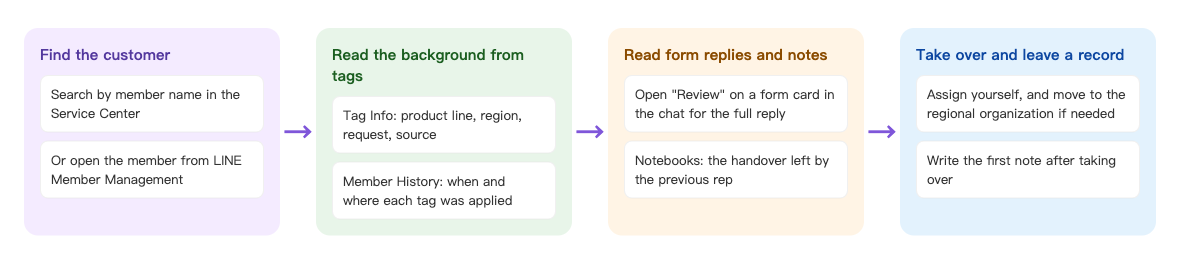
- Search for the customer by member name in Service Center, or open them from LINE Member Management.
- Tag Info shows the product line, region, request and source; Member History shows when and where each tag was applied.
- Click Review on a form card in the chat to see everything the customer filled in; Notebooks shows the handover the previous rep left.
- Make yourself the assigned agent, move the conversation to the regional organization if needed, then write the first note in Notebooks.
Steps
| Step | Where | What to check or do |
|---|---|---|
| 1. Find the customer | Service Center › search by Member Name | Open the customer's conversation; Member Data is on the right |
| 2. Read tags | Member Data › Member Info › Tag Info | Product line, region, request, source |
| 3. Read Member History | Member Data › Member History | When and from where each tag was applied |
| 4. Read form replies | Form card in the chat › Review | Machine serial number, delivery date, request, company name |
| 5. Read the handover notes | Member Data › Member Info › Notebooks | Where the previous rep left things and what to watch out for |
| 6. Take over | Assigned agent and organization at the top of the chat room | Assign yourself and write the first note |
1. Find the customer in Service Center
In Service Center, click the magnifier at the top-left of the list, choose Member Name under Search items, and type the customer's LINE name (at least two characters). Open the conversation, and the customer's Member Data is on the right.
If you only know the customer's real name, or can't find them in the Service Center list, search in LINE › Member Management instead (member name matches both the LINE name and the real name). Clicking the customer there opens the same Member Data.
2. Read the customer's background from tags
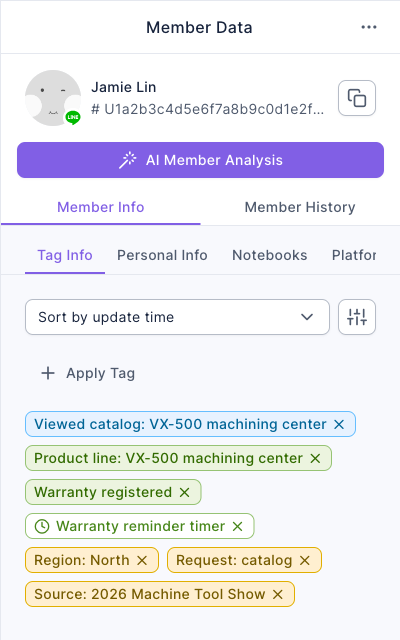
Tag Info under Member Info lists the tags on the customer. These tags were applied automatically when the customer interacted with forms and catalog pages, not typed in by a rep, so they don't disappear when a rep leaves.
The screenshot below shows the demo customer's tags: viewed the VX-500 catalog, product line VX-500, warranty registered (with a warranty reminder timer that expires), region North, request for a catalog, and source 2026 Machine Tool Show. This one row tells you they're a customer in the North who came from the trade show and already owns a VX-500.
3. Read the timeline in Member History
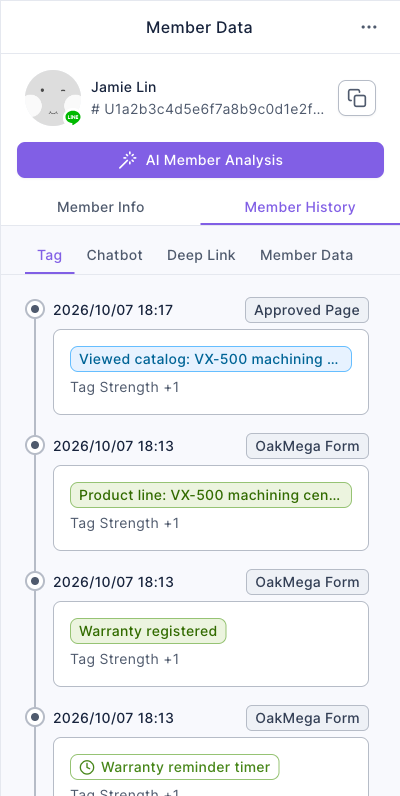
Switch to the Tag tab of Member History. Each entry is one tag being applied: the time, the source (for example OakMega Form or Approved Page) and the tag name.
The screenshot below shows that the customer filled in the trade show form at 18:12 (region, request and source tags), the warranty registration form at 18:13 (product line and Warranty registered), and came back to view the VX-500 catalog at 18:17.
The same row also has Chatbot, Deep Link, Member Data and Point tabs, where you can see which keywords the customer triggered and which links they clicked. To put it into a report, click "⋯" at the top-right of Member Data and choose Download member history for the past year to download an Excel file.
4. Open the form replies
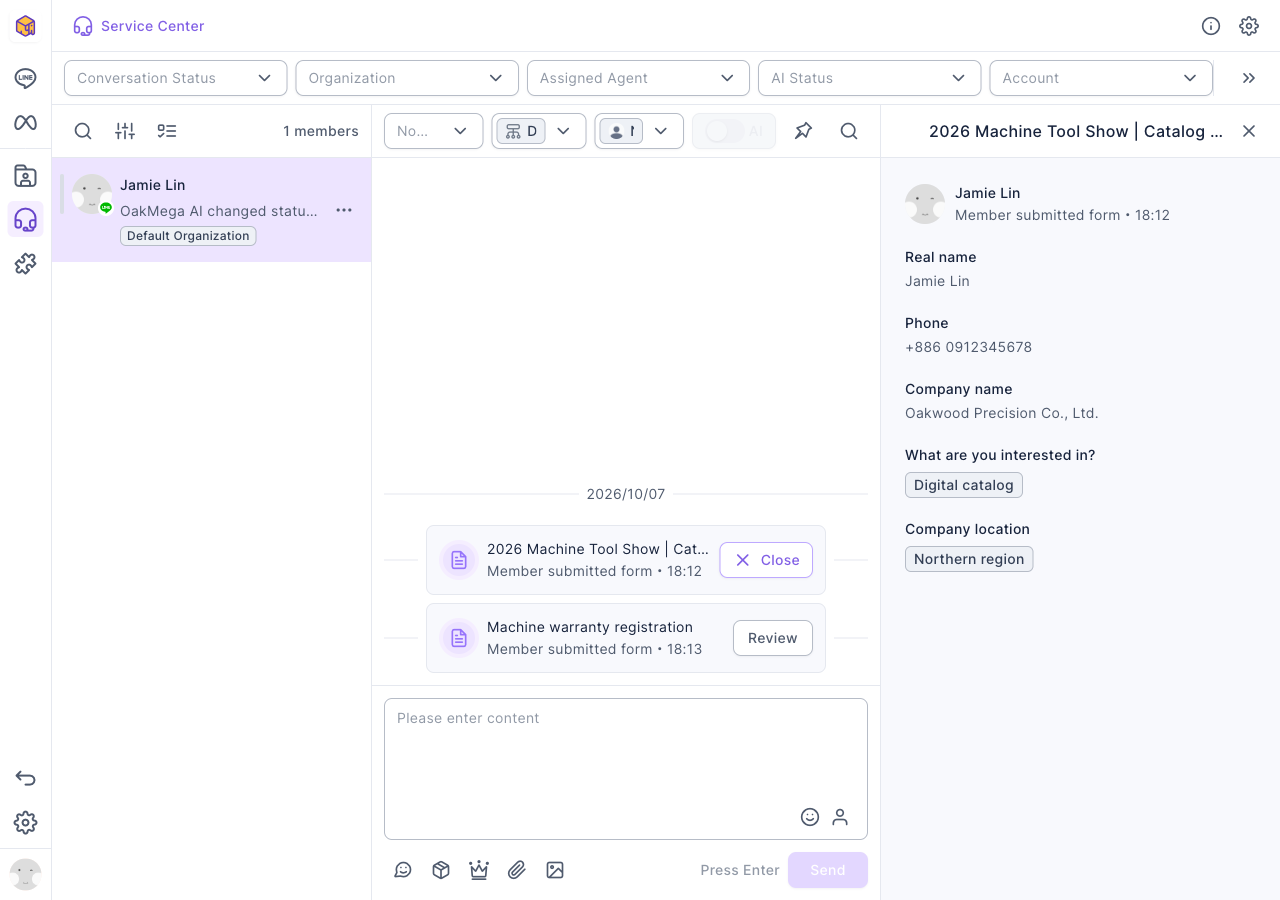
Each form the customer filled in leaves a card in the conversation (Member submitted form). Click Review on the card, and the full reply to that form appears on the right.
The screenshot below opens the trade show form: real name, phone and company name, "Digital catalog" for what they're interested in, and "Northern region" for company location. Opening the warranty registration form shows the machine model, serial number and delivery date.
You can also download all form replies from the form list; see Check form responses and download the data.
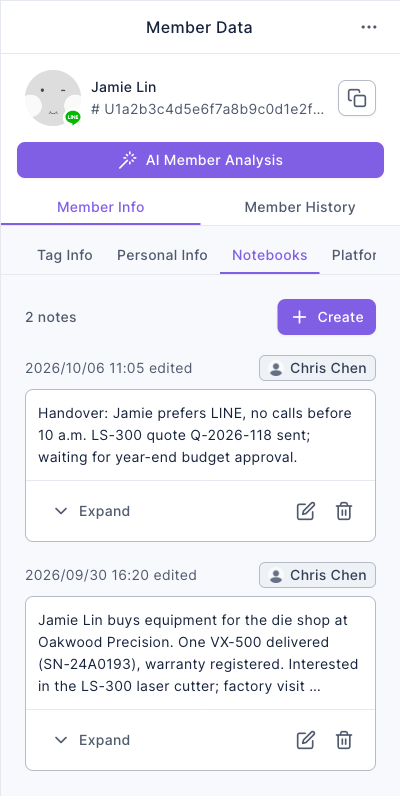
5. Read the previous rep's handover notes
Switch back to Member Info and click Notebooks. Reps record call details, quote progress and customer preferences here, with the most recently edited note at the top.
The screenshot below shows two notes left by the previous rep, Chris Chen. The earlier one records who the customer is, which machine they bought, and their interest in the LS-300; the latest one is the handover: the customer prefers LINE, no calls before 10 a.m., and the LS-300 quote has been sent and is waiting on budget.
Notebooks must be activated separately; see Keep follow-up notes on members with Notebooks.
6. Take over and leave a record
- In the assigned agent dropdown at the top of the chat room, choose yourself. If the customer is moving to another territory, change the organization dropdown in the same row to the organization that covers it (for example "North sales team").
- In Notebooks, click Create and write your first note after taking over, for example "Took over Oct 8. Introduced myself on LINE; factory visit to see the LS-300 booked for next Wednesday."
- From then on, when the customer sends a message, it appears in the conversations assigned to you.
For details on changing the assigned agent and organization, see Handle conversations in Service Center.
How it works and limits
| Data | Does it stay with the customer after handover? | Note |
|---|---|---|
| Tags | Yes, they're on the customer | Only tags applied through form options, catalog pages, chatbots or manually are here; what reps keep in their own spreadsheets isn't |
| Member History | Yes | Downloads only cover the past year |
| Form replies | Yes, as cards in the conversation, and downloadable from the form list | Customers must log in with LINE to fill in the form for it to be linked to them |
| Chat history | Yes, in the official account's Service Center | Anything the previous rep discussed with the customer on their personal LINE isn't here |
| Notebooks | Yes | Any member with edit permission can change or delete notes, so don't rely on a single note for anything important; needs activation first |
How complete a handover is depends on everyday habits. The previous rep needs to keep customer conversations in the official account, collect information through forms, and write important discussions in Notebooks, so the next rep can see them. Sales managers can make "write a note after every call" a team rule.
What the customer sees
The customer doesn't need to do anything and won't notice the change: they've been talking to the same LINE official account all along.
| When | What the customer sees |
|---|---|
| Before handover | They chat with the official account, and the previous rep replies |
| During handover | Nothing changes; they don't need to add the new rep as a friend |
| After handover | The new rep replies from the same official account and can introduce themselves in the first message |
How to check it worked
| What you want to know | Where to look |
|---|---|
| Have all handed-over customers moved to the new rep? | Filter Assigned Agent at the top of Service Center by the new rep's name |
| Are any customers still under the departing rep? | Filter Assigned Agent in Service Center by the departing rep |
| Has the new rep followed up? | Whether the customer's Notebooks has a new note, and whether the Service Center conversation has a new reply |
Variations
- Let AI take a first pass: AI Member Analysis at the top of Member Data generates a member summary and conversation suggestions for this customer; check them against the tags and notes.
- Hand over many customers at once: in Service Center, use Batch select to select several members, then Select change items to change the organization or assigned agent in one go (filter to a single organization first before changing the assigned agent). See "Handle several members at once" in Handle conversations in Service Center.
- Dealer handover: dealers are members too, so the handover works the same way; for dealer identity and tier tags, see Dealer management.