
This recipe helps a brand's CRM owners and marketers give VIP members their own Richmenu the moment they open the LINE chat: a voucher only VIPs can claim, a VIP line and their wallet. Regular friends keep seeing the usual menu. VIPs feel the difference, and regular friends never tap an offer they can't claim.
Who this is for
- CRM owners who already have membership tiers and want VIPs to get a different experience on LINE.
- Marketers who don't want to give a VIP offer to every friend, only let VIPs see and claim it.
When you're done you'll have a pass that only VIP members can see and claim, a VIP segmented Richmenu, and a way to apply the menu to VIPs and switch it when members move up or down a tier.
The example below is the skincare brand "Sunleaf". The tag is the "VIP Member" tag from Your first week with Service Center; the pass and the segmented Richmenu were actually created and applied in the OakMega manual demo workspace.
Features you'll use
| Feature | Role in this scenario | Minimum plan | Needs activation? |
|---|---|---|---|
| Tag Management | The "VIP Member" tag decides who can see the pass and whose menu changes | All plans (Free: up to 10 tags) | No |
| Pass | The VIP voucher: tag-limited public, so only VIPs can see and claim it | Enterprise | Yes |
| Richmenu | The VIP segmented Richmenu: voucher, VIP line and wallet buttons | All plans | Segmented menu slots are limited |
| LINE Member Management | Filters VIP members and changes their Richmenu in bulk | Pro and above | No |
Flow
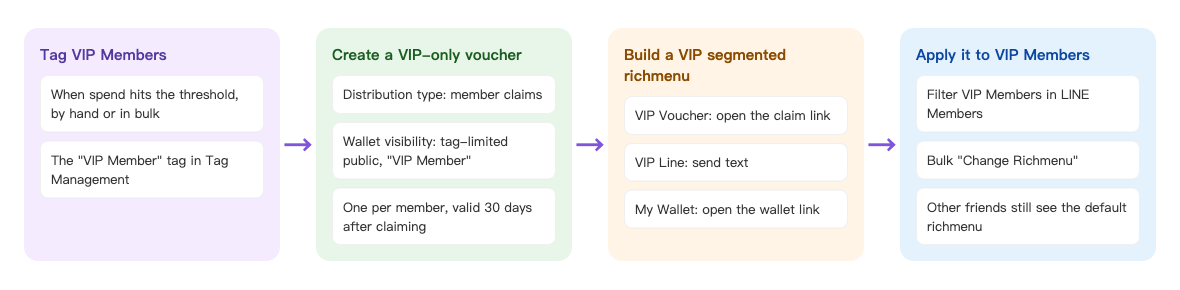
- When a member reaches the VIP threshold, apply the "VIP Member" tag (by hand, in bulk, or automatically through a form or chatbot).
- Create a VIP-only pass that's visible in the wallet only to "VIP Member".
- Build a VIP segmented Richmenu: VIP Voucher (opens the claim link), VIP Line (sends text) and My Wallet (opens the wallet link).
- In LINE Member Management, filter VIP members and change their Richmenu to the VIP menu in bulk. Other friends keep seeing the default Richmenu.
How to set it up
| Step | Where | Settings in this scenario |
|---|---|---|
| 1. Prepare the VIP tag | Member & Tag › Tag Management | "VIP Member" in the "Membership tiers" folder |
| 2. Create the VIP-only pass | Web-based Tool › Pass | Folder "VIP perks": Member claims, Tag-limited public to "VIP Member", 1 per person, within 30 days of claiming |
| 3. Build the VIP segmented Richmenu | LINE › Richmenu › Segmented Richmenu | "VIP member menu" with three buttons |
| 4. Apply it to VIPs | LINE › Member Management | Filter "VIP Member" → batch Change Richmenu |
1. Prepare the VIP Member tag
Under Member & Tag › Tag Management, check that you have a "VIP Member" tag (here it's the one in the "Membership tiers" folder). Who counts as a VIP is up to your own rules, say NT$30,000 in annual spending; in OakMega, that means applying "VIP Member" to those members. See Create and manage tags.
2. Create the VIP-only pass
Under Web-based Tool › Pass, add a folder "VIP perks" and a pass "VIP exclusive: NT$200 skincare voucher":
- On Basic settings, upload the pass image and write the description (NT$200 off orders of NT$1,500 or more, one per member).
- Under Distribution settings, set Distribution type to Member claims; set Wallet visibility to Tag-limited public and Limited tags to "VIP Member".
- Under Claim settings, set a universal promo code and the Total pass quantity, and turn on Limit claims per person with 1.
- On Usage settings, set Usage period to Within N days of claiming with 30.
- Click Save, then Confirm in the confirmation dialog.
The image below is this pass's distribution settings: members claim it, and only members with the "VIP Member" tag can see it in their wallet.
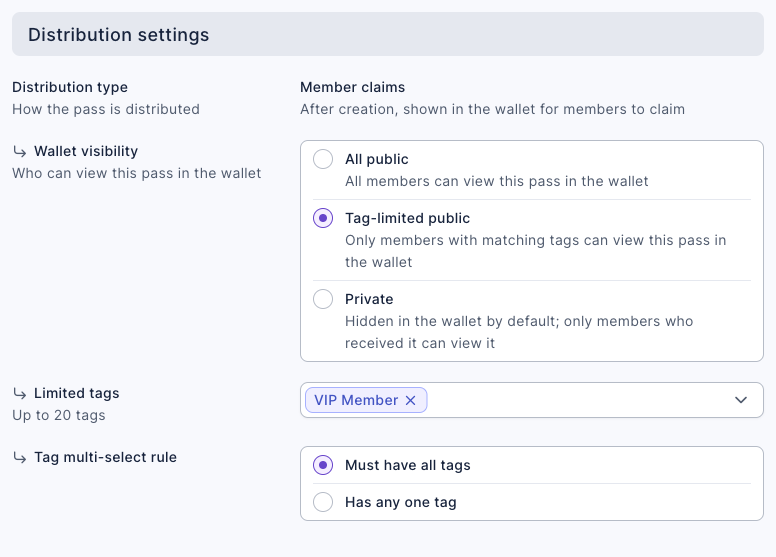
Distribution type can't be changed after saving, so make sure it's Member claims before you save. Regular friends can't see this pass even if they get the claim link. For every field, see Send passes (coupons).
3. Build the VIP segmented Richmenu
Under LINE › Richmenu, switch to the Segmented Richmenu tab and click the edit icon in the top-right of a slot that hasn't been set up:
- Set Richmenu Name to "VIP member menu" and Text Below Menu to "VIP only", and turn on Default Expand.
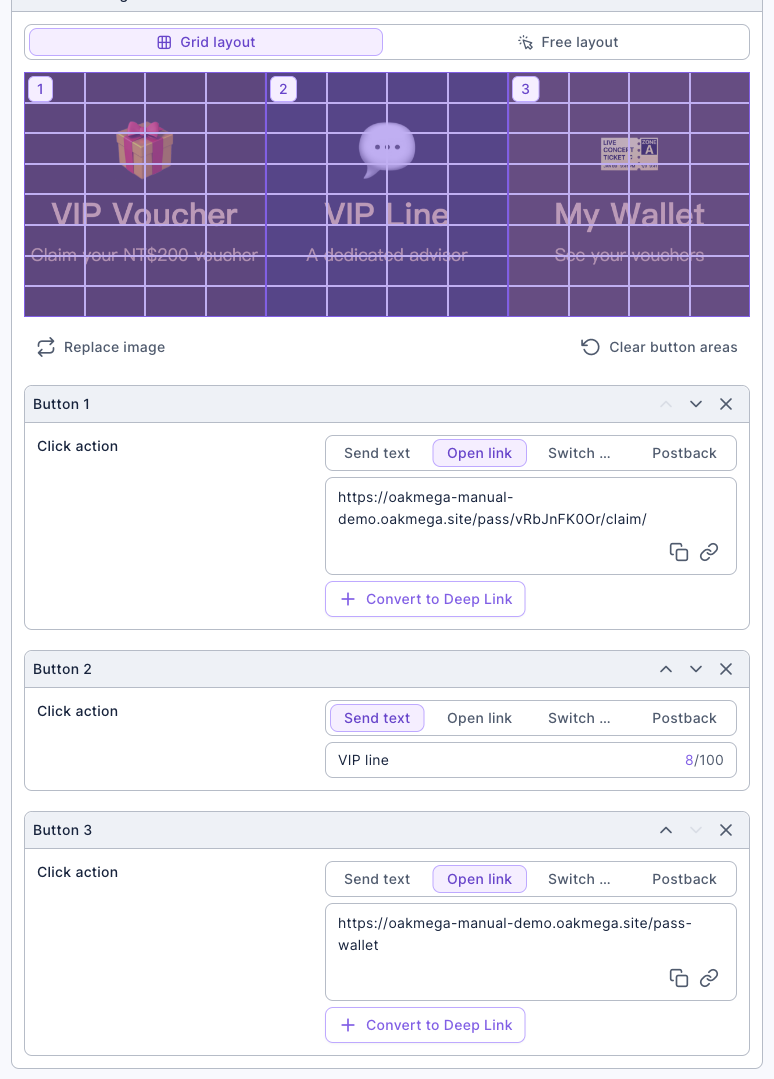
- Under Content settings, upload a three-panel menu image, choose Grid layout, and drag out three buttons:
- Button 1 "VIP Voucher": Open link, with the pass's claim link (the View pass link in the pass list).
- Button 2 "VIP Line": Send text "VIP line". Pair it with a chatbot on the same keyword that transfers members to the VIP support organization; see One LINE Official Account, separate AI for after-sales and VIP.
- Button 3 "My Wallet": Open link, with the wallet link (
https://<your-domain>/pass-wallet).
- Click Save.
The image below is the content settings of the VIP member menu: each of the three buttons takes one panel; buttons 1 and 3 open a link and button 2 sends text.
The number of segmented Richmenu slots is fixed. When they're all in use, Reset one you no longer need, or contact OakMega to buy more. For image requirements, see Set up LINE Richmenus.
4. Apply it to VIP members
A segmented Richmenu has to be applied to members before they see it:
- Under LINE › Member Management, use Advanced Filter to find members with the "VIP Member" tag.
- Tick the select-all checkbox at the top-left of the list, then click Change Richmenu on the right.
- Choose "Segmented Richmenu | VIP member menu" and click Confirm.
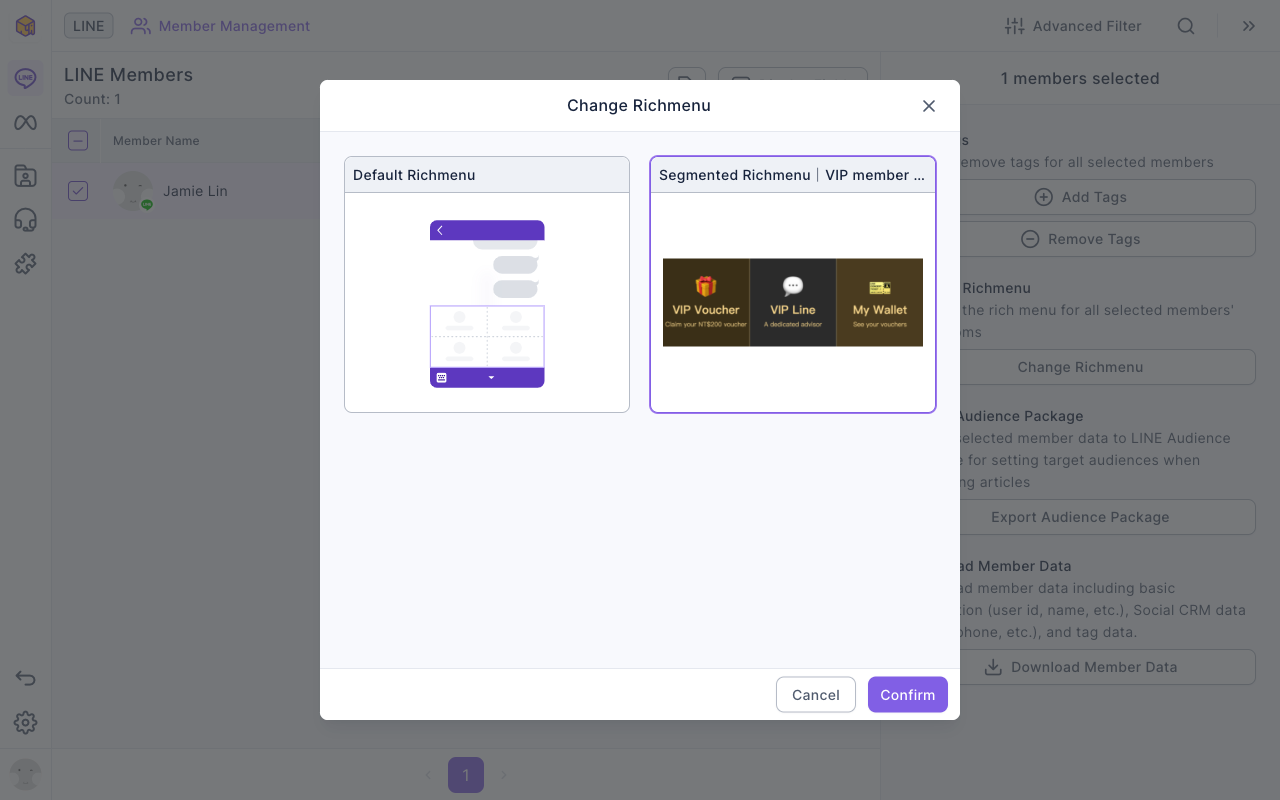
Once applied, Richmenu under Platform in the member's details shows "Segmented Richmenu | VIP member menu". For filters and batch actions, see View and filter LINE members.
How it works and limits
The table below covers what happens when members move between tiers or links get shared.
| Situation | Result | What to do |
|---|---|---|
| A member gets "VIP Member" later | The menu doesn't change automatically; Richmenus aren't linked to tags | Filter new VIPs regularly and change their menu in bulk, or add a Richmenu message to your upgrade announcement so the menu switches when they receive it |
| A VIP is downgraded and the tag removed | The menu doesn't switch back automatically; they can no longer see or claim a VIP voucher they haven't claimed yet | Change their Richmenu back to "Default Richmenu" in Member Management |
| A regular friend gets the VIP voucher link | They can't see the pass or claim it | Nothing to do; this is what Tag-limited public is for |
| A VIP wants the regular menu back | Only the admin can switch it | An agent clicks Switch Richmenu under Platform in the member details in Service Center |
| The default Richmenu changes for a campaign | VIPs aren't affected; the segmented menu takes priority | If VIPs should see the campaign too, update the VIP menu as well |
Segmented menus take priority over the default. A member with a segmented Richmenu applied keeps seeing it until it's switched, removed, or that segmented menu is reset.
What members see
① A VIP member opens the chat and sees the VIP menu at the bottom (the menu bar reads "VIP only"); ② tapping "VIP Voucher" opens the pass only VIPs can see, and tapping Claim puts it in their wallet. The chat is a mock-up, and the pass page was opened with the demo account. Both screens are a Chinese demo.
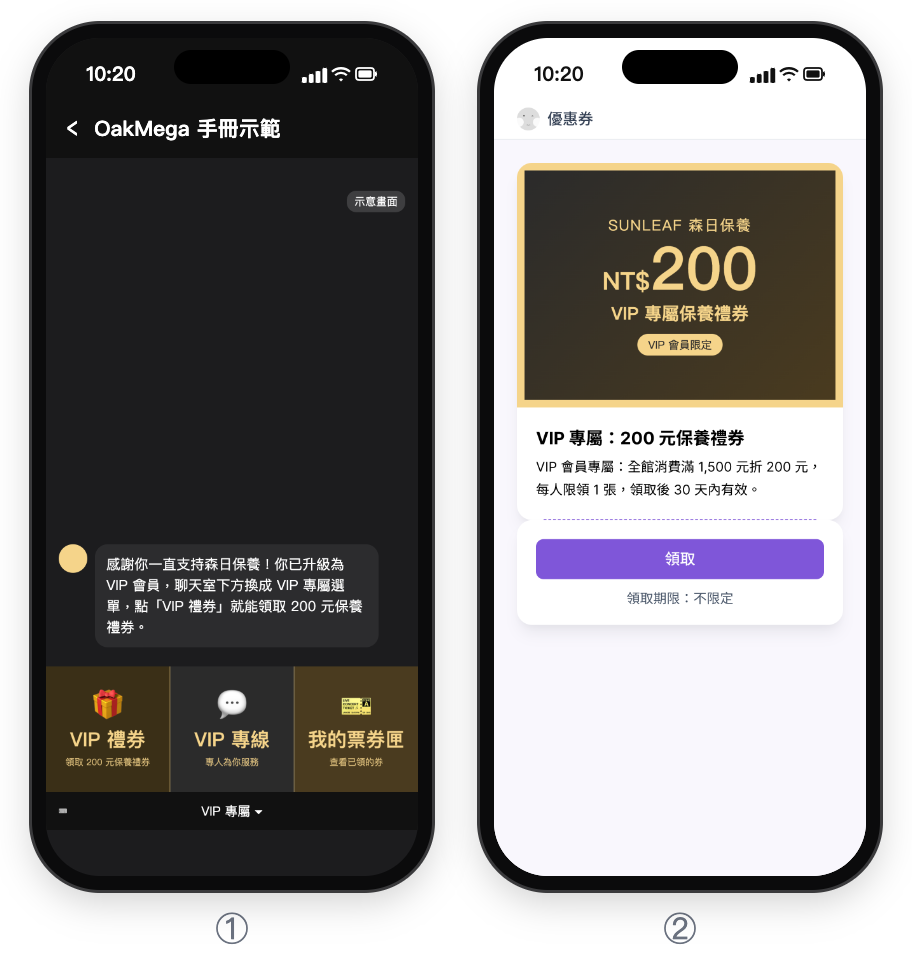
The table below compares what each kind of member sees.
| Member | Menu in the chat | Tapping the VIP voucher link |
|---|---|---|
| VIP member (menu applied) | VIP member menu | Can see and claim it |
| Just upgraded, menu not applied yet | Default Richmenu | Can see and claim it (the tag is already applied) |
| Regular friend | Default Richmenu | Can't see the pass |
How to check it's working
| What you want to know | Where to look |
|---|---|
| How many VIPs have the menu | Applied Members on the segmented Richmenu card |
| Who has it | Download applied member data from "⋯" on the segmented Richmenu card |
| How many VIP vouchers were claimed and used | Claimed and used counts in the pass list |
| How often the VIP menu buttons are tapped | Click Convert to Deep Link on a button's link, then check clicks under Deep Link |
Variations
- Three tiers, three menus: one segmented menu each for Gold, Silver and regular members, with a pass limited to each tier's tag.
- Switch the menu at the moment of upgrade: post a "Congratulations, you're a VIP" article to new VIPs with a Richmenu message in it; members switch to the VIP menu when they receive it, with no batch action needed.
- A VIP entrance with a Tag Routing Link: for a VIP-only event page, use one Tag Routing Link that sends VIPs to the event page and everyone else to a regular page; see the dealer portal in Dealer management for manufacturers.