
This recipe helps marketers do two things during a launch: see how many new friends IG ads, FB ads and an influencer post each bring, and on launch day send the offer only to people who actually opened the product page, instead of posting to every friend.
Who this is for
- Brand marketers running a launch across several channels who want to know where the next round of budget should go.
- CRM owners at e-commerce or retail brands who want to pick "people interested in the new product" out of all friends and send the launch offer only to them, saving message quota and bothering fewer people.
When you're done you'll have a dedicated add-friend link per channel, source and interest tags applied automatically, and a post that only goes to interested friends.
The example below is the skincare brand "Sunleaf" launching its new "Dawn Serum". Every setting was actually created in the OakMega manual demo workspace.
Features you'll use
| Feature | Role in this scenario | Minimum plan | Needs activation? |
|---|---|---|---|
| Tag Management | Source tags and an interest tag | All plans (Free: up to 10 tags) | No |
| LINE chatbot | What new and existing friends receive after clicking a link | All plans | No |
| New/Existing Friend Link | One per channel; counts new friends and applies the source tag | All plans (Free: up to 10) | No |
| Deep Link | Link to the product page; tags everyone who opens it | All plans (Free: up to 10) | No |
| Post Article | Tag filter so only interested people receive the offer | All plans | No |
Your workspace needs a connected LINE official account first.
Flow
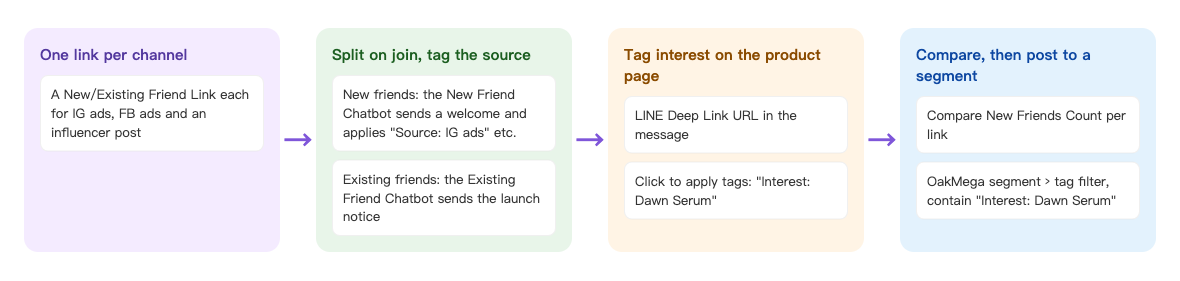
- IG ads, FB ads and the influencer post each get their own New/Existing Friend Link.
- Someone clicks a link and adds the account as a friend: the New Friend Chatbot sends a welcome message and tags them with that channel's source, such as "Source: IG ads". People who were already friends get the launch notice from the Existing Friend Chatbot.
- Both messages contain the product page's LINE deep link, and everyone who opens it is tagged "Interest: Dawn Serum".
- During the campaign you compare new friends per link; on launch day you post the first-order offer to the OakMega segment with "Interest: Dawn Serum".
How to set it up
| Step | Where | Settings in this scenario |
|---|---|---|
| 1. Prepare tags | Member & Tag › Tag Management | Folder "Dawn Serum launch" with "Source: IG ads", "Source: FB ads", "Source: influencer" and "Interest: Dawn Serum" |
| 2. Add the product page deep link | Link Tool › Deep Link | Link name "Dawn Serum product page", click to apply tag "Interest: Dawn Serum" |
| 3. Prepare two split chatbots | LINE › Chatbot | "Dawn Serum: new friend welcome" and "Dawn Serum: existing friend notice", each with the LINE deep link URL from step 2 |
| 4. Add one link per channel | Link Tool › New/Existing Friend Link | "IG ads", "FB ads", "Influencer post", each tagging new friends with its source tag |
| 5. Turn on the chatbots and publish the links | LINE › Chatbot; each channel | Switch both split chatbots on, then put the links in the ads and influencer post |
| 6. Post to the segment on launch day | LINE › Post Article | OakMega segment › tag filter, contain tag "Interest: Dawn Serum" |
1. Prepare tags
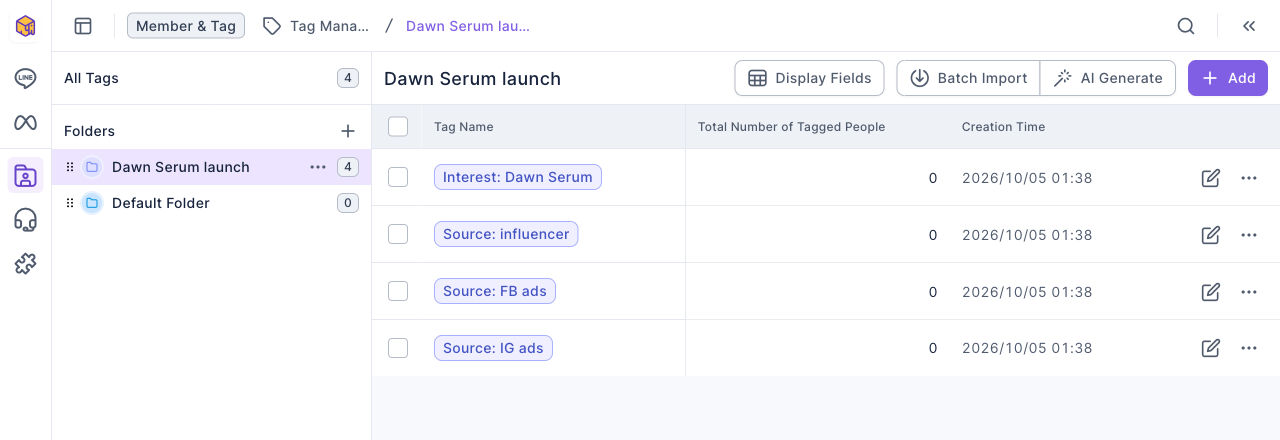
Under Member & Tag › Tag Management, add a folder "Dawn Serum launch" with four tags: one source tag per channel plus one interest tag. Starting source tags with "Source:" and interest tags with "Interest:" makes them easy to tell apart in the tag filter later. See Create and manage tags.
The image below is the finished "Dawn Serum launch" folder with four tags: "Interest: Dawn Serum", "Source: influencer", "Source: FB ads" and "Source: IG ads". The campaign hasn't started, so every tag count is 0.
2. Add the product page deep link
Under Link Tool › Deep Link, add a link whose original URL is the product page:
- Set Link Name to "Dawn Serum product page".
- Change Link Title and Link Description to describe the new product; this is the preview shown when the link is shared.
- Under Click to apply tags, choose "Interest: Dawn Serum".
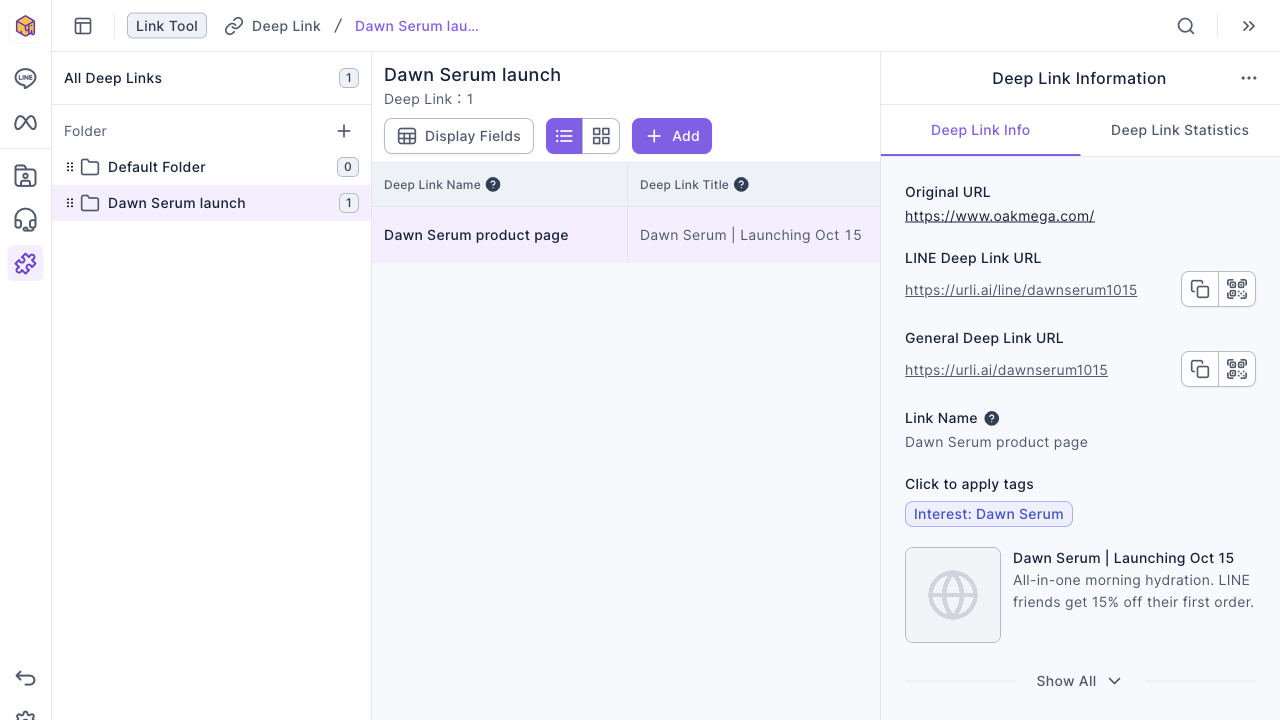
- Click Confirm and note the LINE Deep Link URL on the right; it goes into the chatbot messages next.
Always use the LINE Deep Link URL (starting with https://urli.ai/line/): people sign in with LINE before they're redirected, so OakMega knows who clicked and can tag them. The General Deep Link URL needs no sign-in and only counts clicks. See Create a deep link.
The image below is the finished deep link. The Deep Link Information panel on the right shows the original URL, the LINE Deep Link URL https://urli.ai/line/dawnserum1015, the General Deep Link URL, and "Interest: Dawn Serum" under Click to apply tags.
3. Prepare two split chatbots
Under LINE › Chatbot, add two chatbots. Every channel's link shares this pair:
| Chatbot | For | Example message |
|---|---|---|
| Dawn Serum: new friend welcome | People who become friends after clicking a link | Welcome to Sunleaf! Our new Dawn Serum launches on Oct 15. LINE friends get 15% off their first order. See the product: (LINE Deep Link URL) |
| Dawn Serum: existing friend notice | People who were already friends when they clicked | Thanks for staying with Sunleaf! Our new Dawn Serum launches on Oct 15, and you get 15% off too. See the product: (LINE Deep Link URL) |
A split link can use any kind of chatbot; the demo uses keyword chatbots. Keep in mind that a friend who sends the trigger keyword also gets the message, so give the new-friend chatbot a keyword nobody would type by accident, such as "dawn welcome gift".
Chatbot Status is on by default when you create a chatbot. You can switch it off while you're still setting things up, but it must be on before you go live: while a split chatbot is off, people who click the link get no message, and new friends are not tagged with the source and not counted as new friends. See Set up a LINE chatbot.
4. Add one link per channel
Under Link Tool › New/Existing Friend Link, add a folder "Dawn Serum launch" and one link per channel:
- Name each Link Name after the channel: "IG ads", "FB ads", "Influencer post".
- For a memorable URL, change the link code, for example to
dawn-ig-ad. - Set New Friend Chatbot to "Dawn Serum: new friend welcome" and Existing Friend Chatbot to "Dawn Serum: existing friend notice".
- Under Tag New Friends, pick the channel's source tag, for example "Source: IG ads" for the IG ads link.
- Fill in Link Title and Link Description, then click Save.
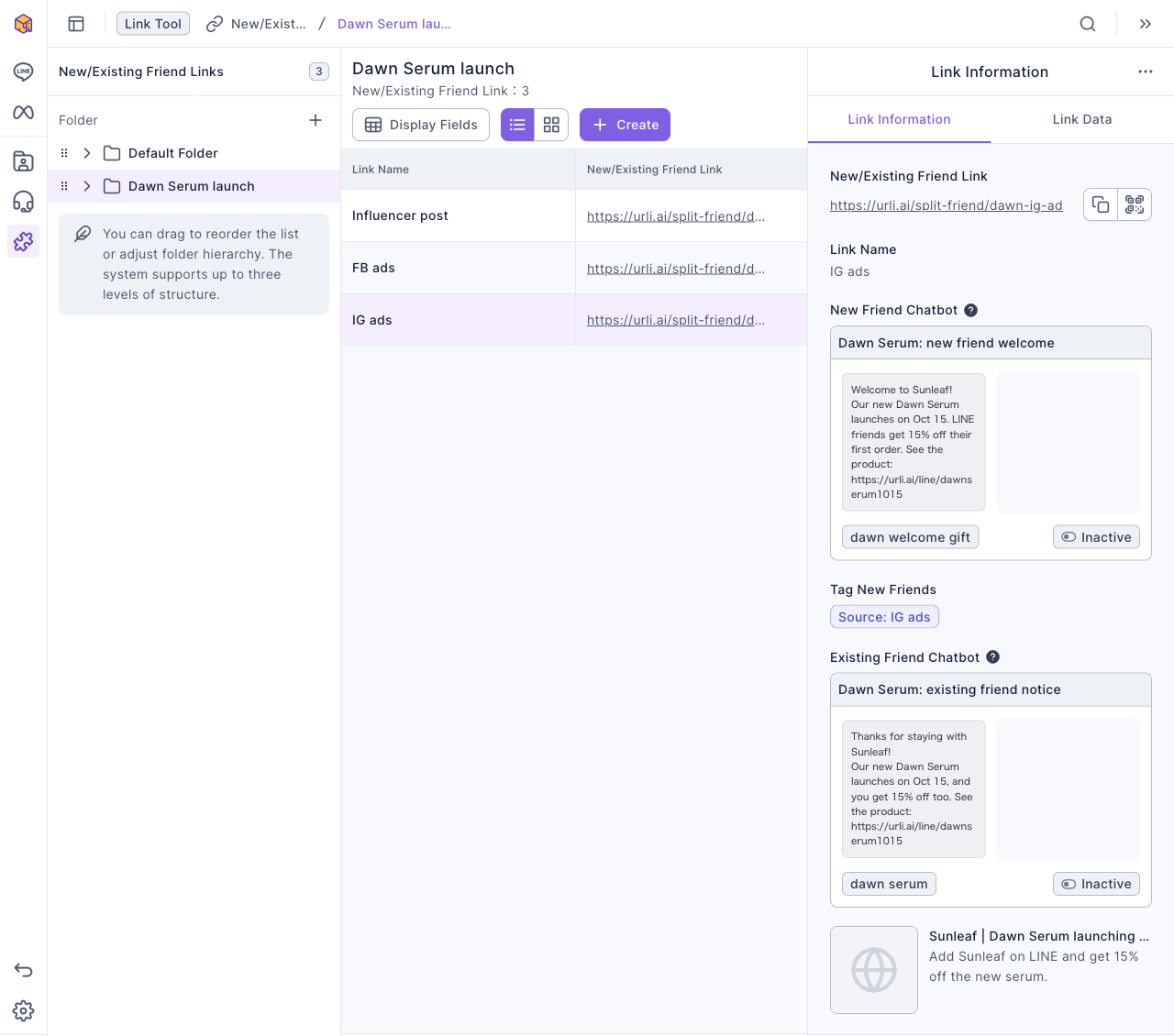
The image below shows the three finished links with "IG ads" selected. The Link Information panel shows the link URL https://urli.ai/split-friend/dawn-ig-ad, the New Friend Chatbot "Dawn Serum: new friend welcome", Tag New Friends "Source: IG ads" and the Existing Friend Chatbot "Dawn Serum: existing friend notice". Both chatbots are still "Inactive" here; you turn them on in the next step.
For the full walkthrough, see Welcome new friends separately with a New/Existing Friend Link.
5. Turn on the chatbots and publish the links
- Go back to LINE › Chatbot and switch Chatbot Status on for both split chatbots in the list.
- Each split link has its URL and QR code on the right. Use each link's URL as the destination of its IG or FB ad, and give the influencer their own link. Every channel must use a different link; if two share one, you can't tell them apart.
- Before launch, open each link on your own phone once and check that you get the right message and tag.
6. Post to the segment on launch day
Under LINE › Post Article, create a post named "Dawn Serum launch: 15% off":
- Set audience source to OakMega segment.
- Set audience setting to tag filter.
- Under contain tag, choose "Interest: Dawn Serum".
- Add your message, click Test publish to send it to your message test members first, then publish now or schedule it.
The animation below clicks "OakMega segment" under the publish target, selects "tag filter", opens the tag menu under "contain tag" and ticks "Interest: Dawn Serum" in the "Dawn Serum launch" folder. Nobody has opened the product page yet in the demo, so the right side shows audience / remaining message quota 0 / 200 and "No audience matches the filter conditions". Once the campaign starts, people who open the product page are counted in.
If you choose several contain tag tags, anyone with any one of them receives the post; anyone with any exclude tag tag is left out. To post only to people who "joined from IG ads and opened the product page", the tag filter can't do it; use Advanced filter to combine conditions instead. See Post articles to LINE friends.
What members see
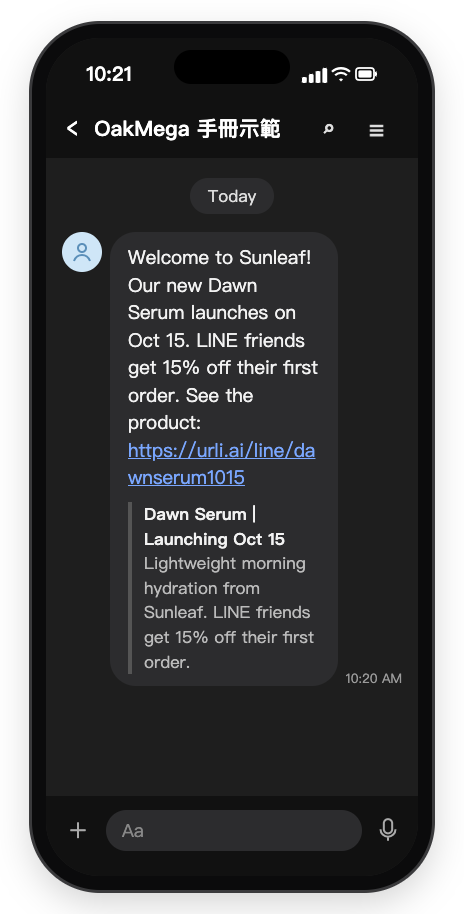
When someone who isn't a friend yet taps the IG ads link and adds the account in LINE, they receive "Dawn Serum: new friend welcome": "Welcome to Sunleaf! Our new Dawn Serum launches on Oct 15. LINE friends get 15% off their first order. See the product:", followed by the product link and a link preview. The image below is a mockup drawn from the chatbot's actual content.
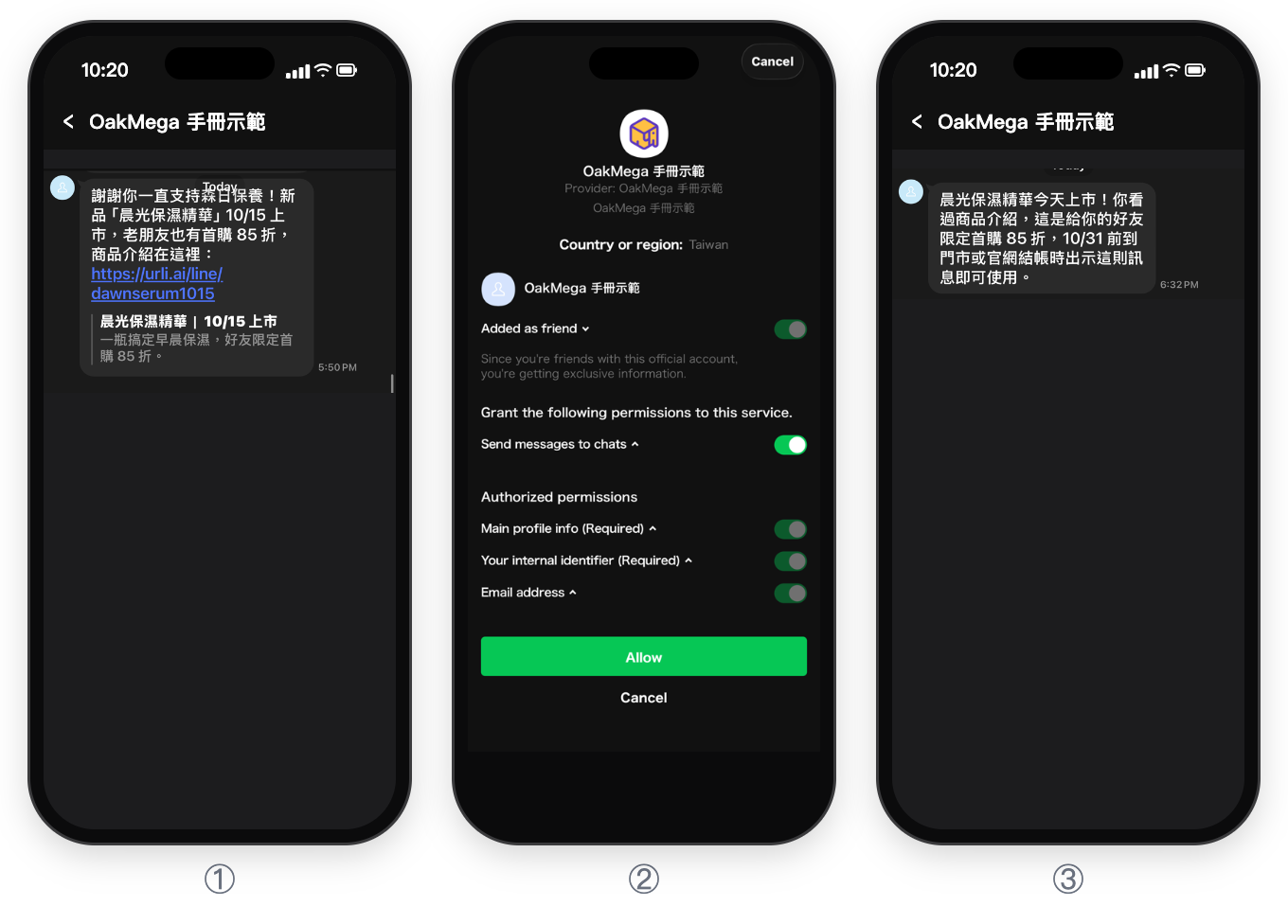
① When an existing friend taps the FB ads link, the LINE chat receives the "Dawn Serum: existing friend notice". This screenshot is from the Chinese demo: it thanks the friend for supporting Sunleaf, announces the Dawn Serum launch on Oct 15 with 15% off the first order, and includes the product link with a link preview.
② Tapping the product link in the message first opens the LINE Login consent screen. It shows the official account "OakMega 手冊示範", that you're already a friend, and the permissions requested: main profile info, internal identifier and email address. Only after tapping "Allow" does the friend go to the product page and get the "Interest: Dawn Serum" tag.
③ On launch day, people with the "Interest: Dawn Serum" tag receive the article: the serum is out today, and since they viewed the product, they get 15% off their first order by showing the message at checkout before Oct 31. The screenshot shows the Chinese demo message.
| Member | What they do | What they receive | Tags applied |
|---|---|---|---|
| Not yet a friend | Clicks the IG ads link and adds the account in LINE | One message: "Dawn Serum: new friend welcome" | Source: IG ads |
| Already a friend | Clicks the FB ads link | One message: "Dawn Serum: existing friend notice" | None (this demo doesn't set Tag Existing Friends) |
| Either of the above | Opens the product link in the message and signs in with LINE | Redirected to the product page | Interest: Dawn Serum |
| Anyone tagged "Interest: Dawn Serum" | On launch day | The post "Dawn Serum launch: 15% off" | — |
New friends who join through a split link get only the New Friend Chatbot's message, not your regular welcome message chatbot as well. The welcome message chatbot replies instead only if the split chatbot is off or its conditions don't match.
How to check it's working
| What you want to know | Where to look |
|---|---|
| Which channel brings the most new friends | Link Tool › New/Existing Friend Link: the New Friends Count column in the "Dawn Serum launch" folder, or Link Data for each link |
| How many friends from each channel are interested | LINE › Member Management: use Advanced filter to require both "Source: IG ads" and "Interest: Dawn Serum". See View and filter LINE members |
| How many people opened the product page | Link Tool › Deep Link: Deep Link Statistics for "Dawn Serum product page", and the number of people tagged "Interest: Dawn Serum" |
| How many people the offer reached and opened | The audience and open-rate columns in the LINE › Post Article list |
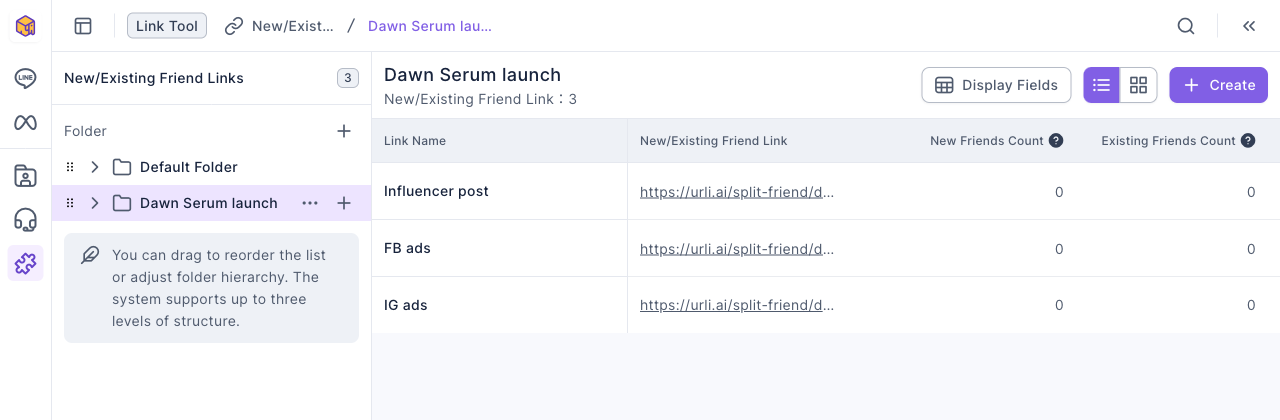
The image below is the list of the three split links, with New Friends Count and Existing Friends Count side by side; come back here during the campaign to compare channels. The campaign hasn't started in the demo, so everything is 0.
Two things to keep in mind when reading the numbers:
- New friend counts refresh every 5 minutes, and each person counts only once per link.
- People must add the account within 1 minute of clicking to count as a new friend from that link. Someone who adds it much later, or who unblocks the account after blocking it, is treated as an existing friend.
Variations
- Compare creatives in one channel: run two IG ad images, each with its own split link and source tag, and see which brings more new friends.
- A different angle for the uninterested: send another post that contains the three source tags and excludes "Interest: Dawn Serum", reaching people who joined but haven't opened the product page.
- Give new friends a pass right away: swap the New Friend Chatbot for one that sends a pass. See Give new friends a pass and tag them when they join.
- Just compare channels, no segment post: see Compare how many new friends each channel brings.