
This recipe helps support supervisors split replies to "Talk to staff" into business hours and after hours. During business hours, members are told to hold on and an agent takes over right away. After hours and on weekends, they're told an agent will reply first thing on the next business day, and the conversation gets the "After-hours message" tag, so agents can work through last night's messages in order the next morning without missing any.
Who this is for
- Support supervisors: your agents only work weekdays 10:00–18:00, but members who send "Talk to staff" in the evening are told to hold on, and nobody replies until the next day, so customers feel ignored.
- Store managers and small brand owners: you don't have agents on shifts, but you want members to know when someone will reply, even after hours.
When you're done you'll have two "Talk to staff" chatbots split by time of day, an "After-hours message" tag, and a routine for dealing with last night's messages first thing the next business day.
The examples use a fictional skincare brand, Sunleaf. The tag and both chatbots were actually created in the OakMega manual demo workspace; the member's phone screens are a mock-up.
Features you'll use
| Feature | Its job in this scenario | Minimum plan | Needs activation? |
|---|---|---|---|
| LINE chatbot | "Weekly Effective Period" separates business hours from after hours; replies, applies a tag and transfers to Service Center | All plans | No |
| Tag Management | "After-hours message" marks conversations that came in overnight | All plans (Free: up to 10 tags) | No |
| Service Center | The next day, filter for after-hours messages and reply in order | All plans | Agent seats are activated separately |
Flow
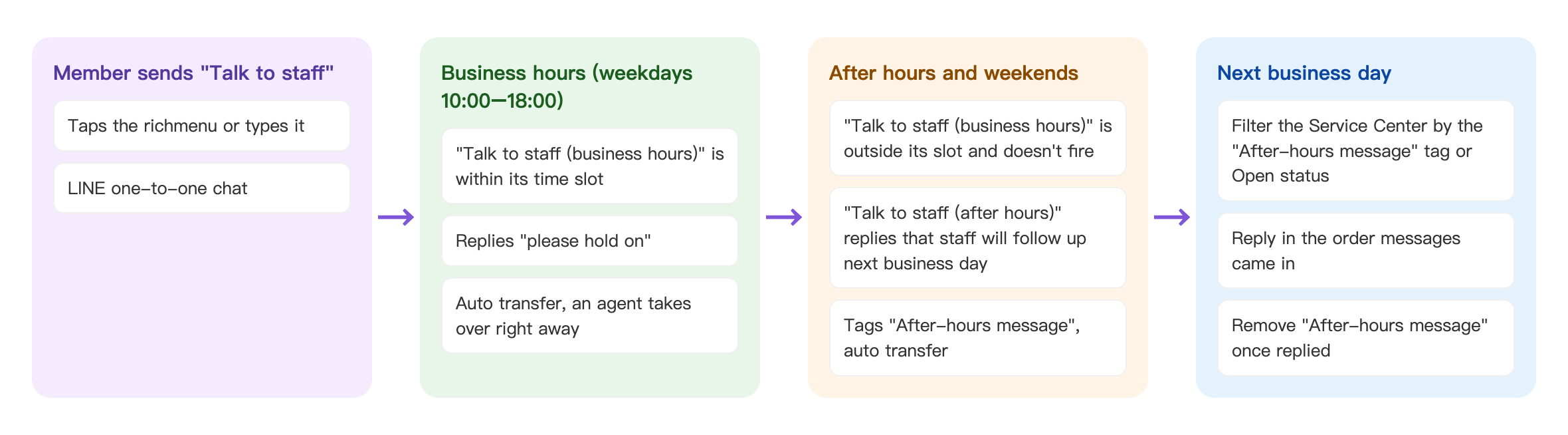
- A member sends "Talk to staff" on LINE (by tapping the Richmenu or typing it).
- During business hours (weekdays 10:00–18:00), "Talk to staff (business hours)" is within its effective period. It tells the member to hold on and transfers the conversation to Service Center, where an agent takes over right away.
- After hours and on weekends, "Talk to staff (business hours)" is outside its period and doesn't trigger. Instead, "Talk to staff (after hours)" replies that an agent will follow up the next business day, applies "After-hours message" and transfers the conversation to Service Center.
- On the next business day, agents filter Service Center for "After-hours message" or Open conversations, reply in the order the messages came in, and remove "After-hours message" once they've replied.
How to set it up
| Step | Where | Settings in this scenario |
|---|---|---|
| 1. Create the tag | Member & Tag › Tag Management | "After-hours message" |
| 2. Create the after-hours chatbot first | LINE › Chatbot | "Talk to staff (after hours)": no time limit; "Trigger Keyword (Equals)": Talk to staff; Trigger Add Tag "After-hours message"; Service center transfer |
| 3. Then create the business-hours chatbot | LINE › Chatbot | "Talk to staff (business hours)": Weekly Effective Period Monday to Friday 10:00–18:00; "Trigger Keyword (Equals)": Talk to staff; Service center transfer |
| 4. Pick up the next day | Service Center | Filter by the tag "After-hours message" and the Open status; remove the tag once you've replied |
The order you create them in matters: after hours first, then business hours. Both chatbots have the same keyword, and when both match, only the most recently created one replies (see "How it works and limits" below for why). The business-hours chatbot is created later, so it replies during business hours. After hours it's outside its period and doesn't count as a match, so the after-hours chatbot replies instead.
1. Create the "After-hours message" tag
Under Member & Tag › Tag Management, add "After-hours message" and put it in a folder for support tags (the demo uses "Support routing"). See Create and manage tags.
2. Create the after-hours chatbot first
Under LINE › Chatbot, add a keyword chatbot named "Talk to staff (after hours)":
- Leave Weekly Effective Period off, so it can trigger at any time.
- In Trigger Keyword (Equals), enter "Talk to staff" and press Enter.
- Under Tag Settings, set Trigger Add Tag to "After-hours message".
- Under Follow-up Actions, turn on Service center transfer.
- On the Edit Message tab, add a text message: "We've got your message! We're outside business hours right now, and an agent will reply to you first thing on the next business day (weekdays from 10:00). If you can, please leave your order number or the product you're asking about, so we can sort it out for you straight away tomorrow."
- Click Save.
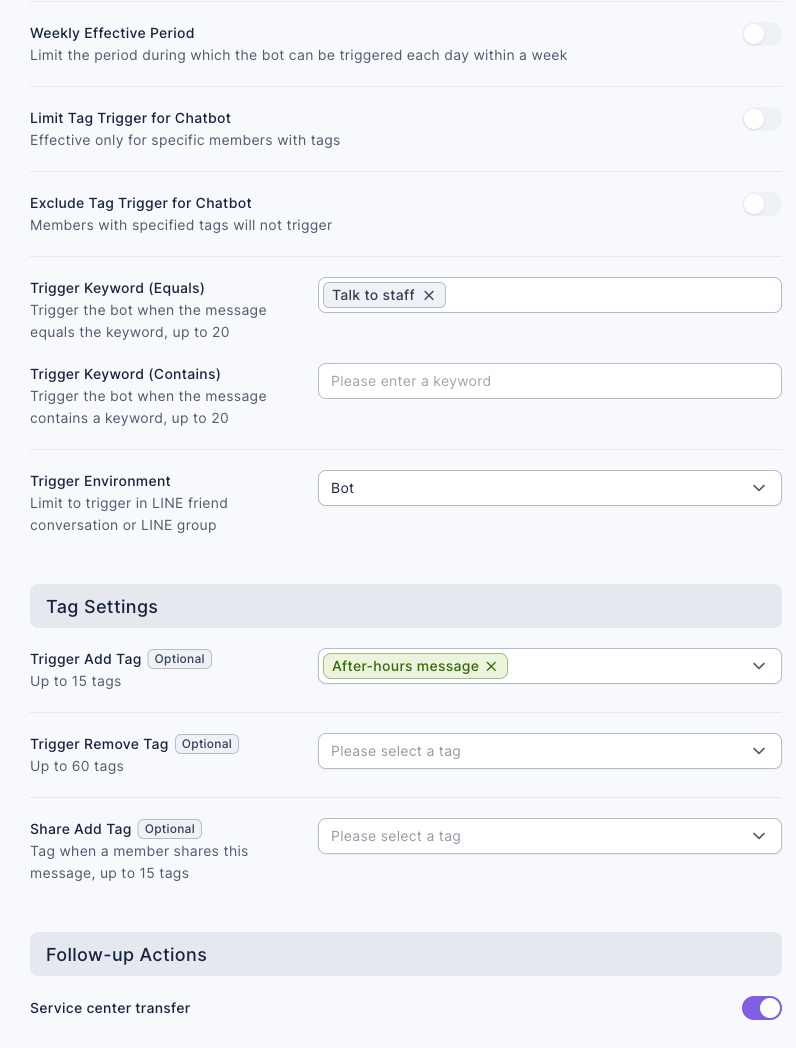
Asking members to leave their order number and question in the message means that the next day an agent can open the conversation and deal with it straight away, without another round of questions.
3. Then create the business-hours chatbot
In the same folder, add "Talk to staff (business hours)":
- Turn on Weekly Effective Period. Under Time Range Setting, expand Monday, click Add Time Range, and set Time Range 1 to 10:00 to 18:00.
- Click the copy icon to the right of Monday, tick Tuesday to Friday in Copy Time Range, and click Confirm. Leave Saturday and Sunday as No Trigger Time Range.
- In Trigger Keyword (Equals), enter "Talk to staff" and press Enter.
- Under Follow-up Actions, turn on Service center transfer.
- On the Edit Message tab, add a text message: "Got it! We're connecting you to a Sunleaf agent. Please hold on, and we'll reply as soon as we can."
- Click Save.
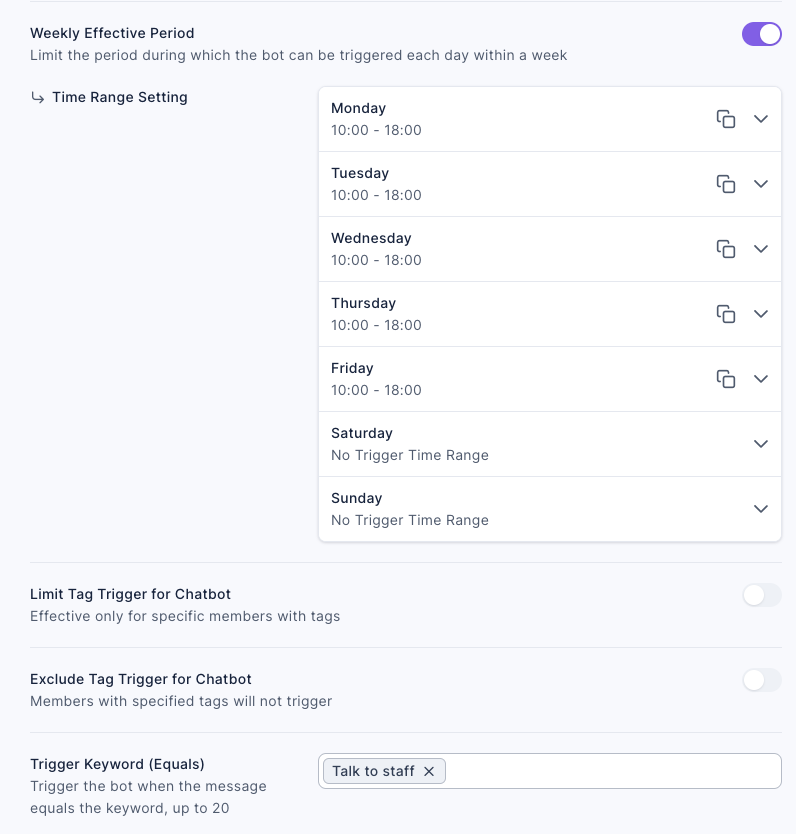
To split a day into two ranges (for example, no replies during a 12:00–13:00 lunch break), click Add Time Range on the same day to add Time Range 2, then copy it to the other days. Time ranges follow the Chatbot Time Zone; the demo uses "Taiwan / Hong Kong / China (UTC+8)".
Once saved, both chatbots in the folder have the keyword "Talk to staff", and the business-hours chatbot is listed first (it was created later):
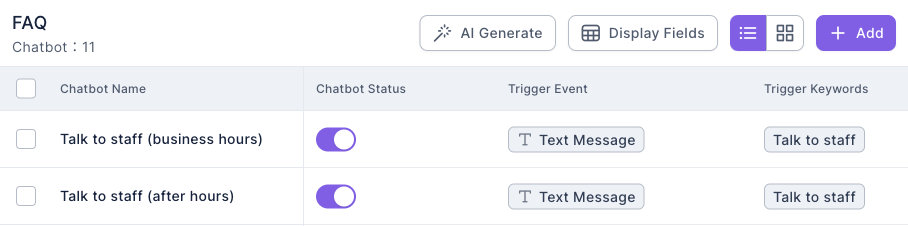
For every setting, see Set up a LINE chatbot.
4. Deal with last night's messages first thing the next day
When your shift starts, go to Service Center first:
- Use the advanced filter next to search and choose Strength Tag "After-hours message", or set Conversation Status at the top to "Open", to find conversations that came in overnight and over the weekend.
- Start replying with the member who wrote first. Most will already have left an order number, so you can get straight to it.
- Once you've replied, remove "After-hours message" under Tag Info in Member Data, and mark the conversation Resolved when it's done.
For Service Center filters and statuses, see Handle conversations in Service Center.
How it works and limits
| Situation | Result | What to do |
|---|---|---|
| Both chatbots have the same keyword and both match | Only one replies: a matching chatbot with a Limit Tag wins; otherwise the most recently created one replies | Create them in the order above: after hours first, then business hours |
| You created the business-hours chatbot first and the after-hours one later | The after-hours chatbot has no time limit and is newer, so it replies during business hours too, telling members you'll get back to them tomorrow | Delete the business-hours chatbot and create it again, or use the "give both a time range" approach below |
| You don't want to depend on creation order | — | Turn on Weekly Effective Period for the after-hours chatbot too: Monday to Friday 00:00–09:59 and 18:01–23:59, Saturday and Sunday 00:00–23:59. With no overlap, it doesn't matter which one you created first |
| The end time is exactly 18:00 | The whole minute of the end time (up to 18:00:59) counts as within the range | Start the after-hours chatbot's range at 18:01 |
| Public holidays and typhoon days off | Weekly Effective Period only looks at the day of the week and doesn't know about holidays | Before the holiday, turn off the business-hours chatbot's Chatbot Status, and turn it back on when you're back |
| You already have a chatbot that hands members to a person with the same keyword (for example "Transfer to a live agent" from Your first week with Service Center) | It was created earlier, so it won't reply when the two new chatbots match | To keep things tidy, turn the old one off or delete it |
| The conversation is already in service and the member sends "Talk to staff" again | The keyword chatbot still replies and applies the tag; the conversation stays with its current organization and agent | Nothing |
| After hours, the member sends an ordinary question instead of "Talk to staff" | Neither chatbot triggers | Use the "Default Reply" from self-service FAQ to point members to "Talk to staff" |
Automatically closing resolved conversations only applies to conversations marked Resolved, so conversations that came in overnight and are still Open won't be closed before your shift starts. For the auto-close rules, see Automatically close resolved conversations.
What members see
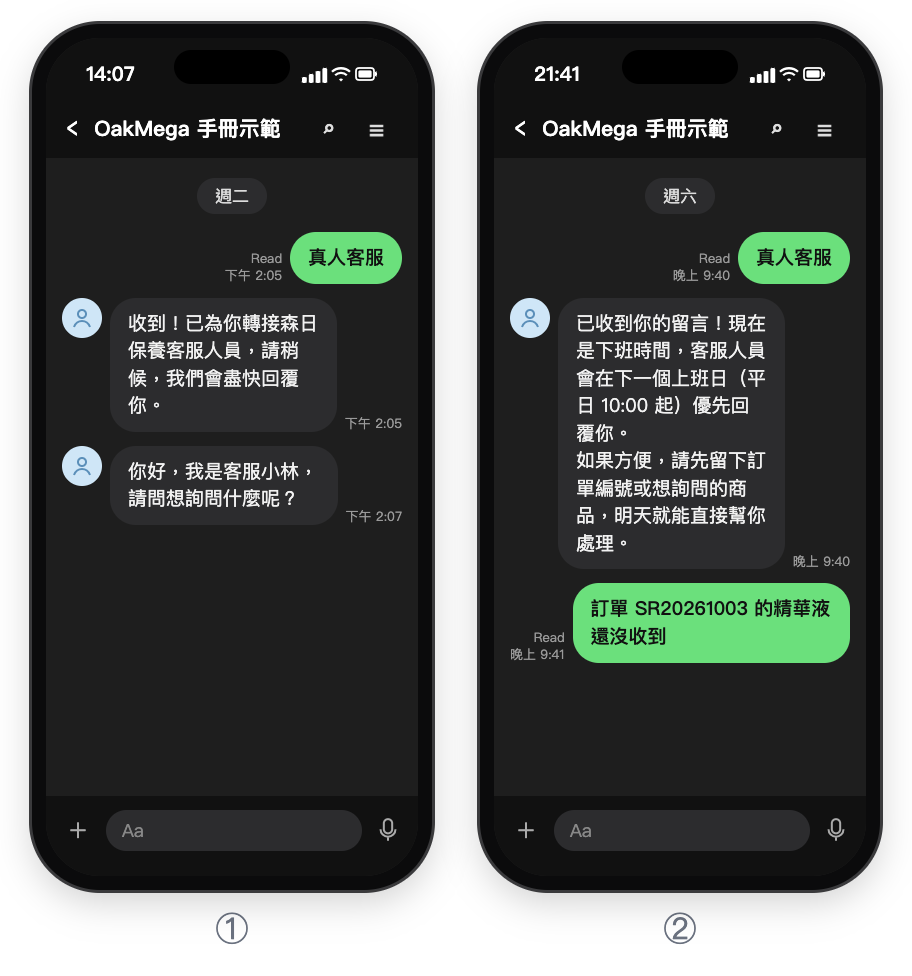
The member sends the same "Talk to staff" both times. On Tuesday afternoon they're told to hold on, and Lin from customer service takes over. On Saturday evening they get the after-hours explanation, leave their order number, and wait for the next business day. The screens are a mock-up (Chinese demo).
How to check it's working
| What you want to know | Where to look |
|---|---|
| How many people ask for a person after hours | The Total Trigger Count of the "Talk to staff (after hours)" chatbot; the Total Number of Tagged People for "After-hours message" |
| Which of last night's messages are still unanswered | In Service Center, use the advanced filter on Strength Tag "After-hours message" |
| Whether last night's messages have all been answered | Filter the Service Center by "After-hours message" and Open to see how many are left. The Service Center Data Center only shows current conversation counts by status, not response times |
If the after-hours trigger count stays high, consider extending your support hours, or turn the questions people ask most into a self-service FAQ.
Variations
- Let AI reply first after hours: turn on Transfer to Agent → Enable AI Agent for the organization, so AI answers after hours and a person picks up anything it can't answer the next day; see Let an AI agent handle an organization's conversations.
- Route by each store's opening hours: when your stores keep different hours, combine Limit Tag with store tags and create a business-hours and after-hours pair for each store.
- Lunch break: give the business-hours chatbot two ranges a day (10:00–12:00 and 13:00–18:00). During lunch the after-hours chatbot replies instead, so word its message in a way that isn't tied to the next day, such as "an agent will reply as soon as they're back".