
This recipe helps marketing and CRM owners run a membership drive: new friends get a member profile form the moment they join, fill it in and automatically receive a welcome pass, while the brand collects name, phone and birthday for birthday offers and segmented campaigns later.
Who this is for
- CRM owners with plenty of LINE friends but little more than their LINE names, who want to complete member profiles during the drive.
- Brand marketers who want to trade a welcome pass for real profile data, and make sure only people who actually filled in the form can claim it, not whoever the link gets forwarded to.
When you're done you'll have a welcome message with the form link, a form that writes into member profiles, a pass visible only to people who filled it in, and three tags — "Profile completed", "Welcome pass claimed" and "Welcome pass used" — that show how many people reach each step.
The example below is the skincare brand "Sunleaf" running its October Membership Month. Every setting was actually created in the OakMega manual demo workspace.
Features you'll use
| Feature | Role in this scenario | Minimum plan | Needs activation? |
|---|---|---|---|
| Tag Management | Records who filled in the form, claimed the pass and used it | All plans | No |
| Pass | The welcome gift, visible only to members tagged "Profile completed" | Enterprise | Yes; without it the screen says to contact your OakMega project manager to upgrade |
| LINE message template | The claim notice sent automatically after the form | Pro and above | No |
| OakMega Form | Collects the profile, applies the tag and triggers the claim notice | Pro and above | Yes; forms have a quota |
| LINE chatbot | Sends the form link when someone becomes a friend | All plans | No |
Because it uses a pass, the whole setup needs the Enterprise plan, and your workspace needs a connected LINE official account.
Flow
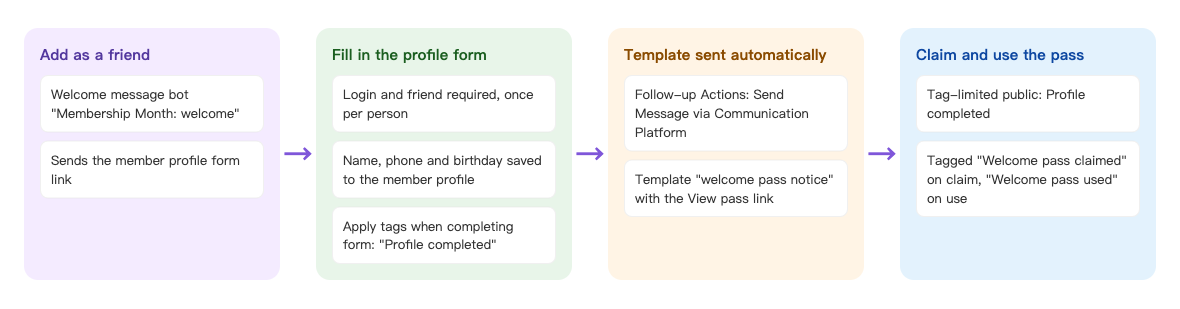
- A friend adds your LINE official account, and the welcome message bot sends the member profile form link.
- They sign in with LINE and submit the form; their name, phone and birthday go into the member profile and they're tagged "Profile completed".
- The form's follow-up action sends the template "Membership Month: welcome pass notice", which contains the pass's View pass link.
- The pass is public only to members tagged "Profile completed". Claiming it adds "Welcome pass claimed"; using it in store or online adds "Welcome pass used".
How to set it up
You set things up in the reverse order of the member's journey: the form picks a template, the template contains the pass link and the pass picks a tag, so start with the tags.
| Step | Where | Settings in this scenario |
|---|---|---|
| 1. Prepare tags | Member & Tag › Tag Management | Folder "Membership Month" with "Profile completed", "Welcome pass claimed" and "Welcome pass used" |
| 2. Add the welcome pass | Web-based Tool › Pass | Member claims, tag-limited public to "Profile completed", 1 per person, usable within 30 days of claiming |
| 3. Add the claim notice template | LINE › Template Management | "Membership Month: welcome pass notice" with the View pass link from step 2 |
| 4. Add the profile form | Web-based Tool › OakMega Form | Friends only, once per person, Real Name / Phone / Birthday, tag "Profile completed" on completion, follow-up action sends the step 3 template |
| 5. Put the form link in the welcome message | LINE › Chatbot › Welcome message bots | "Membership Month: welcome" with the form link from step 4 |
| 6. Check before launch | Each feature | Turn the new welcome bot on and the old one off, then go through it yourself with the live link |
1. Prepare tags
Under Member & Tag › Tag Management, add a folder "Membership Month" with three tags: "Profile completed", "Welcome pass claimed" and "Welcome pass used". They match the three steps a member goes through, so comparing their counts during the drive shows where people drop off. See Create and manage tags.
2. Add the welcome pass
Under Web-based Tool › Pass, add a folder "Membership Month" and a pass "NT$100 welcome pass":
- On the basic settings tab, enter the pass name and description and upload a pass image (required; 4:3 recommended).
- Set Distribution type to Member claims, Wallet visibility to Tag-limited public, and Limit Tag to "Profile completed".
- Choose Display Universal Promo Code with
WELCOME100, limit the total to 500 passes and set Limit claims per person to 1. - On the usage settings tab, set Usage period to Within N days of claiming with 30; set Apply tag on claim to "Welcome pass claimed" and Apply tag on use to "Welcome pass used".
- Click Save, then Confirm in the dialog. The distribution type and promo code settings can't be changed afterwards, and the total can only go up.
Use "Tag-limited public" rather than public to everyone so that people who haven't filled in the form can't see or claim the pass even if they get the link; the welcome gift doesn't end up with whoever it's forwarded to. See Send passes (coupons).
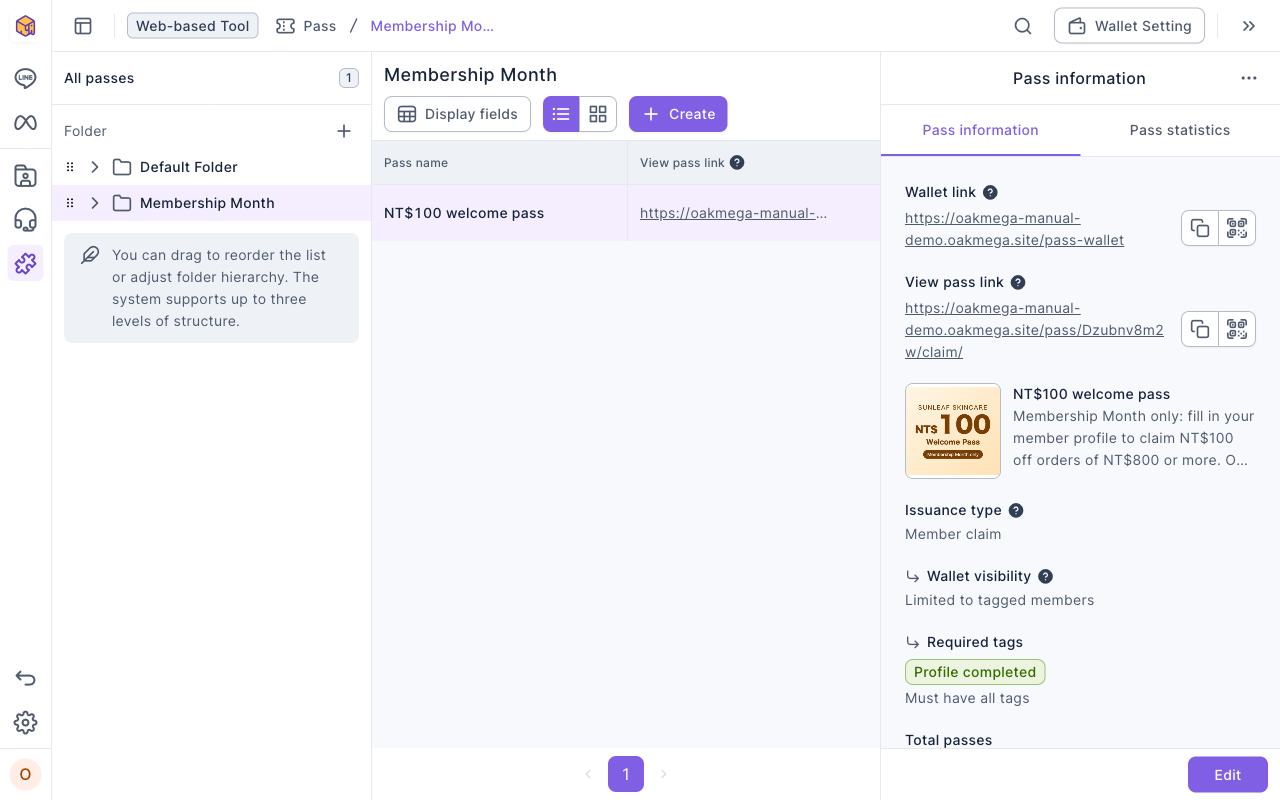
The image below is the saved pass. The Pass information panel lists the Wallet link and the View pass link, the pass image and description, distribution type "Member claims", wallet visibility "Tag-limited public" and the required tag "Profile completed". The View pass link is what you copy for the next step.
3. Add the claim notice template
Under LINE › Template Management, add a folder "Membership Month" and a template "Membership Month: welcome pass notice" with one text message, for example:
Thanks for filling in your member profile! Your NT$100 welcome pass is ready. Tap the link to add it to your wallet, then use it in store or online within 30 days: (View pass link)
A form's follow-up action can only send a template, so the notice has to be saved as one first. See Create LINE message templates.
4. Add the profile form
Under Web-based Tool › OakMega Form, add a folder "Membership Month" and a form "Sunleaf member profile":
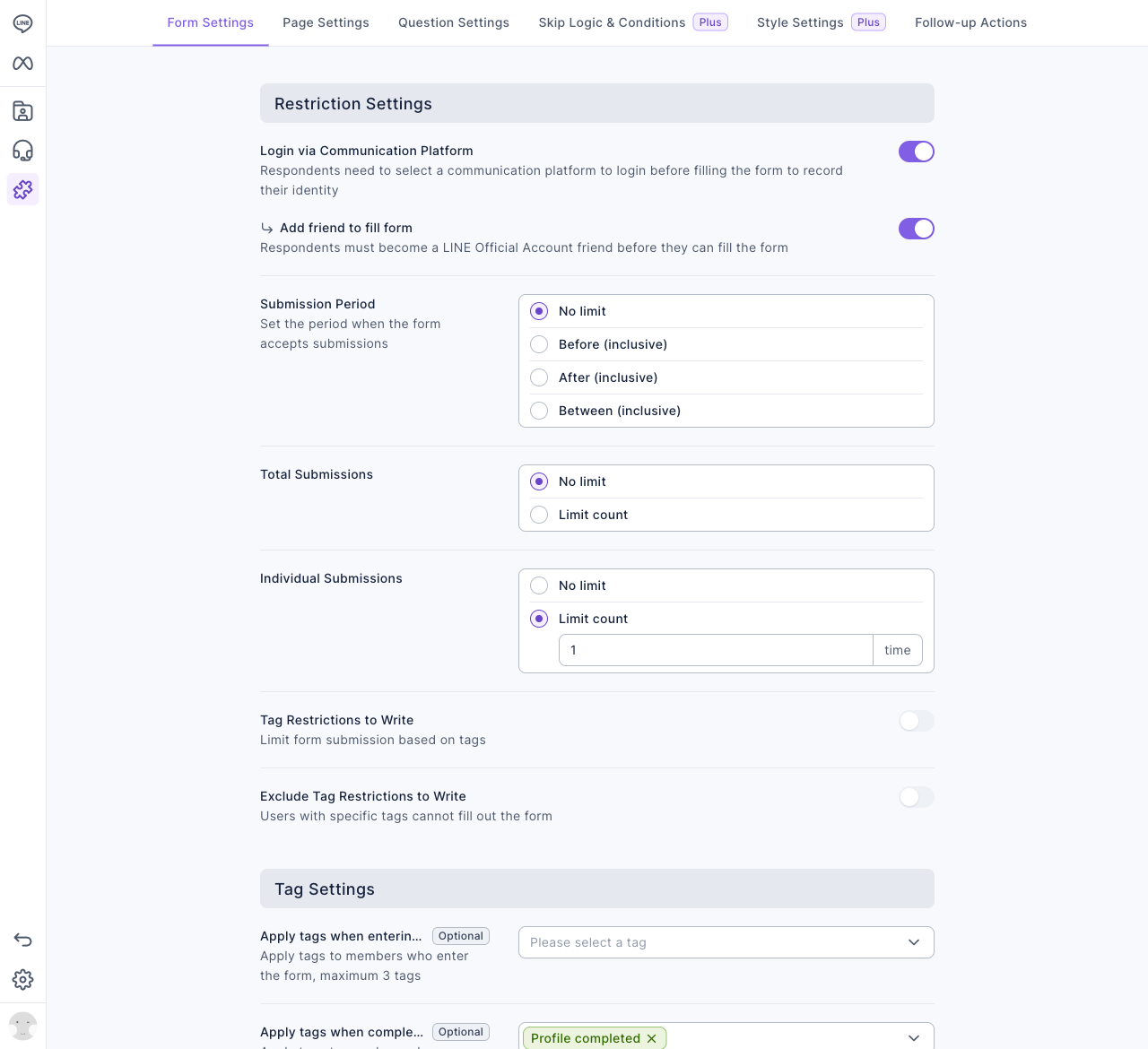
- Form Settings tab: keep Login via Communication Platform on and turn on Add friend to fill form; set Individual Submissions to Limit count with 1; set Apply tags when completing form to "Profile completed".
- Question Settings tab: from Member Contact Information Questions, add Real Name, Phone and Birthday, and turn on Required for each. Answers to these questions are written straight into the member profile.
- Follow-up Actions tab: turn on Send Message via Communication Platform, click Select Template, pick "Membership Month: welcome pass notice" and click Confirm.
- Click Save, then copy the form link from the Form info panel.
The image below shows the restriction and tag settings on the Form Settings tab: login and add-friend are both on, individual submissions are limited to 1, and the completion tag is "Profile completed".
The animation below turns on "Send Message via Communication Platform" on the Follow-up Actions tab, clicks "Select Template", chooses "Membership Month: welcome pass notice" in the template dialog and clicks "Confirm"; the template preview then appears under "LINE Message Content".
Login must stay on: the form needs to know which member is filling it in to save the answers to their profile, tag them and message them. Limiting individual submissions to 1 stops the same person from submitting again to trigger more notices. See Create a form.
5. Put the form link in the welcome message
Under LINE › Chatbot › Welcome message bots, add "Membership Month: welcome" with one text message:
Welcome to Sunleaf! October is Membership Month. Take a minute to fill in your member profile and get an NT$100 welcome pass: (form link)
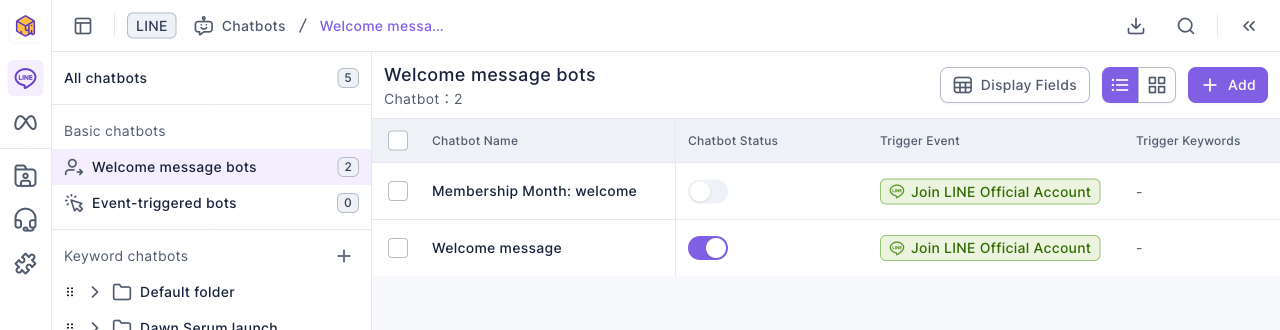
The image below is the welcome message bot list: the new "Membership Month: welcome" is still off, and the original "Welcome message" is on. If several welcome message bots are on at once, a new friend still gets a reply from only one of them, so switch the new one on and the old one off when the drive starts, and swap back when it ends. See Set up a LINE chatbot.
6. Check before launch
- In the welcome message bot list, turn "Membership Month: welcome" on and "Welcome message" off.
- Fill in the form once yourself using the live form link (the Test form link does not tag anyone or send messages), and check that you get the welcome pass notice and can claim the pass.
- Afterwards, Clear your response in the form's response management and remove the "Profile completed" and other tags from your own member profile; otherwise your one individual submission is already used up.
What members see
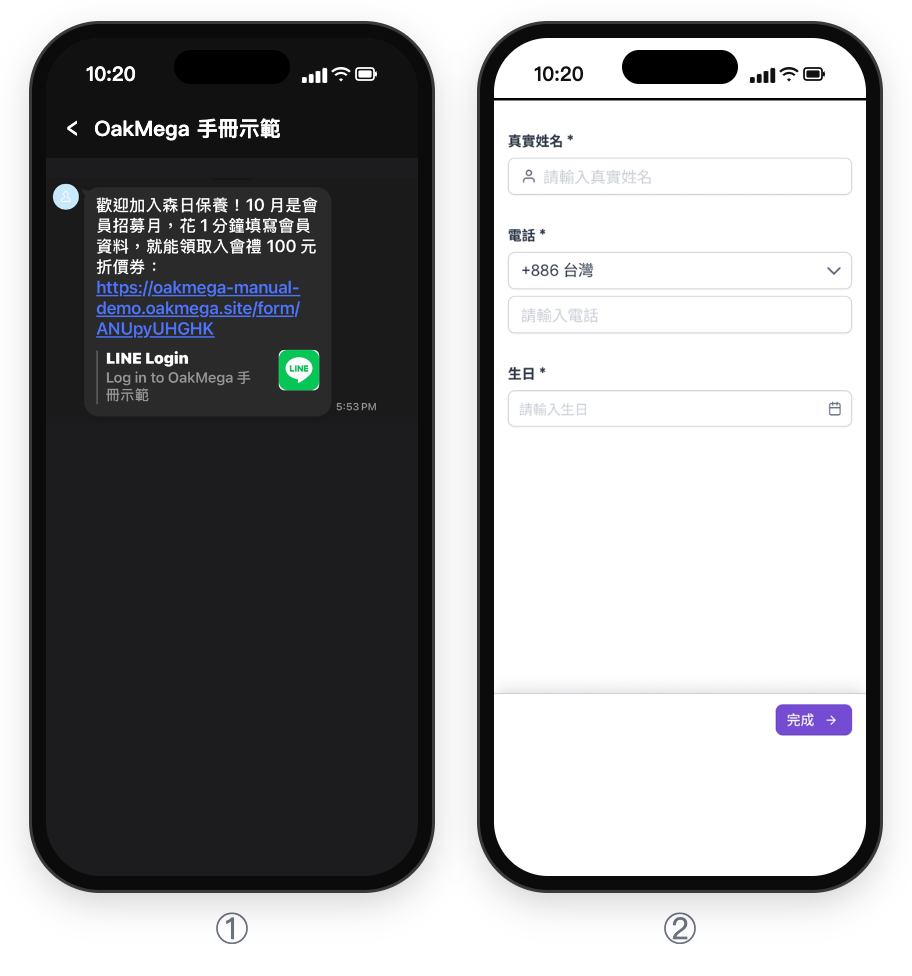
① After adding the account, the new friend receives the Membership Month welcome in LINE: an invitation to spend one minute filling in the member profile for a NT$100 welcome coupon, with the form link and a "LINE Login" link preview. The screenshot shows the Chinese demo message.
② Tapping the link in the welcome message and logging in with LINE opens the member profile form. Real name, phone (with a country code picker) and birthday are all required; the member taps the button at the bottom right when done. The screenshot shows the Chinese demo form.
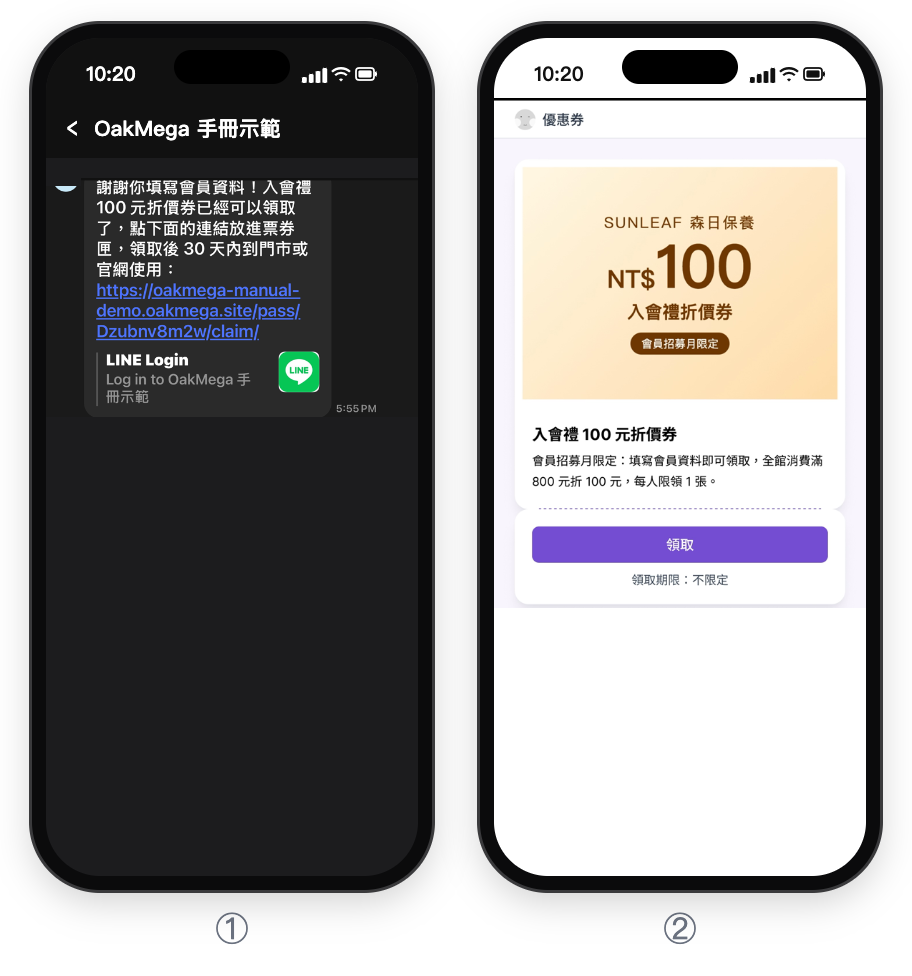
① After submitting the form, the LINE chat receives the welcome gift notice template: thanks for filling in the profile, the NT$100 coupon is ready, tap the link to add it to the wallet and use it in store or online within 30 days. The screenshot shows the Chinese demo message.
② Tapping the link in the welcome gift notice opens the coupon page: the coupon image at the top, the name and description below, and a claim button that adds it to the wallet, with the claim period shown as unlimited. The screenshot shows the Chinese demo page.
| Member | What they do | What they get or see | Tags applied |
|---|---|---|---|
| New friend | Adds the LINE official account | "Membership Month: welcome" with the form link | — |
| New friend | Signs in with LINE and submits the form | "Membership Month: welcome pass notice" | Profile completed |
| Someone who filled in the form | Opens the View pass link and claims it | Pass added to their wallet, usable for 30 days | Welcome pass claimed |
| Someone who filled in the form | Uses the pass in store or online | The "used" screen | Welcome pass used |
| Someone who didn't fill in the form | Opens a forwarded pass link | Can't see or claim the pass | — |
Tagging and the notice are both processed by the system after submission and usually finish within seconds. If a member taps the link the instant the notice arrives and the pass isn't there yet, it appears if they open it again a moment later. If members report they can't claim it, see Members can't claim a pass; if they can't open or submit the form, see Members can't open or submit a form.
How to check it's working
| What you want to know | Where to look |
|---|---|
| How many people filled in their profile | Web-based Tool › OakMega Form: responses and respondents for "Sunleaf member profile", or the count of the "Profile completed" tag |
| How many of them claimed and used the pass | Member & Tag › Tag Management: compare the three tags in the "Membership Month" folder |
| How many passes were claimed and used | Web-based Tool › Pass: claimed and used counts and statistics for "NT$100 welcome pass" |
| What a particular member entered | Their member profile (real name, phone, birthday), or download the form responses; see Check form responses and download the data |
It's normal for the counts to fall at each step. If "Profile completed" is high but "Welcome pass claimed" is low, the notice usually isn't clear enough; reword the template or add a line like "Tap here to claim" before the link.
Variations
- Bring in existing friends too: the welcome message only reaches new friends. For people who are already friends, post an article with the form link to the OakMega segment › tag filter, excluding "Profile completed". See Post articles to LINE friends.
- Remind people who haven't used it: midway through, post to members tagged "Welcome pass claimed" but not "Welcome pass used" to say the pass expires soon.
- Turn it into a birthday gift: once birthdays are in member profiles, filter members by birthday month later and send birthday offers.
- Just a pass for new friends, no form: see Give new friends a pass and tag them when they join.