
This recipe helps after-sales service managers at manufacturers replace paper warranty cards with warranty registration on LINE: customers scan the QR code on the machine to register its serial number, OakMega records which product line they own, and when the warranty is about to expire it picks out those customers automatically so you can remind them to book annual maintenance or extend their warranty.
Who this is for
- After-sales service managers and service contacts: once a machine ships, you don't know who the end user is, and when the warranty expires there's nobody to contact.
- Product managers: you want to know how many machines in each product line are under warranty, and offer maintenance and extended warranties to the right customers before it expires.
When you're done you'll have a warranty registration QR code you can stick next to the machine's nameplate or print in the user manual, a chatbot that replies with the registration link when someone sends "warranty" on LINE, product-line and warranty tags applied automatically when customers register, and a reminder article sent each month only to customers whose warranty is about to expire.
The example below uses a fictional industrial equipment maker with two product lines: the "VX-500 Vertical Machining Center" and the "LS-300 Laser Cutter". The tags, form, chatbot and reminder article draft were all actually created in the OakMega manual demo workspace.
First, a caveat: there's no date-based automatic reminder
The form can collect a "Delivery date", but OakMega has no feature that sends a message automatically before a date stored in a form field. This recipe uses an expiry tag as a timer instead:
| What you want | How to do it |
|---|---|
| Record who registered a warranty | Apply "Warranty registered" on form completion (a Strength Tag, which never expires on its own) |
| Start reminding in the warranty's 11th month | Also apply "Warranty reminder timer", an expiry tag set to 335 days; if it isn't re-applied within 335 days, it's removed automatically |
| Pick out customers about to expire | When posting, include "Warranty registered" and exclude "Warranty reminder timer": anyone who still has the timer tag won't receive it |
| Restart the timer after renewal or maintenance | Once the job is done, the service engineer re-applies the timer tag to the customer from Service Center or member management |
Limits: the timer counts from the day the tag is applied, not from the delivery date the customer entered. If a customer registers long after delivery, the reminder will arrive later than the actual expiry. An expiry tag can last at most 731 days, so for models with a warranty of 2 years or more, run the timer in stages.
Features you'll use
| Feature | Role in this scenario | Minimum plan | Needs activation? |
|---|---|---|---|
| Tag Management | "Warranty registered", product-line tags and the 335-day expiry tag | All plans (Free: up to 10 tags) | No |
| OakMega Form | Warranty registration: serial number, model and delivery date, with tags applied on completion | Pro and above | Yes (form quota applies) |
| LINE chatbot | Replies with the registration link when a customer sends "warranty" | All plans | No |
| Post Article | Sends the expiry reminder once a month, only to customers whose timer tag has gone | All plans | No |
Flow
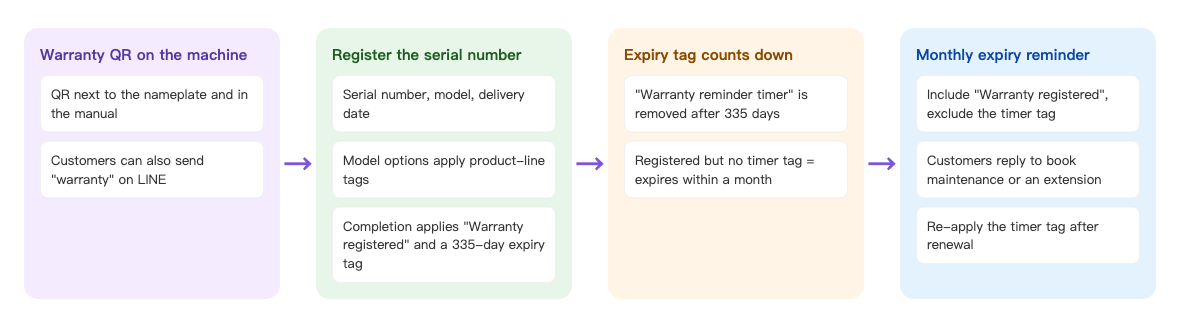
- Put the warranty registration QR code next to the machine's nameplate and in the user manual. Customers can also send "warranty" on LINE to get the link.
- The customer adds your account as a friend and fills in the form with the serial number, model and delivery date. The model option applies a product-line tag, and on completion the form applies "Warranty registered" and the 335-day expiry tag.
- If it isn't re-applied within 335 days, "Warranty reminder timer" is removed automatically: customers who have "Warranty registered" but no timer tag are the ones whose warranty expires within a month.
- On the first Monday of each month, send the reminder article. When customers reply, a service engineer books maintenance or discusses an extended warranty, then re-applies the timer tag.
How to set it up
| Step | Where | Settings in this scenario |
|---|---|---|
| 1. Create tags | Member & Tag › Tag Management | Folder "Warranty": Warranty registered, Product line: VX-500 machining center, Product line: LS-300 laser cutter, Warranty reminder timer (expiry tag, 335 days), Read warranty reminder |
| 2. Build the warranty registration form | Web-based Tool › OakMega Form | Folder "After-sales service": login and add-friend required; apply "Warranty registered" and "Warranty reminder timer" on completion |
| 3. Create a "warranty" chatbot | LINE › Chatbot | Trigger keyword "warranty", replying with the form link |
| 4. Print the QR code | The QR code in the form info | Stickers next to the nameplate, the user manual, shipping documents |
| 5. Send the monthly reminder | LINE › Post Article | Include "Warranty registered"; exclude "Warranty reminder timer" and "Read warranty reminder" |
1. Create warranty tags
Under Member & Tag › Tag Management, add a folder named "Warranty":
- "Warranty registered", "Product line: VX-500 machining center", "Product line: LS-300 laser cutter" and "Read warranty reminder": choose Strength Tag; they never expire on their own.
- "Warranty reminder timer": choose Expiry Tag, set Expiry Time to Days and enter 335.
For how expiry tags work, see Create and manage tags.
2. Build the warranty registration form
Under Web-based Tool › OakMega Form, add a folder named "After-sales service" and create a form named "Machine warranty registration":
- In Form Settings, keep Login via Communication Platform on and turn on Add friend to fill form.
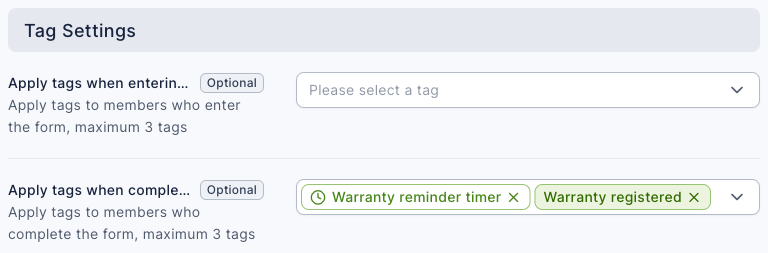
- Set Apply tags when completing form to "Warranty registered" and "Warranty reminder timer".
- In Question Settings, add these questions in order: Real Name and Phone; Single Line Text for the company name; Multiple Choice for the model (the option "VX-500 Vertical Machining Center" applies "Product line: VX-500 machining center", and "LS-300 Laser Cutter" applies "Product line: LS-300 laser cutter"); Single Line Text for the machine serial number; and Date for the delivery date. Make all of them required.
- Click Save.
The screenshot below shows the form's tag settings: on completion, the form applies both the expiry tag "Warranty reminder timer" and "Warranty registered".
To set option tags on the model question, see Create a form and Capture trade show leads.
3. Send "warranty" on LINE to get the link
Under LINE › Chatbot, add a keyword chatbot named "Warranty registration": enter "warranty" in Trigger Keyword (Contains) and reply with a text message such as "To register your machine's warranty, tap here and have the serial number from the nameplate ready (it starts with SN): (form link). Once registered, your warranty runs for 1 year from the delivery date, and we'll remind you on LINE before it expires." See Set up a LINE chatbot.
4. Put the QR code on the machine
Click "Machine warranty registration" in the form list. On the right, Form info shows a QR code next to the form link. Print it as a sticker for next to the nameplate, or print it in the user manual and shipping documents. The first time customers scan it, they have to add your account as a friend before they can fill it in, and that friendship is what lets your warranty reminders reach them later.
5. Send the expiry reminder once a month
Under LINE › Post Article, create an article named "Warranty expiring in a month (first Monday monthly)":
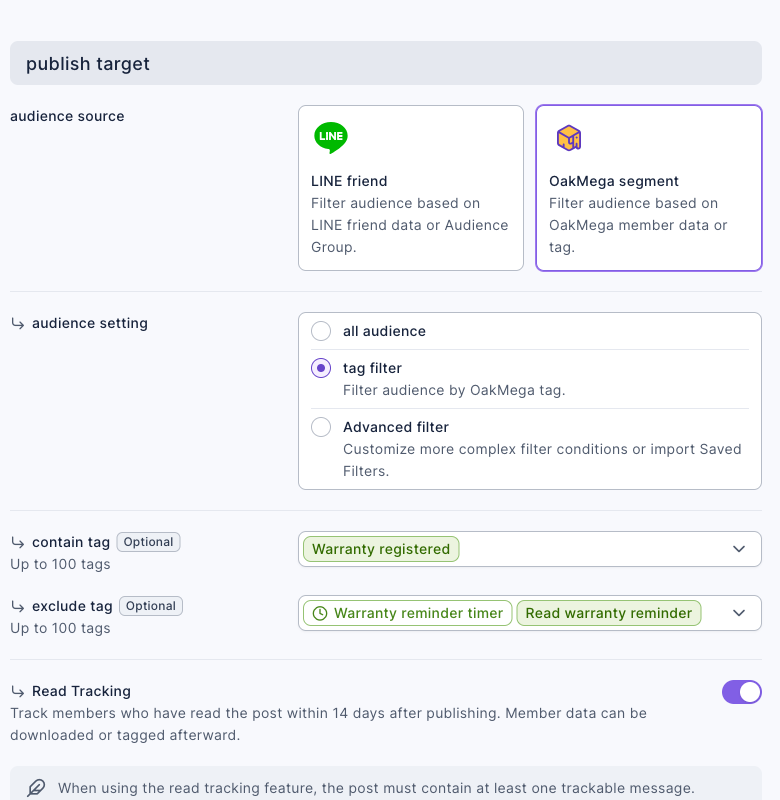
- Set audience source to OakMega segment and audience setting to tag filter.
- Under contain tag, choose "Warranty registered"; under exclude tag, choose "Warranty reminder timer" and "Read warranty reminder".
- Turn on Read Tracking. After publishing, tag the people who read it with "Read warranty reminder" so they won't get it again next month.
- In the content, explain maintenance and extended warranty options, and ask customers to reply directly to book a time.
The screenshot below shows this article's publish target: audience source is OakMega segment with tag filter, "Warranty registered" is included, the expiry tag "Warranty reminder timer" and "Read warranty reminder" are excluded, and Read Tracking is on.
Read tracking only works with some message types: Video, Rich Video, Multi-page Message, Multi-image Message, Card Message and Emoji can be tracked; Text and Image can't. The demo article has only a text message, so before you publish for real, add a Multi-page Message (for example, an overview of your maintenance plans); otherwise the screen shows "No trackable message for read tracking has been set". If you don't use read tracking, you can instead tag the customers who received the reminder in member management after publishing. For the full steps, see Post articles to LINE friends.
When a customer replies, the service engineer books a time in Service Center. After a renewal or completed maintenance, re-apply "Warranty reminder timer" to the customer and remove "Read warranty reminder", and they'll be reminded again next year.
What customers see
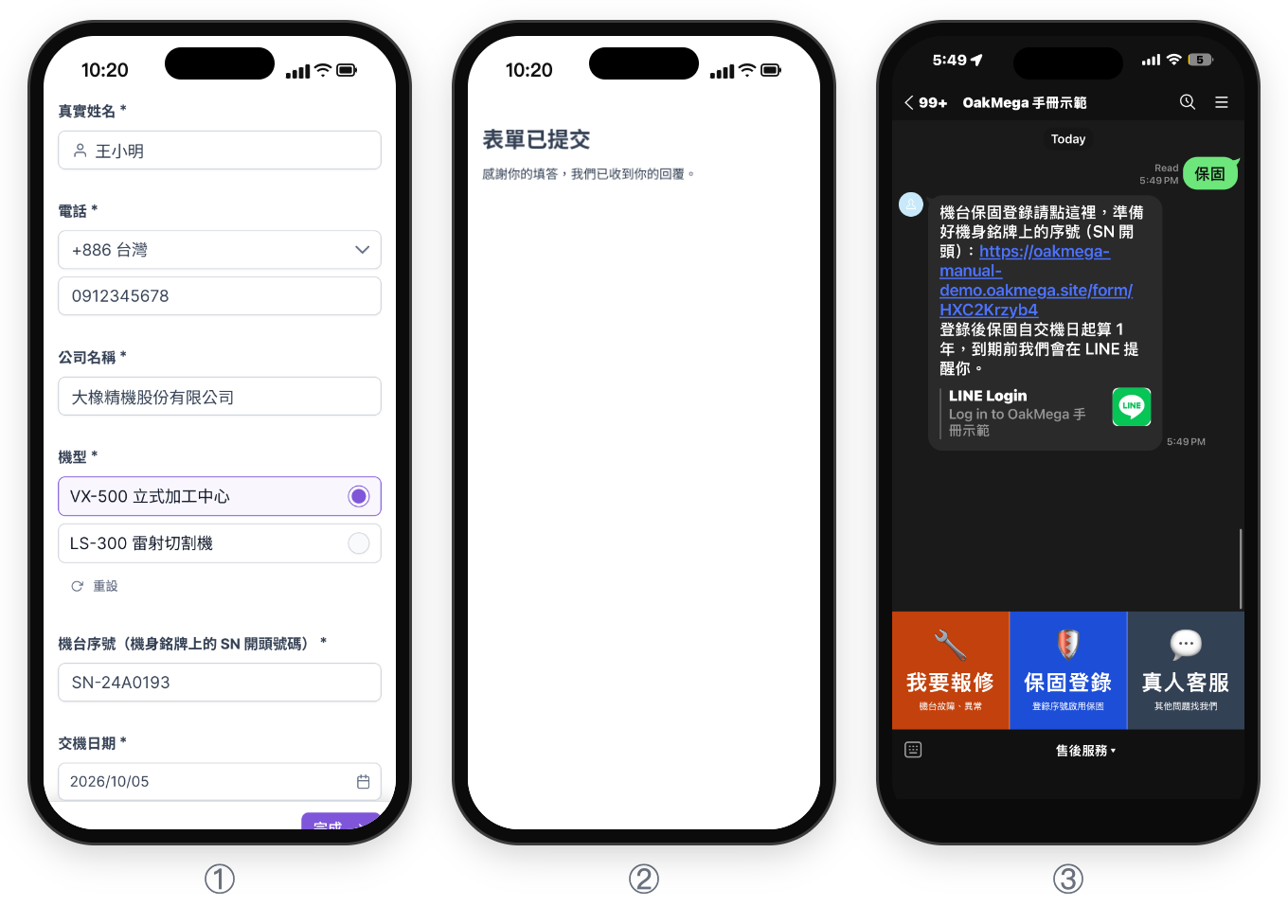
① The warranty registration form the customer sees after scanning the machine's QR code (the screens are a Chinese demo): choose the model and enter the serial number from the nameplate and the delivery date; ② the completion page after submitting; ③ the customer sends "warranty" on LINE and the chatbot replies with the registration link. The after-sales Richmenu sits at the bottom of the chat; to set it up, see After-sales repair requests.
| When | What the customer sees | What the system does |
|---|---|---|
| Scans the QR code on delivery day | LINE login, add friend, then the warranty registration form | Applies Warranty registered, a product-line tag and the 335-day timer tag |
| Months 1 to 11 | Regular articles about new products and events | The timer tag is still there, so no expiry reminder |
| First Monday of month 12 | The warranty expiry reminder article | The timer tag has gone, so the reminder article picks them up |
| Replies and renews | A reply from the service engineer | The timer tag is re-applied, and they'll be reminded at the same time next year |
How to check it's working
| What you want to know | Where to look |
|---|---|
| How many machines are registered | The Total Number of Tagged People for "Warranty registered", or the form's response count |
| How many customers per product line | The Total Number of Tagged People for each "Product line" tag |
| How many warranties expire this month | When creating the reminder article, audience / remaining message quota on the right |
| A list of serial numbers | Download all reply data on the form; see Check form responses and download the data |
Variations
- Different reminders per product line: the VX-500 and LS-300 need different maintenance, so add "Product line: VX-500 machining center" as a contain tag on the reminder article and send two separate articles.
- Distributors register on the customer's behalf: distributors scan and register for the customer at delivery. Add a "Distributor" question whose options apply distributor tags, and you can then compare registration rates across distributors.
- Repair requests: when a warranty customer sends "repair", have a chatbot transfer them to Service Center automatically so the service contact can pick it up.