
This recipe helps marketers run a LINE friend lucky draw: entries are friends only, once per person and close automatically when the period ends. After the draw, you tag all winners in one go and notify winners and non-winners separately, without messaging anyone one by one.
Who this is for
- Brand marketers running a draw for an anniversary or launch to grow friends, who worry about duplicate entries and manual work.
- CRM owners who want the draw to leave reusable data, for example "entered the draw" as a segment for later campaigns.
When you're done you'll have an entry form that enforces eligibility automatically, a list you can draw from, "Entered" and "Winner" tags, and two segmented notification posts.
The example below is the skincare brand "Sunleaf" running its 10th anniversary draw. Every setting was actually created in the OakMega manual demo workspace.
Features you'll use
| Feature | Role in this scenario | Minimum plan | Needs activation? |
|---|---|---|---|
| OakMega Form | Collects entries, enforces eligibility, applies the "Entered" tag | Pro and above | Yes; forms have a quota |
| Form response download | Exports the entry list (with LINE User ID) for the draw | Pro and above | Same as above |
| Tag Management | The "Entered" and "Winner" tags | All plans | No |
| LINE member management | Applies the "Winner" tag to a list of LINE User IDs in one go | Pro and above | No |
| Post Article | Notifies winners and non-winners separately | All plans | No |
Your workspace needs a connected LINE official account.
Flow
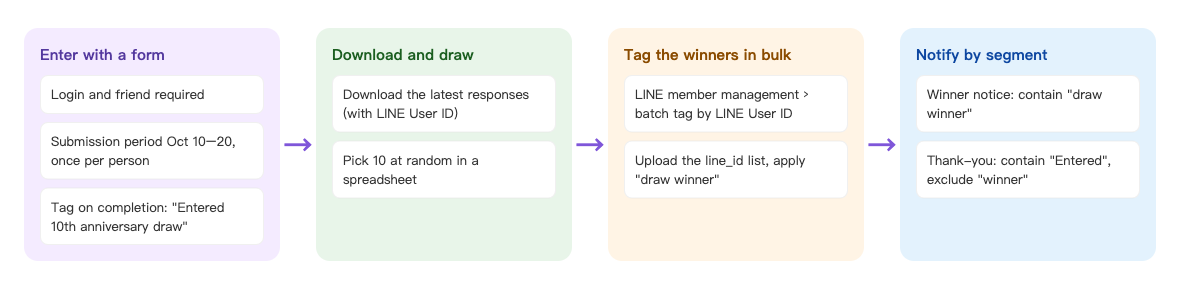
- During the entry period, friends fill in the draw form. Only friends can enter, once each, and they're tagged "Entered 10th anniversary draw".
- After entries close, download the responses and draw 10 winners in a spreadsheet using the LINE User ID column.
- In LINE member management, upload the winners' LINE User IDs and tag them all "10th anniversary draw winner".
- Post two articles: a winner notice to "winner", and a thank-you to "Entered" excluding "winner".
OakMega has no built-in draw feature. You pick winners in a spreadsheet (for example, sort by a random number in Excel or Google Sheets); OakMega handles eligibility, the export, tagging and notification.
How to set it up
| Step | Where | Settings in this scenario |
|---|---|---|
| 1. Prepare tags | Member & Tag › Tag Management | Folder "10th Anniversary Draw" with "Entered 10th anniversary draw" and "10th anniversary draw winner" |
| 2. Add the entry form | Web-based Tool › OakMega Form | Friends only, submission period Oct 10 10:00 – Oct 20 23:59, once per person, Real Name and Phone required, tag "Entered" on completion |
| 3. Promote the entry link | Post Article, Richmenu or chatbot | The form link |
| 4. Download and draw | Web-based Tool › OakMega Form › ⋯ | "Download the last reply data", draw 10 in a spreadsheet |
| 5. Tag the winners | LINE › Member Management | Batch Tag by LINE User ID with "10th anniversary draw winner" |
| 6. Notify by segment | LINE › Post Article | A winner notice and a thank-you |
1. Prepare tags
Under Member & Tag › Tag Management, add a folder "10th Anniversary Draw" with "Entered 10th anniversary draw" and "10th anniversary draw winner". See Create and manage tags.
2. Add the entry form
Under Web-based Tool › OakMega Form, add a folder "10th Anniversary Draw" and a form "Sunleaf 10th Anniversary Draw":
- In the form description, spell out the rules, for example "Enter Oct 10–20. On Oct 25 we'll draw 10 winners of our full-range gift box and notify them on LINE. One entry per person."
- Keep Login via Communication Platform on and turn on Add friend to fill form.
- Set Submission Period to Between (inclusive), from 2026/10/10 10:00 to 2026/10/20 23:59.
- Set Individual Submissions to Limit count with 1.
- Set Apply tags when completing form to "Entered 10th anniversary draw".
- On Question Settings, add the member contact information questions Real Name and Phone, both Required; you'll need them to ship prizes.
- Click Save.
These restrictions turn away ineligible people automatically: non-friends see the Add LINE Friend Page, anyone opening the form outside the period sees the Outside Submission Period Page, and people who already entered see the Individual Submission Limit Page. For what each case looks like, see Members can't open or submit a form.
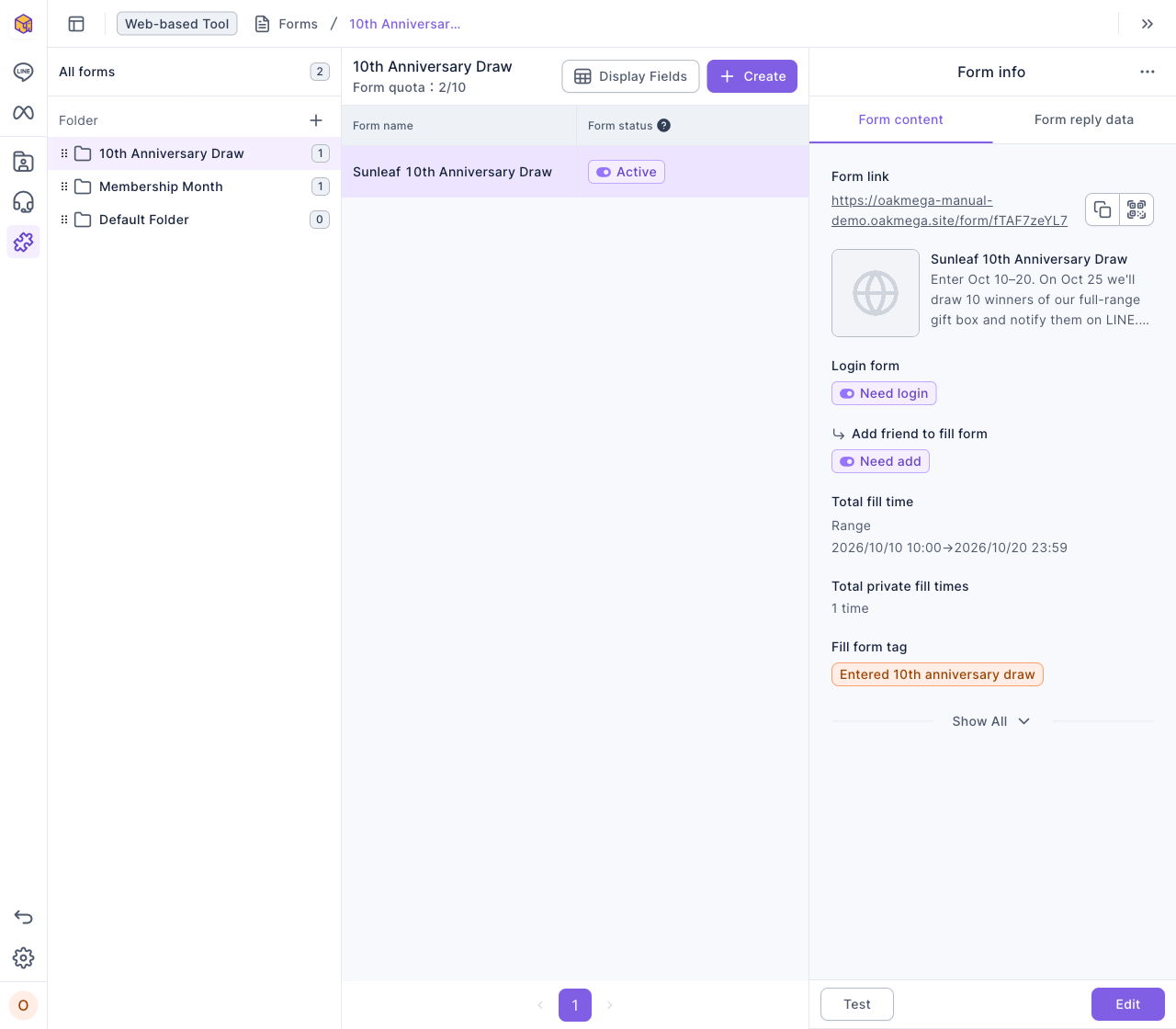
The image below is the saved form. The Form info panel lists the form link, login required, add friend required, the submission period "Between (inclusive) 2026/10/10 10:00 → 2026/10/20 23:59", one individual submission, and the completion tag "Entered 10th anniversary draw".
3. Promote the entry link
Put the form link in a post, Richmenu or chatbot. If you test with the live link yourself, Clear the responses from the form menu afterwards and remove the "Entered" tag from yourself so you can't be drawn. See Create a form.
4. Download and draw
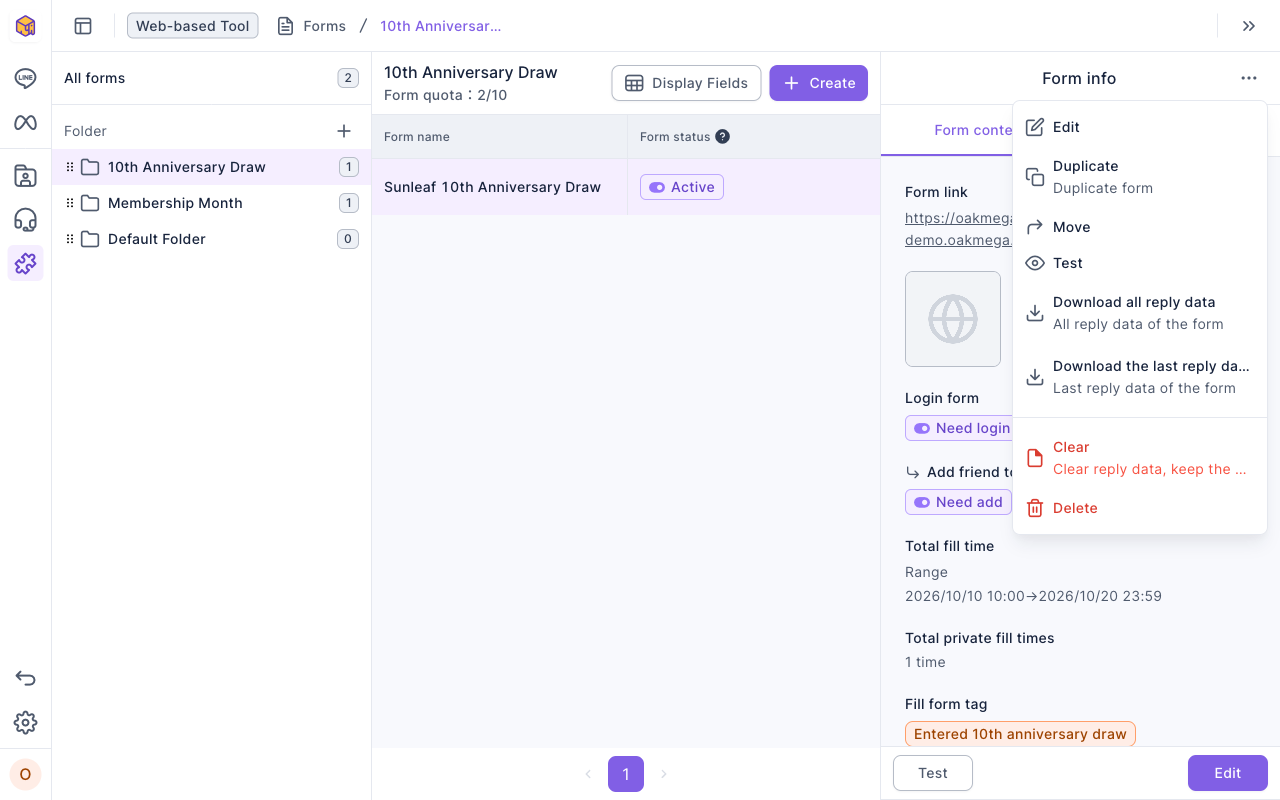
After entries close, click the form in the list, click "⋯" at the top right of the Form info panel, and choose Download the last reply data. Because each person can enter only once, both downloads have the same rows; choosing the latest reply guarantees one row per member.
The image below is the "⋯" menu: Download all reply data contains every response, Download the last reply data contains each respondent's latest response, and Clear below deletes all responses, so don't click it before the draw is done.
In the downloaded Excel file each row is one entrant. Besides answers such as real name and phone, there's a LINE User ID column. Add a random-number column, sort by it and take the first 10 rows as winners. Save those 10 LINE User IDs as a CSV file with line_id as the header in the first row and one ID per row below.
The export contains personal data, so share it only with people who need it and delete it afterwards. For download permissions and exported columns, see Check form responses and download the data.
5. Tag the winners
Under LINE › Member Management, click the tag icon at the top right (Batch Tag by LINE User ID):
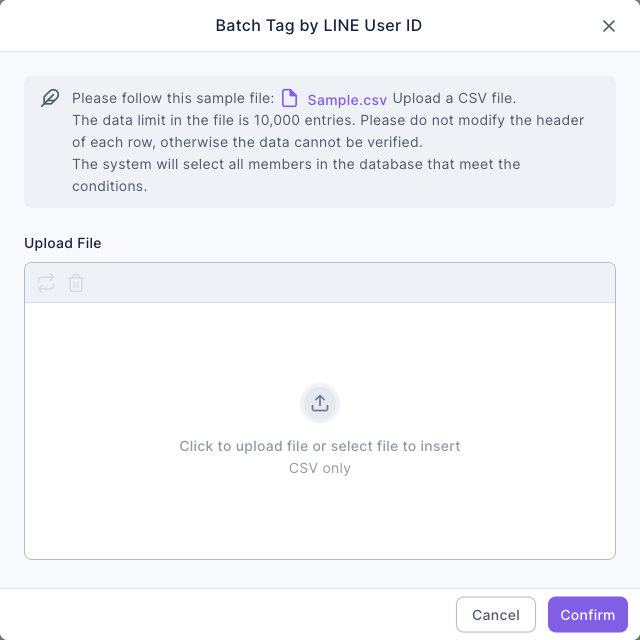
- Under Upload File, choose the CSV from step 4. Follow the format of Sample.csv in the dialog; the limit is 10,000 rows and the header must not change.
- The dialog shows the total number of matching members; check that it's 10.
- Under Apply Tags, choose "10th anniversary draw winner" and click Confirm.
The image below is the Batch Tag by LINE User ID dialog: the note at the top asks you to upload a CSV following the sample file with up to 10,000 entries, the upload area is in the middle, and the tag to apply is at the bottom.
You can also skip the CSV: find the winners in the member list with Advanced filter, tick them and use Apply Tag. With a few winners either way is easy; with a long list, the CSV avoids missing anyone.
6. Notify by segment
Under LINE › Post Article, create two posts, both with audience source set to OakMega segment and audience setting to tag filter:
| Post | contain tag | exclude tag | Example message |
|---|---|---|---|
| 10th anniversary draw: winner notice | 10th anniversary draw winner | — | Congratulations, you've won our 10th anniversary full-range gift box! Reply to this message by Nov 5 with the recipient's name, phone and address. |
| 10th anniversary draw: thank you | Entered 10th anniversary draw | 10th anniversary draw winner | Thanks for entering our 10th anniversary draw! You didn't win this time, so here's 10% off everything — enter THANKS10 at checkout by Oct 31. |
The animation below sets up the thank-you post's audience: it picks "Entered 10th anniversary draw" under "contain tag", then "10th anniversary draw winner" under "exclude tag". Nobody has entered yet in the demo, so the right side shows "No audience matches the filter conditions".
Contain and exclude each match any of their tags, so this post goes to people who entered and aren't winners. Click Test publish on both posts to check them with your message test members before publishing. See Post articles to LINE friends.
What members see
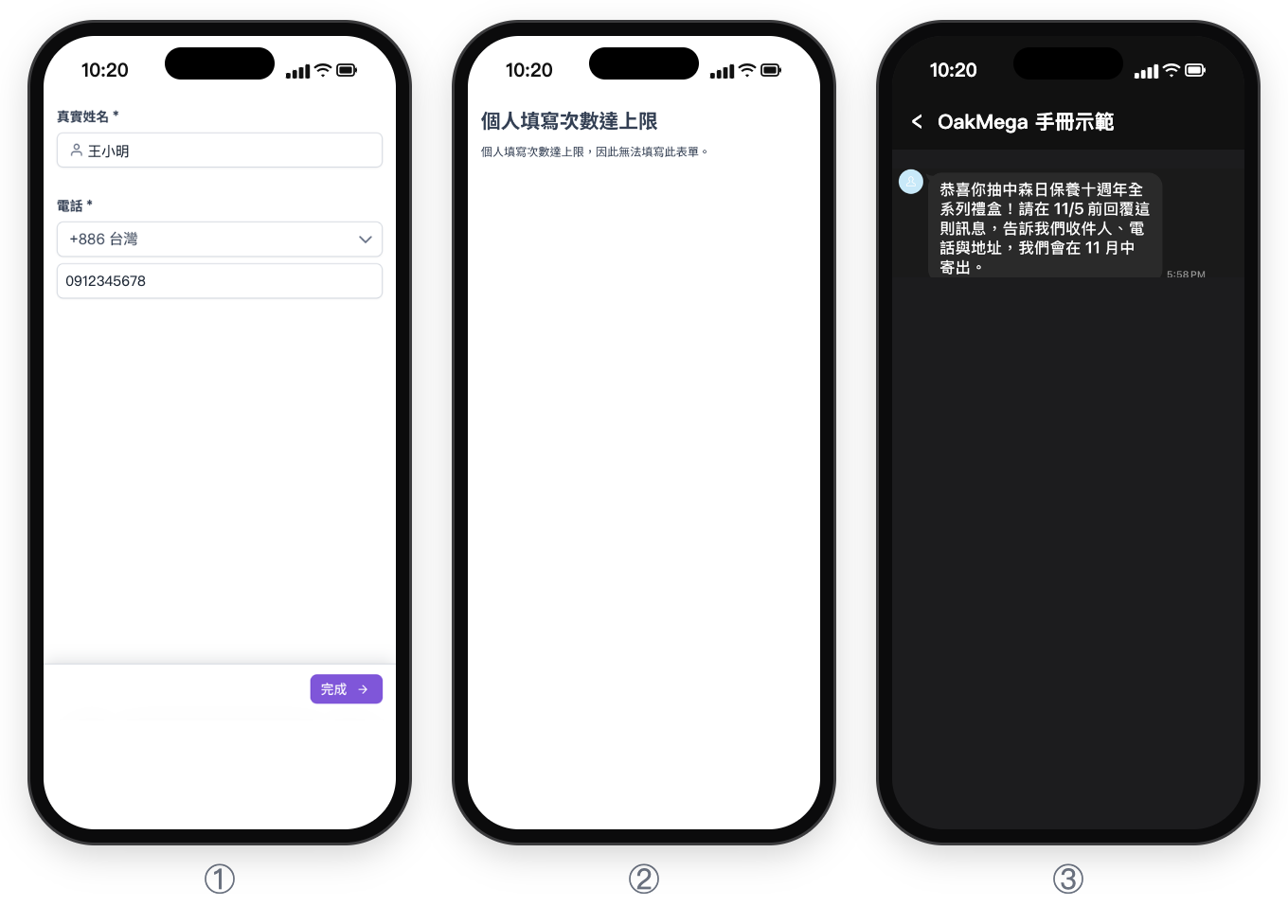
① When the member opens the draw form in LINE, they see two required questions, real name and phone (with a country code picker), and tap the button at the bottom right to submit. The screenshot shows the Chinese demo form.
② Because each person can submit only once, opening the same link again after submitting shows the special page for the per-person limit. The screenshot shows the Chinese demo page.
③ Winners receive the winner notice in LINE: congratulations on winning the 10th anniversary gift set, with a request to reply with the recipient, phone and address by Nov 5 so it can ship in mid-November. The screenshot shows the Chinese demo message.
| Member | What they do | What they see | Tag |
|---|---|---|---|
| A friend | Opens and submits the form during the period | The form and the completion page | Entered 10th anniversary draw |
| Not yet a friend | Opens the form | Add LINE Friend Page | — |
| Someone who already entered | Opens the form again | Individual Submission Limit Page | — |
| Anyone | Opens the form after Oct 20 23:59 | Outside Submission Period Page | — |
| A winner | After the draw | The "winner notice" post | 10th anniversary draw winner |
| An entrant who didn't win | After the draw | The "thank you" post | — |
How to check it's working
| What you want to know | Where to look |
|---|---|
| How many people entered | Web-based Tool › OakMega Form: the form's reply count and reply people count, or the count of "Entered 10th anniversary draw" |
| Whether the winner tag went to the right people | Member & Tag › Tag Management: "10th anniversary draw winner" should have 10 people |
| How many received and opened the notices | Audience and open rate for both posts in the LINE › Post Article list |
| Whether winners replied with shipping details | Their replies in the Service Center or the LINE chat |
Variations
- A small gift for entering: use the form's Follow-up Actions to send an entry confirmation automatically. See Membership Month: give a welcome pass to friends who fill in their profile.
- Members only: use Tag Restrictions to Write so only VIPs or past participants can enter.
- Keep engaging entrants: people tagged "Entered 10th anniversary draw" are interested in your brand, so target them first at your next launch. See Product launch: compare friends from each ad channel, then post only to interested people.