
This recipe helps a store handle everything between "someone booked" and "they actually showed up": members are tagged and get a confirmation automatically when they book; the day before, only the people coming tomorrow get a reminder; and anyone who cancels is switched to a different tag automatically so you can invite them to rebook later.
Who this is for
- Store managers who take online bookings for in-store trials or consultations, but find people often forget to come, aren't sure how to remind them, and lose the ones who cancel.
- Customer service or booking staff who reschedule and cancel bookings for customers and want to be notified when a booking comes in.
When you're done you'll have a bookable item, two tags that swap automatically on booking and cancellation, a routine for picking out tomorrow's guests the day before and reminding them, and a rebooking invite that only goes to people who canceled.
The example below continues the "free skin check" at the Xinyi store of the fictional skincare brand Sunleaf. The booking item, form, tags and both posts were actually created in the OakMega manual demo workspace, and a test friend actually booked two slots. For the reminder step, the bookings were actually downloaded and tagged in bulk, and the audience counts in the posts are real numbers. Names, emails and phone numbers in the bookings have been replaced with demo values; the LINE chat is a mock-up drawn from the posts' content.
To connect the in-store visit to a repurchase (claiming a repurchase voucher in the store and using it at checkout), see Take in-store bookings, give a repurchase voucher after the visit, and remind people who haven't come back. This recipe covers what happens before the visit.
Features you'll use
| Feature | Role in this scenario | Minimum plan | Needs activation? |
|---|---|---|---|
| Booking Center | Opens time slots; adds or removes tags on booking and cancellation; downloads bookings; reschedules and cancels | Enterprise | Yes, Booking Center |
| Form | Has members log in and pick a slot; sends a confirmation after submission | Enterprise | Yes, Form |
| LINE message templates | The booking confirmation message | Pro | No |
| LINE member management | Applies the "booked for tomorrow" tag to a list of LINE User IDs in one go | Pro | No |
| Post Article | Sends the visit reminder and the rebooking invite by tag | All plans | No |
Flow
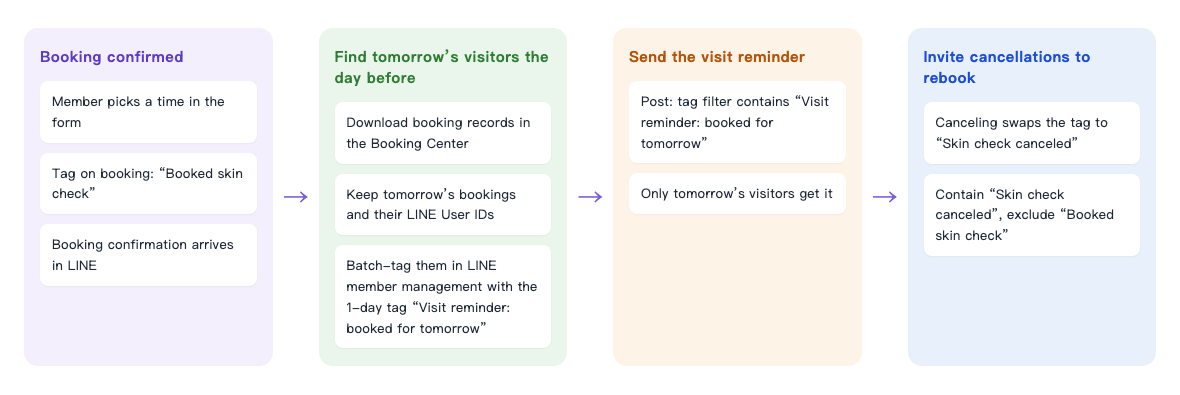
- The member picks a slot in the form and submits it. When the booking succeeds, "Booked skin check" is added and the member gets a booking confirmation in LINE.
- The day before the visit, download the bookings, pick out tomorrow's, and batch tag those people's LINE User IDs with the 1-day expiry tag "Visit reminder: booked for tomorrow".
- Send a reminder post only to "Visit reminder: booked for tomorrow". The tag expires automatically after 1 day, so it doesn't affect the next day.
- For people who cancel, the tag switches to "Skin check canceled" automatically; later, send them a rebooking invite.
Why not just remind everyone with the "booked" tag?
A tag only remembers that "this person booked", not which day they booked for. For a one-day event, sending the reminder to the "booked" tag is enough. But when you take bookings every day like this, people with "Booked skin check" include some coming tomorrow, some coming next week, and some who have already been (once the booking time passes the status changes to Completed, but the tag isn't removed). So the day before, you pick out tomorrow's guests separately, give them a tag that only lasts 1 day, and post to that.
| Situation | How to send the reminder |
|---|---|
| An event on just one day, one session | The post contains the "booked" tag directly; give each session its own pair of tags (for example, with the date) so reminders don't reach people from another session |
| Bookings open every day | The day before, download the bookings, batch tag tomorrow's guests with a 1-day expiry tag, then post to that tag (what this recipe does) |
How to set it up
| Step | Where | Settings in this scenario |
|---|---|---|
| 1. Prepare tags | Member & Tag › Tag Management | Folder "In-store skin check": Booked skin check, Skin check canceled, and the expiry tag "Visit reminder: booked for tomorrow" (1 day) |
| 2. The booking item | Web-based Tool › Booking Center | Swap "Booked skin check" and "Skin check canceled" on booking and cancellation |
| 3. Confirmation and booking form | LINE › Template Management, Web-based Tool › OakMega Form | Add the booking item question to the form; the follow-up action sends "Skin check: booking confirmed" |
| 4. Pick out tomorrow's guests the day before | Web-based Tool › Booking Center, LINE › Member Management | Download Bookings → keep tomorrow's LINE User IDs → batch tag with "Visit reminder: booked for tomorrow" |
| 5. Send the visit reminder | LINE › Post Article | OakMega segment › tag filter: contain "Visit reminder: booked for tomorrow" |
| 6. Invite cancellations to rebook | LINE › Post Article | Contain "Skin check canceled", exclude "Booked skin check", with the booking form link |
1. Prepare tags
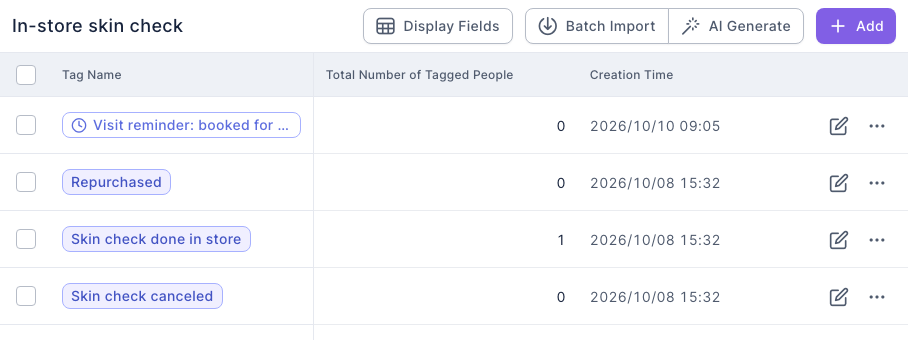
Under Member & Tag › Tag Management, put three tags in the folder "In-store skin check":
- "Booked skin check" and "Skin check canceled": strength tags that the booking item adds automatically.
- "Visit reminder: booked for tomorrow": set Tag Type to Expiry Tag with an expiry time of 1 day. It expires automatically 1 day after it's added, so you can reuse the same tag every day.
2. The booking item
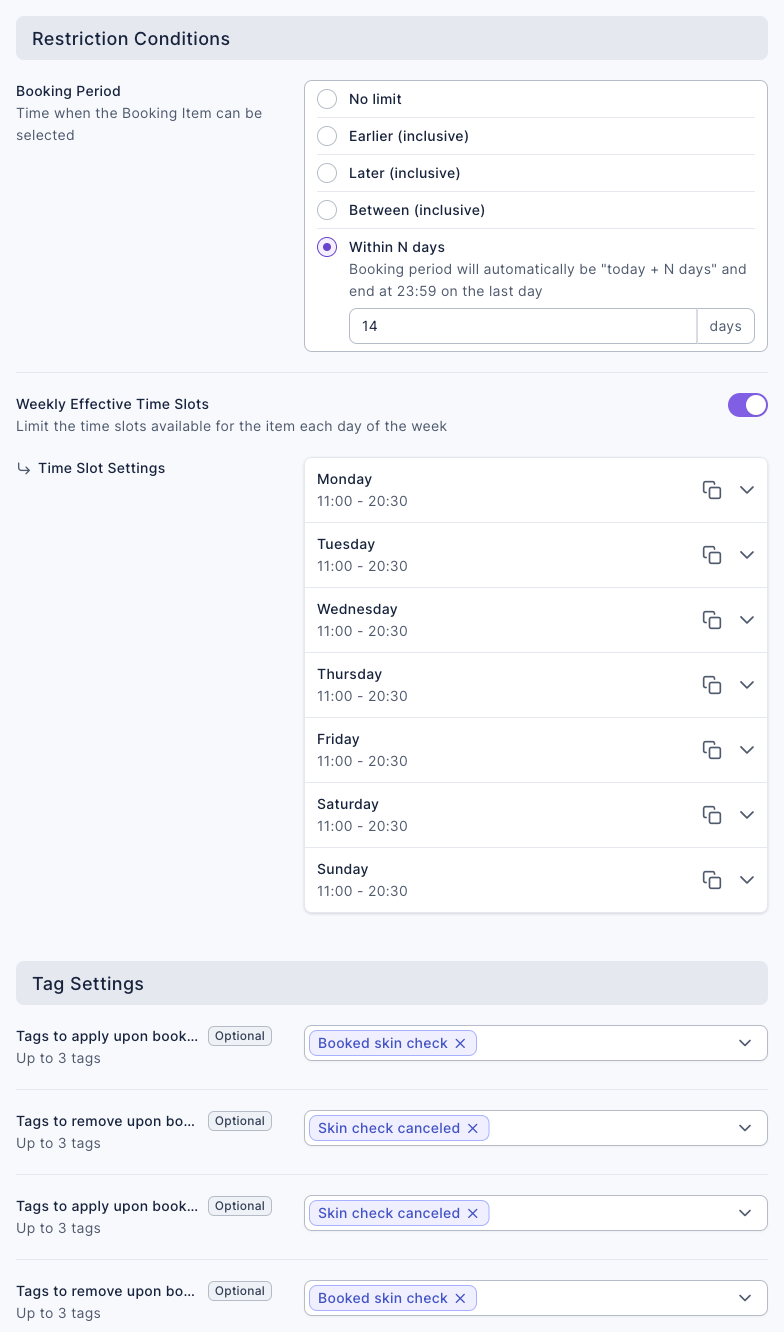
Under Web-based Tool › Booking Center, open the booking item "Xinyi store: free skin check" and set Tag Settings as follows:
- Set Tags to apply upon booking completion to "Booked skin check" and Tags to remove upon booking completion to "Skin check canceled".
- Set Tags to apply upon booking cancellation to "Skin check canceled" and Tags to remove upon booking cancellation to "Booked skin check".
This way, if the same person cancels and then books again, the two tags swap and are never on them at the same time, so the rebooking invite doesn't go to people who have already booked again.
If someone needs to be notified when a booking comes in, add a staff member under Staff Settings and bind them to the booking item. Once that colleague links their LINE in Settings › My Account, they get a LINE notification for every booking right away. For every field, see Take bookings with Booking Center.
3. Confirmation and booking form
Bookings always go through a form: under Web-based Tool › OakMega Form, create a form, turn on Login via Communication Platform, add a Booking Items question with "Xinyi store: free skin check", and under Follow-up Actions set Send Message via Communication Platform to the template "Skin check: booking confirmed". In the template, spell out the location, "show this message when you arrive", and "if you need to reschedule, just message us here".
For the full settings and screenshots of this step, see "Build the booking form" in Take in-store bookings, give a repurchase voucher after the visit, and remind people who haven't come back.
4. Pick out tomorrow's guests the day before
Do this once every afternoon (for example at 17:00):
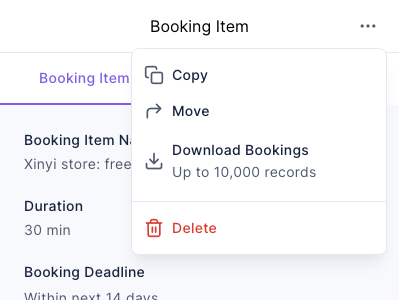
- Under Web-based Tool › Booking Center, click the booking item, then on the right, click "⋯" at the top right of Booking Item and choose Download Bookings (the latest 10,000 records).
- Open the downloaded Excel file, filter the rows that start tomorrow and are still scheduled, and copy the LINE User ID column into a new CSV file: write
line_idas the header in the first row, with one ID per row below. - Go to LINE › Member Management, click the tag icon at the top right (Batch Tag by LINE User ID), upload the CSV, set Apply Tags to "Visit reminder: booked for tomorrow", and click Confirm.
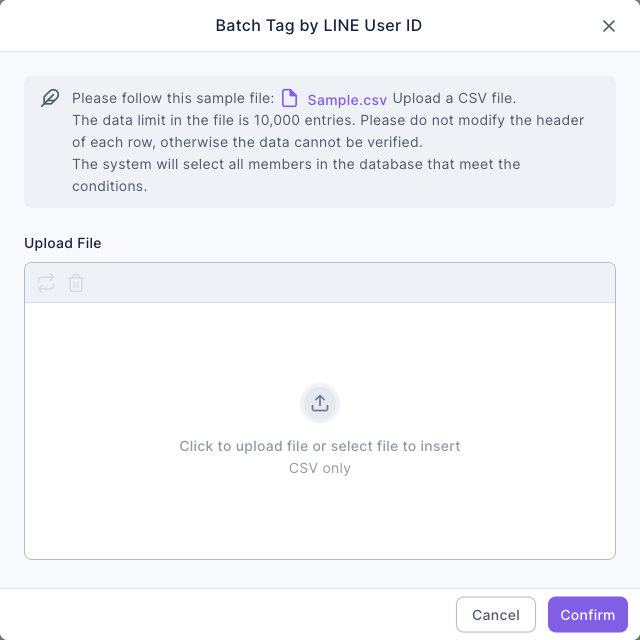
Batch tagging runs in the background, so the tag count may take a minute or two to update. The download contains members' names, phone numbers and other personal data, so delete it when you're done. Accounts without download permission see No download permission.
5. Send the visit reminder
Under LINE › Post Article, create a post "Skin check: see you tomorrow (visit reminder)":
- Set audience source to OakMega segment, audience setting to tag filter, and contain tag to "Visit reminder: booked for tomorrow".
- Write the message: "See you tomorrow! You're booked for a free skin check at Sunleaf's Xinyi store. Just show your booking confirmation when you arrive; it takes about 30 minutes. Can't make it? Reply here and we'll move your time."
- Check audience / remaining message quota on the right, then click Publish immediately, or turn on upcoming publish to schedule it for the early evening.
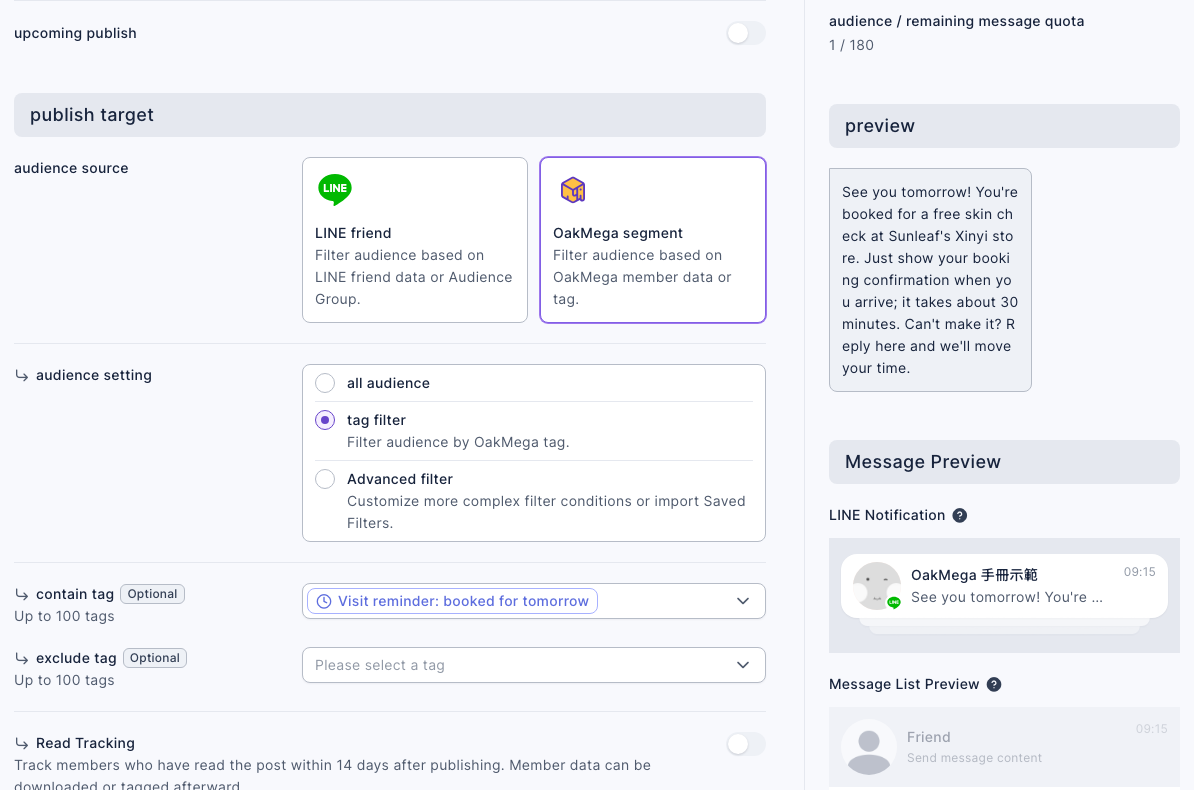
In the demo only one test friend was coming tomorrow, so the audience is 1.
6. Invite cancellations to rebook
Create another post, "Skin check: we saved you a new slot (rebooking invite)":
- Set contain tag to "Skin check canceled" and exclude tag to "Booked skin check".
- Write a short invite with the booking form link, for example: "We missed you at your last skin check — there are still openings this week! Tap here to pick a time that suits you; you'll still get the 10% off repurchase voucher after the check."
People who have booked again are switched back to "Booked skin check", so the exclude condition filters them out. Nobody canceled in the demo, so the audience is 0 and the page shows "No audience matches the filter conditions". That's expected.
For the full steps, see Post articles to LINE friends.
What members see
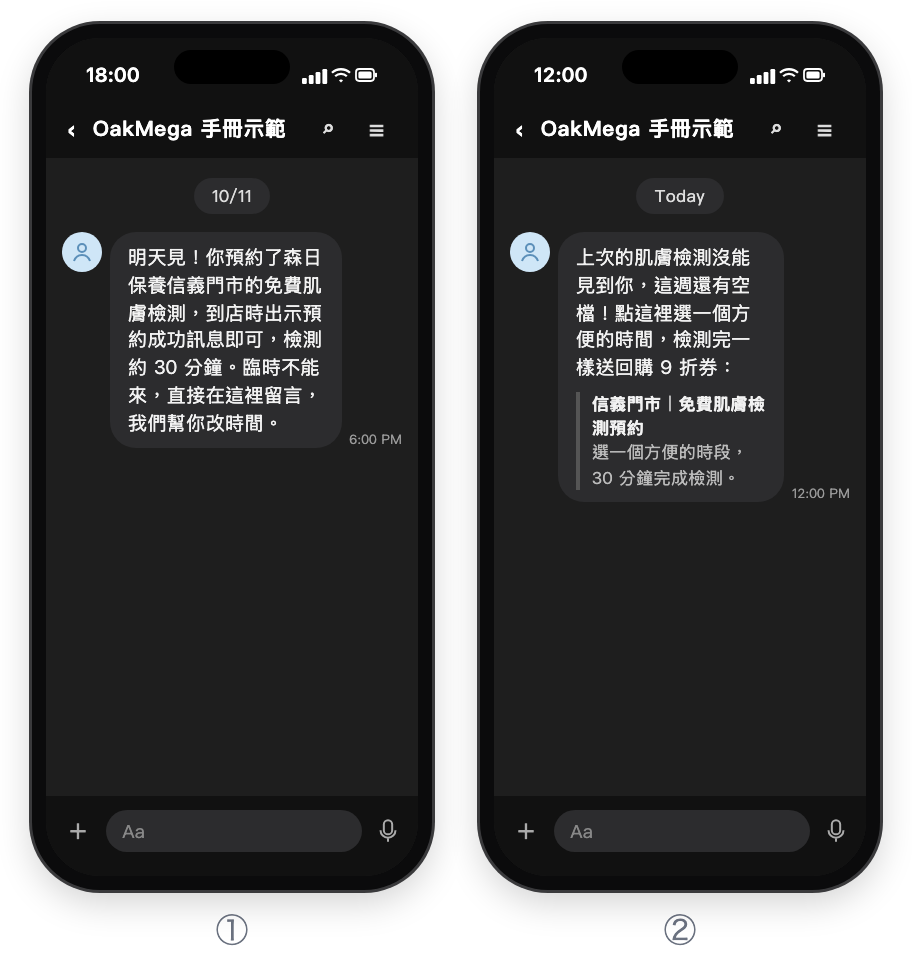
- ① Only people coming tomorrow get the visit reminder, the evening before: "See you tomorrow! You're booked for a free skin check at Sunleaf's Xinyi store. Just show your booking confirmation when you arrive; it takes about 30 minutes. Can't make it? Reply here and we'll move your time."
- ② People who canceled and haven't booked again get the rebooking invite, and the link takes them back to the booking form: "We missed you at your last skin check — there are still openings this week! Tap here to pick a time that suits you; you'll still get the 10% off repurchase voucher after the check."
Both are mock-ups drawn from the posts' content, and the screens are a Chinese demo.
Rescheduling, canceling and bookings
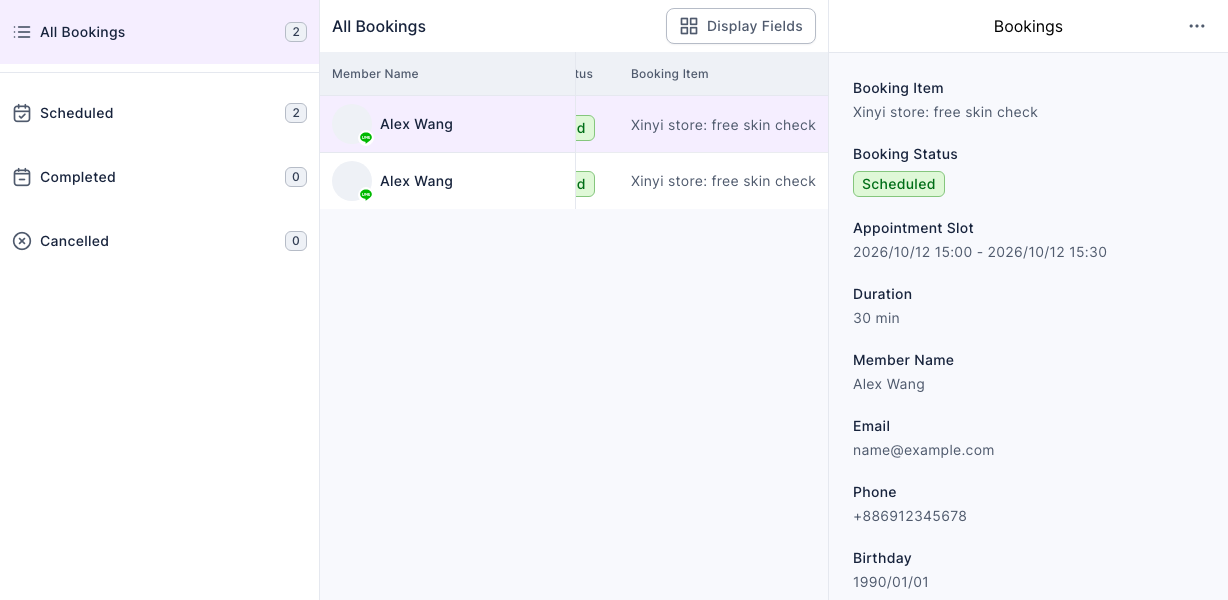
When a customer messages to change their time or cancel, handle it under Web-based Tool › Booking Center › Bookings:
| What to do | How | What happens |
|---|---|---|
| Change a customer's time | Click the booking and use Change booking to choose a new slot | The system notifies the booker; the tags stay the same |
| Cancel for a customer | Click the booking, then choose Cancel from "⋯" at the top right | The system notifies the booker; the tag switches to "Skin check canceled"; a canceled booking can't be restored |
| See who has been | Filter by the Completed status | Bookings change to Completed automatically once the booking time passes; this doesn't mean the customer actually came in |
You can't change bookings while the booking item is closed; turn on Open for Booking first.
How to check it's working
To see whether the reminders and rebooking invites are working, check these places.
| What you want to know | Where to look |
|---|---|
| How many booked and how many canceled | Booking Center › Bookings, filtered by status |
| How many to remind tomorrow | The Total Number of Tagged People for "Visit reminder: booked for tomorrow", or the reminder post's audience |
| Whether the rebooking invite worked | After it goes out, fewer people have "Skin check canceled" and more have "Booked skin check", meaning some people booked again |
| Whether the reminder was read | Turn on Read Tracking when posting, then check the open rate in the Post Article list |
Variations
- Several customers in one slot: a slot can only be booked once; to host several people at the same time, duplicate the booking item (for example "Check seat A" and "Check seat B").
- A one-off event: no need to download every day; send the reminder straight to that session's "booked" tag. See the table in "Why not just remind everyone with the 'booked' tag?" above.
- After the visit: staff show the repurchase voucher and members use it at checkout; see Take in-store bookings, give a repurchase voucher after the visit, and remind people who haven't come back.