
First, confirm that the member can open the form and see the booking question. If login, form eligibility, or submission is the problem, start with Why members cannot open or submit a form. If the booking question appears but has no available date or time, work through these checks.
1. Open the booking item settings
- Go to Web-based Tool › Booking Center and find the item used in the form.
- Click the edit icon at the end of its row. Check Basic Settings, Time Settings, and Restriction Conditions.
- Note the date and start time the member wants, along with the Booking Duration, before comparing the settings below.
The screenshot shows where to find Open for Booking, Booking Duration, Open Slot Interval, Booking Cutoff Time, Booking Period, and Weekly Effective Time Slots. Check the actual item used by the form; this screenshot shows an unsaved example.
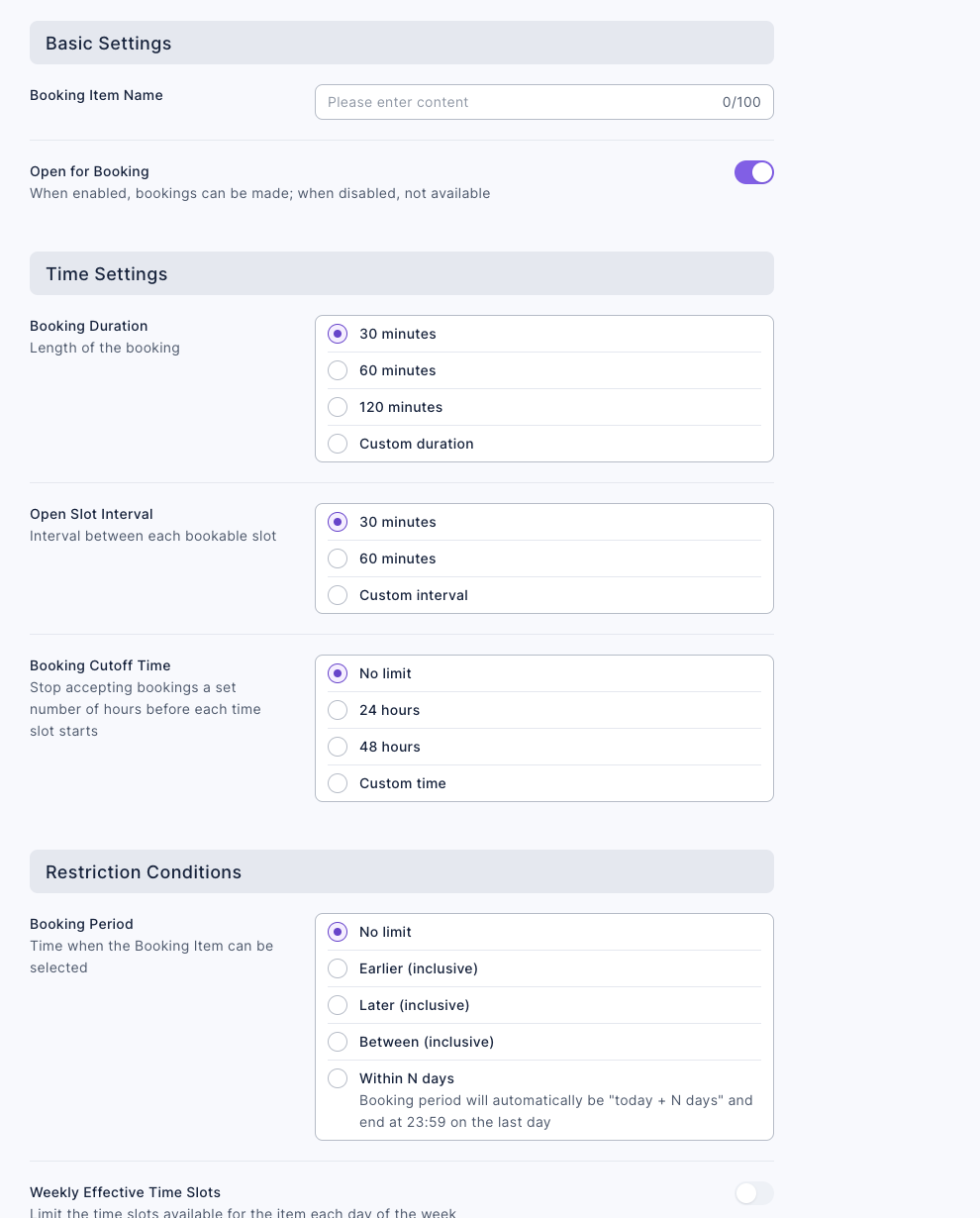
These settings generate candidate times. The system then removes times that overlap existing bookings or the assigned staff member's busy periods.
2. Check why a time was removed
| Check | What to look for | What to do |
|---|---|---|
| Open for Booking | When off, forms using this item stop accepting bookings and the respondent sees that the booking is currently unavailable | Turn it on if the item should accept bookings |
| Booking Period | The entire booking must fit within the allowed dates and times. If the period ends at 12:00 and duration is 60 minutes, an 11:30 start will not appear | Extend the period or choose a time that ends within it. Within N days rolls forward daily and ends at 23:59 on the last day |
| Booking Cutoff Time | A slot disappears when its start is less than the required advance time away. With a 24 hour cutoff, tomorrow at 09:00 will not appear if it is already 10:00 today | Ask the member to choose a later slot, or adjust the cutoff if appropriate |
| Weekly Effective Time Slots, Booking Duration, and Open Slot Interval | The weekday has no configured period, the period cannot hold a full booking, or the desired start does not fall on the configured interval | Add a sufficiently long period for that day and review duration and interval. When weekly slots are off, candidate times span 00:00–24:00 each day |
| Existing bookings for the same item | Another active booking overlaps the desired time; cancelled bookings do not hold slots | Check Bookings for that day and offer another time |
| Other bookings for Bind Staff | The assigned staff member has a booking for another item at the same time | Check that person's booking records, then choose another time or available staff member |
| Staff calendar | Busy events in a connected Google or Outlook calendar remove overlapping slots. A calendar connection error can also leave no slots | Check the connection and events under Staff Settings; resolve the conflict or ask the staff member to check the calendar connection |
Times that have already passed do not appear. Use the date the member actually wants: if only one day is empty, start with that day's weekly schedule, period, and booking records.
3. A slot was visible, but submission failed
Another member may book a time between the moment it appears in the form and the moment this member submits. The system checks availability again during submission and will not create a booking for a slot that has become unavailable.
- Ask the member to reopen the booking question and choose from the current available times.
- Check Bookings for a new booking at the original time, plus the assigned staff member's other bookings and calendar.
- If a new time still fails and the form shows another error, use the form submission checks.