
When a post wasn't sent, check the following in order; the most common causes come first.
1. Check the post status
In the navigation bar, click LINE and choose Post Article. Filter by status on the left, find the post and look at its status:
| Status | Meaning | What to do |
|---|---|---|
| Draft | Not published yet | Open it and click Publish immediately, or turn on scheduling and set a time |
| Scheduled | The scheduled time hasn't come yet | Wait, or change the time or publish immediately (it can't be edited within 2 minutes before publishing) |
| Processing | Being sent; large audiences take a while | Wait a moment and refresh |
| Failed | Something went wrong while sending | See the failure reason in the next section |
| Published | Sent | If someone says they didn't get it, see section 3 |
2. Failed: read the failure reason
- Click Failed on the left.
- Click the post. A red box at the top of the information panel on the right shows why it failed.
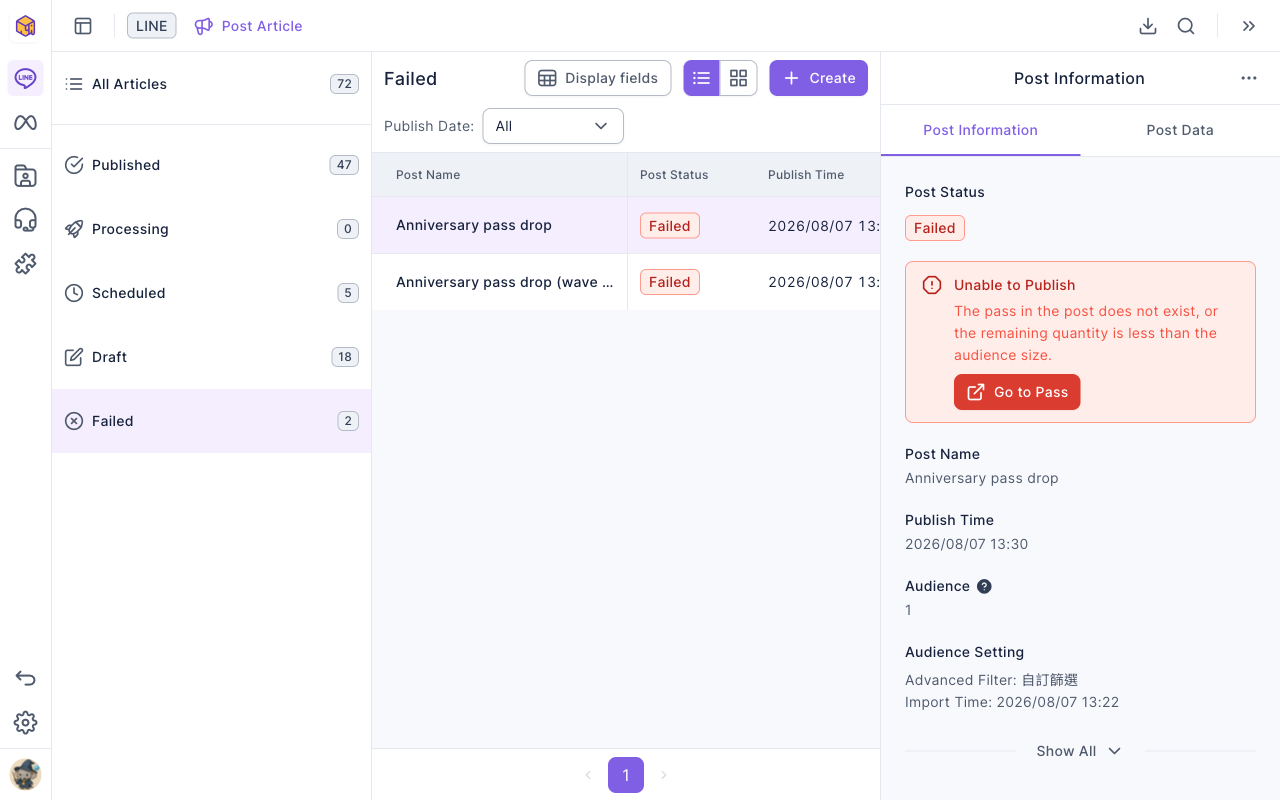
The title of the red box is the reason:
| Red box title | Cause | What to do |
|---|---|---|
| Insufficient Message Quota | The message fee for this publish exceeds your plan's available quota | Contact OakMega to top up, then schedule again |
| LINE Channel Access Token Forbidden | The LINE Official Account authorization expired | Ask a workspace admin to reconnect the LINE Official Account |
| LINE Server Request Failed | The post contains content that doesn't meet LINE's format rules | Check the message formats (for example links and images in card or image map messages), fix them and publish again from a draft copy |
| Server Error | LINE's service had a problem | Try again later; contact OakMega if it keeps happening |
| Unable to Publish | The pass in the post doesn't exist, or fewer remain than the audience size | Click Go to Pass to add more or choose another pass |
- Failed posts can't be deleted or edited directly. Use Duplicate as Draft from "⋯" at the end of the row, fix it and publish again.
- If the post contains a pass, the red box also says whether the passes were already given out, even though the post itself wasn't sent.
3. Published, but someone says they didn't get it
A published post was sent to everyone in its audience. People who didn't get it usually fall into one of these:
- They weren't in the audience. Open the post and check the Audience Setting: with tags, advanced filters or an audience pack, the person may not match. Choosing recent active members under audience member status, or turning on random publish to pick only some people, also leaves people out.
- The audience pack expired. Audience packs are created when exported and don't update on their own; re-export them when they expire or show an error.
- They blocked your LINE Official Account. People who block you get no messages.
- They're on the blacklist. Blacklisted members don't receive posts; see Add members to the blacklist.
- Their LINE notification settings. If they turned off notifications for your account, the message arrived but didn't show a notification.
4. Test before you publish
Before publishing, use Test publish in the top-right of the editor to send the post to your message test members and check the content and formatting. This avoids errors like "LINE Server Request Failed". See Set up message test members.