
You can usually tell why a feature is missing from what the screen looks like:
| What you see | Most likely cause | Go to |
|---|---|---|
| The feature isn't in the navigation bar at all | Your permission is Hidden, or only the owner can use it | Sections 1 and 2 |
| Opening the URL shows "You need to have permission to enter here!" | Same as above | Sections 1 and 2 |
| You can see it, but buttons are grayed out with "No edit permission" | Your permission is View Only | Section 1 |
| Opening it only shows "Upgrade Plan" or "Please contact your OakMega project representative to upgrade" | The workspace plan doesn't include it, or it isn't activated | Section 3 |
| Opening it shows "… account not yet connected" or a prompt to connect | The workspace hasn't connected that communication platform | Section 4 |
| Opening it shows "Please configure domain settings before using …" | The web tool subdomain isn't set | Section 5 |
1. Your member permission
The navigation bar shows or hides a feature based only on your own permission. Each feature has three levels:
| Scope | What you see |
|---|---|
| Editable | You can see and use it, including adding, changing and deleting |
| View Only | You see the list, but buttons such as Create and Edit are grayed out with "No edit permission"; opening a create or edit URL directly is blocked |
| Hidden | The feature isn't in the navigation bar; opening the URL directly shows "You need to have permission to enter here!" |
- When every feature in a group is hidden, the whole group (for example Advanced Features) disappears from the navigation bar.
- Service Center only appears with Editable. View Only isn't enough to see it.
- Permissions are separate for each workspace: seeing a feature in one workspace doesn't mean you'll see it in another.
The workspace owner sets permissions in Settings › Permission Management. Regular members can't see their own permission settings, so ask the owner to turn the feature on for you, following Manage members and permissions.
2. Features only the owner can use
Whatever the permissions say, only the owner sees these. Regular members don't see the Workspace Settings section on the Settings page at all:
- Communication Platform Settings
- Web-based Tool Settings
- Permission Management
- Message Test Member Settings
- Service Center settings pages
If something there needs changing, ask the owner.
3. The plan doesn't include it, or it isn't activated
A plan never removes a feature from the navigation bar. The feature stays, but opening it shows only an upgrade screen with a short description and one button. The button depends on who you are:
| Button | Who sees it | What to do |
|---|---|---|
| Upgrade Plan | The owner | Click it to go to the plan page and upgrade |
| Please contact the account owner to upgrade (grayed out) | Regular members | Ask the owner to upgrade the plan |
| Please contact your OakMega project representative to upgrade (grayed out) | Everyone, on Booking Center and Pass | Besides the Enterprise plan, these two need separate activation for the workspace. Contact your OakMega project representative |
Which plan includes what:
| Lowest plan | Features |
|---|---|
| All plans | Chatbots, Comment Reply Bot, posts, group posts, Richmenu, Messenger menu, Tag Management, Service Center, Deep Link, New/Existing Friend Link, Tag Routing Link |
| Pro and above | OakMega member management, member management for each platform, Blacklist, Group Conversation, Template Management (LINE, SMS), approved pages, forms |
| Enterprise | Booking Center, Pass |
- If approved pages aren't activated, even the owner won't see them in the navigation bar, and opening the URL is blocked.
- On the Free plan, adding a folder, an 11th tag or an 11th chatbot shows "You've discovered a new feature!". That's a quantity limit, not a permission problem.
4. The communication platform isn't connected
LINE, Facebook, Instagram and WhatsApp features need the matching account connected first. Without it, the navigation bar looks normal, but opening the feature shows a "not connected" screen.
The screenshot below shows Facebook Member Management in a workspace without Facebook connected. The middle reads "Facebook account not yet connected", and the owner sees a Start Connection button.
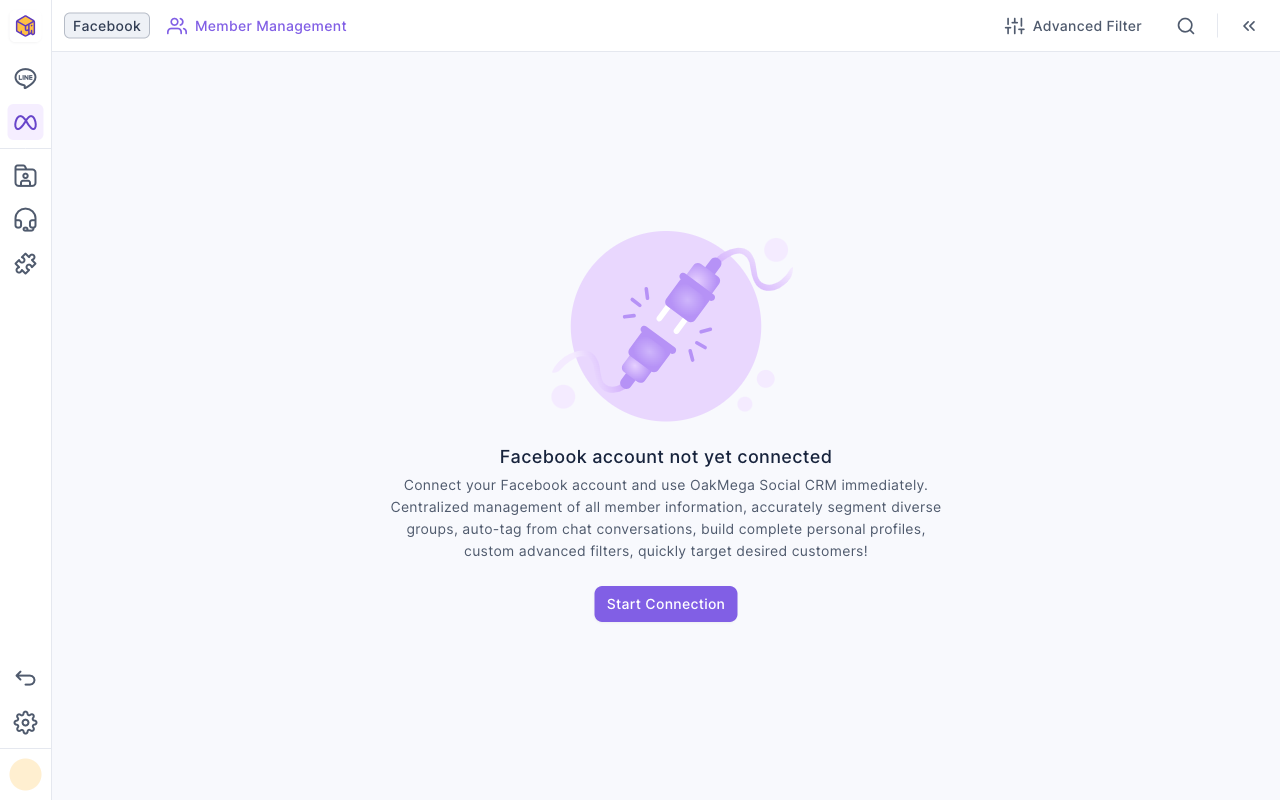
- The owner sees Start Connection, which goes to Settings › Communication Platform Settings.
- Regular members can't connect platforms; ask the owner.
- WhatsApp is connected with OakMega's help; the screen says "Please contact the OakMega project representative to proceed with the connection".
- Deep Link, New/Existing Friend Link, Tag Routing Link and Pass also need LINE connected first.
5. The web tool domain isn't set
Approved pages, forms, Booking Center and Pass live under the workspace's subdomain. Until it's set, you'll see "Please configure domain settings before using …":
- The owner clicks Domain settings and follows Set the subdomain and favicon for web tools.
- Regular members see a grayed-out "Please contact the account owner to proceed with the setting".
Other situations
| What you see | Why |
|---|---|
| "Service Center Not Activated" | The workspace hasn't turned on Service Center. See Get started with Service Center: add agents and organizations |
| "Your account has not been added as an agent" | You have Service Center permission but aren't an agent yet. Ask the owner to add you |
| "Credit Card Payment Failed!" | The workspace payment didn't go through, so the whole workspace is unavailable. Ask the owner to update the payment method |
| "You need permission to continue!" pops up mid-task | The backend refused the action, often because the owner just changed your permissions. Click Refresh to load the latest permissions |
| The feature only exists in the old backend | Click Back to Old Site at the bottom of the navigation bar |