
After reading this, you'll be able to invite colleagues to the workspace, create an identity for each job (for example, store staff who can view members and post articles), and assign colleagues to it so their permissions are set in one go.
Before you start
- Only workspace owners can manage permissions: the Workspace Settings section on the Settings page, which contains Permission Management, is visible only to owners.
- Permission management doesn't depend on your plan; every plan has it.
Owners and regular members
Click Settings at the bottom of the navigation bar, then Permission Management under Workspace Settings. There are two tabs at the top: Member and Identity.
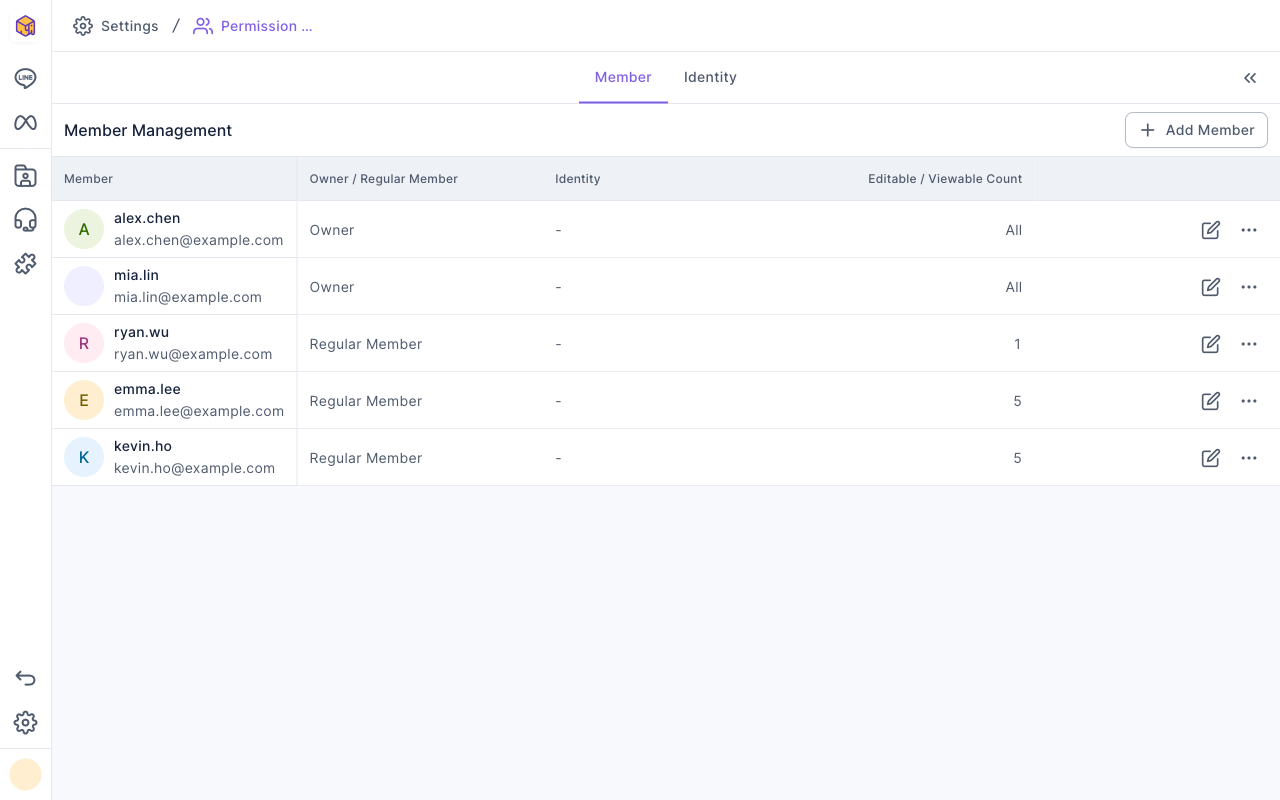
The screenshot below shows Member Management. Each row is a member, with their email, Owner / Regular Member, the Identity applied, and the Editable / Viewable Count (owners show All). Add Member is at the top right; each row can be edited or deleted with "⋯".
This table compares the two kinds of members:
| Owner | Regular Member | |
|---|---|---|
| Features they can use | Highest permission on every feature | As configured: each feature is Editable, View Only or Hidden |
| Can their permission scope be adjusted | No. It's always the highest permission on every feature (to limit someone, switch them back to Regular Member) | Yes, feature by feature or by applying an identity |
| Can they manage permissions and workspace settings | Yes | No |
Invite a member
- On the Member tab, click Add Member at the top right.
- Enter your colleague's Email and choose the Notification Email Language.
- Click Confirm. You'll see "Add Success". The person appears in the list right away as a regular member, and a notification email is sent in the language you chose.
- Click the edit icon on their row to set their permissions (see "Set permissions with identities"), or make them an owner.
The animation below shows clicking Add Member at the top right, entering new.staff@example.com, keeping the notification email language, and clicking Confirm. "Add Success" appears at the top of the screen.
- There's nothing for them to accept. Once you click Confirm they're in the workspace; when they sign in to OakMega with that email, the workspace appears in their workspace list.
- You can invite someone who doesn't have an OakMega account yet. An account is created for that email.
If the email already belongs to a member of this workspace, you'll see "User {email} already exists".
Make a member an owner
A workspace can have several owners, for example when the business owner, the marketing lead and an agency contact all need to manage it.
- On the Member tab, click the edit icon on the member's row to open Edit Permission Member.
- Under Owner / Regular Member, choose Owner. The page shows "Owners have the highest permissions for all features and cannot be changed.", and every permission below becomes Editable.
- Click Save at the top right. You return to the member list and see "Saved successfully".
The animation below shows clicking the edit icon on frank's row, choosing Owner under Owner / Regular Member, the permission list switching to Editable, and clicking Save at the top right.
- When someone becomes an owner, any identity applied to them is removed. To switch them back, choose Regular Member in the same place, then set their permissions again or apply an identity.
- Owners can also manage other members, so give this only to people who really need to manage the whole workspace.
Set permissions with identities
People in the same job usually need the same permissions. Create an identity first, then assign members to it; from then on, changing the identity updates everyone who has it.
- Switch to the Identity tab and click Add Identity at the top right.
- Enter an Identity Name (up to 100 characters, and different from other identities).
- Under Permission Settings, choose the File Download Permission, then set each feature to Editable, View Only or Hidden.
- Click Save at the top right. You'll see Create Success and return to the identity list.
- Click the identity and add the members to assign under the Members tab of Identity Info on the right.
The animation below clicks Add Identity and types the identity name "Store Staff".
Next, LINE Member Management is set to View Only and LINE Post Article to Editable, then Save is clicked. Back in the identity list, the new identity appears.
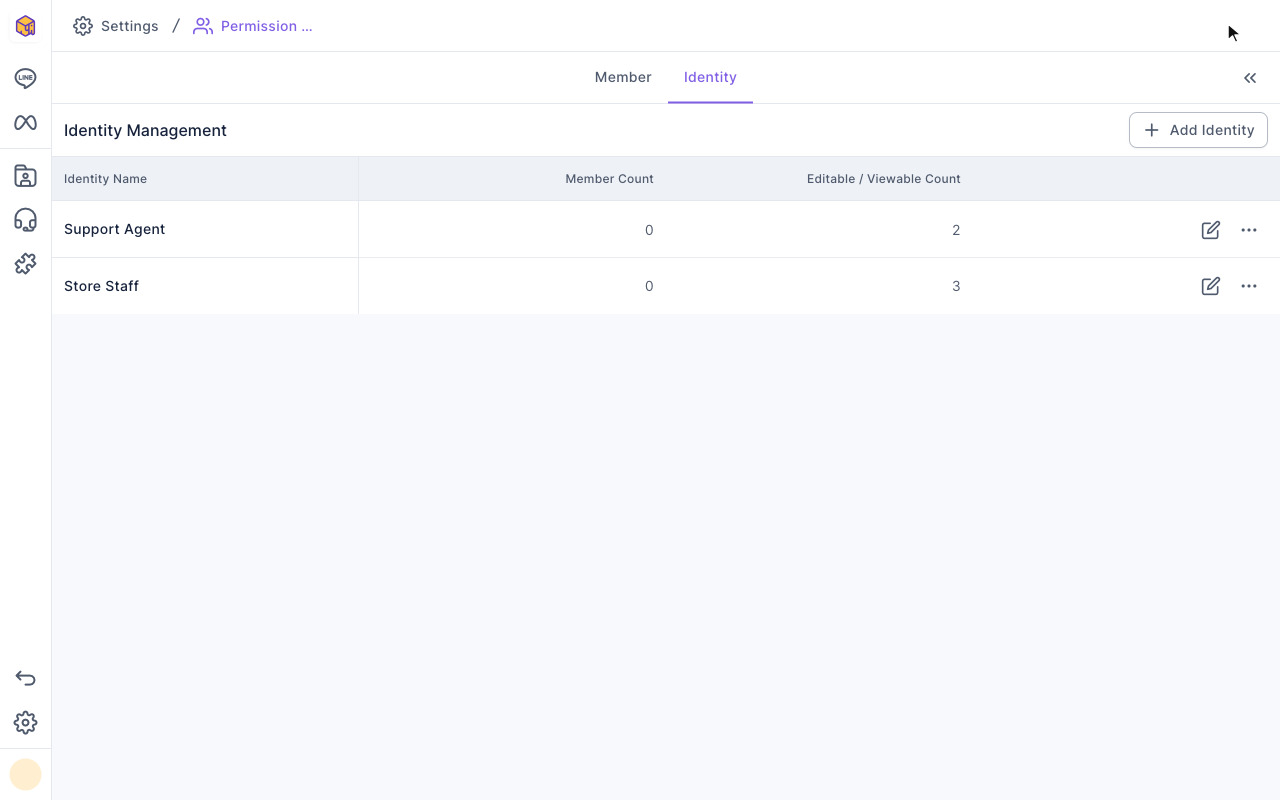
The screenshot below shows the Identity Management list. Each row is an identity with its Identity Name, Member Count and Editable / Viewable Count.
Permission scopes and file downloads
Each feature has three permission scopes:
| Scope | The person can |
|---|---|
| Editable | See and use the feature, including adding, changing and deleting |
| View Only | See it, but buttons show "No edit permission" |
| Hidden | Not see the feature in the navigation bar at all |
Dashboard can only be View Only or Hidden. Features are grouped like the navigation bar: LINE, Facebook, Instagram, WhatsApp, member & tag, service center, automation, web-based tools, link tools, modules, SMS and analytics.
File Download Permission decides whether the person can download files such as member data:
| Option | When downloading |
|---|---|
| Downloadable | Full files can be downloaded |
| Exclude Personal Info | Files can be downloaded. Form exports omit questions that collect personal details, but may still include LINE User ID, LINE User Name, and OakMega Member Name. Use Not Downloadable if the person must not receive these identifiers |
| Not Downloadable | No downloads; buttons show "No Download Permission" |
Delete an identity or a member
- Delete an identity: click "⋯" on its row in the identity list, choose Delete, then Confirm in the Delete "identity name"? window. Members who had it keep their current permissions, but from then on you manage them one by one.
- Remove a member from an identity: remove them in the Members tab of Identity Info; they stop syncing with the identity's changes.
- Delete a member: click "⋯" on their row in the member list, choose Delete and confirm; "this member will no longer be able to view or use any features".
The animation below clicks "⋯" on the Store Staff row and chooses Delete. The confirmation window says "Members assigned to this identity will need to be individually set and managed."; after Confirm, the identity disappears from the list.
How it works
- A member can have only one identity. Members who already have an identity don't appear in other identities' add list; to switch, remove them from the current one first.
- Changing an identity changes everyone who has it. As soon as you save an identity's permissions, its members follow; there's no need to edit them one by one.
- Permissions are per workspace. The same person can be an owner in workspace A and a regular member in workspace B.
- Service Center roles are separate. The roles inside Service Center (such as manager and agent) only control Service Center and are set in its own settings; see Get started with Service Center: add agents and organizations.
FAQ
There's no Permission Management on the Settings page
You're not an owner of this workspace. Ask an owner to adjust your permissions.
Role name {name} already exists
An identity with that name already exists. Choose another name, or edit the existing identity.
User already belongs to another role
This member already has another identity. Remove them from it first, then add them to the new one.