
By the end of this article you'll be able to schedule the default Richmenu every friend sees, prepare different segmented Richmenus for specific members, and decide what each button on a menu does.
Before you start
- The workspace needs a connected LINE Official Account.
- You need Default Richmenu permission. View Only lets you look; to add, edit, duplicate or delete you need Editable, otherwise buttons show "No edit permission".
- Prepare your menu image: JPG, JPEG or PNG, up to 1MB; width 800–2500px, width/height ratio between 1.45 and 3 (for example, an image 1200px wide needs a height of 405–810px).
- A Richmenu syncs to your LINE Official Account as soon as you save it, and friends see it right away. Plan the content before you save.
Default Richmenu vs. Segmented Richmenu
In the navigation bar, click LINE and choose Richmenu. There are two tabs at the top:
| Default Richmenu | Segmented Richmenu | |
|---|---|---|
| Who sees it | All friends (anyone without a segmented Richmenu applied) | Members who have this menu applied |
| How it's managed | By schedule: each schedule has a start and end time and goes live or offline automatically | A fixed number of menu slots whose content you edit; you can't add more (contact OakMega to buy more slots) |
| Status | In Use, Scheduled, Offline | Shows Applied Members |
| More menu | Duplicate, Delete | Duplicate, Remove all applied members, Download applied member data, Reset |
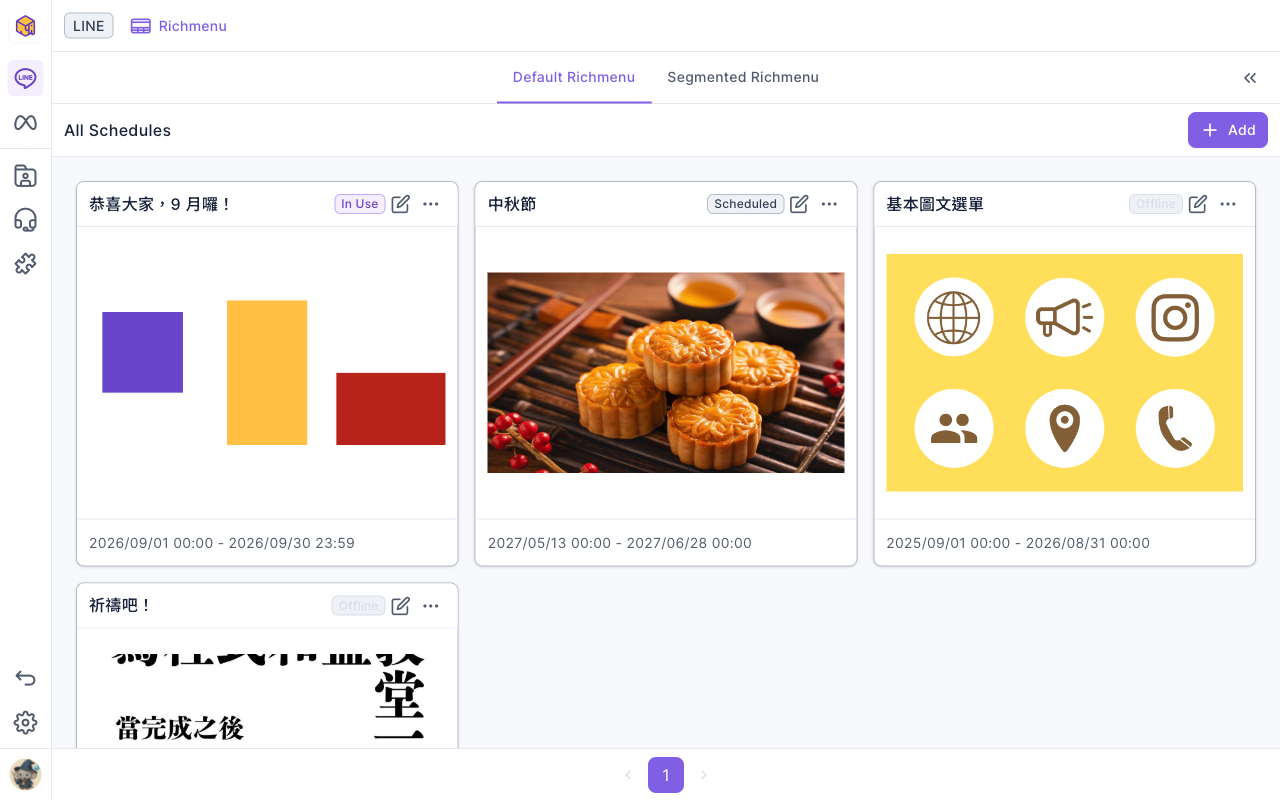
The screenshot below shows the Default Richmenu tab. All Schedules lists a card for each schedule with its name, status, menu image and schedule time, and Add is in the top-right.
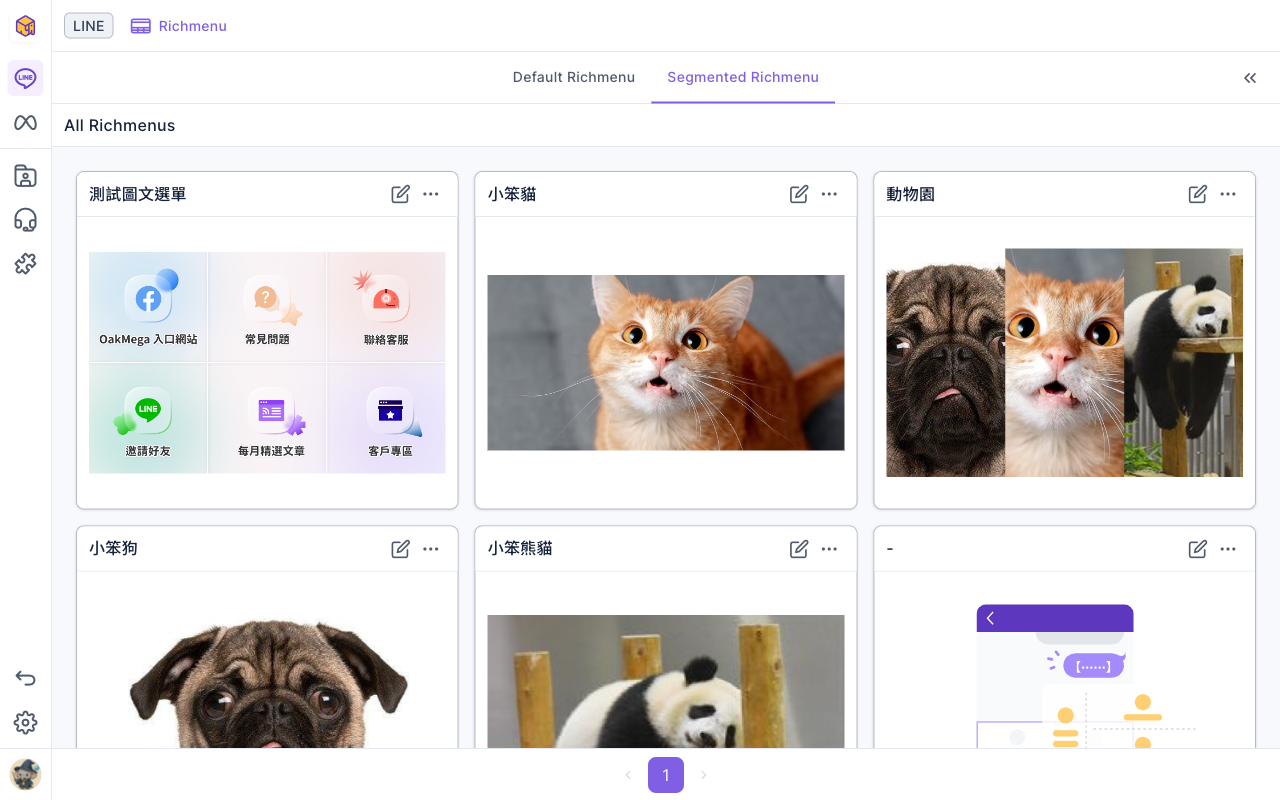
The screenshot below shows the Segmented Richmenu tab. All Richmenus lists every segmented menu slot the workspace can use; slots that haven't been set up show "-".
Add a default Richmenu schedule
- On the Default Richmenu tab, click Add in the top-right.
- Under Basic Settings, enter a Schedule Name (up to 20 characters) and choose the start and end of the Schedule Time. Schedules cannot overlap with other schedule times; if they do, you'll see "Schedule time overlaps". Back-to-back schedules can't share the same minute either: if one ends at 10/1 00:00, the next can start at 10/1 00:01 at the earliest.
- Under Menu Settings, enter the Text Below Menu (up to 14 characters, shown on the menu bar at the bottom of the chat). Turn on Default Expand if you want the menu to open automatically when friends open the chat.
- Under Content settings, upload the menu image, choose Grid layout or Free layout, then drag on the image to create button areas (see the next section).
- Check the Preview on the right, then click Save in the top-right.
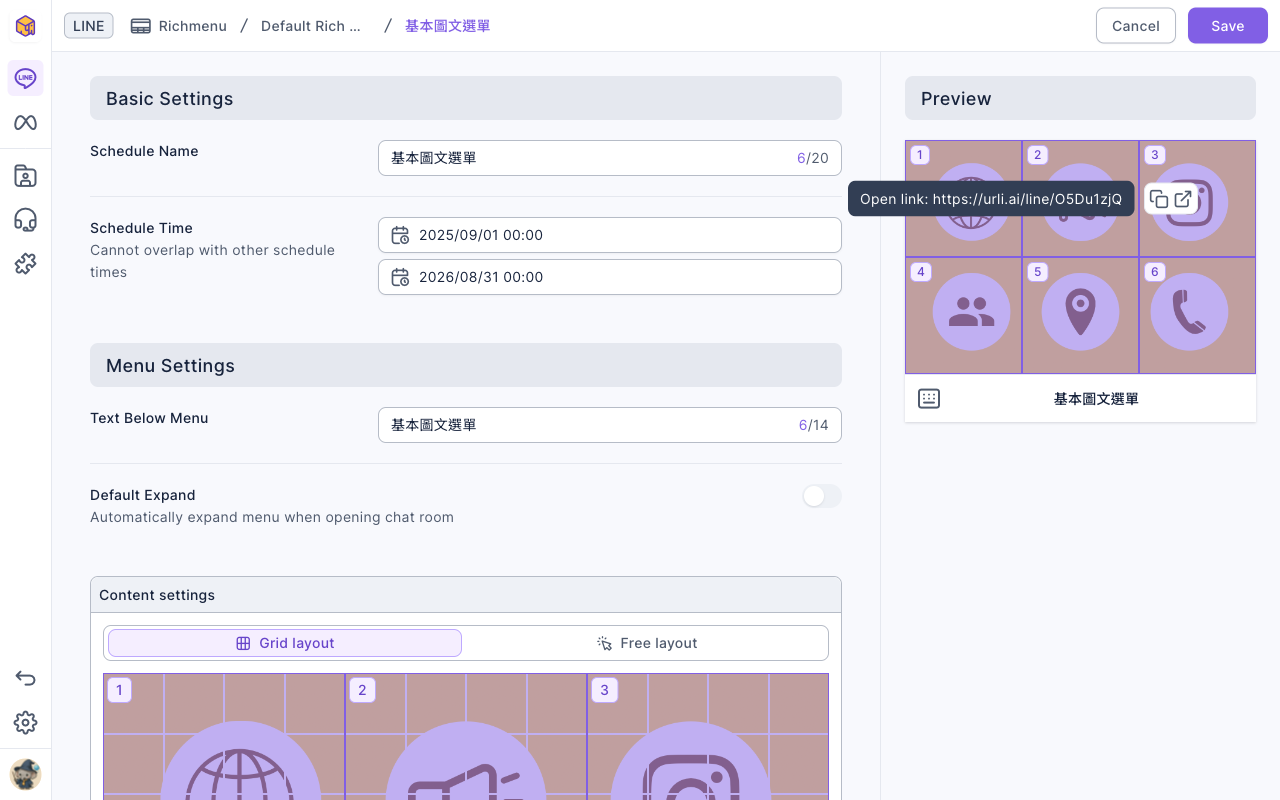
The screenshot below shows a default Richmenu schedule being edited. On the left are the schedule name and time under Basic Settings, the text below menu and default expand under Menu Settings, and Content settings below. On the right, Preview shows the menu as friends see it in LINE; hovering over a button shows its click action.
Duplicate a default Richmenu schedule
To set up a similar schedule (for your next campaign, say), duplicating is faster than starting from scratch:
- Click "⋯" in the top-right of a schedule card and choose Duplicate.
- The editor opens with the original's menu settings, image and all buttons; "copy" is added to the end of the Schedule Name.
- The Schedule Time isn't copied and starts out empty. Pick a time that doesn't overlap any other schedule.
- Make your changes and click Save.
Set up buttons and click actions
Content settings decides which parts of the image can be tapped and what happens:
- Grid layout: the image is divided into a 12 × 8 grid and areas snap to the grid lines, which suits evenly arranged buttons.
- Free layout: drag out buttons of any size and position.
- Drag on the image to select an area and a new Button appears. A menu holds up to 20 buttons, and buttons can't overlap.
- Replace image swaps the image but keeps the buttons; Clear button areas removes every button and click action.
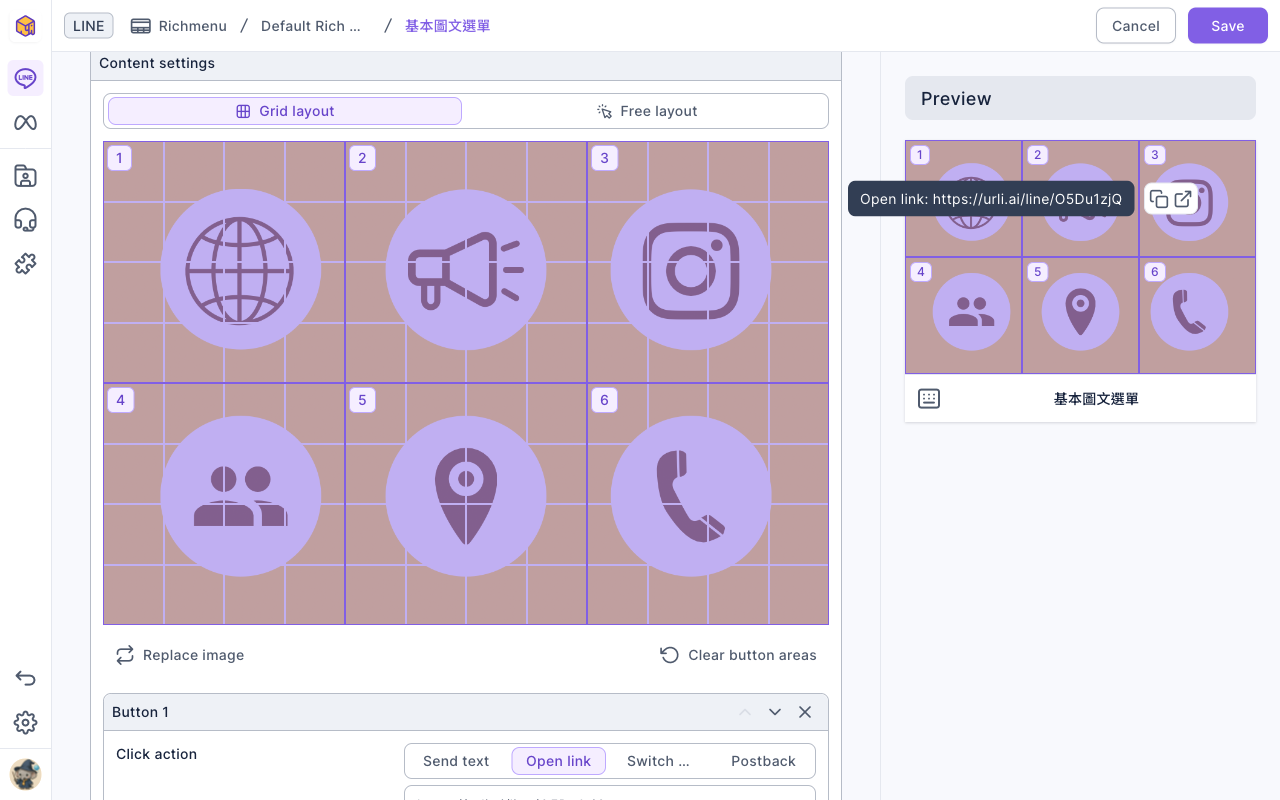
The screenshot below shows Content settings: the layout switch at the top, numbered boxes on the image marking each button area, and the click action settings for Button 1, Button 2 and so on below.
Each button's Click action can be one of four types:
| Click action | When a friend taps it | What you fill in |
|---|---|---|
| Send text | Sends a message in the chat as the friend, which can trigger chatbot keywords | Text, up to 100 characters |
| Open link | Opens a web page | A URL; click Convert to Deep Link to track clicks |
| Switch menu | Switches to another Richmenu | A segmented Richmenu (inside a segmented menu you can also choose "Default Richmenu" to switch back) |
| Postback | Sends data to the system in the background; no text appears in the chat | Data for developers' integrations |
The animation below clicks Open link, Switch menu and Send text in turn on Button 2; the field below changes to a URL box, a Richmenu picker and a text box. (Nothing is saved in the demo.)
Applying segmented Richmenus to members
A segmented Richmenu has to be applied to a member before they see it. You can apply one by:
- Selecting members in LINE Member Management and using the batch action Change Richmenu.
- Adding a Richmenu message to a post article, chatbot or other message; the friend's menu switches when they receive it.
- Setting another menu's button to Switch menu, so friends switch when they tap it.
- While chatting with a customer in Service Center: in the member details on the right, find Richmenu under Platform and click Switch Richmenu to change that member's menu directly.
From "⋯" on a segmented Richmenu card you can:
- Remove all applied members: move everyone currently on this menu to another menu (or the default Richmenu).
- Download applied member data: download the list of members using it (approx. 100,000 records).
- Reset: clear this menu's image and buttons; members who had it applied switch to the default Richmenu. Other menus that switch to this one start working again once you set it up.
- Duplicate: copy the content into an unused segmented menu slot. With no free slot you'll see "Richmenu quota is full".
How it works
- Default Richmenus rotate by schedule. Only one schedule can be In Use at a time, which is why schedules can't overlap. You can line up holiday or campaign menus in advance; each goes live and offline on its own.
- Segmented menus take priority over the default. Once a member has a segmented Richmenu applied, they keep seeing it until it's switched, removed, or that menu is reset.
- Saving makes it live. Saving a Richmenu updates the menu on your LINE Official Account directly. There's no draft or test like Post Article, so check each button's click action in the preview before you save.
FAQ
Schedule time overlaps
The new schedule's time overlaps an existing one. Change the start or end time, or edit the other schedule first. Schedules that only touch at the same minute also count as overlapping, so leave at least 1 minute between them.
Button limit reached
A Richmenu holds up to 20 buttons. Remove buttons you don't need, or merge several areas into one.
Richmenu quota is full
All segmented Richmenu slots are in use, so you can't duplicate. Reset a segmented menu you no longer use, then duplicate. To get more slots, contact OakMega.
The image won't upload
Check that the image is JPG, JPEG or PNG, up to 1MB, 800–2500px wide, with a width/height ratio between 1.45 and 3.