
After a form receives responses, you can see how many submissions came in and how many respondents they represent. You can then download all submissions or just each identified member's latest one.
Before you start
- The workspace needs form access and you need permission to view OakMega Form. Forms are available on Pro plans and above.
- Downloading also requires File Download Permission. If it is Not Downloadable, the option displays No Download Permission. See Manage members and permissions.
Check response counts
- Open Web-based Tool › OakMega Form and select the form.
- In Form info on the right, open Form reply data. Check Reply count and Reply people count.
The screenshot shows the Form reply data tab. Both counts are zero for this example form; successful submissions through its live link increase them.
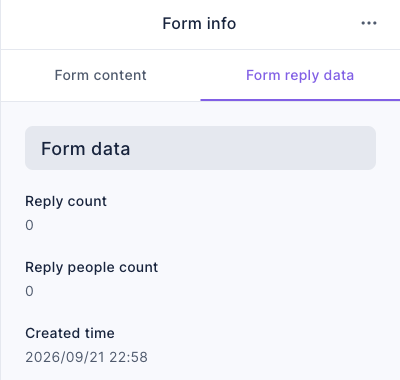
Reply count counts submissions: one member submitting twice adds two. Reply people count groups submissions from the same signed-in member. Each anonymous response without a member identity counts as a separate person. Cleared responses no longer count.
Download all or latest responses
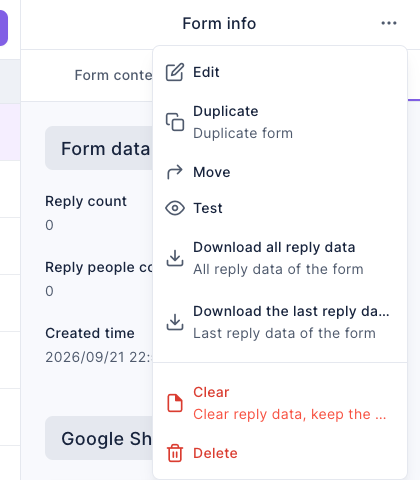
- Click ⋯ at the end of the form's row, or select the form and click ⋯ at the top of Form info.
- Choose Download all reply data for every submission. Choose Download the last reply data to keep only the newest submission from each identified member.
- Open the downloaded Excel file and check response times, question columns, and row count. Review which member details it contains before sharing it.
The menu in the screenshot offers both download options. They download data without deleting the form's responses.
Suppose member A submits twice, member B once, and two responses are anonymous. Here is what each count and download contains:
| Item | Result | Rule |
|---|---|---|
| Reply count | 5 | Every successful submission counts |
| Reply people count | 4 | A and B count once each; the two anonymous responses count separately |
| Download all reply data | 5 rows | Keeps every response |
| Download the last reply data | 4 rows | Keeps A's newest response and B's response, plus both anonymous responses because they cannot be matched to a member |
Export column names follow the downloader's interface language, and response times use their configured time zone. Exclude Personal Info removes form questions that collect personal details, but the export can still include identifiers such as LINE User ID, LINE User Name, and OakMega Member Name. Use Not Downloadable for anyone who must not receive these identifiers.
FAQ
Why did a submission through Test leave the counts unchanged?
The Test link does not save responses. To verify counts and downloads, submit through the live Form Link. A successful test through the live link also uses the form's submission quota. See Create a form.
Why does the latest-response download still contain several anonymous responses?
Anonymous responses have no member identity to group by, so all of them remain. Only responses tied to the same member are reduced to the newest one.