
After reading this, you'll be able to find the people who have interacted with your Page or business account in the Facebook, Instagram and WhatsApp member lists, narrow the list to one Page, and tag or download the members you select in bulk.
Before you start
- You need the Pro plan or higher, and the workspace must already be connected to the platform you want to view. If it isn't, the page only shows "Facebook account not yet connected" (likewise for Instagram and WhatsApp).
- Permissions are set separately for each platform: Facebook Member Management, Instagram Member Management and WhatsApp Member Management. "View only" lets you view, search and filter; to select members for bulk actions or edit member data you need "Editable".
- Search, Advanced Filter, Display Fields and bulk actions work the same way as in LINE Member Management. This article only covers what's different; for the shared steps see View and filter LINE members.
Open a member list
Click Meta in the navigation bar. Each of the three platforms has its own Member Management:
| Platform | Where | List title | Member ID |
|---|---|---|---|
| Meta › Facebook › Member Management | Facebook Members | Facebook PSID | |
| Meta › Instagram › Member Management | Instagram Members | Instagram IGSID | |
| Meta › WhatsApp › Member Management | WhatsApp Members | WhatsApp ID (phone number) |
The screenshot below shows the Facebook member list. Top left are Facebook Members and the Count, with an extra Account menu below them. Top right are the tag button for bulk tagging and Display Fields; the toolbar at the very top has Advanced Filter and search. By default the list shows three columns: Member Name, Real Name and Member Creation Date. The small icon at the bottom right of each profile picture shows the platform.
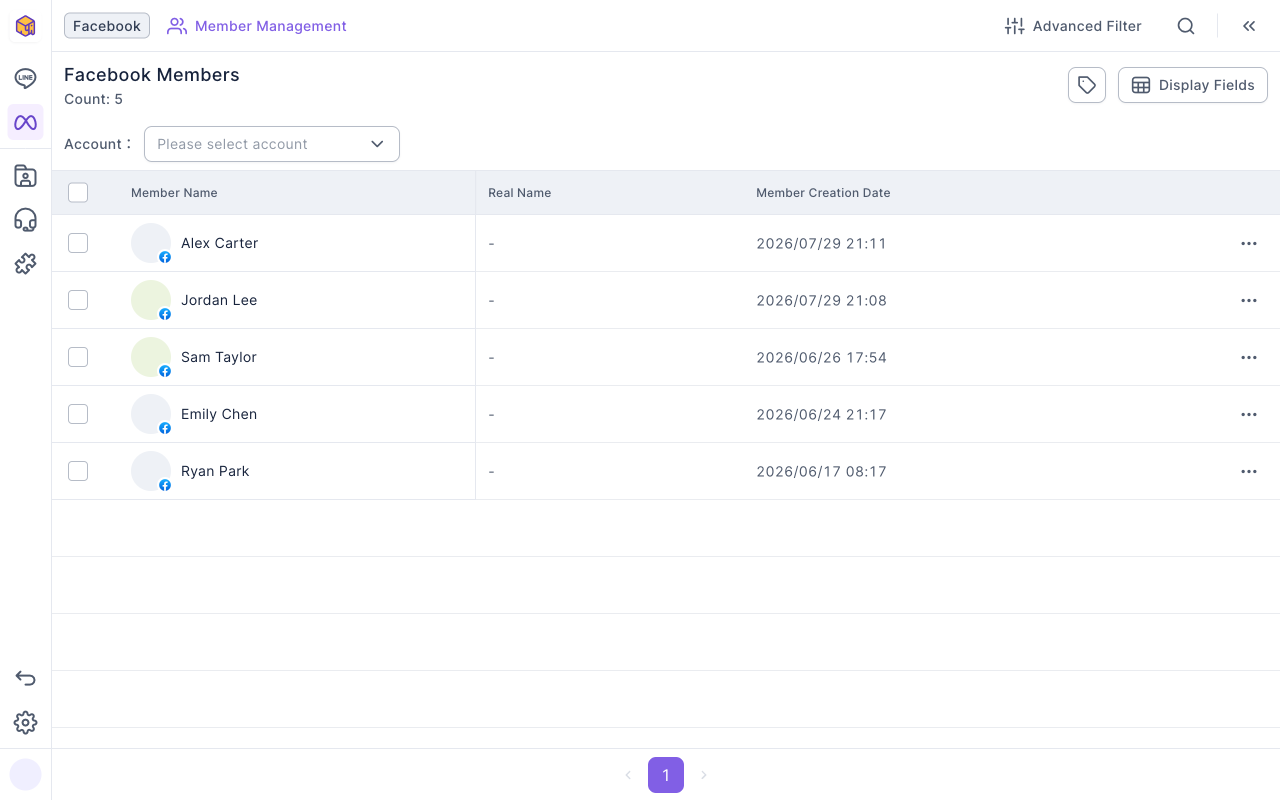
The Instagram and WhatsApp lists look the same apart from the title, icon and column names.
See only one Page's or account's members
When the workspace is connected to several Facebook Pages or business accounts, use the Account menu to see members of just some of them:
- Click the Account menu above the list (it reads Please select account until you choose one).
- Check the Pages or accounts you want. You can pick several, type a keyword at the top to find one, or use the checkbox at the top right to select all.
- Click anywhere outside the menu to close it. The list now shows only those accounts' members, and the menu shows the accounts you picked.
The animation below opens the Account menu, checks one Facebook Page and clicks beside the menu to close it. The menu now shows that Page, and the list changes to its members.
To go back to all accounts, click the "✕" on the right of the menu to clear it. With no account selected, the list shows members from every account on that platform. Your choice is saved in your current browser, so the same accounts are selected next time.
Search for members
Click the search icon on the toolbar, type a keyword and choose what to search by:
- Member Name: matches the member name or real name; anyone whose name contains the keyword is found.
- Facebook PSID, Instagram IGSID, WhatsApp ID: searches by that platform's ID. Enter the complete ID.
You can use either search or Advanced Filter at a time, the same as in LINE Member Management.
Turn on platform-specific columns
Click Display Fields at the top right. Besides the shared columns, each platform has its own columns you can turn on.
The screenshot below shows the Display Fields Settings window in Facebook Member Management. Below the shared Location, Member Creation Date and Email are the Facebook columns: Facebook Name, Facebook PSID, Time when member joined the fan page, Messaging Status and Facebook Business Page Name. The switch on the right decides whether each one is shown.
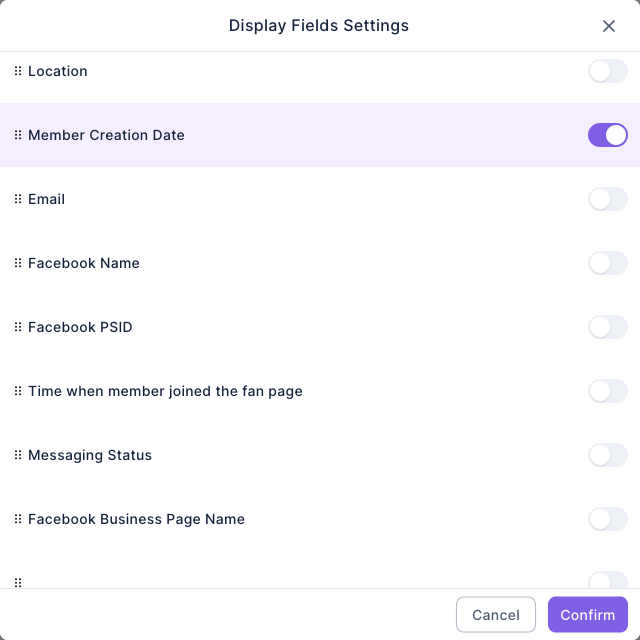
This table lists the columns each platform adds. They're all off by default:
| Column | |||
|---|---|---|---|
| Name on the platform | Facebook Name | Instagram Name | WhatsApp Name |
| Platform ID | Facebook PSID | Instagram IGSID | WhatsApp ID |
| When they joined | Time when member joined the fan page | Time when member joined the business account | Time when member joined the business account |
| Whether you can message them | Messaging Status | Messaging Status | Messaging Status |
| Which account they came from | Facebook Business Page Name | Instagram Business Account Name | WhatsApp Account Name |
If your workspace has custom fields, they're listed at the bottom of the window too. This setting is saved only in your current browser, separately for each platform.
How it differs from LINE Member Management
This table compares the three Meta member lists with LINE Member Management:
| LINE Member Management | Facebook, Instagram and WhatsApp Member Management | |
|---|---|---|
| Filter by account | No | Account menu to see only some Pages or accounts |
| Default columns | Also LINE Member Status and Messaging Status | Only Member Name, Real Name and Member Creation Date; turn on Messaging Status yourself |
| Friend status | Joined OA / Blocked / Not joined OA | No concept of friends, only Messaging Status |
| Bulk tag by ID | By LINE User ID | By Facebook PSID, Instagram IGSID or WhatsApp Phone Number |
| Bulk actions | Apply Tag, Remove Tag, Download Member Data, Change Richmenu, Export Audience Package | Apply Tag, Remove Tag, Download Member Data (no Richmenu or audience) |
How it works
- How do members get here? When someone interacts with your Facebook Page, Instagram business account or WhatsApp account (for example by sending a message), OakMega creates a member record for them. The count is the number of people who have interacted with you, not your Page's likes or followers.
- Where does Messaging Status come from? It's based on the member data Meta provides: it's "Can" while Meta still provides this member's name and profile picture. When you open a member's details, OakMega fetches their data from Meta again, so the status may update.
- The same person is a different member on each platform. A customer who talks to you on both Facebook and Instagram appears in both lists separately.
- Blacklisted members don't appear in these lists. See them in the blacklist; see Add members to the blacklist.
FAQ
Facebook account not yet connected
The workspace isn't connected to this platform yet (Instagram and WhatsApp show their own name). Ask a workspace admin to connect it under Settings › Communication Platform Settings, then come back.
I picked an account but the list is empty
Nobody has interacted with that Page or account yet, or your current search or Advanced Filter is excluding everyone. Clear the search and filter, or click "✕" in the Account menu to see members from all accounts.
The checkboxes can't be checked
Your Member Management permission for this platform is "View only", so you can only view, search and filter. If you need bulk actions, ask a workspace admin to change it to "Editable".