
By the end of this article you'll be able to find the LINE groups your official account is in, reply to group messages as the official account, and sort groups with group attributes so you can filter them or post to specific groups later.
Before you start
- You need the Pro plan or higher, and the workspace must be connected to a LINE Official Account.
- You need Group Conversation permission. View Only lets you read group conversations; to reply or edit group attributes and remarks you need Editable, otherwise you'll see No edit permission. Please notify the owner to grant edit management permission.
- The official account has to be invited into the LINE group first (from the LINE app) before the group appears in the list.
The Group Conversation screen
In the navigation bar, click LINE and choose Group Conversation.
The screen has three columns: the group list on the left, the chat room in the middle, and Group Information on the right (use « in the top-right to show or hide it).
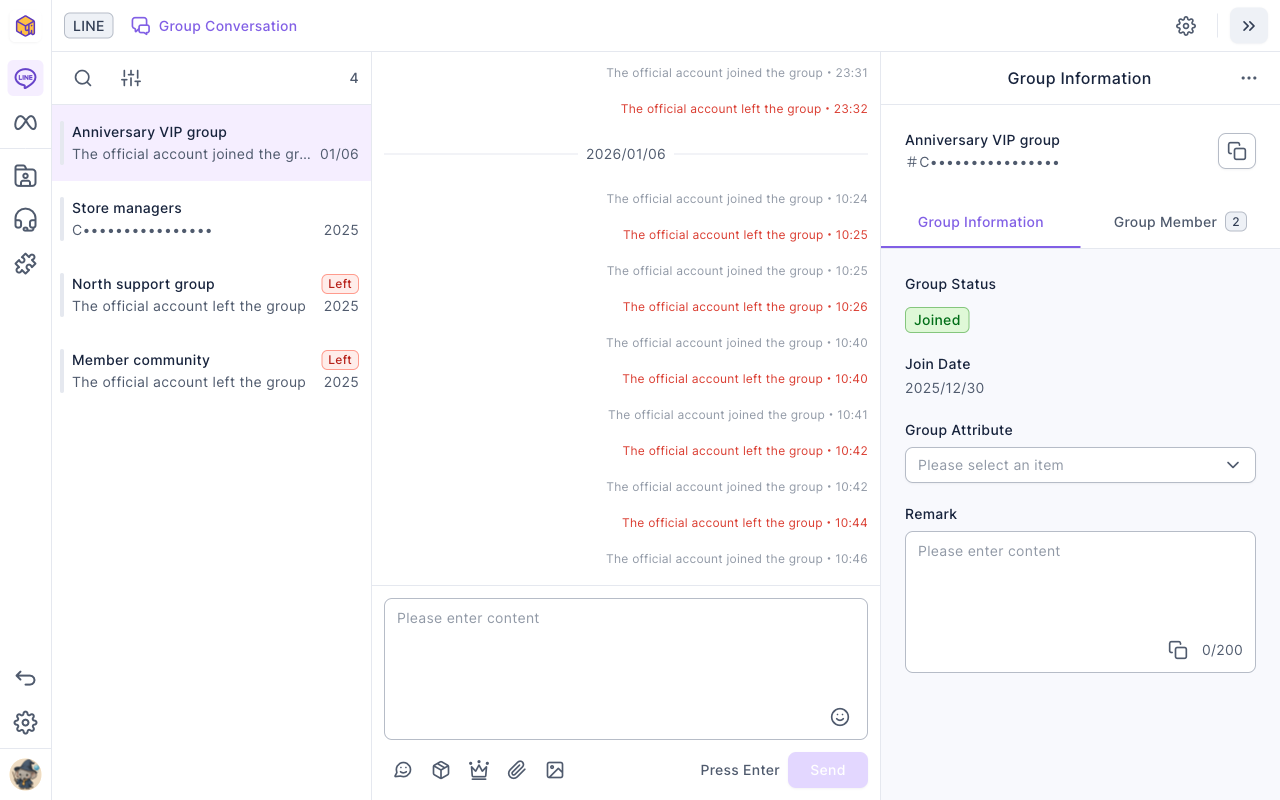
- Group list (left): each row is a group, with the latest message and time; groups the official account is no longer in are marked Left. The magnifier at the top searches, and the button next to it filters by Attribute.
- Chat room (middle): group members' messages, the official account's replies, and records of the official account or members joining and leaving.
- Group Information (right): the Group Information tab has the group ID, Group Status (Joined or Left), Join Date, Group Attribute and Remark (up to 200 characters). The Group Member tab lists members, but it may not be complete; check LINE for accurate information.
Find a group and reply
- Click the group on the left. If you can't find it, click the magnifier, choose what to search and type at least two characters.
- Type your message in the box at the bottom of the chat room.
- Click Send, or press Enter. The message appears in the group from the official account.
| Search by | Finds |
|---|---|
| Group Name | The group's name in LINE |
| Group ID | The group's ID |
| Member Messaging / Official Account Reply | Messages from group members, or replies from the official account |
The buttons below the message box send a Sticker, Template, Module, Upload File or Upload Image/Video/Voice, just like in Service Center; see Handle conversations in Service Center.
- Messages sent to groups use your LINE message quota; if the quota has run out, sending fails with a quota error.
- In a group the official account has left, the chat room says Left the group and you can't send messages.
- Search and filters can't be used together: starting a search clears the filter, and vice versa.
Opening a group marks it as read. If you've looked at it but want to come back later, click "⋯" on that group in the group list and choose Mark as unread. Read status is shared across the whole workspace: once one teammate opens a group, it shows as read for everyone else on your team too.
Organize groups with group attributes
Group attributes are categories you define (such as "VIP customers" or "Store managers"). Assign them to groups, then filter the list by attribute or pick groups by attribute when posting to groups.
- Click the settings icon in the top-right and choose Manage Group Attribute.
- Click Create, enter a Group Attribute Name (up to 100 characters) and click Confirm.
- Back in a group, choose the attribute under Group Attribute on the right; you can add notes under Remark too. You'll see Updated successfully.
The animation below opens Manage Group Attribute, clicks Create and types "VIP member groups" in Name Attribute (the demo doesn't click Confirm).
The screenshot below shows the Manage Group Attributes window. The "⋯" on each attribute lets you Rename or Delete it, and the handle on the left lets you drag to reorder.
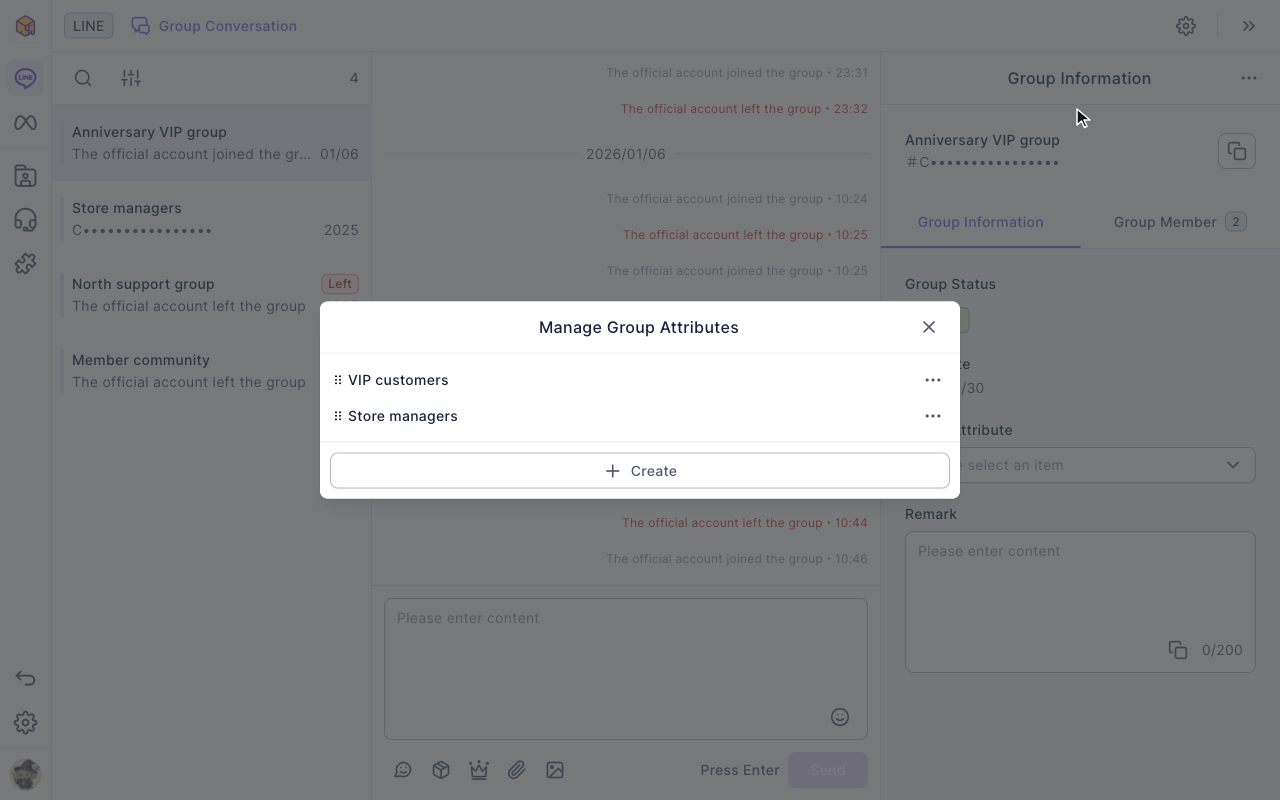
Deleting an attribute also removes it from every group that has it (the confirmation says "This attribute category will also be deleted from groups with this attribute.").
Leave a group
The "⋯" in the top-right of Group Information has Leave Group, which asks Confirm to leave the group?. Once it leaves, the official account is out of the group, and it has to be invited again from the LINE app. The group stays in the list, marked Left, and you can still see past messages.
How it works
- Group Conversation is separate from Service Center. Group Conversation handles LINE groups (multi-person chats); Service Center handles one-to-one conversations between members and the official account. Groups have no conversation status or assigned agent.
- The official account has to be in the group. OakMega only sees messages from the time the official account is in the group.
- Group attributes work with group posts. When posting to groups you can choose groups by attribute; see Post to LINE groups.
FAQ
There are no groups in the list
The official account hasn't been invited into any LINE group yet. Invite it from the LINE app and the group will appear.
Sending fails with a quota error
Your LINE Official Account has used up this month's message quota. Check your plan and usage in LINE Official Account Manager.
The member count differs from LINE
The group member list may not be complete; check the LINE app for accurate information.