
By the end of this article you'll be able to write follow-up notes on a member in the Notebooks tab of Member Data (what a call covered, where a quote stands, when the next visit is), so when someone else takes over, they open the member and see the whole story.
Before you start
- Notebooks must be activated separately. In workspaces where it isn't activated, Member Data has no Notebooks tab. Contact OakMega if you need it.
- Notebooks appear wherever Member Data does: LINE › Member Management, the Facebook, Instagram and WhatsApp member lists, the Blacklist, and Member Data on the right of Service Center.
- Permissions: View Only permission for any of those features lets you read notes. To add, edit or delete notes you need Editable; otherwise the buttons are disabled.
Where Notebooks are
- In LINE › Member Management, click a member (or click a conversation in Service Center).
- In Member Data on the right, under Member Info, click the Notebooks tab.
The screenshot below shows a notebook with two notes. At the top are "2 notes" and Create. Above each note are the last edited time and the person who edited it; below it are Expand and the edit and delete buttons.
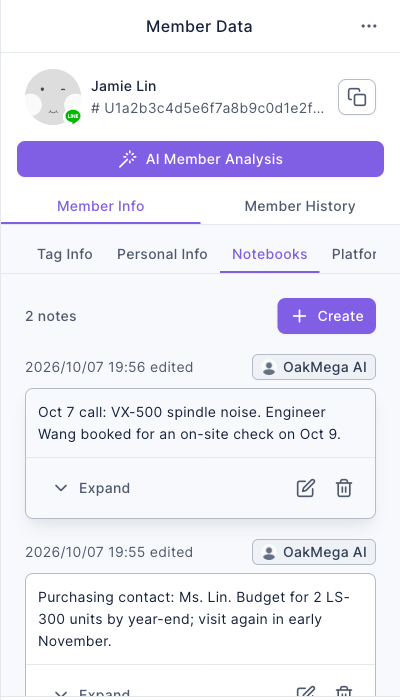
Notes are sorted by last edited time, with the most recently changed at the top. If a note is longer than 4 lines, only the first 4 are shown; click Expand to read it all. Once expanded, you also see who created the note and when.
Add a note
- In Notebooks, click Create.
- In the Add Notes dialog, type the note, up to 1,000 characters.
- Click Save. You'll see "Created successfully", and the new note appears at the top.
The animation below opens a member who already has one note, clicks Create, types "Oct 7 call: VX-500 spindle noise. Engineer Wang booked for an on-site check on Oct 9.", and clicks Save. The notebook then shows 2 notes.
Edit and delete
- Edit: click the pencil icon at the bottom-right of a note to open Edit Notes, change the text, and click Save. The time and name on the note change to this edit and the person who made it.
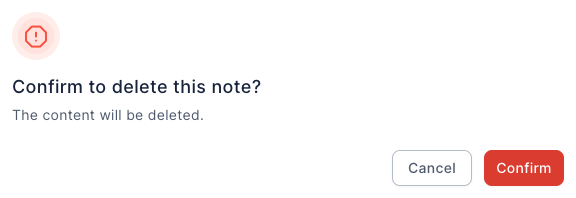
- Delete: click the trash icon. The confirmation dialog says "Confirm to delete this note?"; click Confirm. Deleted notes can't be recovered.
The screenshot below shows the confirmation dialog for deleting a note:
How it works
This table summarizes who the notes belong to, who can see and change them, and their limits:
| Item | Details |
|---|---|
| Who notes belong to | The member. Whether you open the member from Service Center or Member Management, you see the same notebook |
| Who can see them | Workspace members with permission for any of Member Management, Blacklist or Service Center |
| Who can change them | Anyone with Editable permission can edit or delete notes written by anyone, not just their own. The note shows the last person who edited it |
| Length | Up to 1,000 characters per note, and it can't be blank |
| Can the member see them? | No. Notes stay in the back office and are never sent to the member |
| An editor is removed from the workspace | The note stays, and its creator shows as "Account does not exist" |
- Why use Notebooks? Tags are good for categories (product line, tier, needs), but one-off details like "what we discussed on the last call, when to follow up next" pile up fast as tags. Notebooks keep these details on the member, so when a salesperson is on leave or agents change shifts, whoever takes over doesn't have to dig through chat history or someone's personal notes.
- How is this different from Memo in Personal Info? Personal Info has a single Memo field, and changing it overwrites what was there. A notebook builds up one note at a time, and each note has its own time and author.
FAQ
There's no "Notebooks" tab in Member Data
Notebooks haven't been activated for your workspace. Contact OakMega to activate them. Until then, calls to Notebooks return "Current plan does not support Member Notebooks".
The "Create" button is grayed out
Your permission is View Only, so you can only read notes. Ask a workspace admin to change your Member Management or Service Center permission to Editable.