
By the end of this article you'll be able to open the Service Center Data Center, see at a glance how many conversations still need handling and which organizations and agents they're assigned to, and narrow it down to one organization, agent or account.
Before you start
- You need Service Center Data Center permission; View Only is enough.
- The data center counts Service Center conversations, so set up agents and organizations first: Get started with Service Center: add agents and organizations.
Open the Service Center Data Center
- In the navigation bar, click Service Center.
- Choose Service Center Data Center.
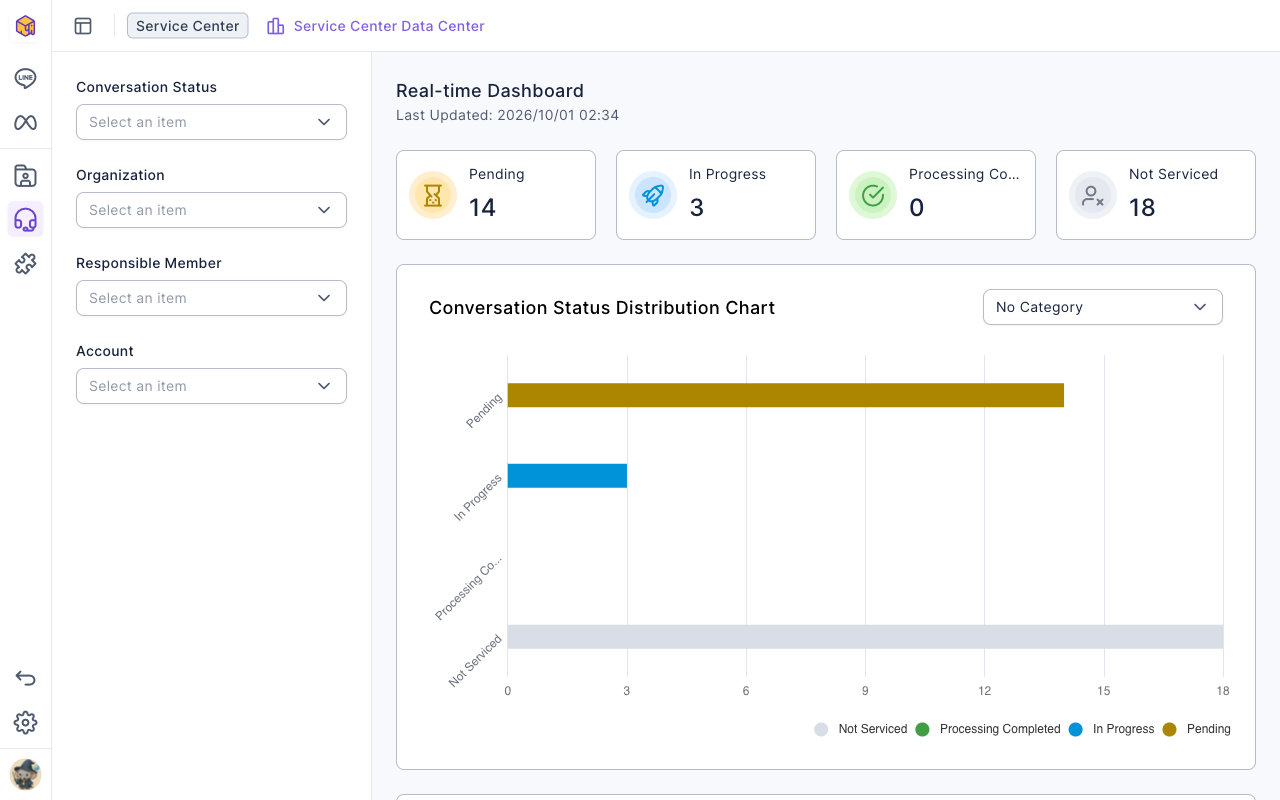
The screenshot below shows the top of the data center. On the left are four filters. On the right, Real-time Dashboard shows Last Updated, followed by four status cards and the Conversation Status Distribution Chart.
What the cards and charts show
The Real-time Dashboard counts the status each conversation is in right now, not a total over a period of time:
| Section | Shows |
|---|---|
| Pending, In Progress, Processing Completed cards | How many Service Center conversations are currently in that status |
| Not Serviced card | Conversations that aren't in the service flow right now: ones that haven't been transferred to an agent yet, and ones whose service has been closed |
| Conversation Status Distribution Chart | Conversations per status, as horizontal bars |
| Organization Conversation Distribution Chart | Conversations each organization currently holds |
| Member Conversation Distribution Chart | Conversations each assigned agent currently holds; conversations with no agent yet are counted under No assigned agent |
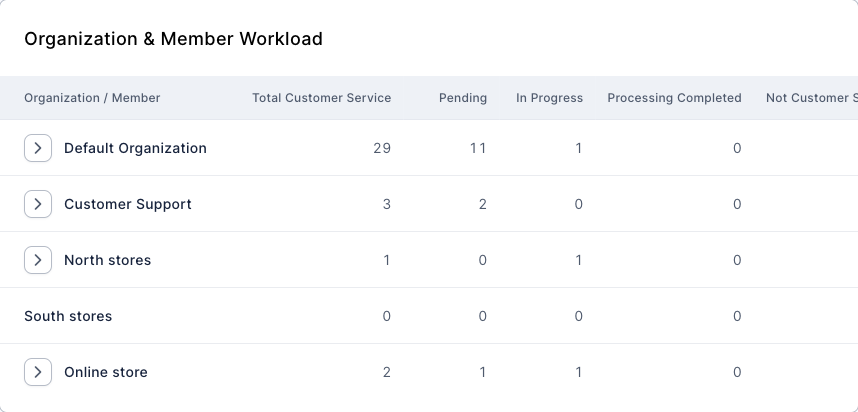
| Organization & Member Workload | Each organization's Total Customer Service and the count per status; click the arrow next to an organization to expand it and see each agent |
Each of the three distribution charts has a No Category dropdown in the top-right. Change it to Organization, Responsible Member, Account or Conversation Status to stack the bars by that category. For example, set the member chart to Conversation Status to see how many pending and in-progress conversations each agent has.
The screenshot below shows Organization & Member Workload. Each row is an organization, with columns for Total Customer Service, Pending, In Progress, Processing Completed and Not Customer Service Conversation.
Filter to a specific scope
- On the left, click the filter you want: Conversation Status, Organization, Responsible Member or Account (a communication platform account).
- Check one or more items. Under Responsible Member you can choose Me to see only your own conversations.
- Click outside the menu to close it. The cards, charts and table now count only matching conversations.
The animation below checks Open and In process under Conversation Status. After the menu closes, the Processing Completed and Not Serviced cards drop to 0, and the status chart only shows those two statuses.
To remove a filter, click the "×" on the right of the menu.
How it works
- The numbers reflect the moment the page loaded. Last Updated is when this data was loaded; refresh the page to see the latest numbers.
- Closed conversations count as Not Serviced. Closing service puts a conversation back into the non-service status, so Not Serviced grows as conversations close. To gauge your agents' workload, look at Pending and In Progress.
- Filters are saved in your browser. The next time you open the data center it uses your last filters; on another computer or browser you'll start with no filters.
- Everything shares the same filters. Changing a filter on the left updates the cards, all three charts and the workload table together.
FAQ
The numbers don't match the Service Center list
The data center keeps your last filters, so first check that none are left on the left. The numbers are also a snapshot from when the page loaded; if the Service Center list has changed since, refresh the data center.
The member chart shows "No assigned agent"
These are conversations that haven't been assigned to an agent yet, or whose agent has been removed from Service Center. Once you assign an agent in Service Center, they move under that agent.