
By the end of this article you'll know what a "workspace" and an "account" each mean in OakMega, which of your data lives where, and how to move between workspaces.
How workspaces, accounts and platforms fit together
In OakMega, a workspace is the OakMega account of one brand or company. Everything lives inside it: the connected communication platforms (a LINE Official Account, a Facebook Page and so on), plus members, tags, chatbots and Service Center data. Your account is the identity you sign in with, i.e. your login email. One person can belong to several workspaces. An agency managing several brands is a typical example.
This table compares what each term means and where to find it:
| Term | What it is | How many per person | Where you see it |
|---|---|---|---|
| Account | The identity you sign in to OakMega with, i.e. your login email | One | The email in the middle of the Workspace & Account menu |
| Workspace | One brand's or company's OakMega account, holding all its platforms and data | You can belong to several | Each card on the Workspace list |
| Communication platform | LINE, Facebook, Instagram, WhatsApp and others connected to a workspace | Connected separately in each workspace | The platform icons in the bottom-right corner of a workspace card |
| Profile | The name and photo shown for you inside a workspace | Can be different in each workspace | Set when you create or join a workspace |
A few things people often mix up:
- Data is never shared between workspaces. Tags, chatbots and member data created in workspace A don't show up when you switch to workspace B.
- Permissions are granted per workspace. Being able to edit Service Center in workspace A doesn't mean you can in workspace B. If a feature is missing, ask that workspace's admin to grant you access.
- Language and time zone belong to your account. They're personal settings. Switching workspaces doesn't change them, and they don't affect what your teammates see. See Set your language and time zone.
The workspace list
After you sign in, the first thing you see is the Workspace list. It shows every workspace you belong to.
The screenshot below shows the workspace list. Workspaces are grouped by plan (Enterprise, Pro, Free). Each card is one workspace. The top of the card shows the workspace photo and name. The badge in the bottom-left corner shows its plan, and the small icons in the bottom-right corner show which communication platforms it has connected (for example, the green LINE icon). In the top-right corner of the page there are three icon buttons. From left to right, they create a workspace, set your language and time zone, and log you out.
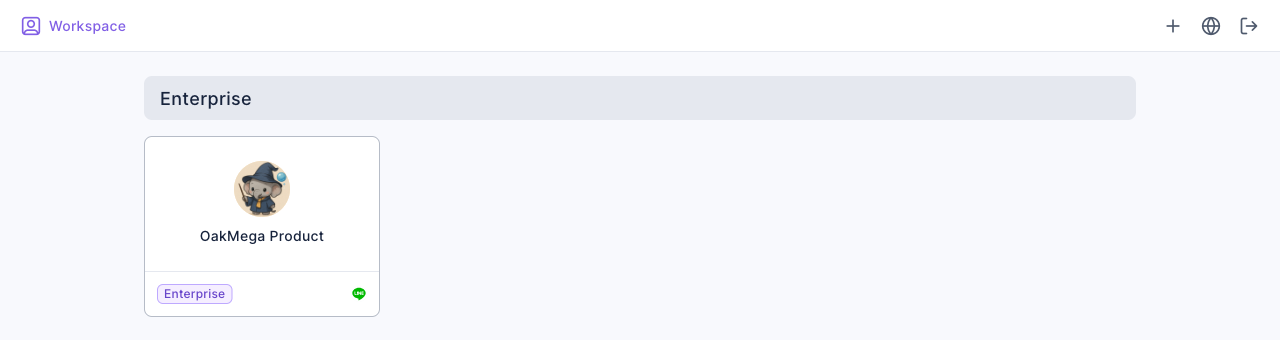
- A card only shows platforms that are successfully connected. Platforms that are disconnected or not set up yet don't get an icon.
- Click a card to enter that workspace. The first page you see is its overview.
- If you don't belong to any workspace yet, the list shows "Welcome to OakMega!" with a Create Workspace button. Creating a workspace requires an invitation code from OakMega. If you haven't received one, contact our service team. See Create a workspace with an invite code for the steps.
Switch to another workspace
Inside a workspace, the round icon at the very bottom of the navigation bar is the current workspace's photo. Hover over it to open the Workspace & Account menu.
The screenshot below shows this menu. At the top, Recent Workspaces lists the workspaces you've visited recently, with a check mark next to the current one. In the middle is your login email, followed by Back to Workspace List and Logout OakMega. The current version number sits at the bottom.
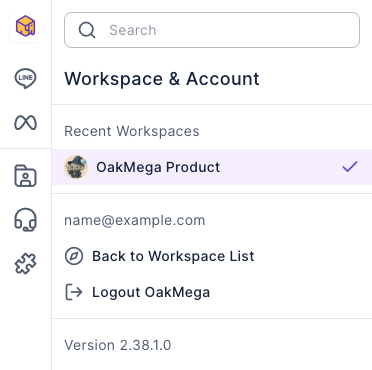
There are two ways to switch workspaces:
- Hover over the workspace photo at the bottom of the navigation bar to open the Workspace & Account menu.
- Under Recent Workspaces, click the workspace you want. It opens in a new tab, and your current tab stays in the current workspace.
- If the workspace isn't in that list, click Back to Workspace List, then click that workspace's card on the list.
The animation below shows steps 1 and 3. The cursor moves to the workspace photo at the bottom of the navigation bar and opens the menu. Then it clicks Back to Workspace List, and the page switches to the workspace list.
Clicking the OakMega logo at the very top of the navigation bar also takes you straight back to the workspace list.
How it works
- Recent Workspaces shows up to 5 workspaces, most recent first. The list is only kept in the current browser tab, so it starts over after you log out, or after you close the tab and sign in again.
- Switching from Recent Workspaces opens a new tab so you can keep two workspaces open side by side. For example, you can copy brand A's chatbot setup into brand B. Each tab is its own workspace, so check the workspace photo in the navigation bar before you change anything.
- One person has one account that can join many workspaces. When a teammate leaves or changes teams, the workspace admin removes them from that workspace. Their account isn't deleted, and their access to other workspaces isn't affected.
FAQ
You need permission to continue!
You don't have permission for this page or feature in this workspace. Permissions are set separately in each workspace, so ask the workspace owner to grant access and then click Refresh. You can also click Back to workspace selection page to go to another workspace.
Login status has been updated
Your sign-in has expired or changed, for example because you logged out in another tab or signed in with a different account. So that you don't end up working in someone else's account without noticing, Recent Workspaces is cleared as well. Click Refresh to continue, or Back to workspace selection to choose a workspace again.
A workspace is missing from the workspace list
The list only shows workspaces you've been added to. Make sure you're signed in with the email you were invited with. You can see the current email in the Workspace & Account menu. If it's the wrong one, click Logout OakMega and sign in with the right account. If the email is correct and the workspace still doesn't appear, ask that workspace's admin to confirm you've been added.
The LINE icon doesn't appear on a workspace card
The bottom-right corner of a card only shows platforms that are successfully connected. No icon means the workspace hasn't connected a LINE Official Account yet, or the connection has dropped. You can reconnect it under Settings › Platform.