
By the end of this article you'll be able to send one message to the LINE groups your official account has joined, choose which groups get it, save it as a draft or test it first, and then publish it right away or schedule it.
Before you start
- The workspace needs a connected LINE Official Account, and the official account must already be invited into the LINE groups.
- You need LINE Post Article permission (Group Post and Post Article share it). Editable is required to create, edit or delete.
- To pick groups by Group attribute, first set up attributes for your groups in LINE › Group Conversation.
- Creating a group post works almost exactly like posting articles to LINE friends. This article focuses on what's different.
Get to know the group post list
In the navigation bar, click LINE and choose Group Post.
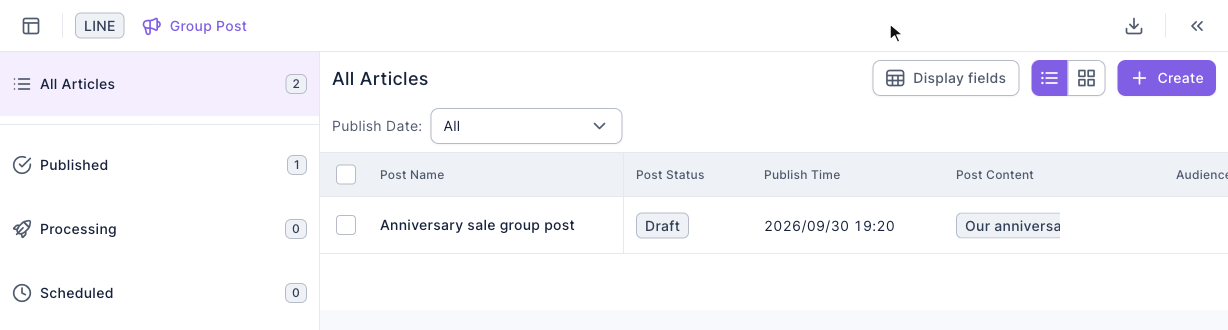
The screenshot below shows the group post list. On the left you can filter by post status (All Articles, Published, Processing, Scheduled, Draft, Failed). On the right is the list of posts, with Create in the top-right. Here there's just one draft we've saved.
Create a group post
- In the group post list, click Create in the top-right.
- Under basic setting, enter a post name (up to 100 characters; only shown in the dashboard).
- Under publish target, use audience setting to choose which groups get it (see the next section).
- In the Message section, add up to 5 messages. You can also insert a LINE message template.
- Check target groups and audience / remaining message quota under post information on the right.
- Click Save as draft, Test publish or Publish immediately, or turn on upcoming publish and pick a time at least 2 minutes away.
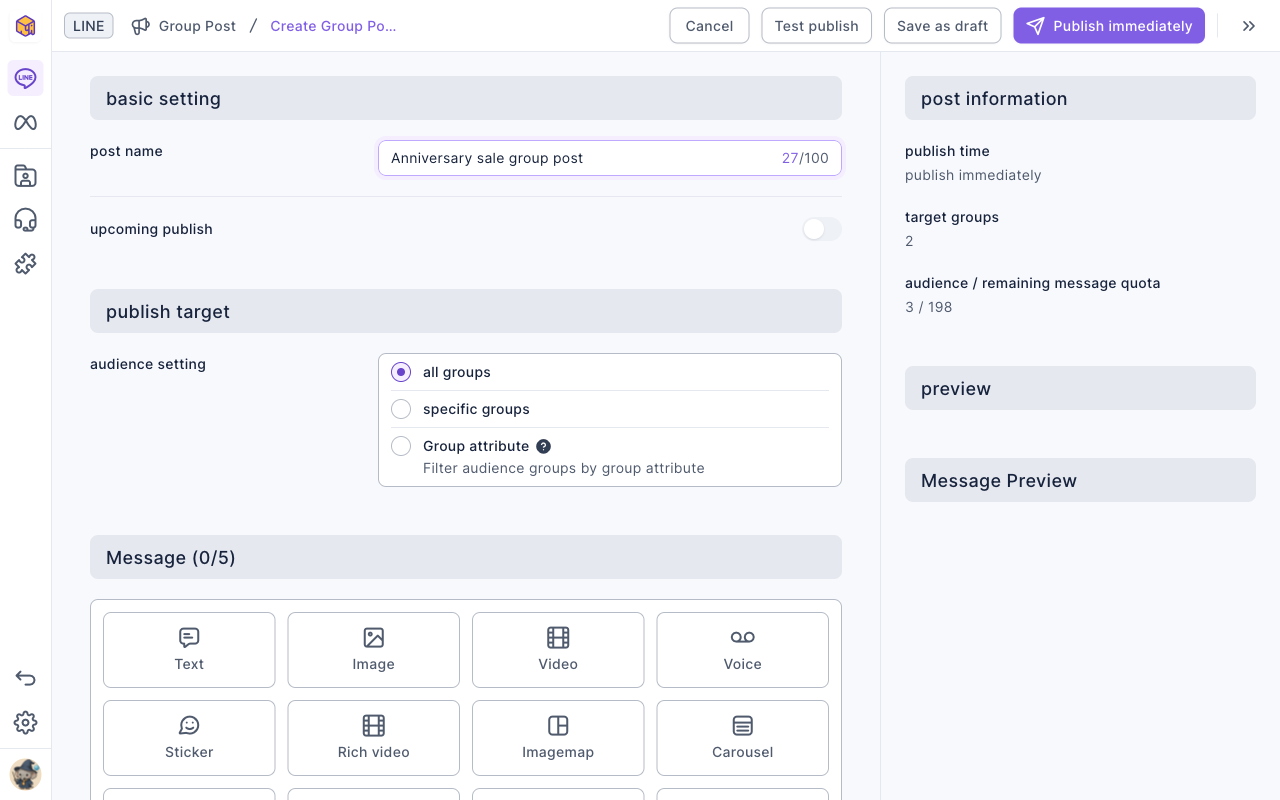
The screenshot below shows the edit page for a new group post. The top-right buttons are Cancel, Test publish, Save as draft and Publish immediately. Publish target has only audience setting (there's no audience source to choose), and it defaults to all groups. On the right, post information shows target groups and audience / remaining message quota.
The animation below clicks Text in the Message section and types a campaign announcement; the preview on the right updates as it goes.
Next it clicks Save as draft. You'll see "save success" and go back to the list, where a new group post with the status Draft is at the top.
To delete a draft, click "⋯" at the end of its row, choose Delete, and click Delete in "Confirm delete "post name"?". The animation below deletes the draft we just saved.
Published, processing and failed posts can't be deleted, and scheduled posts can't be edited or deleted in the last 2 minutes before they go out, just like Post Article.
Choose which groups get the post
There are three audience setting options:
| Audience setting | Goes to | Notes |
|---|---|---|
| all groups | Every group your official account is currently in | Groups the account has left aren't included |
| specific groups | The groups you pick from the dropdown | Good for just a few groups |
| Group attribute | Groups that match attribute conditions | Include attribute and Exclude attribute allow up to 20 each; fill in at least one or you'll see "At least one attribute must be filled" |
Group attributes are labels you give each group in LINE › Group Conversation (for example "VIP customers" or "Store community"). Once a new group has its attributes set, the next group post that filters by those attributes will include it automatically.
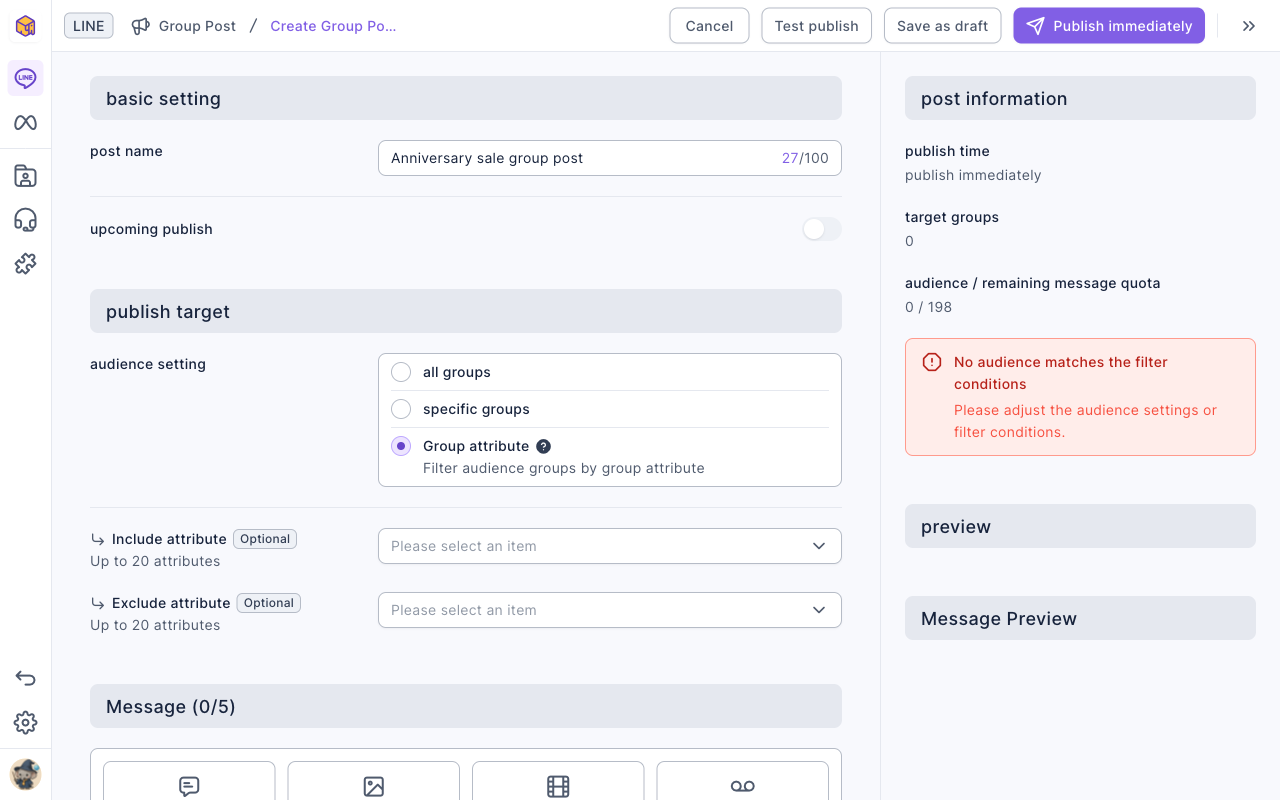
The screenshot below shows Group attribute selected: two dropdowns, Include attribute and Exclude attribute (up to 20 attributes each), appear below. With no conditions set yet, the right side shows "No audience matches the filter conditions" and target groups is 0.
Group Post vs. Post Article
| Group Post | Post Article | |
|---|---|---|
| Who gets it | LINE groups your official account is in | Your official account's LINE friends (one-to-one) |
| How you pick | All groups, specific groups, group attribute | LINE friend data, Audience Groups, OakMega tags, advanced filter |
| Message quota | Counted by the number of members in the groups | Counted by the number of friends who receive it |
| Read Tracking | Not available | Available with OakMega segment |
| Test publish | Goes to each test member's own LINE, not into the group | Goes to each test member's own LINE |
How it works
- Quota is counted by people, not groups. Sending to a group with 50 members uses 50 messages. The audience number on the right is the total members across all target groups; if you don't have enough quota left, you'll see "insufficient message quota".
- Groups your account has left won't receive it. The post only goes to groups the official account is still in; groups it was removed from or left don't appear in the audience.
- Testing doesn't disturb group members. Test publish always goes to your test members' own LINE, so you can check the layout safely.
FAQ
No audience matches the filter conditions
Your audience setting doesn't match any groups, for example you chose Group attribute but no group has it, or the official account hasn't joined any groups. Adjust the conditions, or check your groups and attributes in LINE › Group Conversation.
At least one attribute must be filled
You chose Group attribute but left both Include attribute and Exclude attribute empty. Fill in at least one.
The scheduled publish time does not meet the requirements, please reset it.
The scheduled time is less than 2 minutes away or already past. Set a time at least 2 minutes from now.