
When a conversation moves from non-service into service, the system checks its current service organization and assigned agent to decide what to assign. Use this guide to configure distribution and understand why a conversation stays with its organization, returns to the default organization, or has no agent.
Before you start
- Only workspace administrators can access Service Center Setting. First add agents and organizations.
- This guide covers automatic service transfer. For manual changes, see Handle conversations in the Service Center.
- Marking a conversation as done does not close service. While it remains in service, another transfer trigger does not run organization or agent assignment again.
Configure distribution
- Open Service Center Setting → Organization. Under Multiple Organization Condition Match, choose Distribute to Default Organization or Randomly Distribute to Matching Organizations.
- Edit a regular organization. In Distribute Condition, enable Accept System Automatic Distribution and configure Assigned Account and Assigned Tag. A member needs any one selected tag, but the account condition must also match.
- In Organization Info, add agents and enable Auto Distribute to Agent for those who should receive assignments.
- In Automation, check Close → Change Organization to decide what to retain for the next service session. Click Save after editing.
The screenshot shows the multiple-match setting on the Organization tab. It applies only when several regular organizations match; changing it does not reassign conversations already in service.

How it works
Check the status, then the organization and agent
The diagram shows the decision order. Conversations already in service keep their organization and agent. On entry from non-service, organization conditions are checked only if the conversation is currently in the default organization. Once the organization is determined, agent assignment is attempted only if no agent is assigned.
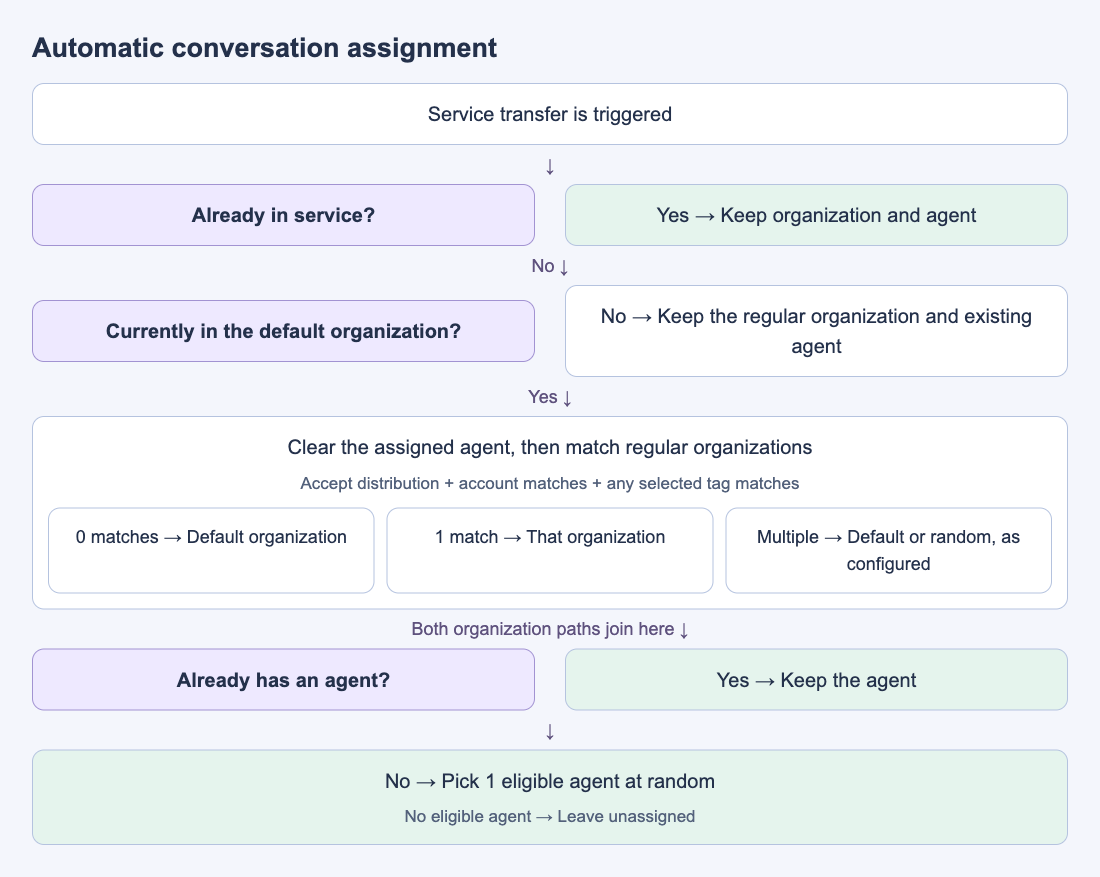
- Already in service: keep the organization and agent, even if tags, organization conditions, or the agent roster have changed.
- Entering from non-service in the default organization: clear any assigned agent, then match regular organizations. No matches means the default organization; one match means that organization; multiple matches use the multiple-match setting.
- Entering from non-service in a regular organization: keep it without checking its account, tag, or automatic-distribution conditions again. Keep its existing assigned agent too.
- No agent after those steps: choose one agent at random from that organization's agents with Auto Distribute to Agent enabled. If none are eligible, the conversation stays in the organization without an assigned agent.
Agent selection is currently random. It is not round-robin and does not select by online status or lowest conversation count. The same person can receive consecutive assignments; the tooltip's reference to rotation does not guarantee equal distribution.
Which organizations qualify?
All applicable conditions below must hold. The default organization is excluded from matching and cannot have distribution conditions.
| Check | Rule |
|---|---|
| Accept System Automatic Distribution | Must be enabled |
| Assigned Account | Unrestricted, or the conversation comes from one of the selected accounts |
| Assigned Tag | Unrestricted, or the member has any selected tag; all selected tags are not required |
| No regular organization matches | Assign to the default organization |
| Several regular organizations match | Use Multiple Organization Condition Match: default organization or a random matching organization |
Closing service affects the next assignment
Regular organizations offer these three options under Automation. This table compares what happens when the conversation next moves from non-service into service.
| Close → Change Organization | Next service session |
|---|---|
| Keep Original Organization and Agent | Keep both; if no agent was assigned, still attempt agent assignment |
| Keep Original Organization and Remove Agent | Keep the organization without matching it again; randomly choose an eligible agent in it |
| Change to Default Organization and Remove Agent | Match account and tag conditions again from the default organization, then attempt agent assignment |
A conversation in the default organization stays there after closing; its next service session checks organization conditions again. For timing, see Automatically close completed conversations.
Examples
Assume VIP Support accepts automatic distribution, is restricted to Account A, and has VIP and Renewal selected as its tags. Except for the final row, each conversation is entering from non-service.
| Situation | Result |
|---|---|
| In the default organization; Account A; VIP tag only; only VIP Support matches | Assign to VIP Support; the Renewal tag is not also required |
| In the default organization; VIP tag, but Account B | VIP Support does not match; use the default organization if no other organization matches |
| In the default organization; VIP Support and After-sales both match | Use the multiple-match setting: default or random, not list order |
| Retained in VIP Support, but the member no longer has VIP or Renewal | Keep VIP Support; regular organizations are not matched again |
| Assigned to VIP Support, but none of its agents accepts automatic distribution | Keep VIP Support with no assigned agent |
| Already in service when the VIP tag is added | The tag does not automatically move the conversation to VIP Support |
FAQ
Why is a matching conversation still in the default organization?
Check that it actually entered from non-service, rather than merely being marked done. Then check acceptance of automatic distribution, account conditions, and whether the member has any selected tag. If several organizations match, check whether the setting sends them to the default organization. Review these in organization settings.
Why does the same agent keep receiving the conversation?
An existing agent is retained when a regular organization is retained. When a new assignment is needed, random selection can still choose the same agent repeatedly. Check Auto Distribute to Agent and the retention settings used when service closes.
Will changing conditions reassign existing conversations?
No. Editing conditions or adding a tag does not rerun assignment for conversations already in service. A conversation entering from non-service also keeps its regular organization. To change a specific conversation immediately, assign its organization and agent manually.
Why does the conversation have an organization but no agent?
Check that the organization has agents and that at least one has Auto Distribute to Agent enabled. Adding an agent alone does not assign existing in-service conversations retroactively. Assign manually in the Service Center when needed.