
By the end of this article you'll be able to create a post, decide which LINE friends receive it, save it as a draft or test it first, and then publish it right away or schedule it for later.
Before you start
- The workspace needs a connected LINE Official Account.
- You need LINE Post Article permission. View Only lets you see the post list and data. To create, edit or delete posts you need Editable.
- Publishing uses your LINE Official Account's message quota: each person who receives the post counts as one message. The right side of the edit page always shows "audience / remaining message quota".
- Before you publish for real, set up message test members so you can check the content with Test publish.
Get to know the post list
In the navigation bar, click LINE and choose Post Article.
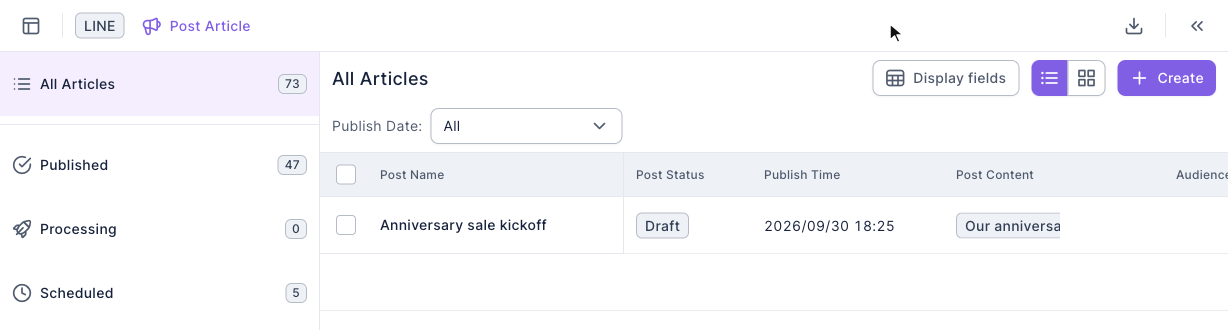
The screenshot below shows the post list. On the left you can filter by post status (All Articles, Published, Processing, Scheduled, Draft, Failed, each with a count). On the right is the list of posts, with columns such as Post Name, Post Status, Publish Time and Post Content, and Create in the top-right. Here there's just one draft we've saved.
Search by post name
Added in 2.38.1.1 (2026/10/01).
- Click the search icon in the post list.
- Enter all or part of a post name and press Enter.
- Click the clear button in the search field to remove the name search.
Search matches the Post Name, not the message content. For example, “anniversary” finds posts with “anniversary” in their names. If a post is missing, also check the current status and date filters.
Create a post
- In the post list, click Create in the top-right.
- Under basic setting, enter a post name (up to 100 characters; only you see it, not your friends).
- Under publish target, choose an audience source and audience setting to decide who gets the post (see the next section).
- In the Message section, click a message type to add a message, up to 5. You can also choose Template to insert a LINE message template.
- Check the preview and audience / remaining message quota on the right.
- Decide how to send it:
- Save as draft: keep it for later editing.
- Test publish: send it to your message test members first.
- Publish immediately: the "Confirm publish immediately?" dialog shows the total audience; confirm to send right away.
- Turn on upcoming publish and set a date and time. The top-right button changes to Upcoming publish, and the post goes out automatically at that time. The time must be at least 2 minutes from now.
The screenshot below shows the edit page for a new post. The top-right buttons are Cancel, Test publish, Save as draft and Publish immediately. On the left are the post name and the upcoming publish switch under basic setting, with publish target below. On the right, post information shows the publish time and "audience / remaining message quota".
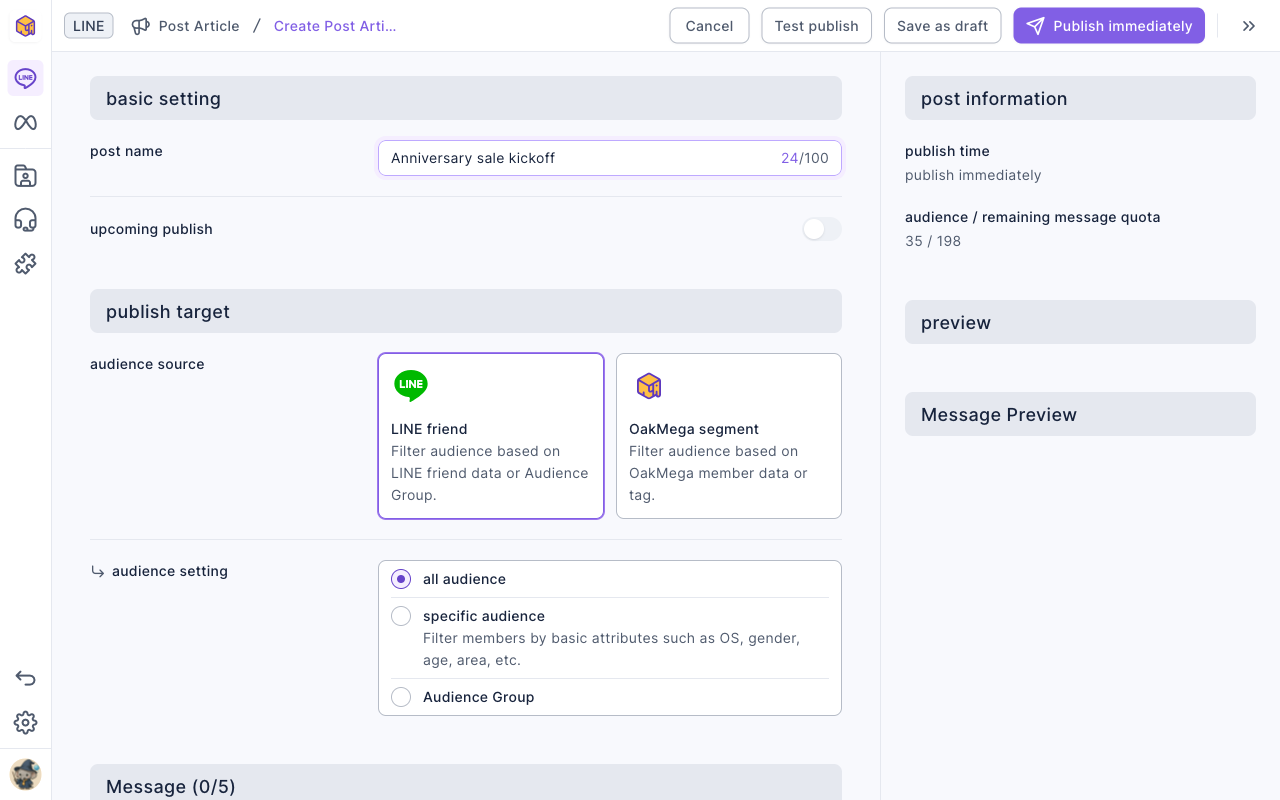
The animation below clicks Text in the Message section and types a campaign announcement. The preview on the right shows how it looks both as a LINE notification and in the chat.
Next it clicks Save as draft. You'll see "save success" and go back to the list, where a new post with the status Draft is at the top.
Choose who gets the post
There are two audience sources, and they decide which conditions you can use:
| LINE friend | OakMega segment | |
|---|---|---|
| Based on | Friend data provided by LINE | OakMega member data and tags |
| Audience setting | all audience, specific audience (Mobile OS, Gender, Age group, Area), Audience Group | all audience, tag filter (contain / exclude tags, up to 100 each), Advanced filter |
| Other settings | — | Read Tracking, advanced audience setting (audience member status, random publish) |
| Limits | Specific audience needs more than 100 LINE target friends, and more than 50 people must match (LINE privacy policy) | Text messages can include the member's name |
When you choose LINE friend, the editor reminds you: "When the publish target is set to 'LINE friend', member names cannot be included in text messages." To pick people by tags or member data, or to greet them by name, choose OakMega segment.
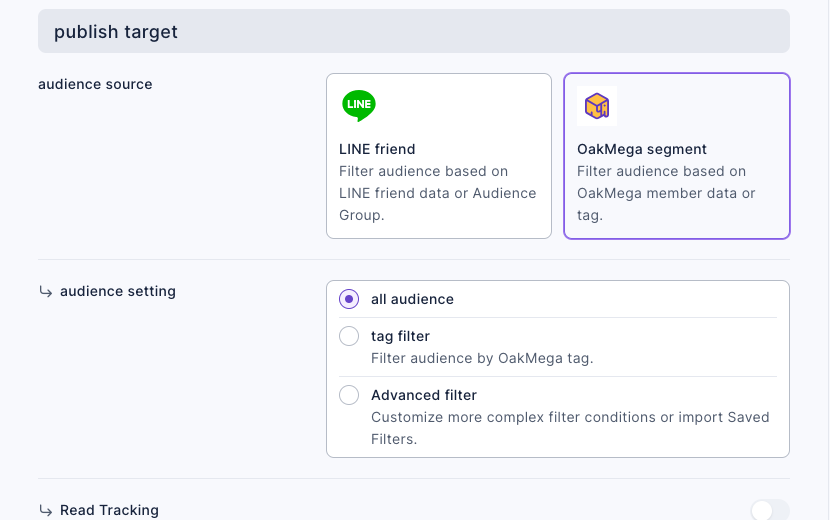
The screenshot below shows publish target with OakMega segment selected. Audience setting offers all audience, tag filter (filter by OakMega tags) and Advanced filter (build more complex conditions or apply a saved filter), with the Read Tracking switch below.
- An Audience Group is an audience list created in your LINE Official Account. It doesn't update itself after export; click re-export in the selection window when you need fresh data (it takes about 10 minutes).
- When you apply a saved filter in Advanced filter, the post keeps the conditions as they were at that moment. Later changes to the saved filter don't affect this post.
- Read Tracking records who read the post for 14 days after publishing, so you can download the readers or tag them afterwards. It isn't available for audiences over 100k, and the post needs at least one message whose reads can be tracked.
Post statuses and what you can do
Click "⋯" at the end of a post's row to Duplicate as Draft, Download Data or Delete. What you can do depends on the status:
| Post status | Can edit | Can delete | Notes |
|---|---|---|---|
| Draft | ✓ | ✓ | Not scheduled, won't be sent |
| Scheduled | ✓ (not in the last 2 minutes) | ✓ (not in the last 2 minutes) | Goes out automatically at the set time |
| Processing | ✗ | ✗ | Being sent; wait for it to finish |
| Published | ✗ | ✗ | View data, or duplicate as draft to send again |
| Failed | ✗ | ✗ | Post information on the right shows why, such as insufficient message quota or an expired LINE authorization |
To delete a draft or scheduled post:
- Click "⋯" at the end of the post's row and choose Delete.
- In "Confirm delete "post name"?", click Delete.
The animation below clicks "⋯" on the draft we just saved, chooses Delete and confirms with Delete; the draft disappears from the list.
How it works
- Message quota is counted per person. Sending a post to 100 people uses 100 messages, no matter how many messages are in the post. If you don't have enough left, you'll see "insufficient message quota"; top up before publishing.
- For LINE friend, LINE does the specific-audience filtering. Mobile OS, gender, age group and area are LINE's estimates, and to protect privacy LINE won't send to very small groups. That's where the 100-friend and 50-person thresholds come from.
- Scheduled posts lock just before they go out. You can't edit or delete them in the last 2 minutes, so what's sent always matches what you last saw.
- Published posts can't be deleted. Your friends already have them, and deleting the record wouldn't take them back. To send something similar again, use Duplicate as Draft.
FAQ
The scheduled publish time does not meet the requirements, please reset it.
The scheduled time is less than 2 minutes away or already past. Set a time at least 2 minutes from now.
Insufficient filtered audience
You chose specific audience under LINE friend, but 50 people or fewer match. Loosen the conditions, or use a tag filter under OakMega segment instead.
Insufficient LINE target friends
Your official account doesn't have more than 100 LINE target friends yet, so specific audience isn't available. Use all audience or OakMega segment instead.
No audience matches the filter conditions
Nobody matches the current conditions. Adjust the audience setting or filter conditions.
The post failed
Click the post in the list; post information on the right explains why, for example "Insufficient Message Quota" (top up and schedule again) or "LINE Channel Access Token Forbidden" (reconnect your LINE Official Account).