
By the end of this article you'll be able to create an approved page (for example, a members-only offer), decide who can view it and which tags viewers get, and share its link with your members.
Before you start
- You need the Pro plan or higher. Each workspace has an approved page quota; when it's used up, creating or duplicating a page shows Approved page quota is full.
- You need Approved Page permission. View Only lets you browse; to create, edit, duplicate, move or delete pages you need Editable, otherwise the buttons show No Edit Permission.
- To require login or friendship, restrict by tags, or tag viewers, the workspace must first be connected to a LINE Official Account.
The approved page list
In the navigation bar, click Web-based Tool and choose Approved Page.
The screenshot below shows the list. On the left are All Approved Pages and Folder. In the middle are the approved pages in the current folder. On the right, Approved Page Information shows the selected page's Approved Page Link, title and description, and whether viewers need to log in.
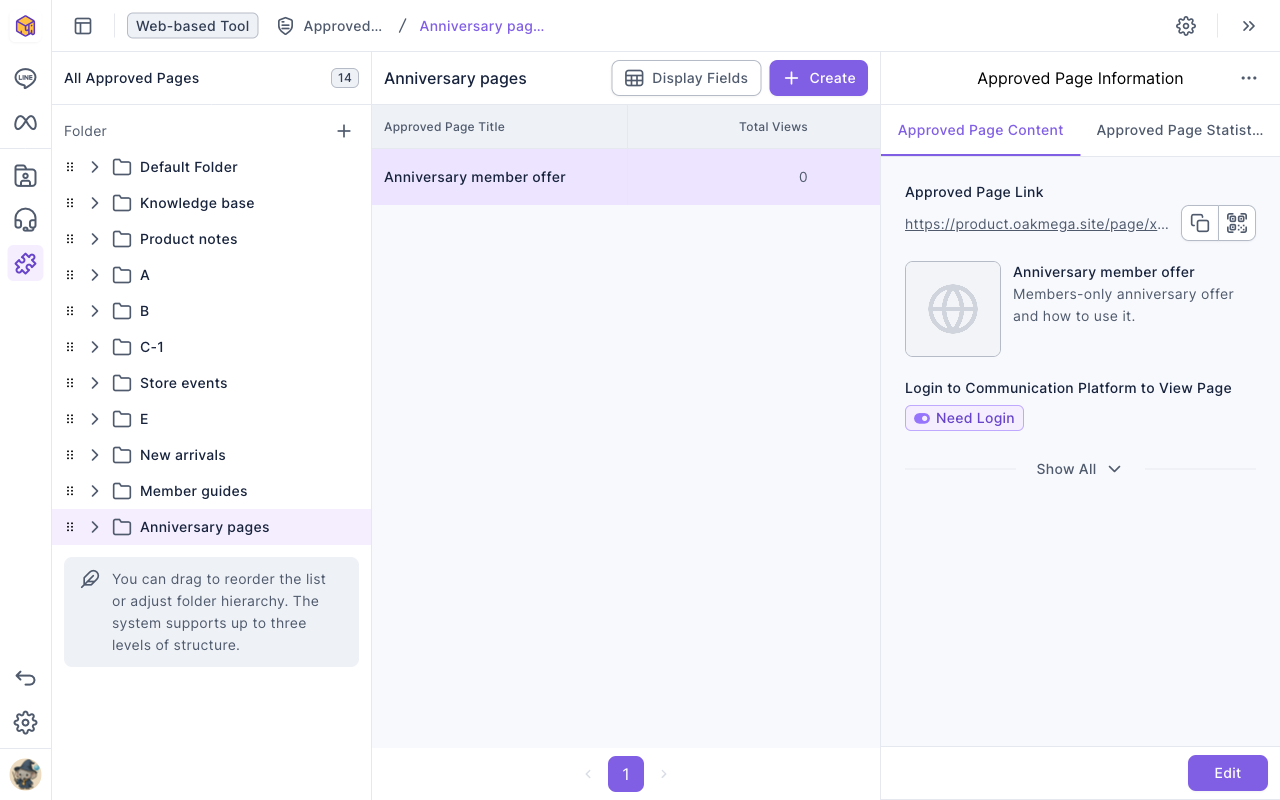
- The buttons next to the link copy it or show a QR code. Share the link in a LINE message, a Richmenu or your website so members can open it.
- Switch to Approved Page Statistics to see Total Views, Total Viewers and Creation Time. If the same person opens the page several times, Total Views keeps going up, but Total Viewers counts them only once.
- You can drag folders to reorder them or nest them, up to three levels. Click the + next to Folder to create a folder. Hover over a folder and use "⋯" to Rename or Delete it. Deleting a folder also deletes the approved pages in it.
Create an approved page
- On the left, click the folder you want the page in, then click Create. If All Approved Pages is selected, you'll be asked to choose a folder first.
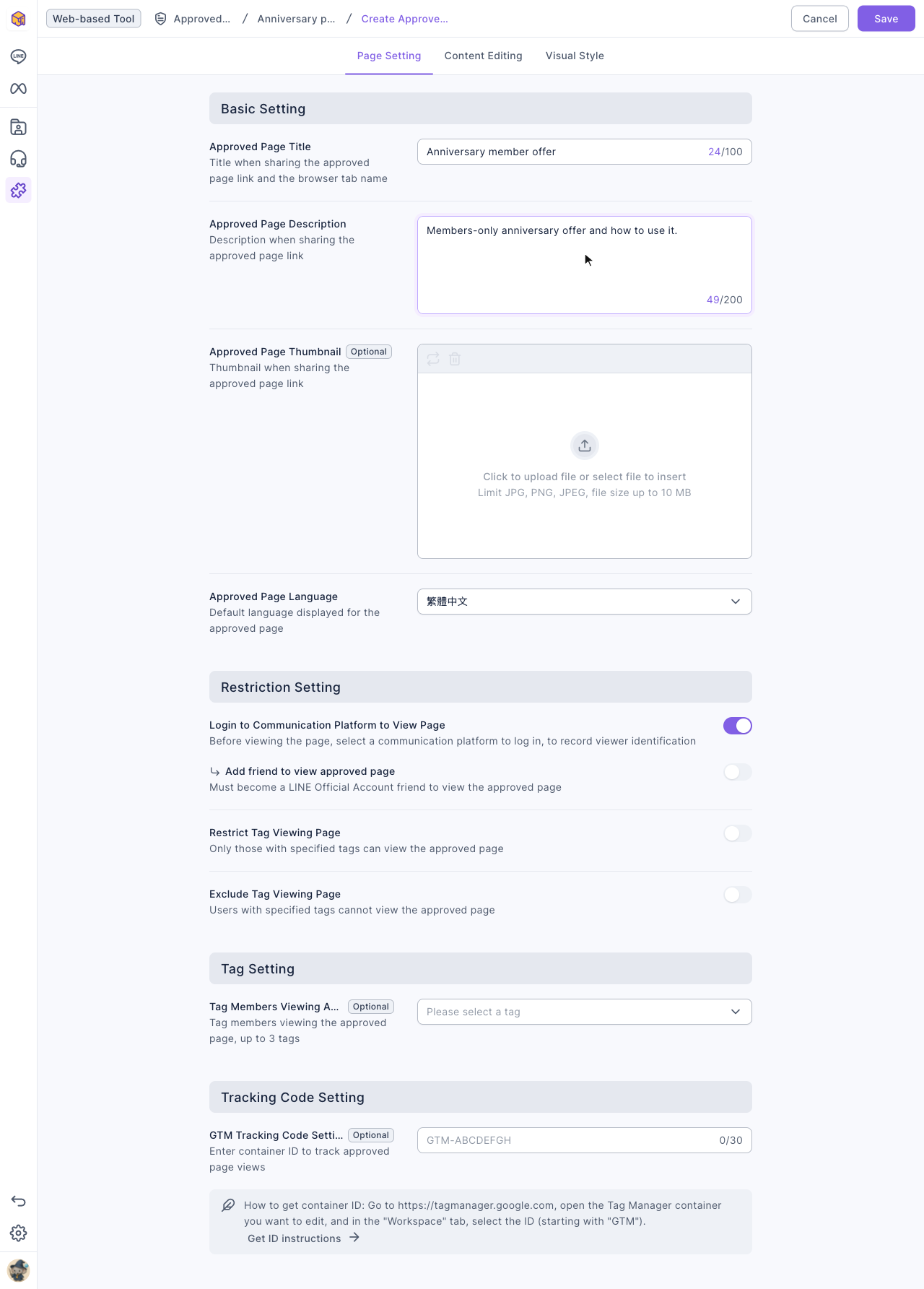
- On the Page Setting tab, enter an Approved Page Title (up to 100 characters) and an Approved Page Description (up to 200 characters). The title is also the browser tab name. The title, description and Approved Page Thumbnail appear in the link preview when the link is shared.
- If you like, upload a thumbnail (JPG or PNG, up to 10 MB) and choose the Approved Page Language.
- Adjust Restriction Setting and Tag Setting as needed; see the next section.
The animation below clicks Create in the Anniversary pages folder and enters the title "Anniversary member offer" and a description.
The screenshot below shows everything on the Page Setting tab. Login to Communication Platform to View Page is on by default.
- Switch to Content Editing and write the page. Anything you type is a paragraph; type "/" to choose something to insert.
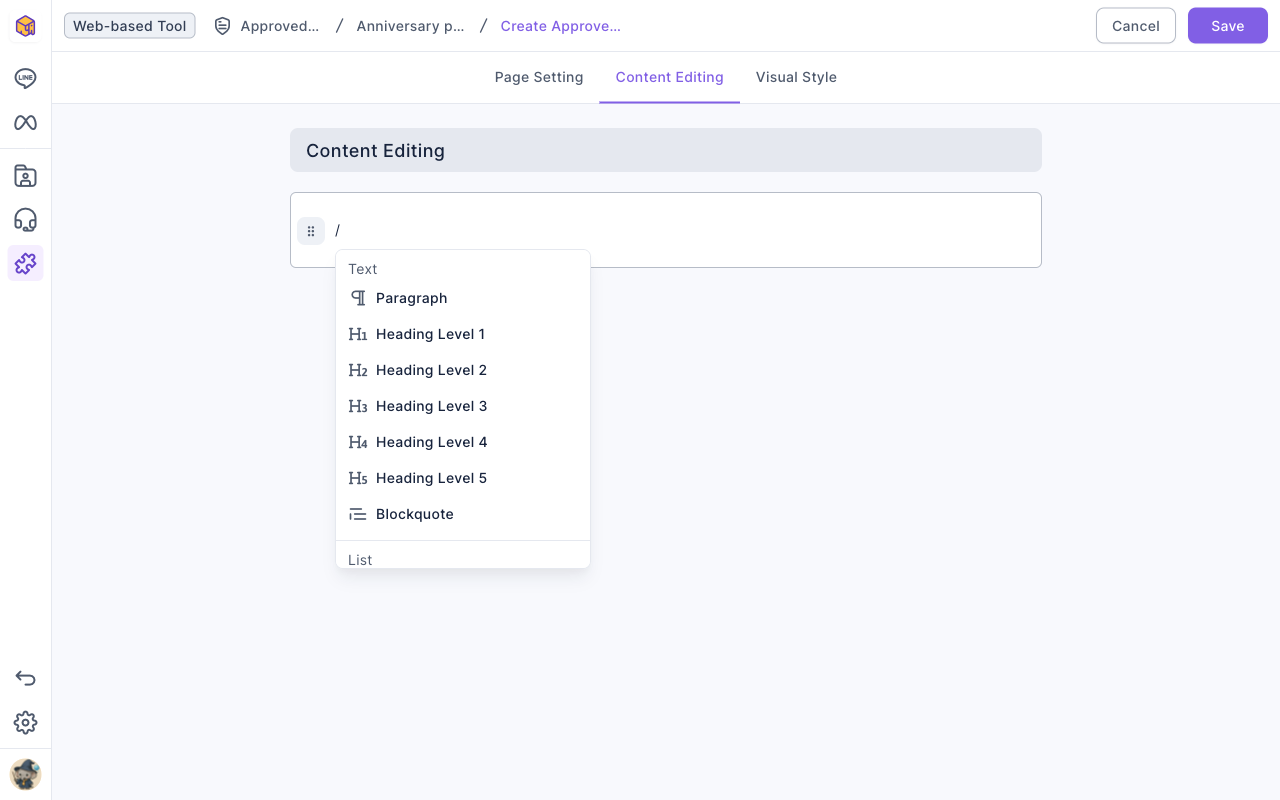
The "/" menu can insert:
| Group | Items |
|---|---|
| Text | Paragraph, Heading Level 1–5, Blockquote |
| List | Bulleted List, Numbered List, Checklist |
| Multimedia | Image, Video, PDF (Upload File), PDF (Embed URL), File |
| Other | Divider, Customized Components, iframe |
- If you like, switch to Visual Style to change how the page looks (see "Adjust the visual style" below).
- Click Save in the top-right. You'll see Created successfully and return to the folder list.
The animation below types a paragraph on Content Editing and clicks Save; back in the list, the new approved page appears.
Choose who can view and which tags to add
The lower half of Page Setting decides who can open the page and whether viewers get tags:
| Setting | What it does |
|---|---|
| Login to Communication Platform to View Page | Members must log in with LINE before viewing, so OakMega knows who is viewing. On by default |
| Add friend to view approved page | Appears once login is on. Only friends of your LINE Official Account can view. Members who aren't friends yet see "Add friend to continue / Please add as a friend first to view this page" with an Add friend button that opens the LINE Official Account connected to the workspace so they can add it |
| Restrict Tag Viewing Page | Only members with the chosen tags can view. Up to 100 tags; choose Must have all tags to view or Can view with any one tag |
| Exclude Tag Viewing Page | Members with the chosen tags can't view. Up to 100 tags, with the same "all" or "any one" rule |
| Tag Members Viewing Approved Page | Tags members who view the page, up to 3 tags |
| GTM Tracking Code Setting | Enter a Google Tag Manager container ID (starting with "GTM") to track page views in GTM |
- Tag restrictions and tagging need login. Without login OakMega can't tell who is viewing, and the page shows Currently set to no login required, this function can't be used.
- If the workspace isn't connected to a LINE Official Account yet, the login and add-friend switches can't be used, and you'll be prompted to connect the platform.
Adjust the visual style
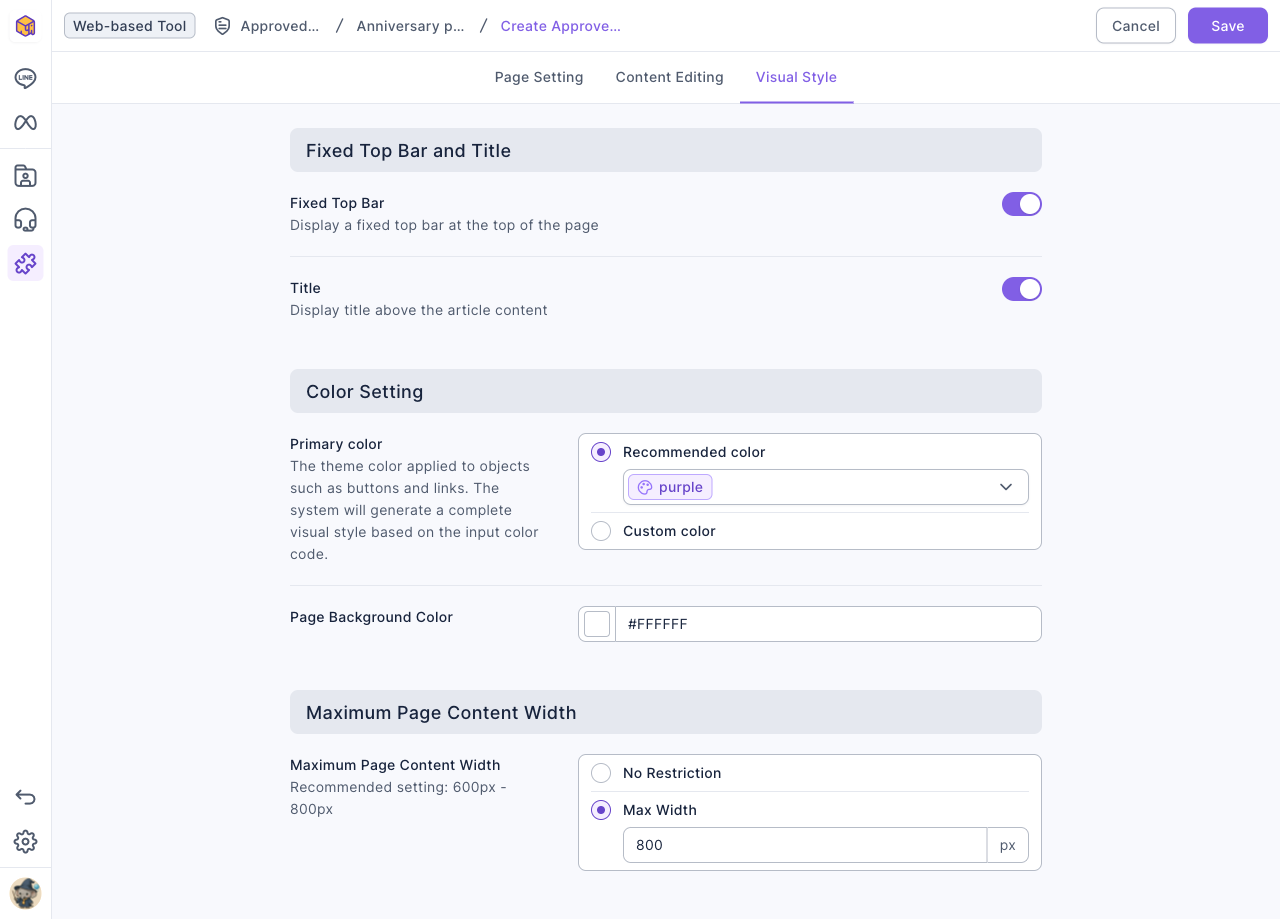
The Visual Style tab changes how the page looks. Changes take effect after you click Save.
| Setting | What it does |
|---|---|
| Fixed Top Bar, Title | Show a fixed bar at the top of the page, and show the title above the content |
| Primary color | The theme color for buttons, links and similar elements. Use a Recommended color or a Custom color |
| Page Background Color | The page's background color |
| Maximum Page Content Width | No Restriction, or a Max Width; 600px–800px is recommended |
Duplicate, move and delete approved pages
Click "⋯" at the end of an approved page's row:
- Edit: open the page for editing, then click Save.
- Duplicate: create a copy with "(Copy)" added to the name. The copy gets a new link and uses one approved page from your quota.
- Move: choose a new folder. The link doesn't change.
- Delete: a confirmation asks "Confirm deletion of title?"; click Delete. After deletion the old link no longer opens.
The animation below clicks "⋯" on Anniversary member offer, chooses Delete and confirms; the approved page disappears from the list.
How it works
- Why use an approved page? An ordinary web page doesn't know who is reading it. An approved page recognizes members through LINE login, so you can show it only to certain members and turn "viewed this page" into a tag you can use for segmented messages later.
- Leaving the editor doesn't save automatically. If you leave without saving you'll see Confirm leaving Create Approved Page?, and your edits are discarded.
- The link is created with the page. Editing the content or moving the page to another folder keeps the same link, so links you've already shared show the latest content.
FAQ
Approved page quota is full
Your workspace has reached its plan's approved page limit. Delete approved pages you no longer need, or contact OakMega sales to raise the quota.
The login and add-friend switches can't be turned on
The workspace isn't connected to a LINE Official Account yet, or LINE login hasn't been set up. Ask a workspace admin to finish connecting the platform.
You can only set up to 300 tagging tags
All the tags a single approved page can add (on view, on file download, on video playback and so on) are limited to 300 in total. Remove some tagging settings and save again.