
By the end of this article you'll be able to create a New/Existing Friend Link for a poster or ad: people who aren't friends yet get a new-friend message after adding you, people who are already friends get a different one, and each group is tagged separately.
Before you start
- Available on all plans. The Free plan allows up to 10 New/Existing Friend Links; when you reach the limit you'll see Reached Plan Quantity Limit.
- You need New/Existing Friend Link permission. View Only lets you browse and see the data; to create, edit, move or delete links you need Editable, otherwise the buttons show No Edit Permission.
- The workspace must be connected to a LINE Official Account, and you need two LINE chatbots ready: one for new friends and one for existing friends. See Set up a LINE chatbot.
New/Existing Friend Links at a glance
In the navigation bar, click Link Tool and choose New/Existing Friend Link.
The screenshot below shows the page. On the left are all links and Folder. In the middle are the links in the current folder. Click a link, and Link Information on the right shows the link URL, the New Friend Chatbot and the Existing Friend Chatbot.
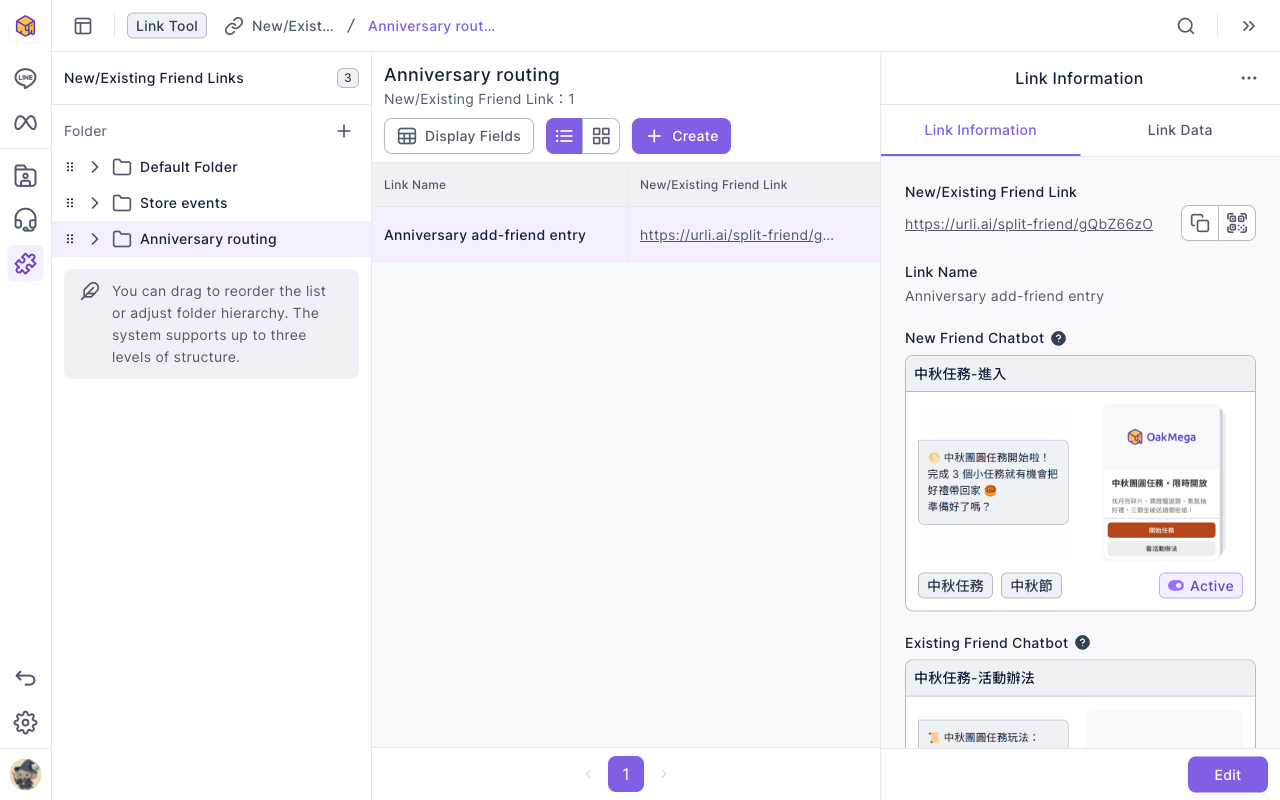
When someone clicks the link, OakMega routes them based on whether they're already a friend of your LINE Official Account:
| Who clicks | Triggers | Tags applied |
|---|---|---|
| New friend (not a friend when clicking, adds you through the link) | New Friend Chatbot | Click link to add tag + Tag New Friends |
| Existing friend (already a friend when clicking) | Existing Friend Chatbot | Click link to add tag + Tag Existing Friends |
Create a New/Existing Friend Link
- On the left, click the folder you want the link in, then click Create in the top-right. If all links are selected, you'll be asked to choose a folder first.
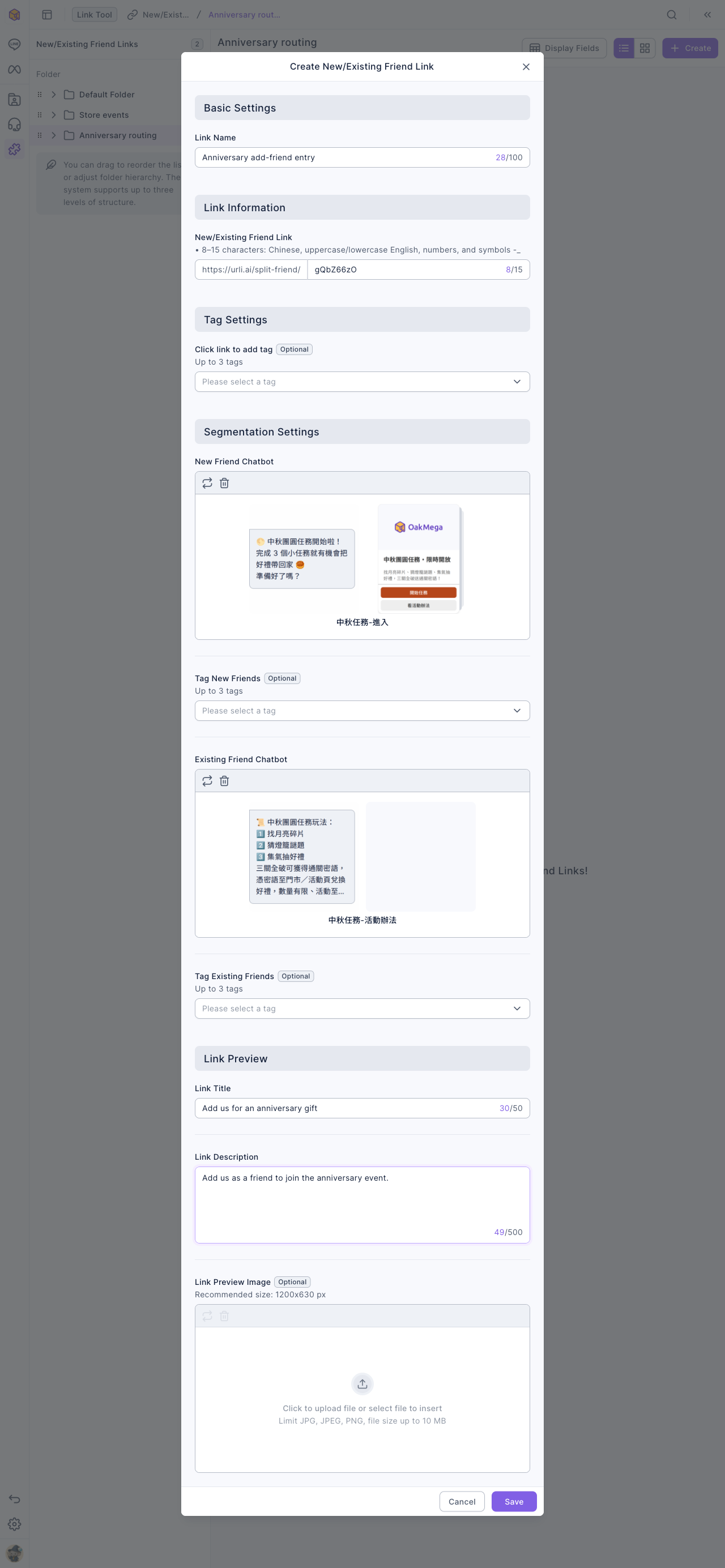
- Under Basic Settings, enter a Link Name (up to 100 characters); this is the name shown in the list.
- Under Link Information, the link code is generated for you. For a memorable URL, replace it with your own code (8–15 characters: Chinese, uppercase/lowercase English, numbers and the symbols - and _).
- If you like, choose tags under Click link to add tag (up to 3); both new and existing friends get them.
- Under Segmentation Settings, click the New Friend Chatbot box. In Select Chatbot, choose a chatbot folder from the dropdown at the top, click a chatbot and click Confirm. Each card shows whether the chatbot is Active or Inactive.
- Choose the Existing Friend Chatbot the same way. Both chatbots are required.
- If you like, choose Tag New Friends and Tag Existing Friends (up to 3 each).
- Under Link Preview, enter a Link Title (up to 50 characters) and Link Description (up to 500 characters), which people see when the link is shared. The Link Preview Image is optional (1200x630 px recommended).
- Click Save. You'll see Created successfully.
The animation below clicks Create in the Anniversary routing folder, enters the link name "Anniversary add-friend entry", then clicks the new friend chatbot box and picks 中秋任務-進入 from the 中秋節活動 folder (chatbot names are the demo workspace's own data).
The screenshot below shows the completed Create New/Existing Friend Link window, with both chatbots chosen and the link preview below.
Read link data
Click a link and switch to Link Data on the right:
| Data | Meaning |
|---|---|
| Total Click Count | How many times the link was clicked, including clicks without login |
| Total Friends Count | People who clicked and successfully triggered a chatbot |
| New Friends Count, Existing Friends Count | How many new and existing friends clicked the link |
| New Friend Conversion Rate | New Friends Count ÷ Total Click Count |
Link Interval Data lets you choose the past 24 hours, 7 days, 30 days or a custom date range, with charts for click data, system, browser and region. To take the data with you, click "⋯" at the end of the row and choose Download Link Data (up to 10,000 records).
Edit, move and delete
- Edit: click the pencil icon at the end of the row or Edit on the right. Changes to the link preview don't take effect immediately.
- Move: click "⋯" and choose Move.
- Delete: click "⋯" and choose Delete. The confirmation says All content will be deleted.; click Delete. The link stops working, including QR codes you've already printed.
The animation below clicks "⋯" on Anniversary add-friend entry, chooses Delete and confirms; the link disappears from the list.
Folders work as elsewhere: click the + next to Folder to create one, and hover over a folder and use "⋯" to rename or delete it. Deleting a folder also deletes the links in it, and they stop working.
How it works
- Why route new and existing friends? New friends need an introduction and perhaps a welcome gift, while existing friends have already seen your welcome message and are better served with event details. One link and one QR code take care of both.
- A deleted chatbot leaves the field empty. If a chosen chatbot is deleted later, its field in Link Information becomes empty; edit the link and pick another one.
- A link code can't be reused. Codes are unique across all workspaces, and a deleted link's code can't be used again.
FAQ
Reached Plan Quantity Limit
The Free plan allows up to 10 New/Existing Friend Links. Delete links you no longer need, or upgrade your plan.
Select Chatbot says "No chatbots in the folder yet"
The chatbot folder currently selected is empty. Use the dropdown at the top of the window to switch to a folder that has chatbots.
The new friend conversion rate is low
The rate is new friends divided by total clicks, and clicks from existing friends count in the total too. To see how many new friends the link brought in, look at New Friends Count as well.