
After reading this, you'll be able to add chatbots for a Facebook Page, an Instagram business account or a WhatsApp account, know which trigger events and message formats each platform supports, and limit a bot to specific Pages or accounts.
Before you start
- The workspace must be connected to the platform you want to set up. If it isn't, the page asks you to connect the account before creating chatbots; for WhatsApp, ask your OakMega project contact to connect it.
- Permissions are set separately per platform: Facebook Chatbot, Instagram Chatbot and WhatsApp Chatbot. "View only" lets you look; to add, edit, activate or delete you need "Editable".
- Adding bots, folders, restriction conditions, tags, activating and deleting work the same way as on LINE; see Set up a LINE chatbot. This article only covers the differences.
- On the Free plan, each platform can have up to 10 chatbots.
Which bots each platform has
Click Meta in the navigation bar; each of the three platforms has its own Chatbot. All three have Event-triggered bots and Keyword chatbots, but only Facebook has Welcome message bots, and the trigger events differ:
| Platform | Welcome message bots | Trigger events for event-triggered bots |
|---|---|---|
| Yes, triggered when someone taps Start using Messenger | Sticker, Image Message, Default Reply | |
| No | Image Message, Default Reply, Story Mention, Story Reply | |
| No | Sticker, Image Message, Default Reply | |
| (For comparison) LINE | Yes, triggered when someone adds the official account | Sticker, image, video, audio, location, file, postback, beacon, block, default reply |
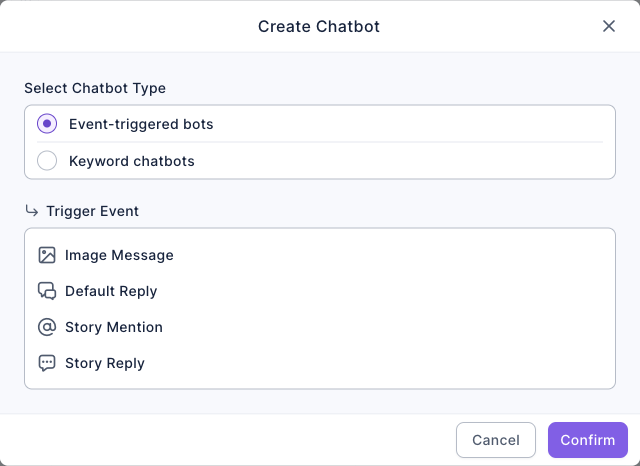
Story Mention fires when someone tags your Instagram account in their own story, and Story Reply when someone replies to your story; use them to thank people automatically or send an offer. Default Reply answers messages that didn't trigger any other bot.
The screenshot below shows Instagram's Create Chatbot window. With Event-triggered bots selected, Trigger Event lists Image Message, Default Reply, Story Mention and Story Reply. Instagram has no welcome message bots, so there are only two bot types.
Add a bot and limit its trigger accounts
Using an Instagram story reply as the example:
- Click Meta in the navigation bar, choose Chatbot under Instagram, and click Add at the top right.
- Under Select Chatbot Type, choose Event-triggered bots; under Trigger Event, choose Story Reply, then click Confirm.
- In Bot Settings, enter the Chatbot Name. Chatbot Status is on by default on the create page; turn it off if you're not ready.
- Under Restriction Conditions, set Trigger Account to All Accounts or Specific Accounts. With Specific Accounts, check the accounts that should trigger the bot in the menu below; you can pick several.
- Switch to the Edit Message tab to add the reply (see the next section), then click Save at the top right.
The animation below types the chatbot name "Thanks for story replies" and turns Chatbot Status off so the bot doesn't go live yet.
Next, Specific Accounts is chosen under Trigger Account, the menu below is opened and one Instagram account is checked; the chosen account appears in the menu. Now the bot only fires when that account's story gets a reply. (The demo doesn't save.)
Trigger Account only exists on Meta platforms. Workspaces are often connected to several Pages or Instagram accounts, and this setting lets a bot answer on just some of them. With All Accounts, every connected account triggers the bot.
Message formats you can reply with
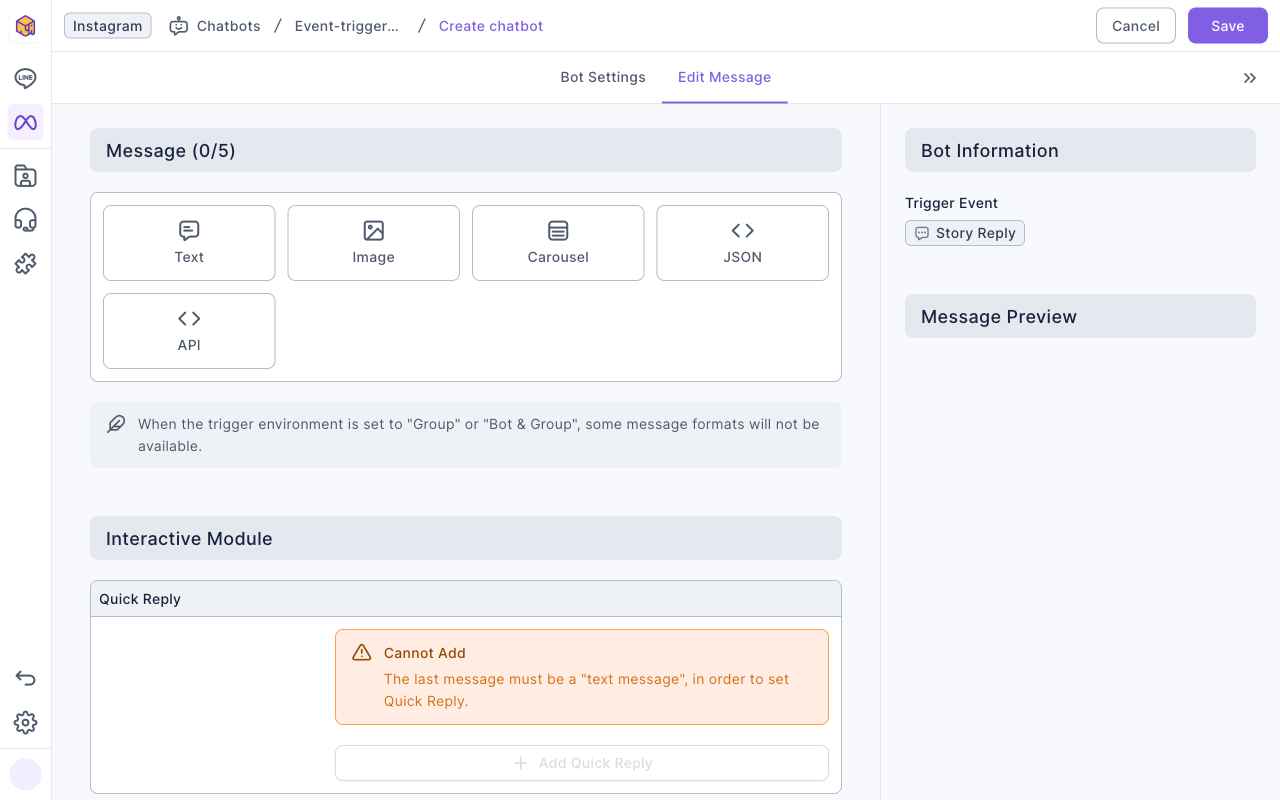
The Edit Message tab still holds up to 5 messages, but there are fewer formats than on LINE.
The screenshot below shows the Edit Message tab of an Instagram bot. Under Message (0/5) are Text, Image, Carousel, JSON and API. Below, Quick Reply under Interactive Module shows Cannot Add because there's no text message yet.
This table compares the message formats and Quick Reply on each platform:
| Message formats | Text, Image, Carousel, JSON, API | Text, Image, Carousel, JSON, API | Text, Image, JSON, API |
| Quick Reply | Yes, up to 13 | Yes, up to 13 | No |
| Quick Reply requirement | The last message must be text, image or carousel | The last message must be text | — |
If the last message doesn't qualify, the Quick Reply area shows Cannot Add. If you already added a Quick Reply and then change the last message, it shows Cannot Display; adjust the messages or remove the Quick Reply.
Facebook's Trigger Chatbot Link
A Facebook bot can have its own link. Click a bot in the list, choose a Page account under Link Information on the right, and a Trigger Chatbot Link appears. Anyone who opens it lands in a Messenger chat with your Page and triggers this bot right away, which makes it handy for posts, ads and QR codes. Instagram and WhatsApp don't have this link.
How it differs from LINE chatbots
This table sums up the setting differences between Meta platforms and LINE chatbots:
| LINE | Facebook, Instagram, WhatsApp | |
|---|---|---|
| Trigger Account | No | Yes, limit the bot to specific Pages or accounts |
| Trigger Environment (one-on-one / group) | Yes | No, one-on-one chats only |
| Share Add Tag | Yes | No, only Trigger Add Tag and Trigger Remove Tag |
| Message formats | Text, sticker, image, video, audio, image map, cards, templates, Richmenu, modules and more | See the previous section; far fewer |
| Statistics | Triggers, people triggered, shares and people who shared | Triggers and people triggered |
How it works
- Same kind of bot, managed per platform. Each platform has its own bots, folders and permissions; a Facebook bot never answers Instagram messages. Create the same Q&A on each platform, using Duplicate in the "⋯" menu to save time.
- The create page defaults to on. As on LINE, the bot starts replying as soon as you save. Pages and Instagram accounts are public, so anyone's message can trigger it; turn the status off first, check the content, then turn it on.
- The Messenger menu can trigger keywords. A Messenger menu button set to Send button text sends the text as the person, which can trigger Facebook keyword chatbots; see Set up the Messenger menu.
FAQ
There's no Welcome message bots option when adding a bot
Instagram and WhatsApp don't have welcome message bots; only Facebook and LINE do. To reply to a first message, use Default Reply or a keyword chatbot instead.
Cannot Add (Quick Reply)
The last message's format doesn't support Quick Reply: on Facebook it must be text, image or carousel, and on Instagram it must be text. Change the last message to a supported format, or add a text message at the end.
Messages to one Page don't trigger the bot
First check that the bot's status is on, then check whether Trigger Account is set to Specific Accounts without that Page checked. Trigger duration, weekly effective period, and limit or exclude tags can also leave the person out.