
By the end of this article you'll be able to blacklist members you no longer want to contact proactively, view and remove them on the Blacklist page, and know what the blacklist does and doesn't block.
Before you start
- You need the Pro plan or above.
- To add someone to the blacklist, you need Editable permission for the member list you're in (for example LINE Member). To view and remove people on the Blacklist page, you need Blacklist permission. People with view-only permission can't use the add and remove options.
- The blacklist applies to the OakMega Member: once added, that member counts as blacklisted on every communication platform. For how "blacklist" differs from "blocking", see the glossary.
What the blacklist blocks
This table shows what changes once a member is blacklisted:
| Situation | After blacklisting |
|---|---|
| Receiving post articles | ✗ Not received |
| Triggering chatbots | ✗ Not triggered |
| An agent messaging them in Service Center | ✓ Still possible |
| The member sending messages, filling in forms, joining sweepstakes | ✓ Still possible |
| Appearing in Member Management lists | ✗ Hidden; listed on the Blacklist page instead |
In other words, the blacklist stops content the system sends out on its own, but it doesn't cut off conversations with real agents.
Add a member to the blacklist
- Find the member in LINE › Member Management or Member & Tag › OakMega Member Management, and click them to open Member Data on the right.
- Click "⋯" in the top-right of Member Data and choose Add to Blacklist.
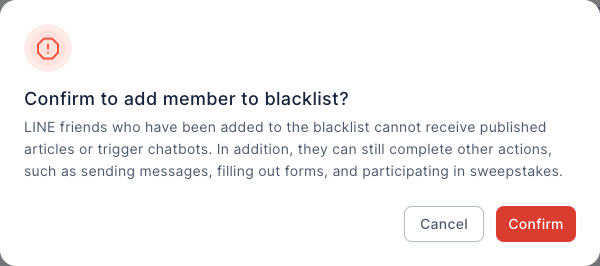
- The confirmation dialog shows "Confirm to add member to blacklist?" with an explanation of what the blacklist does.
- Click Confirm.
The animation below opens a member in LINE Member Management, opens the "⋯" menu, and chooses Add to Blacklist, bringing up the confirmation dialog. (It stops at the dialog and doesn't actually add anyone.)
The screenshot below shows the confirmation dialog. The title is "Confirm to add member to blacklist?", and the text explains that blacklisted LINE friends can't receive published articles or trigger chatbots, but can still send messages, fill out forms and join sweepstakes. Cancel and Confirm are in the bottom-right.
View and remove blacklisted members
In the navigation bar, click Member & Tag and choose Blacklist.
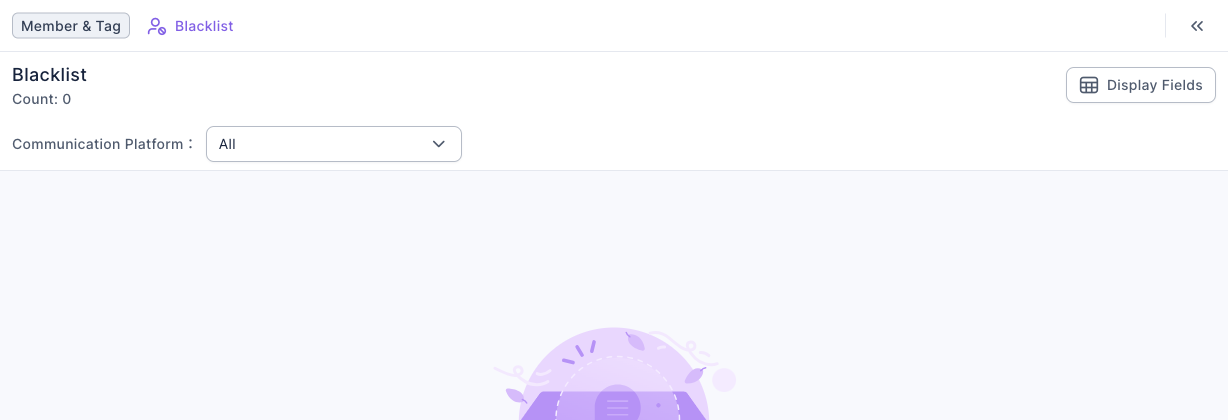
The screenshot below shows the Blacklist page. Blacklist and the Count are in the top-left, and below them you can filter by Communication Platform. When no one is blacklisted yet, the page shows "Start managing your blacklist".
The Blacklist page uses the same kind of list as Member Management, so search, advanced filters and display fields work the same way. See View and filter LINE members.
To remove a member from the blacklist:
- On the Blacklist page, click the member to open Member Data.
- Click "⋯" in the top-right and choose Remove from Blacklist.
- In the dialog "Confirm to remove member from blacklist?", click Confirm.
Once removed, the member returns to the Member Management lists, and post articles and chatbots start reaching them again.
How it works
Blacklist vs. blocking
Both mean the person stops getting your messages, but different people decide:
| Blacklist | Blocking | |
|---|---|---|
| Who decides | Your team | The member, by blocking your official account in LINE |
| Scope | All communication platforms of this OakMega Member | LINE only |
| Where you see it | Member & Tag › Blacklist | LINE Member Status shows Blocked and Messaging Status shows Cannot |
| Can Service Center message them | Yes | No (LINE doesn't allow messages to people who blocked you) |
| How to undo | Remove them from the blacklist | Only the member can unblock |
Member data downloads exclude blacklisted members
When you use Download Member Data in Member Management, blacklisted members aren't included in the file.
FAQ
I can't click Add to Blacklist
Your permission for this member list (for example LINE Member) or for Blacklist is view-only. Ask a workspace admin to change it to Editable.
They're blacklisted but still get messages from an agent
That's expected. The blacklist doesn't block Service Center conversations, only post articles and chatbots. If you don't want to keep talking, close the conversation in Service Center.
I can't find a member in LINE Member Management
They may be on the blacklist. Blacklisted members don't appear in the Member Management lists; look under Member & Tag › Blacklist.