
After reading this, you'll be able to set up a Messenger menu for each Facebook Page, so that anyone chatting with your Page can view your menu, open a booking page, or send a phrase that triggers a chatbot in one tap.
Before you start
- The workspace must be connected to a Facebook Page. Only Facebook has a Messenger menu; Instagram and WhatsApp don't.
- You need the Messenger Menu permission. "View only" lets you look; to edit the menu you need "Editable", otherwise the Edit button shows "No edit permission".
- Saving sends the menu straight to Facebook, where everyone can see it. Facebook allows at most 10 changes every 10 minutes, and changes can take up to 24 hours to appear, so plan the content before you save.
See each Page's current menu
In the navigation bar, click Meta and choose Menu under Facebook.
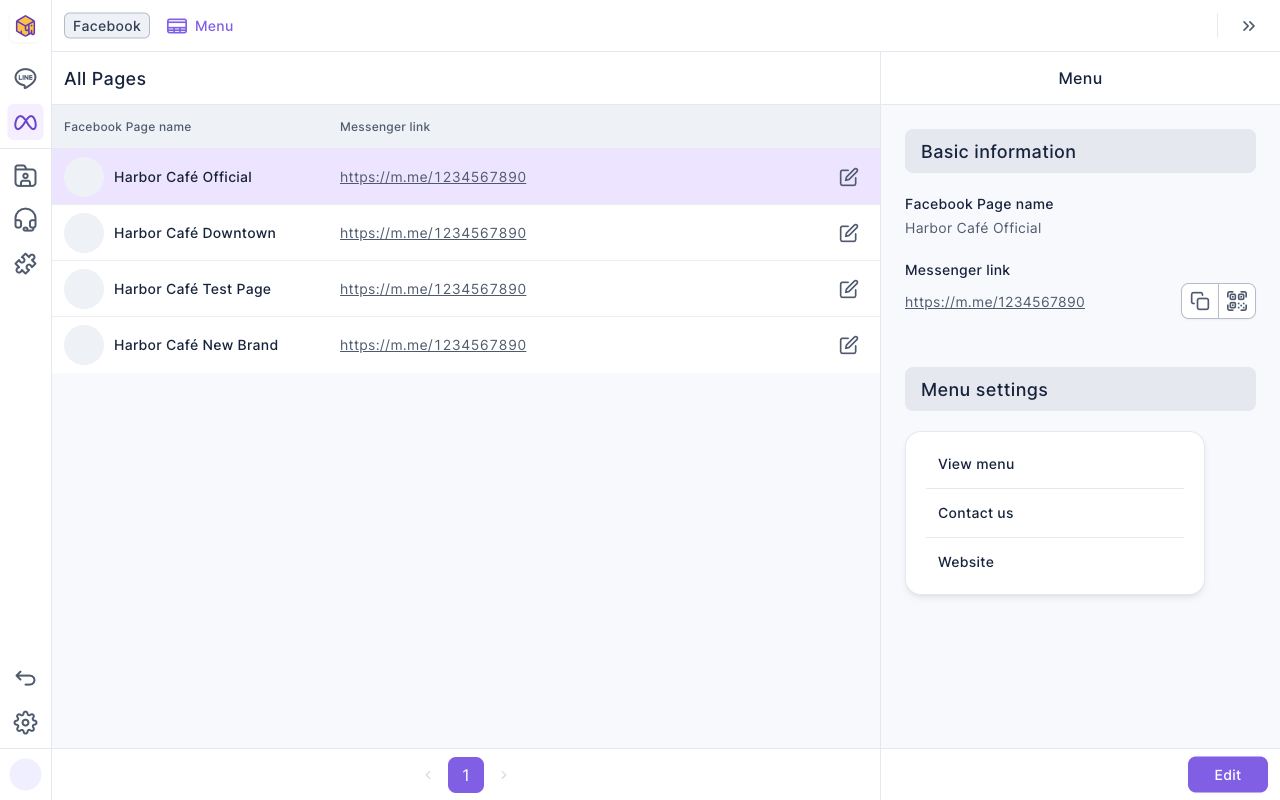
The screenshot below shows the Messenger menu page. On the left, All Pages lists every Page connected to the workspace with its Messenger link. Click a Page and the right side shows Basic information (Page name and Messenger link, which you can copy or turn into a QR code) and Menu settings, the Page's current menu buttons. Edit is at the bottom right.
Add menu buttons
- Click the Page in the list, then click Edit at the bottom right (or click the edit icon at the end of that row).
- Under Menu settings, click Add button. A new button card appears, titled Not set for now.
- Enter the text to show on the menu in Button text, up to 20 characters.
- Under Click behavior, choose Send button text or Open link (see the next section for the difference). If you choose Open link, enter the URL below.
- Repeat steps 2–4 for more buttons. Menu Preview on the right shows the menu as you go.
- Click Save at the top right, then Confirm in the Confirm save? window. When you see Saved successfully, you're done.
The animation below clicks Add button twice on a Page that has no menu yet, typing "View menu" and "Book a table". The two buttons appear in the menu preview on the right.
Next, "Book a table" is switched to Open link: a URL field appears below, and a booking URL starting with https:// is typed in. While the URL is still incomplete, the field shows "Please enter a URL starting with https://", which disappears once the URL is complete.
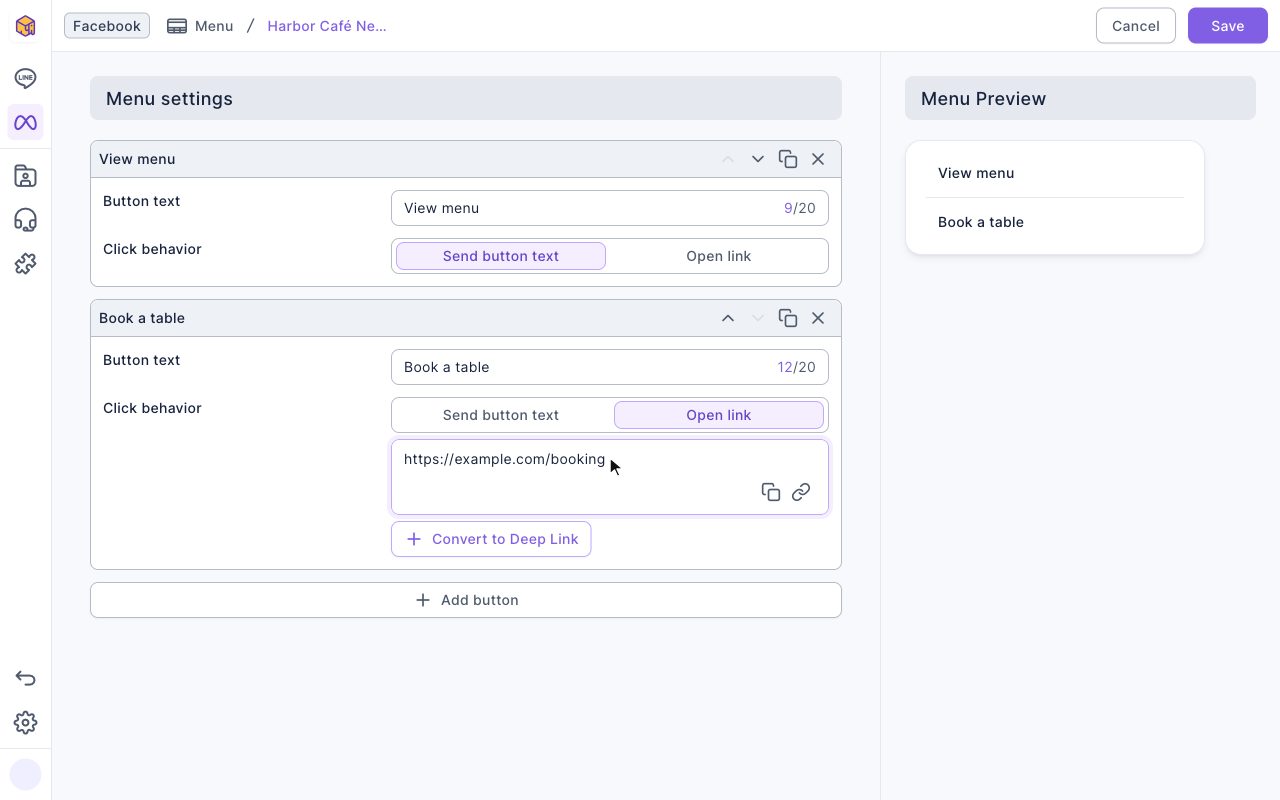
The screenshot below shows the editor with both buttons set: "View menu" sends the button text, and "Book a table" opens a link with the URL filled in. Below the URL is Convert to Deep Link, which turns it into a deep link so you can track clicks. The menu preview on the right shows the order people see in Messenger.
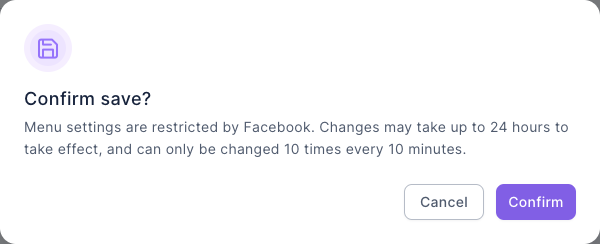
Clicking Save first opens a confirmation window that reminds you of Facebook's limits. Nothing is sent until you click Confirm. (The demo in this article stops at this window without confirming.)
Reorder, duplicate or delete buttons
Each button card has four icons at the top right:
| Icon | What it does |
|---|---|
| Move up (⌃) | Moves the button up one place, changing its position in the menu |
| Move down (⌄) | Moves the button down one place |
| Duplicate | Makes a copy of the button, handy for several similar links |
| ✕ | Deletes the button |
Changes only take effect after you save and confirm. To throw away your edits, click Cancel at the top right and confirm in the "Are you sure you want to leave the menu edit page?" window; nothing you edited is kept.
The two click behaviors
This table compares what happens when someone taps a button:
| Click behavior | When tapped | Good for |
|---|---|---|
| Send button text | Sends the button's text into the chat as the person, exactly as if they had typed it, so it can trigger Facebook chatbot keywords | FAQs, viewing a menu, reaching support, anything a chatbot answers |
| Open link | Opens a web page | Bookings, your website, campaign pages; the URL must start with https:// and can be converted to a deep link |
For example, set a button's text to "View menu", then create a Facebook chatbot (under Meta › Facebook › Chatbot) with the keyword "View menu". Anyone who taps the menu button gets your menu.
Rules and limits
| Item | Limit |
|---|---|
| Number of buttons | Up to 20 per Page; beyond that you'll see "Reached maximum limit" and "Action button limit is 20" |
| Button text | Required, up to 20 characters; longer text shows "Text exceeds the maximum length" |
| Link | Required, must start with https:// |
| How often you can save | Facebook allows at most 10 changes every 10 minutes |
| When it appears | Up to 24 hours after saving before it shows in people's Messenger |
| Message box | People can still type their own messages after you set a menu |
How it works
- One menu per Page. The menu belongs to the Page, so if your workspace is connected to several Pages, set each one separately.
- Saving changes the menu on Facebook directly. OakMega sends the menu to Facebook. There's no draft or test like Post Article, so you can't save now and publish later.
- Why don't I see my change yet? Facebook takes time to update menus, up to 24 hours. People may also need to reopen the conversation in Messenger.
FAQ
Reached maximum limit
This Page's menu already has 20 buttons. Remove buttons you don't need, or combine several links into one web page.
Please enter a URL starting with https://
Menu links only accept URLs that start with https://. Change URLs that start with http:// or have no scheme to a full https URL.
I saved, but people still don't see the new menu
Facebook can take up to 24 hours to update the menu; check again later and ask people to reopen the conversation. Changing it too many times in a short period (more than 10 times in 10 minutes) may also be rejected by Facebook, so wait a while before saving again.