
This page shows you how to use the invite code from OakMega to create a new workspace and go straight into it to start setting things up.
Before you begin
- An invite code. OakMega gives you one. If you haven't received it, contact your OakMega representative. Each invite code creates only one workspace.
- Sign in to OakMega with your own account. Whoever creates the workspace becomes its admin, so sign in with the email of the person who will manage it. Don't borrow a colleague's account.
- Decide on two names first: the Workspace Name (for example, your brand name) and the Subdomain (the web address of your web-based tools; you shouldn't change it later, see "How it works" below).
Steps
- After signing in, go to the Workspace list and click the plus icon (add workspace) in the top-right corner. If you don't have any workspace yet, the list shows "Welcome to OakMega!". Click Create Workspace.
- Step 1 — Enter Invite Code: Type the invite code from OakMega into Invite Code and click Next Step.
- Step 2 — Select Number of Employees and Industry: Choose Company / Team Size and Industry Category, then click Next Step. Both are required.
The animation below shows steps 2 and 3: after entering the invite code and clicking Next Step, it picks 10~25 for Company / Team Size and Information and Communication for Industry Category.
- Step 3 — Set Workspace Information: Enter the Workspace Name (up to 100 characters). Workspace Photo is optional; you can upload a JPG, JPEG or PNG up to 10 MB. Click Next Step.
- Step 4 — Set Workspace Domain Information: Enter the Subdomain. It goes in front of
.oakmega.siteand becomes the web address of this workspace's approved pages, forms and passes. You can only use lowercase letters, numbers and hyphens (-). When you click Next Step, OakMega checks the format and whether it's already taken.
The animation below shows steps 4 and 5: it enters "OakMega Manual Demo" as the workspace name, clicks Next Step, enters oakmega-manual-demo as the subdomain, and clicks Next Step again.
- Step 5 — Set Personal Information: Enter your Personal Name (up to 100 characters). This is the name shown for you in this workspace; colleagues see it in places like Service Center. Personal Photo is optional. Click Complete.
The animation below shows step 6: it enters "OakMega AI" as the personal name and clicks Complete, and the success dialog pops up.
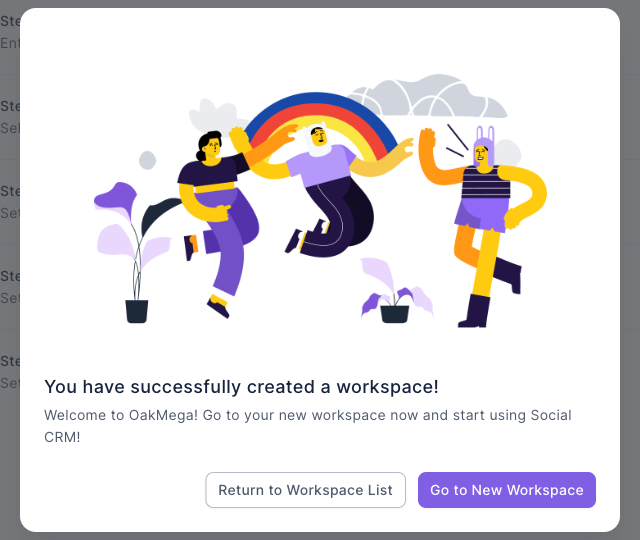
- When you see "You have successfully created a workspace!", you're done. Click Go to New Workspace to go straight in, or Return to Workspace List.
The screenshot below shows the success dialog: an illustration at the top, the message "You have successfully created a workspace!" below it, and two buttons in the bottom-right corner, Return to Workspace List and Go to New Workspace.
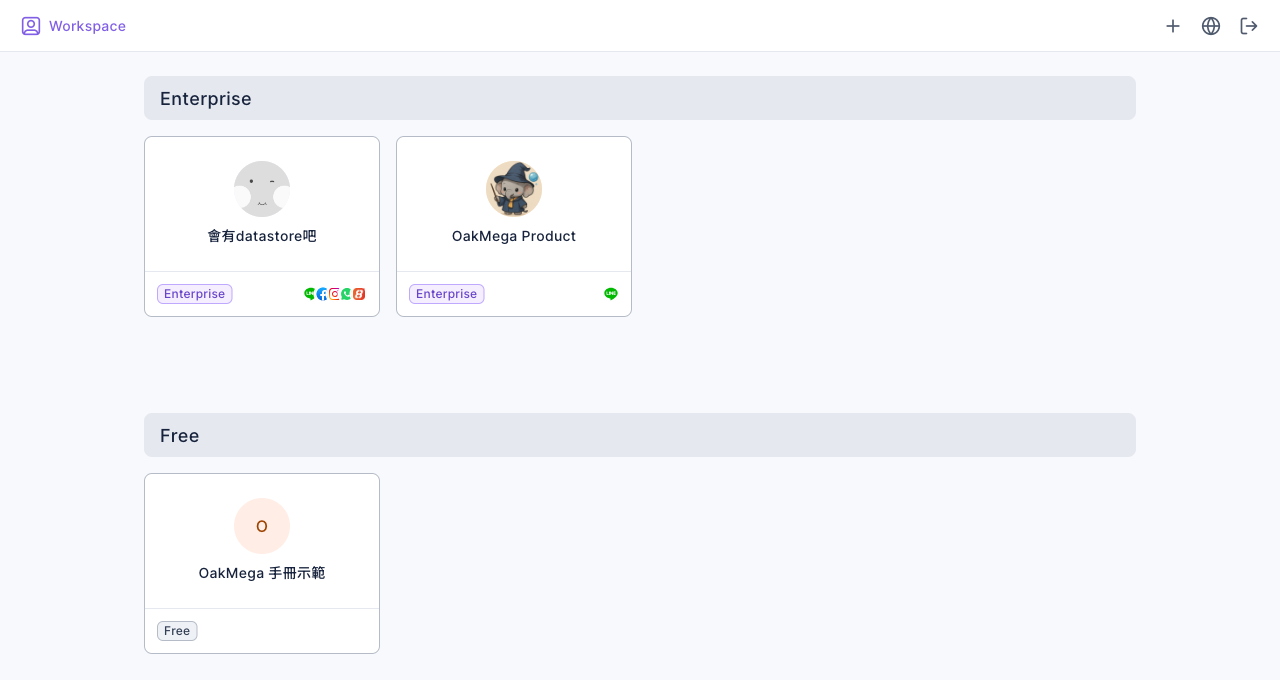
Back on the workspace list, the new workspace appears in the Free group. In the screenshot below, the "OakMega 手冊示範" card sits under the Free group with a Free plan badge in its bottom-left corner. There are no messaging platform icons in its bottom-right corner, because no messaging platform such as LINE has been connected yet.
How it works
An invite code works only once
- When you click Next Step in step 1, the invite code is tied to the email you're signed in with. If another account then enters the same code, it sees "The invite code has already been used".
- After the code is tied to you and before you click Complete, you can still come back and start over yourself (for example, if you left halfway). Once the workspace is created, the invite code expires, so you can't use it to create a second workspace. To create another one, ask OakMega for a new invite code.
- If you leave the page halfway through, you'll see "Are you sure you want to leave the workspace creation?". Anything you've filled in isn't kept, so next time you start again from step 1.
What the subdomain is for
The web-based tools approved pages, forms and passes all use your-subdomain.oakmega.site for the addresses your members open. That's why we recommend your brand's English name, so members can tell at a glance whose page it is.
| Rule | Details |
|---|---|
| Allowed characters | Lowercase letters, numbers and hyphens (-) |
| Hyphens | Not at the start or end, and never two in a row (--) |
| Length | Up to 63 characters |
| Not allowed | Subdomains already used by another workspace, and reserved words (for example admin, ai, account) |
You can change the subdomain later in Settings › Web-based Tool Settings, but once you do, every link sent out with the old subdomain stops working, and addresses already shared with members won't open. So pick a name you'll keep for the long term. See Set the subdomain and favicon for web tools.
What a new workspace starts with
| Item | State after creation |
|---|---|
| Plan | Free. To upgrade to Pro or Enterprise, contact your OakMega representative |
| Admin | You (the creator), shown with the personal name from step 5 |
| Messaging platforms | None connected yet. Connect a messaging platform such as a LINE Official Account first; only then will you have friends and messages |
| Service Center | 1 agent seat, one default organization, and two roles: a manager role and an agent role |
| Feature folders | Tags, deep links, message templates, approved pages, forms, Booking Center and passes each start with a "Default Folder" |
- The names of the default organization and the two roles depend on the interface language of the person creating the workspace at that moment. Created in English, they're "default organization", "Manager" and "Agent"; created in Chinese, they're 預設組織, 主管 and 專員.
- Free plan features have quantity limits. For example, you can have up to 10 tags and up to 10 chatbots per messaging platform. Going over shows "You've discovered a new feature!". See I can't see a feature or menu.
FAQ
Please enter a valid invitation code
The invite code doesn't exist, or it has already been used to create a workspace (the code expires once the workspace is created). Check the letter case and the hyphens. If you're sure it's correct, contact your OakMega representative.
The invite code has already been used
A different email already used this invite code in step 1. Check that you're signed in with the account that should create the workspace (for example, a colleague may have entered it with their account first). To use a different account, contact your OakMega representative.
Invite Code Has Already Been Used
You only find out the code has been used when you click Complete, for example because the same code already created a workspace in another tab. Click Confirm to go back to step 1. Check the workspace list first to see whether the workspace already exists, so you don't create a duplicate.
This subdomain is already in use / Subdomain Has Already Been Used
Another workspace already uses this subdomain, or it's a reserved word. Pick a different name, for example by adding a product line or region after your brand name.
Incorrect format
The subdomain contains uppercase letters, spaces, underscores or other symbols, or a hyphen at the start, at the end, or twice in a row. Fix it using the table in "What the subdomain is for" above.