
By the end of this article you'll be able to read each member's status in the LINE member list, find the people you want with search and advanced filters, and apply tags to or download data for the members you select.
Before you start
- You need the Pro plan or above, and the workspace must have a LINE Official Account connected.
- You need LINE Member permission. View Only lets you view, search and filter. To select members for batch actions or edit member data, you need Editable.
- For how members, friends and OakMega Members differ, see the glossary.
The LINE member list
In the navigation bar, click LINE and choose Member Management.
The screenshot below shows the LINE member list. LINE Members and the Count are in the top-left. In the top-right are a tag button for batch tagging by LINE User ID and Display Fields; the toolbar at the very top has Advanced Filter and search. Each row is one LINE member.
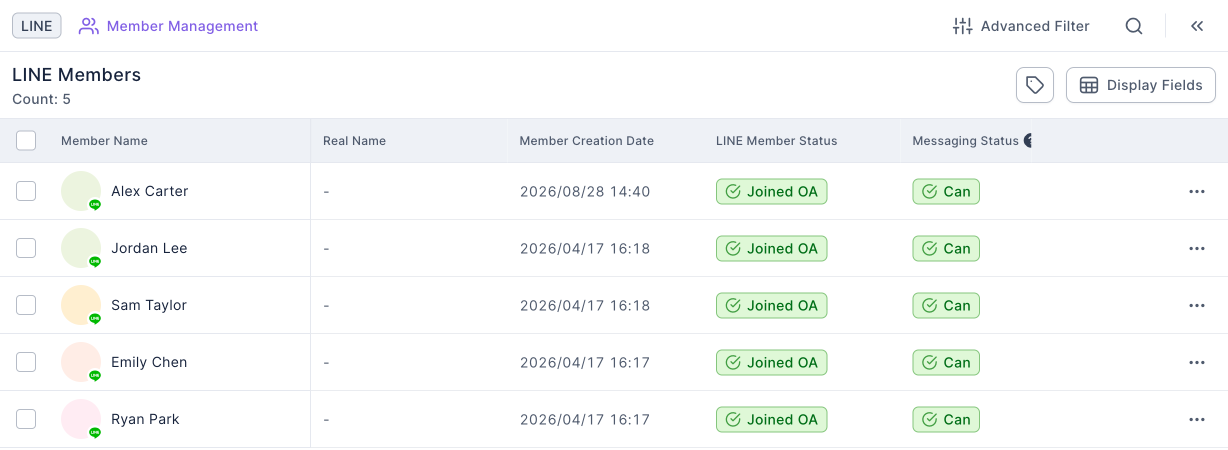
The list shows these columns by default:
| Column | What it shows |
|---|---|
| Member Name | The member's LINE name and profile picture. This column is always shown |
| Real Name | The real name in the member's data, or "-" if there isn't one |
| Member Creation Date | When this member first appeared in OakMega |
| LINE Member Status | Joined OA (a friend), Blocked (blocked the official account), or Not joined OA (only signed in with LINE, never added the official account) |
| Messaging Status | Can or Cannot: whether the official account can proactively send this member messages |
Search for members
- Click the search icon in the toolbar.
- Type a keyword, then choose what to search:
- Member Name: matches the LINE name or real name, as long as it contains the keyword.
- LINE User ID: must match exactly.
- The list title changes to "… Filter Search Results" and shows only matching members.
You can use either search or an advanced filter, not both. Starting a search cancels the advanced filter (you'll see "Searching, filter condition canceled"), and vice versa.
Find members with an advanced filter
- Click Advanced Filter in the toolbar.
- In the Contain or Exclude block, click Filter Condition to add a condition row.
- Choose the Item, Sub-type, Condition and Value in turn, for example "LINE › Member Message › Is › Can".
- For more conditions, click Filter Condition again, or click Group to wrap several conditions together.
- Click Confirm. The list now shows only members who match.
The animation below adds a condition to the Exclude block. It clicks Advanced Filter, clicks Filter Condition in the Exclude block, and chooses "LINE" as the item, the messaging-status sub-type (labeled "Member Message" in the English interface), and "Can" as the value.
Then click Confirm. Because members who can be messaged are excluded, the list is left with members whose messaging status is "Cannot" (in this example, one member who blocked the official account). The title becomes "Custom Filter Filter Search Results", and the Advanced Filter button in the toolbar now shows the filter's name.
To clear the filter, click the "✕" next to the filter name in the toolbar. Clicking the name itself reopens the advanced filter so you can change the conditions.
What you can filter by
This table lists the categories available under Item:
| Item | What you can filter by |
|---|---|
| Contact Information | OakMega member name, real name, email, phone, location, memo, gender, birthday, creation time |
| LINE | ID (exact match), name, join time, block time, messaging status |
| Facebook, Instagram, WhatsApp | Member data on each platform |
| Strength Tag, Expiry Tag | Whether a tag has been applied |
| Tagging Time | When a tag was applied |
| Custom Field | Shown only if the workspace has custom fields |
Contain and Exclude can each use And (all conditions must match) or Or (any one is enough). Conditions inside a Group automatically use the other one, so you can build conditions like "A and (B or C)".
Choose the columns to display
Click Display Fields in the top-right to choose which columns the list shows.
The screenshot below shows the Display Fields Settings dialog. Each row is a column. The switch on the right turns it on or off, and the dots on the left let you drag to reorder. Member Name is always shown and can't be turned off.
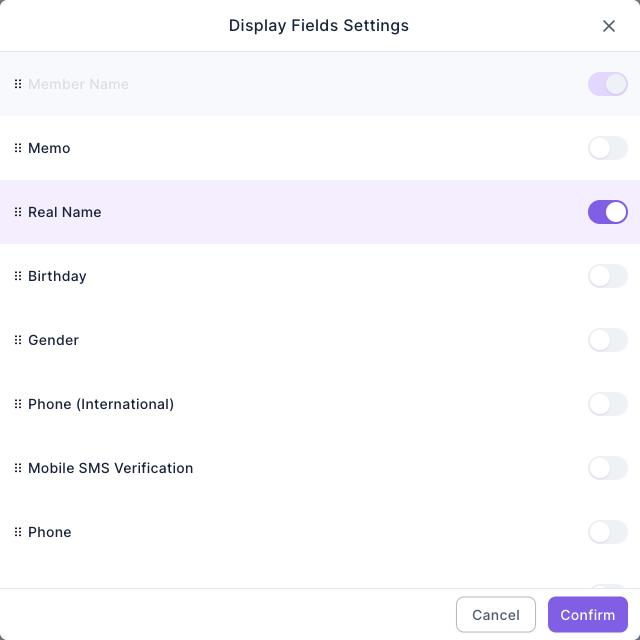
Besides the default columns, you can turn on memo, birthday, gender, phone, email, location, LINE name, LINE User ID, Last Joined OA Time, Last Blocked OA Time, LINE Official Account name, Richmenu, and the workspace's custom fields. This setting is saved only in your current browser.
View one member's data
Click any member in the list to open Member Data on the right. It has two tabs, Member Info and Member History:
| Where | What's there |
|---|---|
| Member Info › Tag Info | The member's tags, which you can apply or remove |
| Member Info › Personal Info | Real name, email, phone, birthday, gender, location, memo and more. People with edit permission can change them |
| Member Info › Platform | LINE name, LINE User ID, LINE Member Status, last join and block times, LINE Official Account name, and the current Richmenu |
| Member History | Change history for tags, chatbots, deep links, member data and points |
If the member can currently be messaged, a Chat button appears at the bottom of the panel. The panel's more menu has Add to Blacklist and Download member history for the past year. For the blacklist, see the glossary.
Act on selected members in bulk
Tick the checkboxes on the left (or the header checkbox to select all), and the right side shows "N members selected" with batch actions. You can act on up to 100,000 members at a time; beyond that you'll see "Selection exceeds 100k".
| Action | What it does | Watch out for |
|---|---|---|
| Apply Tag, Remove Tag | Applies or removes tags on the selected members at once | Large selections are processed in the background in batches, so tags appear gradually |
| Download Member Data | Downloads an Excel file with member basics, Social CRM member data and tags | Members × tags can't exceed 50 million, and you can pick only some tag folders; up to 100,000 members at a time; without download permission you'll see No download permission |
| Change Richmenu | Switches the selected members' LINE Richmenu to the one you choose | It changes the Richmenu these members actually see in LINE |
| Export Audience Package | Exports the selected members as a LINE audience, which you can choose as the audience when posting articles | It creates an audience in your LINE Official Account; members without a LINE User ID are skipped |
How it works
- LINE Member Status and Messaging Status are different things. LINE Member Status is about the person's relationship with the official account (friend, blocked, signed in only). Messaging Status is about whether the official account can proactively message them right now. To find people who will actually receive a post article, Messaging Status is the more reliable one.
- The count updates with search and filters; above 100,000 it shows as "100K+".
- Filters aren't remembered: reloading the page clears them. Save conditions you use often with Save As under the advanced filter, and apply them later from Saved Filters.
- Blacklisted members don't appear in this list. See them at Member & Tag › Blacklist.
FAQ
Searching, filter condition canceled
Search and advanced filters can't be used together, so starting a search cancels the current filter. To get back to the filtered results, apply the filter again (or pick it from Saved Filters).
Selection exceeds 100k
More than 100,000 members are selected, so batch actions are unavailable. Select fewer members, or add filter conditions to narrow the list.
I can't tick the checkboxes
Your LINE Member permission is View Only, which lets you view, search and filter. If you need batch actions, ask a workspace admin to change your permission to Editable.
No download permission
Your account doesn't have permission to download files. Ask a workspace admin to turn on download permission in Permission Management.