
By the end of this article you'll have a list of message test members. Whenever you click Test publish on a post article or group post, you can pick people from this list to receive the test, and only send for real once everything looks right.
Before you start
- Only workspace admins can add or delete message test members: the Workspace Settings section on the Settings page is visible to admins only. Other members can still pick people from the list when they test publish.
- The workspace needs a connected LINE Official Account. Until LINE is connected, this page explains that "After connecting LINE, you can create and manage the "Message Test Member" list".
- Test members must be members of this LINE Official Account (people you can find in LINE Member Management), usually your own or your colleagues' LINE accounts. Ask them to add the official account as a friend first.
Open Message Test Member Settings
- Click Settings at the bottom of the navigation bar.
- In the Workspace Settings section, click Message Test Member Settings ("Manage LINE accounts for message testers").
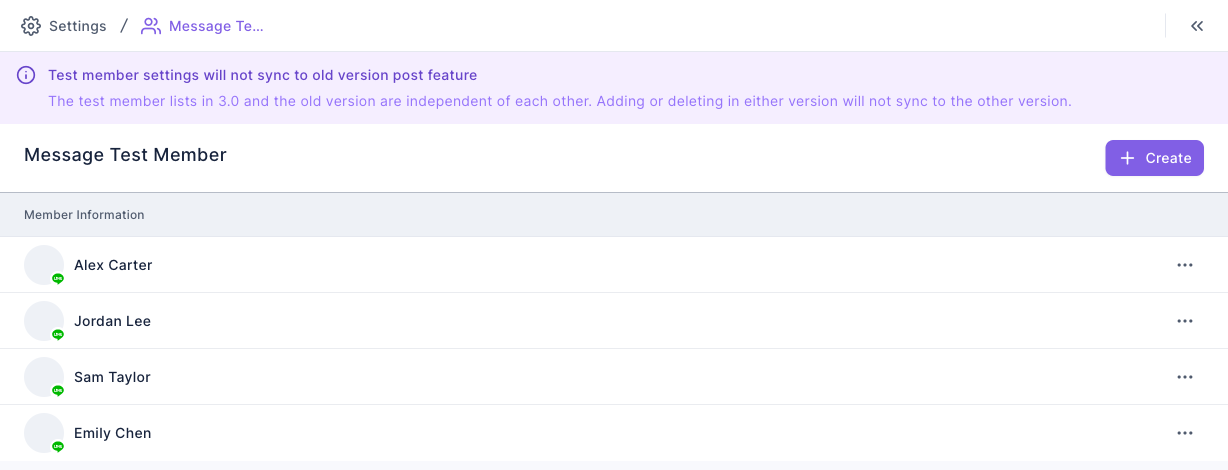
The screenshot below shows the Message Test Member Setting page. The notice at the top says "Test member settings will not sync to old version post feature". Below it is the Message Test Member list, one test member's LINE name per row, with Create in the top-right and "⋯" at the end of each row. When the list is empty, the page shows "Start Managing Your Message Test Members!".
Add a message test member
- Click Create in the top-right to open Create Message Test Member.
- Type part of a LINE name or real name into the search box and press Enter. You can also enter a full LINE User ID.
- Click the person you want in the results; a check mark appears on the right. You can pick one person at a time.
- Click Confirm. You'll see "Create Success", and the person appears at the top of the list.
The animation below clicks Create, searches for "Ke", picks the member that comes up and clicks Confirm; a new test member appears at the top of the list.
If you click Confirm without picking anyone, you'll see "Please select at least 1 option". If nothing matches, the modal shows "No matching search results"; try another keyword. Someone who's already on the list can't be added twice.
Delete a message test member
- Find the person in the list and click "⋯" at the end of their row (or click the row and use "⋯" in Message Test Member Information on the right).
- Choose Delete.
There's no confirmation dialog. The person is removed as soon as you choose Delete, and you'll see "Delete Success". If you deleted the wrong person, just add them again.
The animation below clicks "⋯" next to the test member we just added and chooses Delete; that person disappears from the list.
Choose test members when you test publish
On the edit page of a Post Article or Group Post, click Test publish to open the Test Publish modal:
- Under Select Test Members, pick one or more test members (you can search).
- Check Test Members / Remaining Quota.
- Click Confirm. You'll see "Test Publish Success", and the message arrives in your test members' LINE.
This table covers the rules for test members in the Test Publish modal:
| Item | Details |
|---|---|
| Who you can pick | Only people in Message Test Member Settings. The Test Member Setting link at the bottom of the modal takes you there to add more |
| Remembers your last pick | Next time, the people you picked last are selected for you (saved in your current browser); anyone who's been deleted is dropped automatically |
| Message quota | Each test member uses one message from your LINE Official Account's quota. If you pick more people than you have quota left, you'll see "Insufficient Quota" |
| Testing a group post | The test still goes to each test member's own LINE chat, not to the group |
How it works
- Why set up a list first? Test publish only sends to people on this list; you can't type in any member you like. That keeps test messages from reaching real customers by accident.
- The new and old dashboards keep separate lists. The new dashboard (3.0) and the old one each have their own test member list. Adding or deleting on one side doesn't change the other, so if you post from the old dashboard, set up testers there too.
- Test members need to be able to receive messages. Tests are sent from your LINE Official Account just like real posts, so anyone who has blocked the official account won't get them. You can check that their Messaging Status is Can in LINE Member Management.
FAQ
I don't see Message Test Member Settings on the Settings page
You're not an admin of this workspace, so the Workspace Settings section isn't shown. Ask a workspace admin to add test members for you, or to change your role.
I can't find my colleague in the search
Search only finds members of this LINE Official Account. Ask your colleague to add the official account as a friend first, then search for their LINE name. A LINE User ID only matches when you type it in full.
Insufficient Quota
You've picked more test members than your LINE Official Account has messages left. Pick fewer people, or check this month's quota in LINE Official Account Manager.