
By the end of this article you'll be able to switch the dashboard to the language you prefer and set the right time zone, so the times you see and enter match where you are.
Before you start
Language and time zone only affect you, so no permissions are needed. They belong to your account: set them once and they apply to all your workspaces. That's why they're on the Workspace list, before you choose a workspace, rather than on the Settings page inside a workspace.
They don't change the language or time zone your teammates see, and they don't change the language of messages your customers receive. To change the name or avatar shown for you in a workspace, see Set up My Account.
Change your language and time zone
- Go back to the Workspace list, either with the OakMega logo at the top of the navigation bar or with Back to Workspace List in the Workspace & Account menu.
- Click the globe icon, the middle one of the three icons in the top-right corner, to open the Language and Time Zone dialog.
- Under Language, choose English, 繁體中文, 日本語 or ภาษาไทย.
- Under Time Zone, choose where you are, for example Taiwan / Hong Kong / China (UTC+8).
- Click Confirm. When Edit successful appears, the page reloads in the new language.
The screenshot below shows the Language and Time Zone dialog. The note at the top reads "Language and time zone are personal account settings". Below it are the Language and Time Zone drop-downs, with Cancel and Confirm in the bottom-right corner.
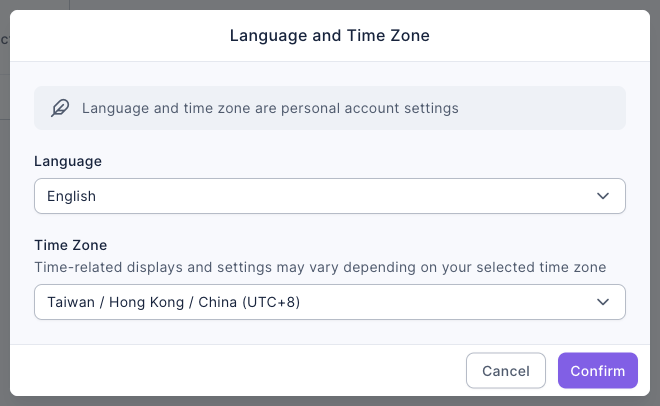
When you pick a language, the dialog switches to it right away so you can preview it, but nothing is saved until you click Confirm. The animation below opens the dialog and picks 日本語 from the Language drop-down. The dialog text immediately changes to Japanese. It then clicks 取り消す (Cancel) to close the dialog, and the language stays English:
The first time you sign in to OakMega, this dialog opens automatically so you can set your language and time zone. It has no Cancel button at that point: you need to make a choice before you can continue.
How it works
What the time zone affects
The dashboard stores times in Taiwan time and converts them to your time zone for display. This table shows where the time zone makes a difference:
| Situation | Effect of your time zone |
|---|---|
| Times shown on screen | Creation times, message times and so on are shown in your time zone. |
| Times you enter | A scheduled post time, for example, is read as a time in your time zone, then converted when it's saved. |
| New chatbots and comment reply bots | The active time range defaults to your time zone. Each bot can be set to a different time zone. |
So in the same workspace, a teammate in Taiwan and one in Thailand see "created" times that differ by an hour, even though they refer to the same moment. When you agree on a schedule with teammates, say which time zone you mean.
Why they belong to your account, not the workspace
Language and time zone are about how you read the dashboard. Where you work and which language you read don't change when you switch to another brand's workspace, so you set them once for all workspaces. Your name and avatar are the opposite: teammates and customers see them, and they can differ per workspace, so they live in My Account inside each workspace.
FAQ
I can't find language and time zone on My Account
Language and time zone aren't on the My Account page inside a workspace. They're behind the globe icon in the top-right corner of the Workspace list. Because they apply to all your workspaces, they live on the page where you choose a workspace.
I picked a language but the dashboard didn't change
Picking a language only previews it. It's saved, and the page reloads, only when you click Confirm. If you click Cancel or just close the tab, your language stays as it was.
A teammate sees different times than I do
You've set different time zones. Times on screen are converted to each person's own time zone, so the same moment shows different numbers in different time zones. When agreeing on a time, say which time zone you mean, or ask your teammate to use the same time zone.