
After reading this, you'll be able to connect your company's Every8d SMS account to an OakMega workspace, then send SMS with SMS templates and see your remaining points on the platform page.
Before you start
- You need an Every8d SMS account (account name and password). Every8d is a separate SMS provider account, and points are bought from Every8d.
- Only workspace owners can connect it: the Workspace Settings section on the Settings page, which contains Communication Platform Settings, is visible only to owners.
- Each workspace can only connect 1 Every8d account, and the same Every8d account can't be connected to two workspaces.
Find Every8d on the platform page
Click Settings at the bottom of the navigation bar, then Communication Platform Settings under Workspace Settings. The page lists LINE, Facebook & Instagram and Every8d.
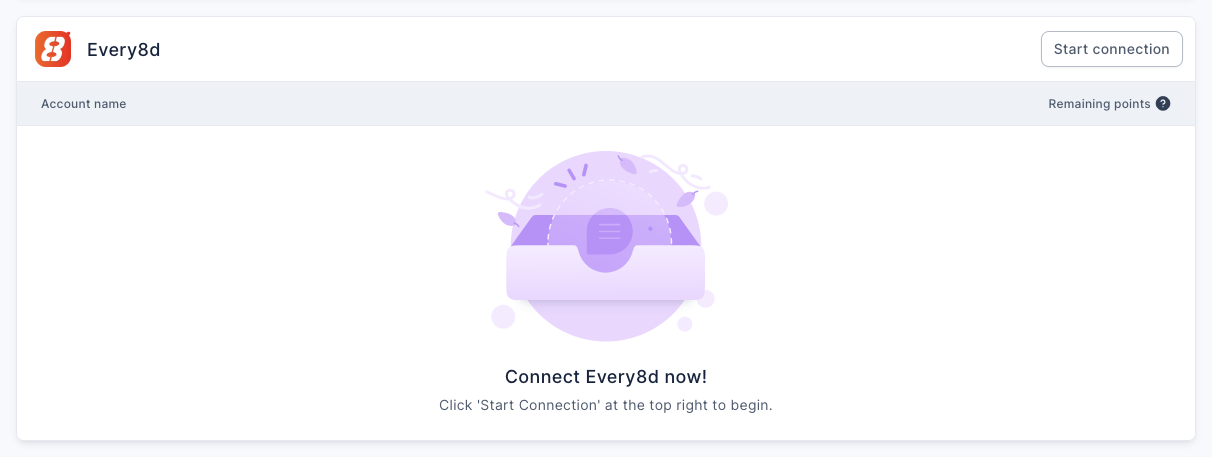
The screenshot below shows the Every8d section before connecting: Start connection is at the top right, the table columns are Account name and Remaining points, and the middle says "Connect Every8d now!".
Connect Every8d
- In the Every8d section, click Start connection to open the Connect SMS page.
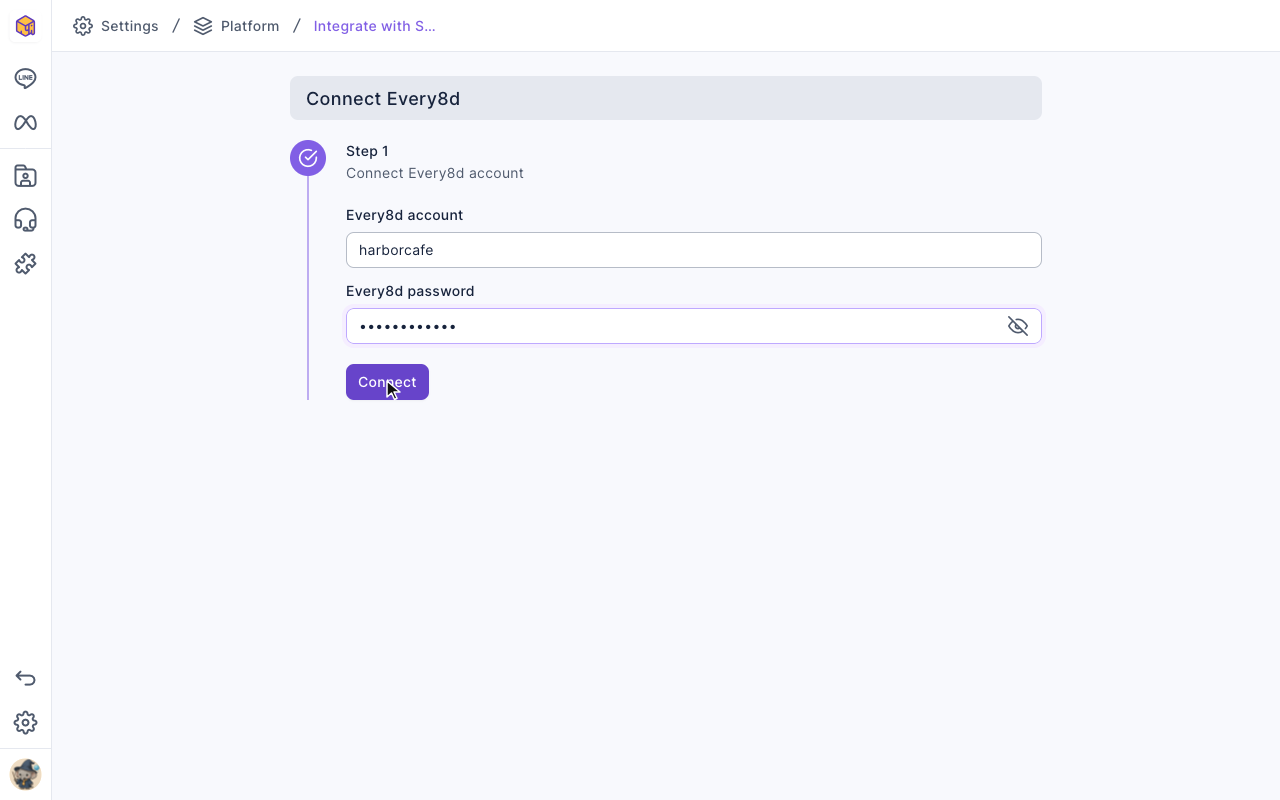
- Under Connect Every8d account, enter the Every8d account and Every8d password (the eye icon in the password field shows the password).
- Click Connect. The system checks the account and password with Every8d; when it succeeds you'll see Successfully connected Every8d.
- Click Back to platform. The Every8d section now shows the account and its remaining points.
The animation below clicks Start connection in the Every8d section, then types a demo account and password on the connection page, with the pointer resting on Connect. (The demo doesn't click Connect.)
The screenshot below shows the connection page with the account and password filled in.
After connecting
Once connected, the Every8d table lists the account and its remaining points. Click the row to open the account details on the right:
| Item | Details |
|---|---|
| Remaining points | The Every8d account's current points; sending SMS uses points, so top up at Every8d when you run low |
| Connection status | Correct means the account and password are valid; Error usually means the Every8d password was changed |
| Change password | After changing the password at Every8d, enter the new Every8D password here |
| Disconnect | Choose Disconnect from "⋯"; afterwards you can't send SMS with this account |
Once connected, go to Create SMS templates to prepare what you'll send.
Email alerts when points run low
Whenever OakMega sends a text, it also checks the remaining points Every8d reports back. When points run short, it automatically emails the workspace Owners (each in the language set on their own account) as a reminder to top up in Every8d:
| Situation | When the email is sent |
|---|---|
| Remaining points drop below 100 | Once, on the send that takes the balance from 100 or more to below 100 |
| Points are used up and texts fail to send | Checked on every failed send; at most one email per account per hour |
Regular members don't get this email. To have the colleague who handles SMS receive it too, make them an Owner; see Manage members and permissions.
How it works
- OakMega sends on your Every8d account. SMS charges and points are counted at Every8d; OakMega only shows the remaining points.
- The password follows Every8d. If you change the password at Every8d, the connection in OakMega stops working. The account details show Incorrect password and a Change password button; sending resumes once you update it.
- Disconnecting only affects OakMega. The Every8d account and its points aren't deleted, and you can connect it again later.
FAQ
Incorrect account or password
The Every8d account or password is wrong. Check it at Every8d and enter it again, minding upper and lower case.
This Every8d account is already connected to another workspace
An Every8d account can be connected to only one workspace. Disconnect it in the other workspace first, or use a different Every8d account.
You have already connected Every8d!
This workspace already has an Every8d account connected; "Each workspace can only connect 1 Every8d account." To switch accounts, disconnect the current one on the platform page first.