
By the end of this article you'll be able to create folders to organize your tags, add strength or expiry tags, and move or delete tags you no longer use.
Before you start
- You need Editable permission for Tag Management. People with view-only permission see No Edit Permission on the page.
- Tags are applied to OakMega Members, so every communication platform shares the same set of tags. See "Tag" and "OakMega Member" in the glossary.
- Tag Management is available on every plan, but the Free plan has limits:
| Item | Free plan | Pro and Enterprise plans |
|---|---|---|
| Number of tags | Up to 10; the page shows your Tag Quota | No limit |
| Creating folders | Not available; only the default folder | Available |
| Batch Import of tags from CSV | Not available | Available |
When you hit a limit you'll see "You've discovered a new feature!", and you'll need to upgrade your plan to continue.
The Tag Management page
In the navigation bar, click Member & Tag and choose Tag Management.
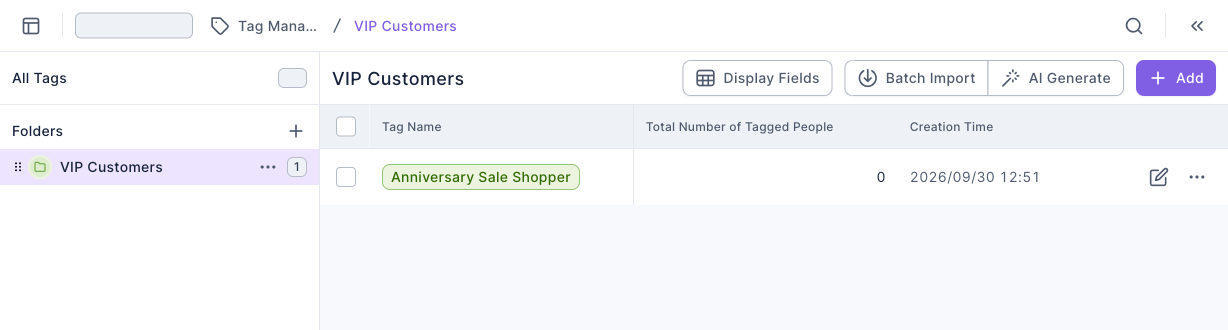
The screenshot below shows the Tag Management page. On the left are All Tags and the Folders list; clicking a folder shows only the tags in it. On the right is the tag list, with Tag Name, Total Number of Tagged People and Creation Time. Each row has an edit (pencil) button and a "⋯" button on the right. In the top-right corner are Display Fields, Batch Import, AI Generate and Add.
Create a folder
Folders group your tags and also control whether general members can change the tags inside.
- Click "+" next to Folders on the left.
- Enter a Folder Name (up to 30 characters).
- Choose a Folder Color. Tags in this folder are shown in this color.
- If needed, set Edit Management Permission and Manual Adjustment Permission under General Member Permission Management (explained in "How it works" below).
- Click Confirm. The new folder appears in the list on the left.
The animation below creates a folder. It clicks "+" next to Folders, enters the name "VIP Customers", picks "Green" as the folder color and clicks Confirm. The new folder appears in the list on the left.
Create a tag
- Click Add in the top-right corner.
- Enter a Tag Name (up to 100 characters).
- Under Select Folder, choose the folder it belongs to.
- Choose a Tag Type: Strength Tag or Expiry Tag. For an expiry tag, also set the Expiry Time: up to 731 days, and 1–23 hours.
- Click Add. When Created successfully appears, the tag shows up in the list.
The animation below creates a strength tag in the "VIP Customers" folder. It clicks Add, enters the tag name "Anniversary Sale Shopper", selects the "VIP Customers" folder, keeps "Strength Tag" as the type and clicks Add. The tag then appears in the list.
To create many tags at once, use Batch Import to upload a CSV file (names that already exist are skipped), or AI Generate to describe the tags you want and let AI suggest them.
Move, edit and delete tags
The pencil on each row edits the tag. The "⋯" menu has Move, Download Tag Record (up to 10,000 entries), Download Member Data and Delete.
To delete a tag:
- On the tag's row, click "⋯" and choose Delete.
- The confirmation dialog shows "Are you sure you want to delete the tag '…'?" and "All content will be deleted."
- Click Confirm. Deleted successfully appears.
The animation below deletes the "Anniversary Sale Shopper" tag created above. It clicks "⋯", chooses Delete, and clicks Confirm in the dialog, leaving the list empty.
Deleting a folder works the same way: hover over the folder on the left, click "⋯" and choose Delete. The dialog warns "Items within the folder will also be deleted." After you click Delete, the folder and every tag in it are removed. Deletion can't be undone in the dashboard, so make sure the tags aren't in use first.
How it works
Strength tags and expiry tags
The difference is whether a tag stops applying on its own after it's been applied:
| Tag type | Behavior | Good for |
|---|---|---|
| Strength Tag | Stays in effect once applied and records a strength that can be adjusted manually | Long-term attributes or interests, such as membership tier or preferred product category |
| Expiry Tag | Stops applying once its Expiry Time has passed | Short-term behavior, such as "clicked the offer link in the last 7 days" or "joined this week's event" |
General Member Permission Management
Each folder decides separately what general members (members who aren't workspace admins) can do:
| Setting | When granted | When not granted |
|---|---|---|
| Edit Management Permission | General members can add, edit, delete and move the folder and its tags | The folder shows a "not granted" symbol, and general members can only view it |
| Manual Adjustment Permission | General members can use the folder's tags to manually apply, delete and adjust the strength of tags on members | The tags show a "not granted" symbol, and general members can't adjust them manually |
A good pattern is to open up tags everyone uses, such as campaign tags, and lock tags managed by the system or by managers, such as VIP tiers.
FAQ
Item name duplicate
A tag or folder with the same name already exists. Choose a different name and try again.
You've discovered a new feature!
You're on the Free plan and already have 10 tags, or you tried to create a folder or batch import from CSV. Delete tags you don't need, or upgrade your plan.
To edit tags within this folder, please notify the owner to grant editing management permissions.
This folder doesn't grant Edit Management Permission to general members. Ask a workspace admin to edit the folder and turn that permission on.