
By the end of this article you'll be able to find the conversations you need to handle in Service Center, reply to members, mark conversations as in process or resolved, and close the service when you're done.
Before you start
- You must be an agent to use Service Center; otherwise the screen says your account hasn't been added as an agent. Ask a workspace admin to add you, as described in Get started with Service Center: add agents and organizations.
- What you can do in a conversation depends on your role permissions (see "Permissions" below).
The Service Center screen
In the navigation bar, click Service Center and choose Service Center.
Service Center has three columns: the conversation list on the left, the chat room in the middle and Member Data on the right.
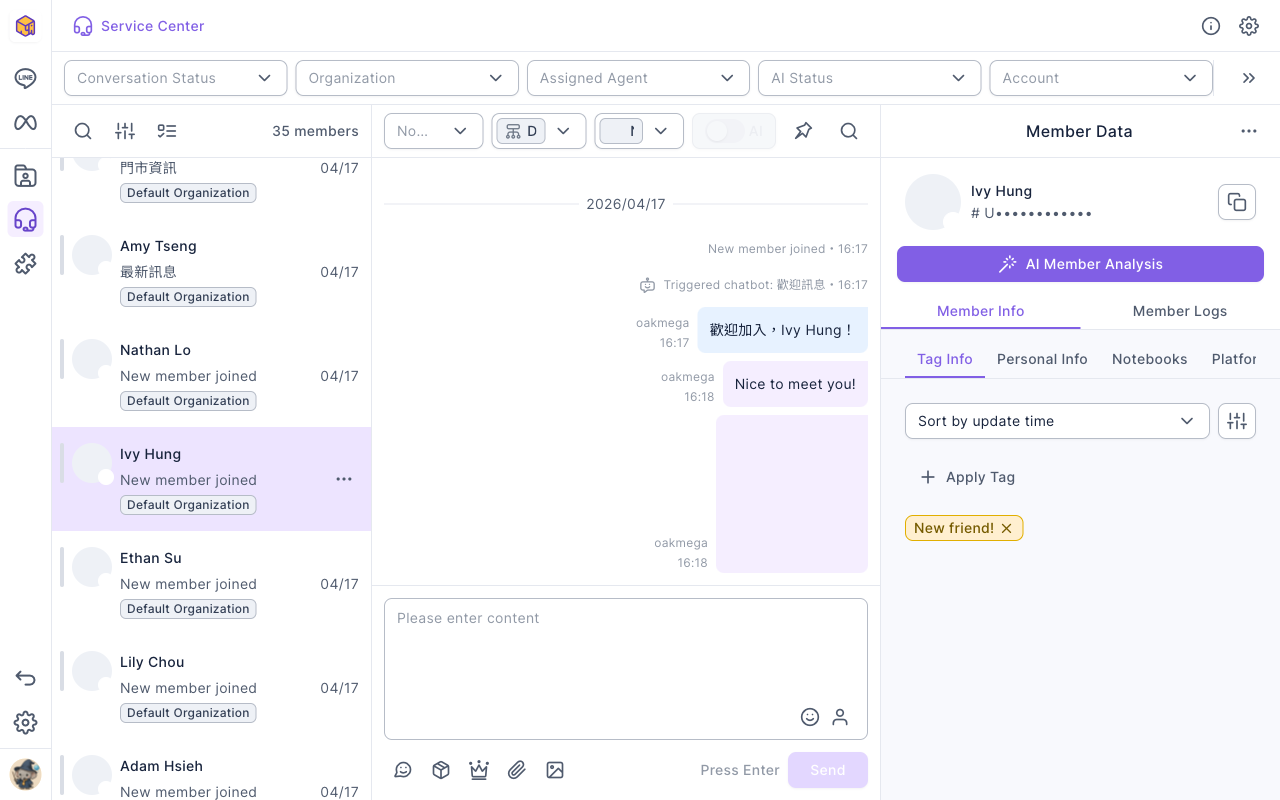
- Conversation list (left): each row is a member, showing the latest message, time, organization and a status icon, with the member count at the top. Click a row to open its chat room. Hover over a row and use "⋯" to Pin it to the top.
- Chat room (middle): at the top you can change the conversation status, organization and assigned agent, switch AI replies, and search messages in this conversation; the message box is at the bottom.
- Member Data (right): see the member's tags, personal info, notebooks and platforms, and Apply Tag directly; Member History lists the member's interactions.
Find the conversation you need
- Filters at the top: narrow the list by Conversation Status, Organization, Assigned Agent, AI Status and Account, for example only "Open" conversations assigned to "Me".
- Search: click the magnifier at the top-left of the list, choose a Search items option and type at least two characters. You can search by:
| Search item | Finds |
|---|---|
| Member Name | The member's name on the platform |
| LINE Member Message / LINE Agent Reply (also for Facebook, Instagram, WhatsApp) | Text the member sent, or text an agent replied |
| LINE User ID, Facebook PSID, Instagram IGSID | The member's ID on each platform |
- Advanced filter: the button next to search filters by more conditions. Search and advanced filters can't be used together: starting a search cancels the filter, and vice versa.
Read and unread
- Opening a conversation marks it as read.
- If you've looked at it but want to come back later, hover over the conversation in the list, click "⋯" and choose Mark as unread.
- Read status is shared across the whole workspace: once one agent opens a conversation, it shows as read for every other agent too. To make sure a colleague notices a conversation, use Mark as unread or assign an agent rather than relying on unread alone.
Reply to a message
- Click the conversation on the left.
- Type your message in the box at the bottom of the chat room.
- Click Send, or press Enter.
The animation below types a reply in the message box and moves the cursor to Send (the demo doesn't actually send it).
The buttons below the message box send other kinds of messages:
| Button | Sends |
|---|---|
| Sticker | A LINE sticker |
| Template | A message template from Template Management; see Create LINE message templates |
| Module | An OakMega interactive module such as a lottery |
| Upload file | A file as an attachment |
| Upload image / video / audio | An image, video or audio clip; you can also drag files straight into the chat room or paste them into the message box |
Formats and limits vary by platform. If the member has blocked your LINE Official Account, the chat room shows Member blocked or cannot send messages and you can't reply.
Reply to a specific message
Added in 2.38.1.1 (2026/10/01).
When a member asks several things at once, you can reply to one particular message, and they'll see which message you're answering in LINE, Messenger and other platforms.
- Move the pointer over the message you want to answer in the chat room; a Reply button appears next to it.
- Click Reply. A preview of that message (sender and content) appears above the message box.
- Type your reply and send it. To stop replying to that message, click "✕" on the right of the preview.
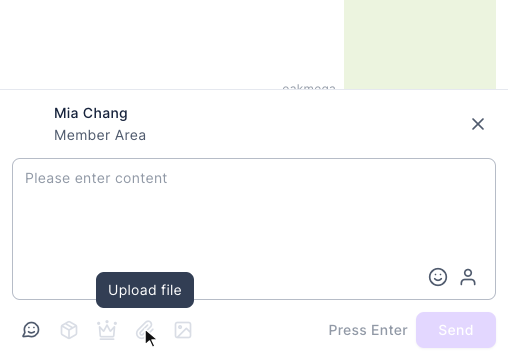
The animation below moves the pointer over the member's message "Member Area", clicks Reply, and a preview of the message appears above the message box. The pointer then moves to Upload file, which is disabled while replying to a LINE message.
When replying to a LINE message, you can only send text and stickers. Template, Module, Upload file and Upload image / video / audio turn gray, and you can't drag files into the chat room or paste them into the message box. To send those formats, click "✕" on the preview to cancel the reply first, then send normally. Facebook, Instagram and WhatsApp don't have this limit.
The screenshot below shows the message box while replying to a LINE message: the preview of the message being answered is on top, and below it only the sticker button on the far left can be clicked; the other buttons are gray.
Some messages can't be replied to, for example when the platform doesn't provide a message ID that can be quoted. Hovering over the button then shows Cannot reply to this message.
Change the status, organization and agent
The three dropdowns at the top of the chat room are the conversation status, organization and assigned agent. Click the status to see the options:
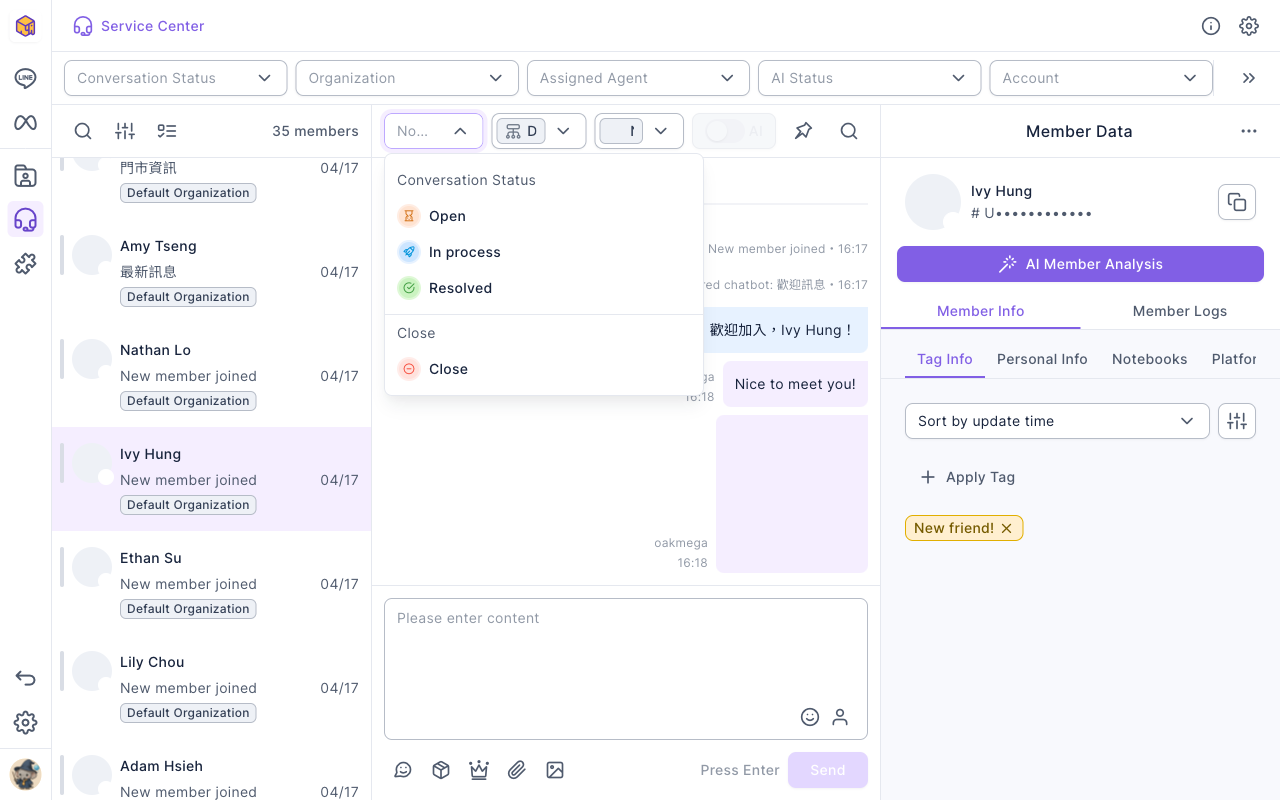
| Status | Meaning |
|---|---|
| Non-service conversation | Not in the service flow, for example not yet transferred to an agent |
| Open | Waiting for an agent to reply |
| In process | An agent is working on it |
| Resolved | This issue has been handled |
| Close | Closes this service; the conversation goes back to Non-service conversation |
- Organization: hand the conversation over to another organization.
- Assigned agent: choose who's responsible; choosing No assigned agent removes the assignment.
- After a change you'll see Change successful, and a record of the change appears in the chat room.
- Resolved conversations can be closed automatically; see Automatically close resolved conversations.
AI replies
When the organization has AI customer service turned on, the AI switch at the top of the chat room is on and the message box says AI is taking over replies. To reply yourself, click Disable AI and confirm Are you sure you want to disable AI replies?. The AI stops replying in this conversation; if you turn it back on, it only resumes after the member sends another message.
Handle several members at once
Click the Batch select button above the list to select several members:
- Select change items: change the conversation status, organization or assigned agent in one go, then click Change and exit. To batch-change the assigned agent, first filter to a single organization.
- Batch Send Message: send one message to the selected LINE members, up to 100.
- You can select up to 2000 members at a time; above that, select fewer or narrow the filters.
Permissions
What you can do in each conversation depends on your role and whether the conversation is Assigned to me, Assigned to others or Unassigned, set separately for your joined organization and other organizations. Click ⓘ in the top-right to see My Agent Information. Permissions a role can have:
| Permission | Allows |
|---|---|
| View Conversation | Seeing the conversation |
| Send Text Message, Send Sticker Message, Send Image / Video / Audio, Send File, Send Template, Send Module | Sending that kind of message; without permission the button says you have no permission |
| Change Conversation Status, Close Service | Switching the status, or closing the service |
| Change to My Organization, Change to Other Organization | Moving the conversation to your organization or another one |
| Change Responsible Member | Assigning or removing the agent |
How it works
- Why statuses? Statuses show the team at a glance which conversations still need a reply, which are in progress and which are done. The Service Center Data Center counts by status too; see Read the Service Center Data Center.
- Statuses don't change on their own by default. By default, agent replies and new member messages keep the current status; organizations can set automatic changes (for example, back to Open when a member replies to a Resolved conversation). See Get started with Service Center: add agents and organizations.
- Closing keeps the conversation. Closing only returns the conversation to non-service; the message history stays, and the member enters the service flow again next time they need help.
FAQ
Service Center says my account hasn't been added as an agent
Ask a workspace admin to add you as an agent in Service Center settings and assign a role and organization.
A button says "No text sending permission"
Your role isn't allowed to send text in this kind of conversation. Ask an admin to adjust your role, or to assign the conversation to you.
I can't find a member in the list
Check whether the filters at the top are narrowing the list. When searching, type at least two characters and choose the right search item.