
By the end of this article you'll be able to save the content you send by SMS (a campaign notice, a pickup reminder) as SMS templates, keep them tidy in folders, and pick them whenever you send an SMS.
Before you start
- You need the Pro plan or above.
- You need Template Management permission in the SMS section. View Only lets you browse and preview. To create, edit, duplicate, move or delete you need Editable; otherwise the button shows "No Edit Permission".
- SMS templates and LINE message templates are two separate lists. For LINE templates, see Create LINE message templates.
Get to know SMS Template Management
In the navigation bar, click Advanced Features and choose Template Management under SMS. The badge at the top-left of the page says SMS, so you can tell you're not in LINE's Template Management.
The screenshot below shows the SMS Template Management page. On the left are All Templates and the Folder List, with the number of templates next to each folder. On the right are the templates in the current folder: each row has Template Name, Template Preview and Creation Time, with edit (pencil) and "⋯" buttons at the end.
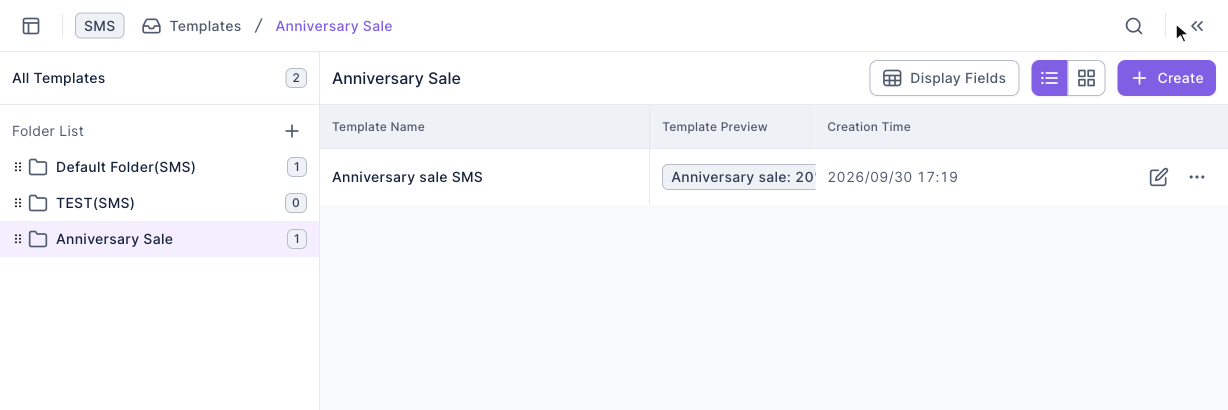
Folders work just like LINE templates: click "+" next to Folder List, enter a Folder name (up to 30 characters) and click Confirm. Deleting a folder also deletes the templates in it.
Create an SMS template
- Click the folder you want on the left, then click Create in the top-right. If All Templates is selected, you'll be asked to Select Folder first.
- Under Basic Settings, enter a Template Name (up to 100 characters).
- In the Message section, click Text. It's the only message type for SMS templates.
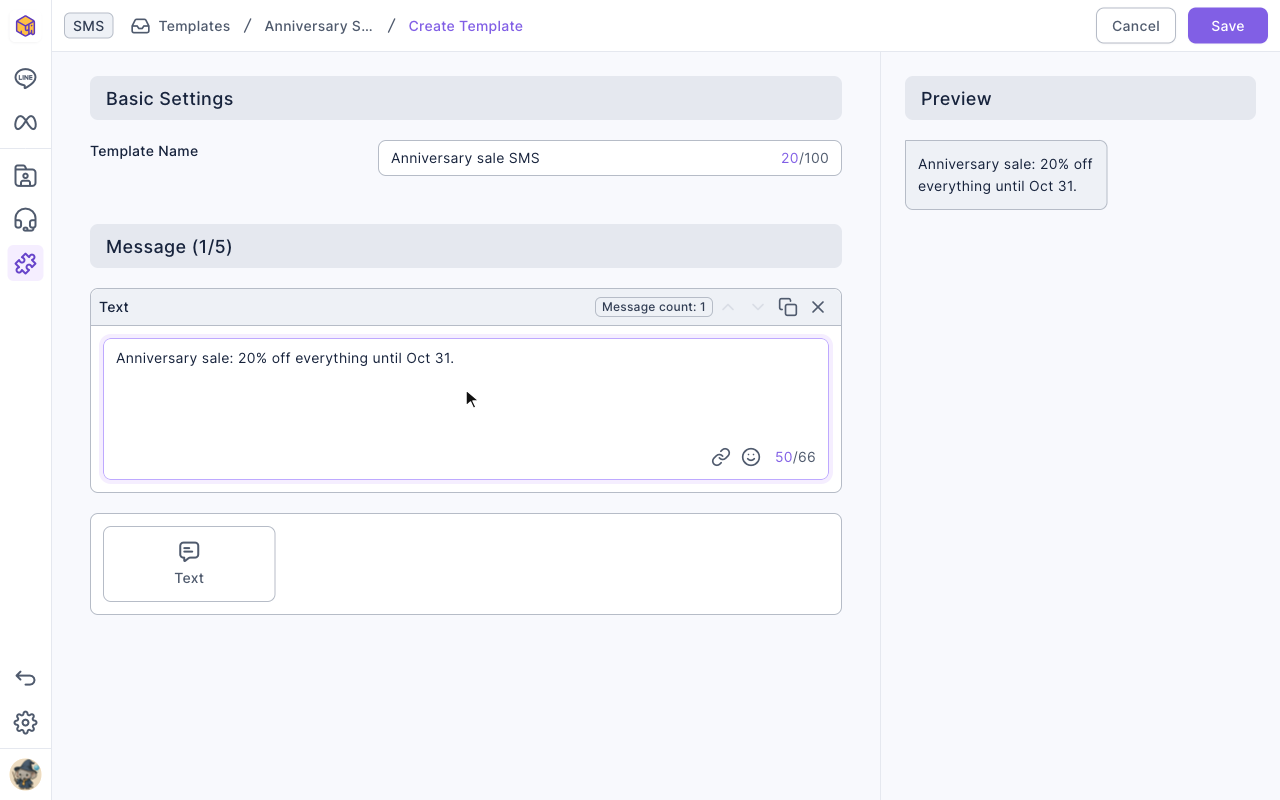
- Type the SMS content, up to 66 characters per message. Preview on the right updates as you type.
- Click Text again to add another message if you need to. A template holds up to 5 messages.
- Click Save in the top-right. You'll see "Created successfully" and return to the folder.
The animation below clicks Create in the "Anniversary Sale" folder, enters the template name "Anniversary sale SMS", then clicks Text to add a message.
Next it types the SMS content, the same text appears in the preview on the right, and it clicks Save. Back in the folder, the new template is in the list.
The screenshot below shows the edit page filled in but not yet saved. Message (1/5) contains one text message, and the character counter at the bottom-right shows "/66". Below it, Text is the only type you can add, and the preview on the right shows the SMS.
Duplicate, move and delete SMS templates
Click "⋯" at the end of a template's row to Duplicate it (a copy in the same folder with "(Copy)" added to the name), Move it to another folder, or Delete it. Deleting asks "Are you sure you want to delete "template name"?"; click Delete to confirm. To change the content, click the pencil at the end of the row, edit, then click Save.
The animation below clicks "⋯" on "Anniversary sale SMS", chooses Delete and confirms with Delete; the template disappears from the list.
SMS templates vs. LINE message templates
Both kinds are managed the same way. They differ in what they can hold and where they're used:
| SMS templates | LINE message templates | |
|---|---|---|
| Location | Advanced Features › SMS › Template Management | LINE › Template Management |
| Message types | Text only | 13 types, including text, image, video, flex message and carousel |
| Text limit per message | 66 characters | 500 characters |
| Messages per template | Up to 5 | Up to 5 |
| Permission | SMS › Template Management | LINE › Template Management |
| Where they're used | Features in the old dashboard such as member journeys (for example the "Send SMS message" step) | Post Article, Group Post and LINE Chatbot in the new dashboard |
Templates and folders aren't shared between the two: LINE templates don't show up in SMS Template Management, and vice versa.
How it works
- Each message is limited to 66 characters. An SMS can only hold so many characters, so the editor caps each text message at 66. For longer content, split it across several text messages instead of squeezing it into one.
- Nothing in the new dashboard references SMS templates yet. The SMS templates you create here are for features in the old dashboard, such as the "Send SMS message" step in member journeys. Deleting a template still warns "Deleting the template will affect features referencing this template.", so make sure no member journey is still using it before you delete.
- The edit page doesn't save automatically. If you leave without saving, you'll be asked "Confirm to leave create template?", and your edits won't be kept.
FAQ
Message content cannot be completely empty
The template has no messages yet, or the messages are empty. Add at least one text message with content, then click Save.
I can't type any more
Each text message holds up to 66 characters. Split the content into two text messages (a template holds up to 5), or shorten it.
No Edit Permission
Your SMS › Template Management permission is View Only. Ask a workspace admin to change it to Editable.