
After reading this article, you'll be able to install the OakMega SCRM AI Plugin in the Claude desktop app, sign in to your workspace, and ask the AI to put together data and reports for you just by chatting.
Before you start
The OakMega SCRM AI Plugin is an AI plugin made for Claude. Right now it provides AI data analysis; support for creating post content, campaign planning and more is on the way.
- It's currently a beta. The plugin does not change any of your data in the OakMega dashboard. It only reads and analyzes, so there's no risk of it altering your dashboard data.
- Get an API Key from your OakMega contact first. This API Key is different from the Open API Key. To start using the plugin, or if you have any questions, contact your OakMega representative.
- You need the Claude desktop app. The plugin runs in the Code mode of the Claude desktop app.
Install the plugin
Download and install the Claude desktop app: https://claude.com/download.
Open the Claude desktop app and switch to Code mode.
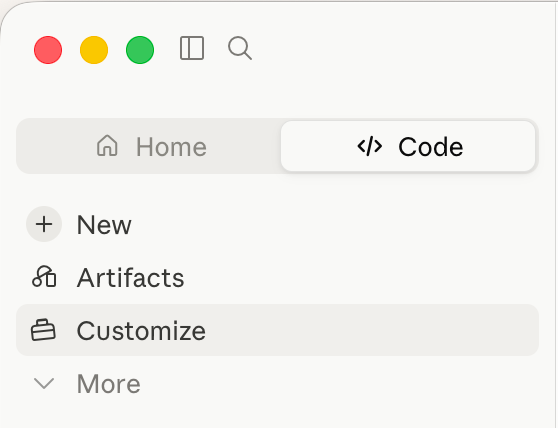
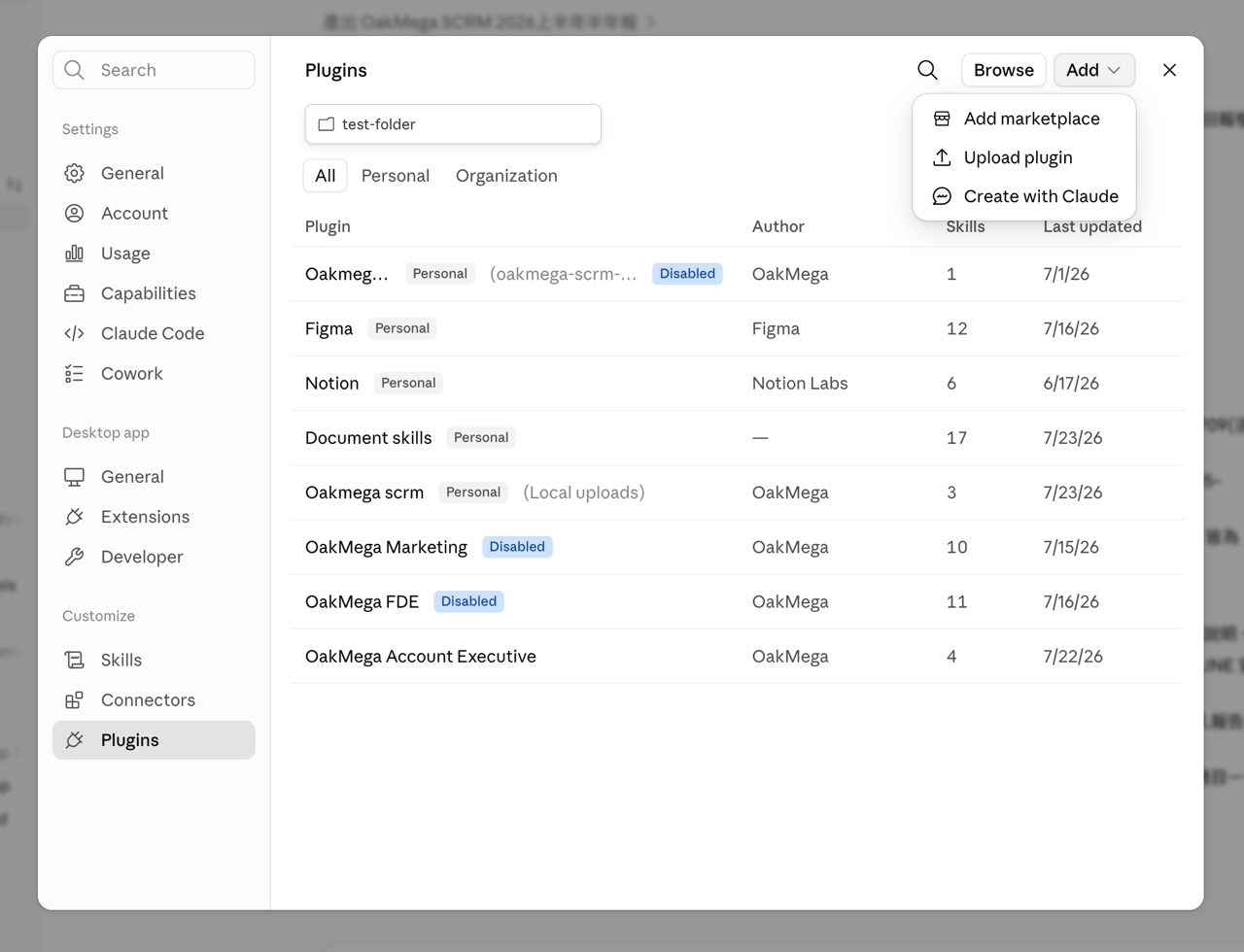
Open Customize, find Plugins at the bottom left, click Add at the top right, then click Add marketplace.
Paste
https://github.com/oakmega/OakMega-SCRM-AI-Pluginand select it.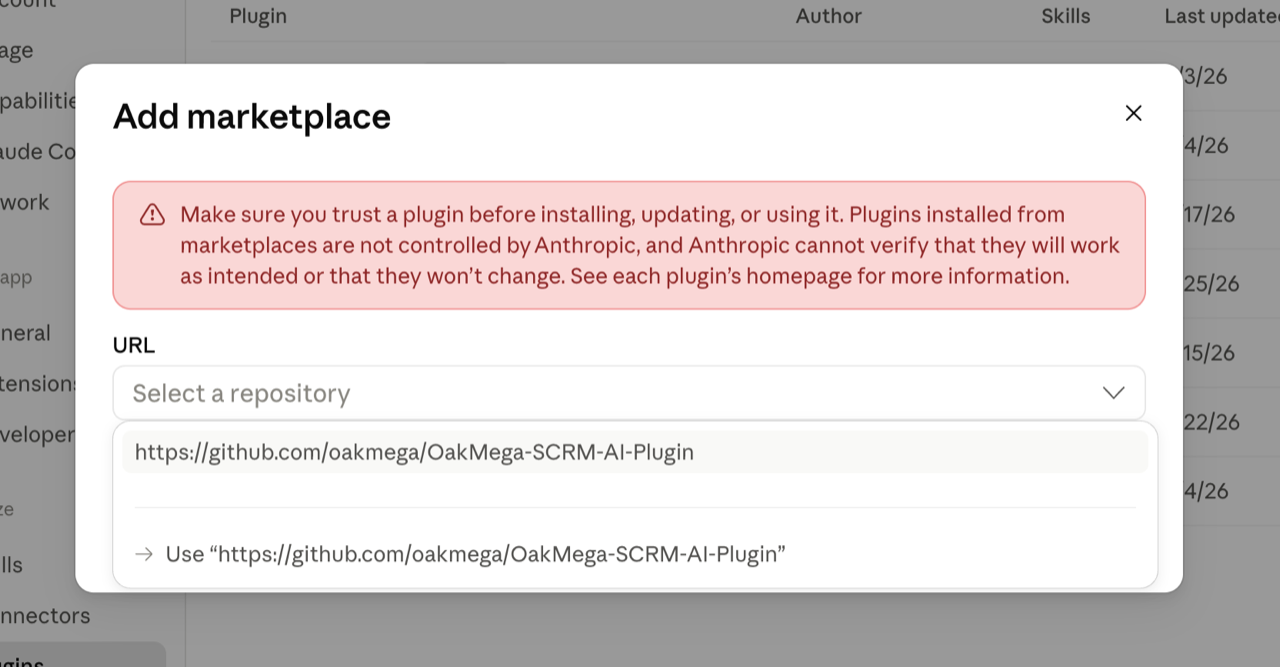
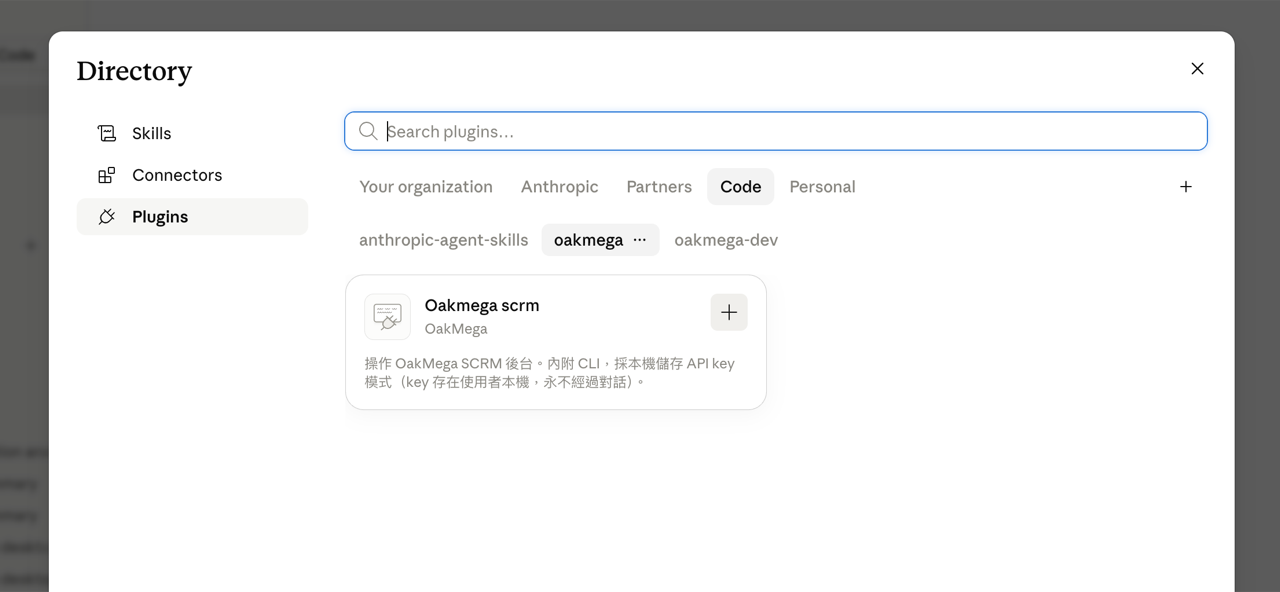
Find the plugin you just added and click + to install it.
Go back to the chat screen (make sure Code is selected at the top left), start a new conversation, type
/and find the oakmega-scrm command.
After the blue command text, type what you'd like to do and send it. For example:
/oakmega-scrm Create a QBR report for last quarter.
We recommend switching Accept Edit at the bottom left to Auto, so you don't have to approve every step the AI takes.


Sign in
The first time you use the plugin, Claude will guide you to open a web form. Fill in the three fields below and click 儲存設定 (Save settings). The form is currently shown in Chinese only.
| Field | What to enter |
|---|---|
| API key | The API Key provided by your OakMega contact |
| Workspace ID | Your workspace ID, a number. Open your workspace in the dashboard: the number right after the domain in your browser's link is the workspace ID |
| 別名 (Alias) | Optional. A name that's easy to recognize (such as the brand name), so you can just say it when switching workspaces |
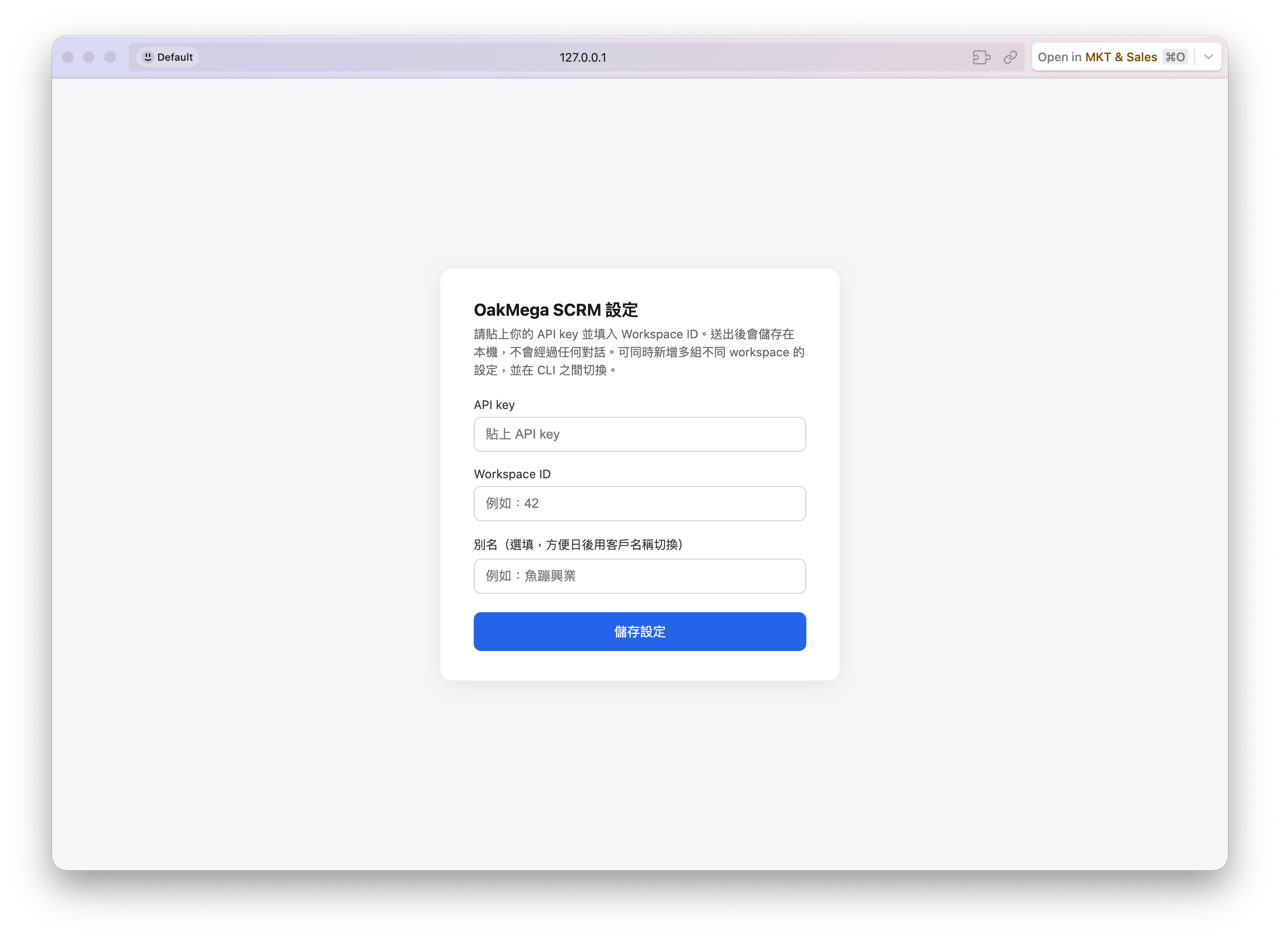
Enter your API Key only in this web form. It's stored on your own computer. Don't paste it into the chat.
Add or switch workspaces
- Add a workspace: If you work with several workspaces, just tell Claude "add another workspace" and it will walk you through signing in.
- Switch workspaces: Just tell Claude which workspace to switch to. You can use its alias.
- Name the workspace at the start of each conversation: If you've set up several workspaces, say which one you want to use every time you start a conversation, so the AI doesn't pick the wrong one.
What you can ask the AI to do
The plugin is still in development. If you're not sure whether it can do something, just ask Claude. Right now it can roughly do the following:
| Report | What it covers |
|---|---|
| QBR report | Friend growth and post analysis |
| Tag report | Member count growth and changes over a period for specific tags |
| Audience report | Filter an audience and look at its block rate and top tags |
A QBR report pulls from many data sources, so it's normal for it to run for more than 10 minutes.
About your API Key
- Your API Key is you. It represents your membership in this workspace and has exactly the same permissions you have in the dashboard.
- One API Key per workspace. To use several workspaces, you need a separate API Key for each one.
- Don't let anyone else use your API Key.
How it works
- Always start a conversation with the
/oakmega-scrmcommand. You don't need to type it again later in the same conversation. - The plugin does not start automatically just because your conversation mentions OakMega or related words. Use the command to call it.
- The plugin is a passive data access interface provided by OakMega: every access is started from your own Claude environment and runs only after you've authorized it.
FAQ
A folder picker appears after I send a message
Create an empty folder, select it and continue. Claude's Code mode needs to work inside a folder, and files it creates, such as reports, may be saved there.
Claude says Node.js or another package is missing
Just ask Claude in the chat to install it. Claude needs these packages to run code, and most computers don't have them by default. Once they're installed, everything works normally.