
By the end of this article you'll be able to have the AI connected to an organization reply first whenever a member is transferred to that organization, and you'll know how to disable AI when a person needs to take over.
Before you start
- You need an AI Agent to receive the messages. It can come from either of two places:
- Enter the AI Agent's Webhook URL and Secret directly in SCRM's Service Center Setting; see Set up an AI Agent below.
- Use OakMega's OakXgen: on the AI agent's Integrations tab in OakXgen, choose the SCRM account and the organization, and the settings here are filled in for you. See the OakXgen manual: SCRM integration: pick an account and it's connected (Chinese). Connecting to "All service center organizations" sets the Default AI Agent; connecting to a single organization sets a Specified Agent for that organization.
- Only workspace admins can open Service Center Setting. If you haven't created any organizations yet, start with Get started with Service Center: add agents and organizations.
- Requires custom-developed AI features (including connecting through OakXgen); it isn't included in every plan by default. If you haven't set this up yet, contact your OakMega project contact. Once it's set up, an organization's Automation tab has AI Agent Automation, and Service Center conversations have an AI switch.
How messages reach the AI
The diagram below shows the whole path from a member's message to the AI's reply: the conversation has to be transferred to Service Center and distributed to an organization, and the AI switch has to be on, before SCRM looks for that organization's AI.
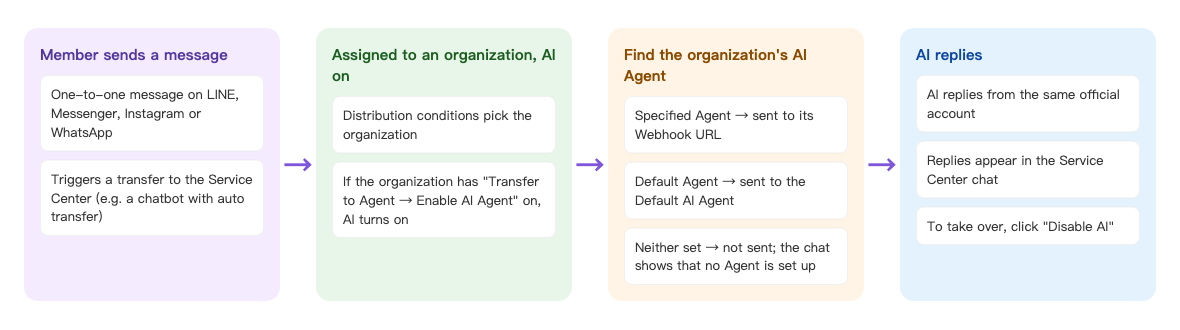
- A member sends a one-on-one message on LINE, Messenger, Instagram or WhatsApp, and the conversation is transferred to Service Center (for example by a chatbot's Service center transfer).
- The conversation is distributed to an organization based on distribute conditions. If that organization has Transfer to Agent → Enable AI Agent turned on, the AI switch for this conversation turns on automatically.
- SCRM checks the organization's AI Agent: with Specified Agent, the message goes to that agent's Webhook URL; with Default Agent, it goes to the Default AI Agent set in Service Center Setting. If neither is set, the message isn't sent to any AI.
- The AI replies to the member from the same official account, and the reply also appears in the Service Center conversation.
Ordinary messages aren't transferred to Service Center automatically. Without some kind of transfer, the conversation stays a Non-service conversation and the AI never receives it. To give members a way into Service Center, see "Give members a way to reach a person" in Your first week with Service Center.
Set up an AI Agent
An AI Agent is the service that receives members' messages and writes the replies. SCRM sends messages to it through a Webhook URL, and the Secret lets the agent confirm the messages really come from your workspace. You get both values from whoever provides the AI Agent (if you connect through OakXgen, they're filled in for you).
| Setting | Where | Used by |
|---|---|---|
| Default AI Agent | Service Center Setting › Organization › Default AI Agent | Every organization set to Default Agent (new organizations use this by default) |
| Specified Agent | Edit organization › Organization Info › AI Agent | Only that organization |
Set the default AI Agent
- In Service Center Setting, switch to the Organization tab.
- Under Default AI Agent ("The Agent used by default in organizations"), click Set. If none has been set yet, it says Default AI Agent not set.
- Enter the Webhook URL and Secret, click Confirm, and you'll see Edited successfully.
The screenshot below shows the Default AI Agent window. The Webhook URL must start with https and can be up to 300 characters. The Secret is masked as you type; click the eye icon on the right to show it. (The demo uses a sample URL and wasn't saved.)
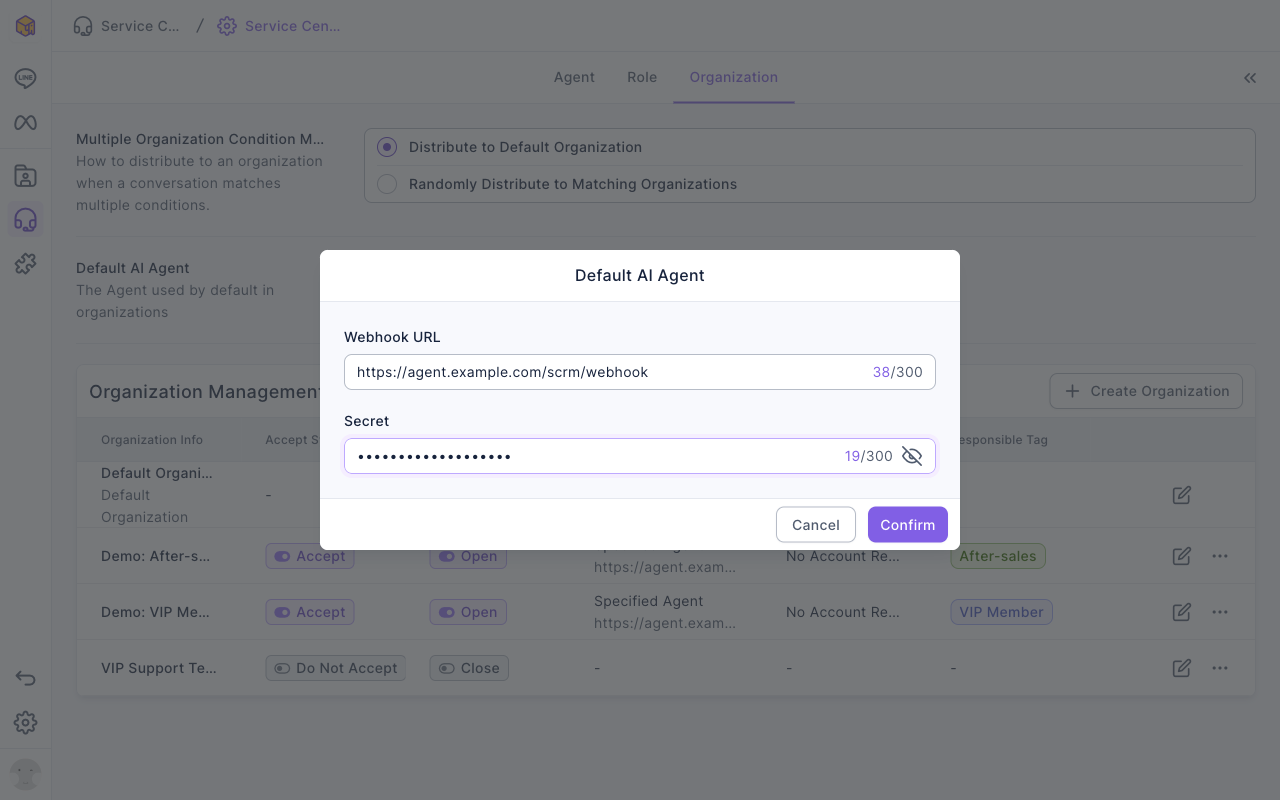
Once it's set, the same place shows the Webhook URL, which you can edit or delete. After deletion, organizations using the default AI Agent will no longer have an AI Agent, so AI in those organizations stops replying until you set one again.
Specify an AI Agent for an organization
When different organizations need different AIs (for example, one for after-sales and one for VIP), specify an Agent for the organization:
- On the Organization tab, click the edit (pencil) icon at the end of the organization's row and stay on the Organization Info tab.
- In the AI Agent section, check the Source: new organizations start with Default Agent. Click the edit icon on the right.
- In Edit AI Agent, choose Specified Agent ("Specify a different AI Agent."), enter the Webhook URL and Secret, and click Confirm.
- Click Save in the top-right of the page for the setting to take effect.
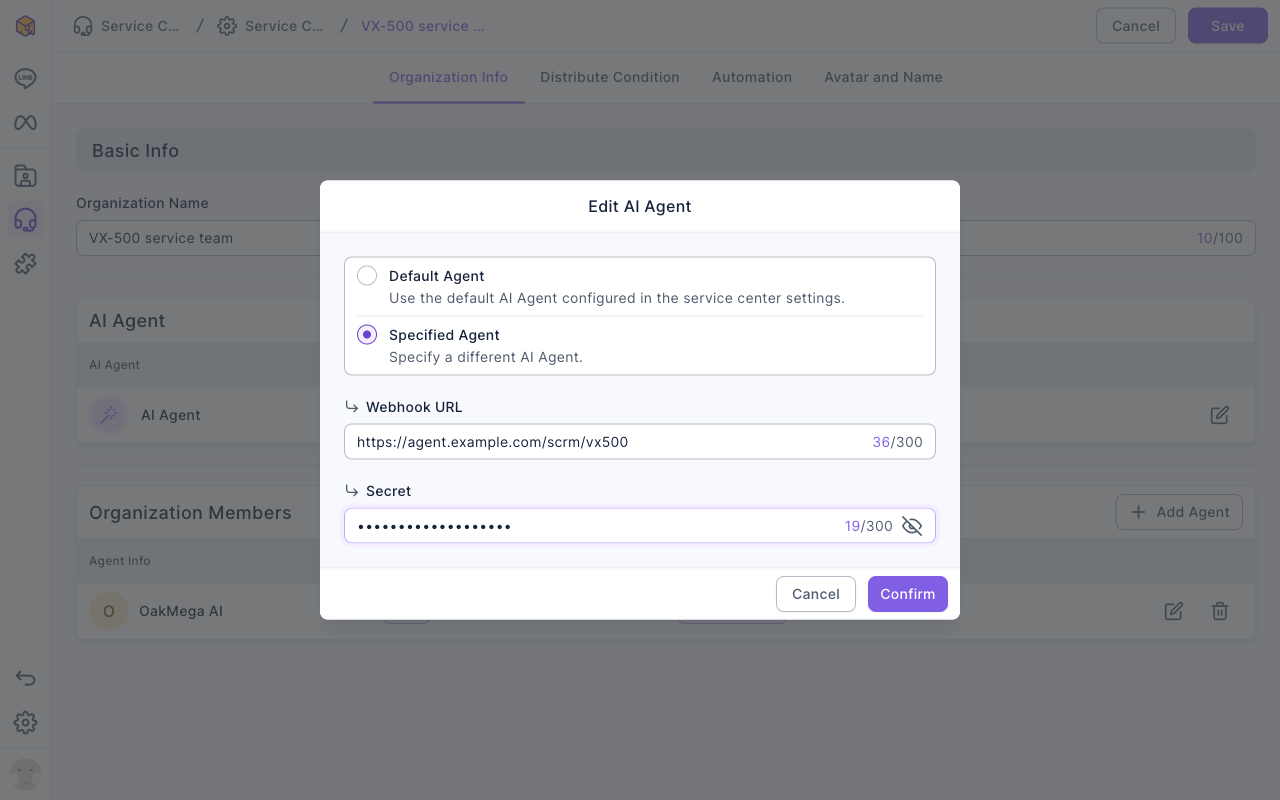
To go back to the shared AI, choose Default Agent ("Use the default AI Agent configured in the service center settings.") in the same window and save. The organization's own setting is deleted.
Once saved, the Secret is never shown again. If you only change other settings later, you can leave the Secret empty. But if you change the Webhook URL, you must enter the Secret again, so a new URL never reuses the old Secret.
Turn on AI for an organization
- In the navigation bar, click Service Center, choose Service Center, open Service Center Setting from the settings button in the top-right, and switch to the Organization tab.
- Under Organization Management, the Transfer to Agent → Enable AI Agent column shows whether the organization is Close or Open, and the AI Agent column shows whether it uses the default or a specified Agent.
- Click the edit (pencil) icon at the end of that organization's row and switch to the Automation tab.
- Under AI Agent Automation, turn on Transfer to Agent → Enable AI Agent ("Whether to enable AI Agent reply mode whenever a conversation is transferred to an agent.").
- Click Save in the top-right.
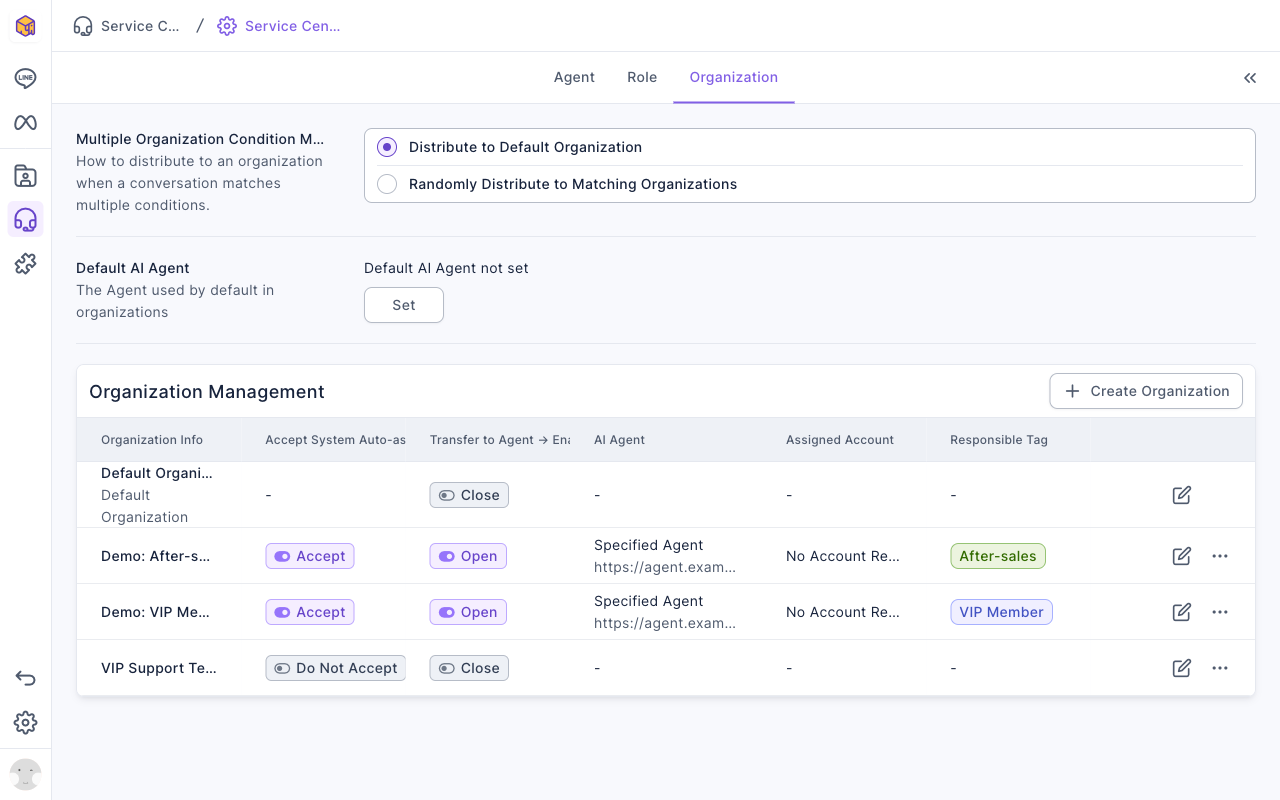
The screenshot below shows the Organization tab in a demo workspace: the Default AI Agent at the top hasn't been set yet. "Demo: After-sales" and "Demo: VIP Members" both accept system auto-assign, each is restricted to one responsible tag, show Open under Transfer to Agent → Enable AI Agent, and show Specified Agent with their own Webhook URL in the AI Agent column. The default organization and "VIP Support Team" don't have AI on.
The animation below turns on Transfer to Agent → Enable AI Agent on the Automation tab of "Demo: After-sales" and then clicks Save. In this demo, Close → Change Organization further down the tab is already set to Change to Default Organization and Remove Agent.
You don't have to change Close → Change Organization. We send conversations back to the default organization here because only conversations in the default organization are redistributed: the next time the member is transferred to Service Center, the system picks an organization again based on their tags at that moment. For the rules, see Understand how conversations are assigned to organizations and agents.
Get conversations into this organization
Once AI is on for an organization, conversations still need to be distributed to it. The most common setup is to turn on Accept System Automatic Distribution under Distribute Condition, use Assigned Tag so the organization only takes members with a specific tag, and make sure members have that tag before they're transferred to Service Center.
For example, a chatbot that runs when a member sends "Repair request" can Trigger Add Tag "After-sales" and turn on Service center transfer. Distribution sees the tag that was just added, so the conversation goes straight to the organization restricted to "After-sales". For the full setup, see One LINE Official Account, separate AI for after-sales and VIP.
See that AI has taken over
When a conversation is distributed to an organization with AI turned on, the Service Center conversation shows a few system messages: "Auto-assign organization: (organization name)", "Auto enable AI" and "Auto change status: Open". The AI switch at the top of the conversation is on, the message box is replaced by "AI is taking over replies", and the conversation is marked AI in the list.
The screenshot below shows the conversation after a member sent "VIP line": it went to "Demo: VIP Members", AI was enabled automatically, and the AI's reply was sent by OakXgen's system agent (here, oakxgen.ai).
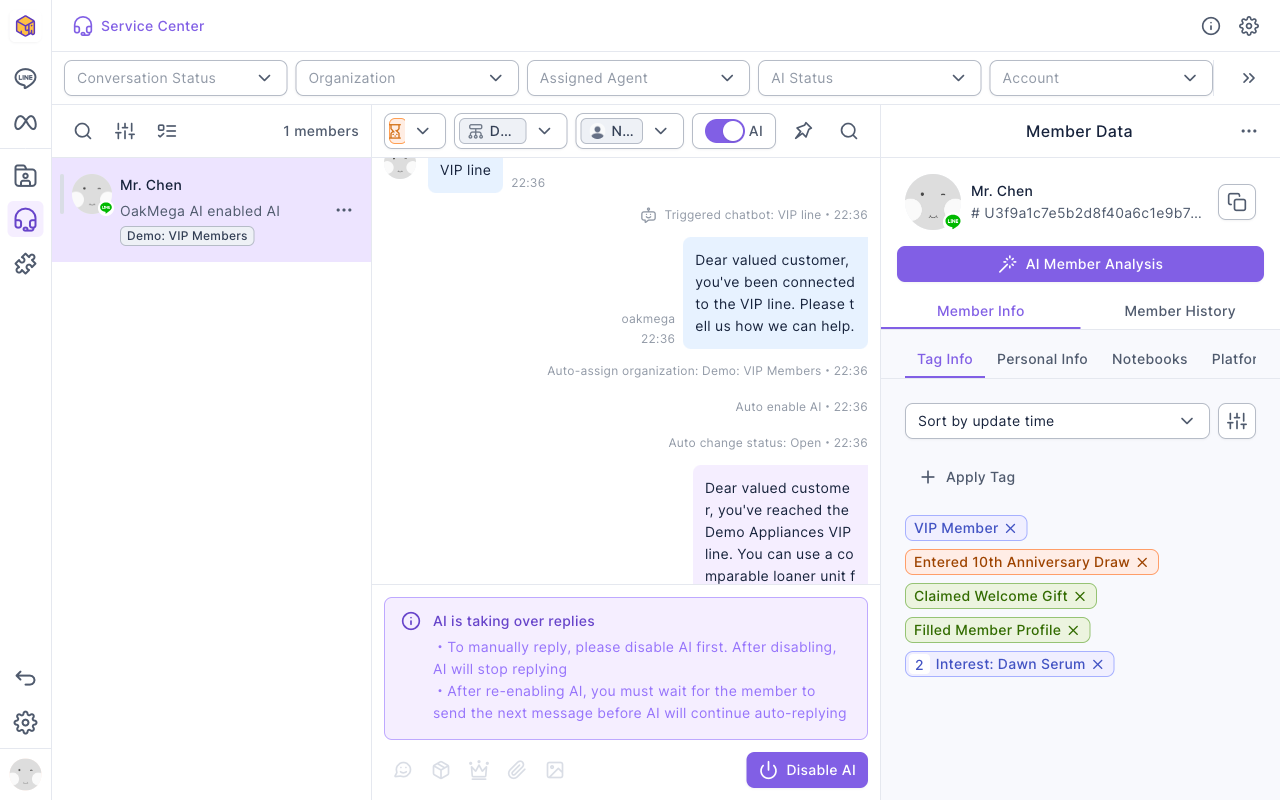
To see only conversations the AI is currently answering, filter AI Status above the list by AI enabled.
Let a person reply instead
While AI is on, the message box is replaced by the "AI is taking over replies" notice and agents can't type. To take over:
- Click Disable AI in the bottom-right of the conversation.
- The confirmation asks "Are you sure you want to disable AI replies?". Click Disable AI.
- The conversation shows "(agent name) disabled AI" and the message box comes back, so you can reply.
The screenshot below shows the conversation afterwards: the AI switch is off, the last system message is "OakMega AI disabled AI", and the message box below can be typed in.
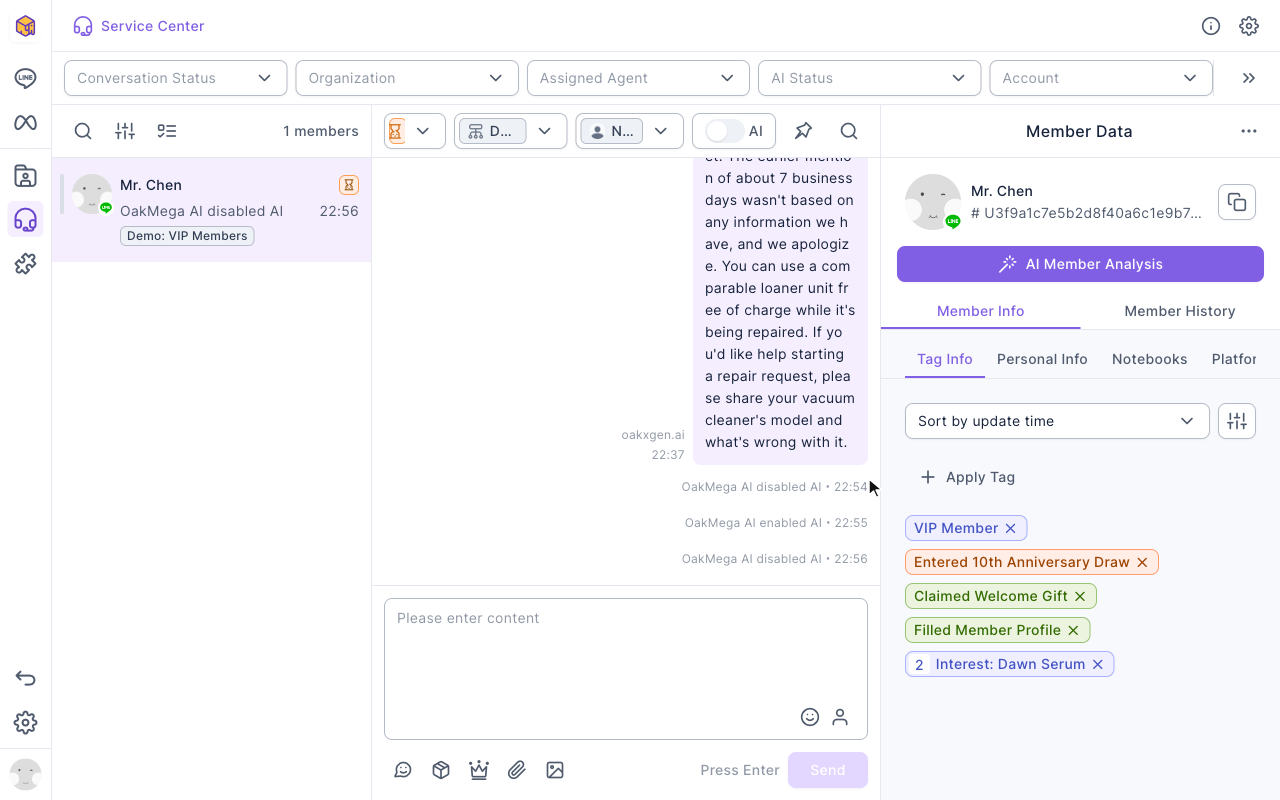
To hand the conversation back to the AI, turn on the AI switch at the top of the conversation. After you re-enable it, the AI doesn't reply right away; it continues only when the member sends their next message. In a non-service conversation the AI switch is gray and can't be turned on.
How it works
Which AI replies
SCRM picks an AI Agent based on the conversation's assigned organization:
| The assigned organization's AI Agent | Sent to |
|---|---|
| Specified Agent | That organization's Webhook URL |
| Default Agent, and a default AI Agent is set in Service Center Setting | The Default AI Agent |
| Default Agent, but no default AI Agent is set in Service Center Setting | Nothing is sent; the AI doesn't reply. The organization info shows "Default AI Agent not set" and the conversation shows "AI is on, but no Agent is set up" |
A conversation with no assigned organization is treated as being in the default organization. Each organization can use only one AI Agent at a time; one AI Agent can serve several organizations (all set to Default Agent, or all specifying the same Webhook URL).
When the AI gets messages or notices
The AI only receives conversations whose AI switch is on. The table below lists what the AI receives for each action in Service Center:
| What happens | AI switch | Which AI receives it |
|---|---|---|
| A member is transferred to Service Center and distributed to an organization with Transfer to Agent → Enable AI Agent on | Turns on automatically | The new organization's AI, along with the member's message |
| The conversation is already in service and the member sends another message | Unchanged | The assigned organization's AI, along with the last 10 messages |
| An agent turns AI on manually in the conversation | On | The assigned organization's AI gets a "start", but replies only after the member's next message |
| An agent clicks Disable AI, or the AI decides to hand off to a person | Off | The assigned organization's AI gets an "end" |
| An agent moves the conversation to another organization | Unchanged | The old organization's AI gets an "end" and the new organization's AI gets a "start" (only if AI was already on) |
| The service is closed (manually or automatically after Resolved) | Off | The previously assigned organization's AI gets an "end" |
A few things that are easy to get wrong:
- Transfer to Agent → Enable AI Agent only applies when a conversation goes from non-service to service. Moving it to another organization, or an agent manually changing the status to Open, doesn't turn AI on.
- A person replying doesn't turn AI off. But while AI is on, the message box is blocked, so in practice you have to click Disable AI first.
- AI stays on for resolved conversations. If the member writes again after the conversation is Resolved, the AI still replies; only closing the service turns AI off.
- The AI can see earlier messages. It receives the last 10 text, image, voice and file messages, including replies from people and from other AIs. So after the conversation changes organization and AI, the new AI may refer to something the previous AI said.
Differences between platforms
The AI agent works in one-on-one messages. Here's what each platform sends to the AI:
| Item | LINE | Facebook/Instagram/WhatsApp |
|---|---|---|
| One-on-one messages | Supported | Supported |
| Group conversations | Not supported (LINE group messages aren't sent to the AI) | Not applicable |
| Message types sent to the AI | Text, image, voice, file | Text, image, voice, file |
| Message types not sent to the AI | Sticker, video, location, etc. | Sticker, video, location, etc. |
FAQ
It's connected, but the AI doesn't reply
First check whether the organization's Transfer to Agent → Enable AI Agent is on, whether the conversation is in service, and whether the assigned organization is the right one. For a step-by-step check, see The AI agent isn't replying.
The member gets replies from both the chatbot and the AI
When a chatbot has Service center transfer on, it replies to the member's message and also passes that message to the AI, so the member gets two replies. Keep the chatbot's reply short, such as "We've connected you to after-sales service", and leave the detailed answer to the AI.
The conversation says "AI is on, but no Agent is set up"
The AI switch is on for this conversation, but its assigned organization has no AI Agent it can use: the organization is set to Default Agent and no default AI Agent is set in Service Center, or the default AI Agent was deleted. The AI won't reply to the member for now. Set a default AI Agent in Service Center Setting, or specify an Agent for this organization, and the AI starts replying. Until then, click Disable AI so a person can reply.
The organization's AI switch is still on after disconnecting or deleting the AI Agent
Disconnecting in OakXgen, or deleting the AI Agent in SCRM, only stops messages from being sent to that AI; it doesn't turn off the organization's Transfer to Agent → Enable AI Agent. If no other AI is taking over, turn it off so conversations don't look like they have an AI when nobody is actually replying.
I forgot the Secret
Once saved, the Secret is never shown again, and SCRM can't look it up. Get it again from whoever provides the AI Agent, enter it again in the same window and save.